Rubrik
Overview
Configuring a cloud source in Scope is a two-step process.
-
Creating a service account and generating the client credentials in the Rubrik Security Cloud portal. Please refer to Section 1 – Rubrik Setup.
-
Setting up the Rubrik cloud source in the Scope application. Please refer to Section 2 – Scope Setup.
Rubrik Setup
To get started, you need to obtain the following information from the Rubrik Security Cloud portal –
- Client ID
- Client Secret
- Base URL
Step 1: Create a Service Account and Generate Credentials
-
Log in to your Rubrik Security Cloud account.
-
Click the Square grid icon and select Settings.
-
In Settings, go to Users and Access -> Service Accounts.
-
In Service Accounts, Click Add Service Account.
-
Enter a Name & Description for the service account.
-
Click Next.
-
Assign a Role to the service account.
Note: Rubrik recommends using a role with the least privileges.
-
Click Add.
-
Rubrik Security Cloud creates the service account, then displays the client credentials and Access Token URI.
-
Copy and securely store the generated Client ID, Client Secret, and Access Token URI.
Note: The Client Secret is displayed only once and cannot be retrieved later.
-
Form the Base URL from the Access Token URI in the format
https://<account>.my.rubrik.com.For example, if the Access Token URI is
https://abc.my.rubrik.com/api/client_token, then form the Base URL ashttps://abc.my.rubrik.com.
The generated Client ID, Client Secret and the Base URL are to be configured in Scope Setup: Step 1 for initiating Rubrik log ingestion.
Scope Setup
Step 1: Rubrik Cloud Source Registration in the Scope Application
In the Scope application, to register a Rubrik cloud source, navigate to the cloud source registration page.
-
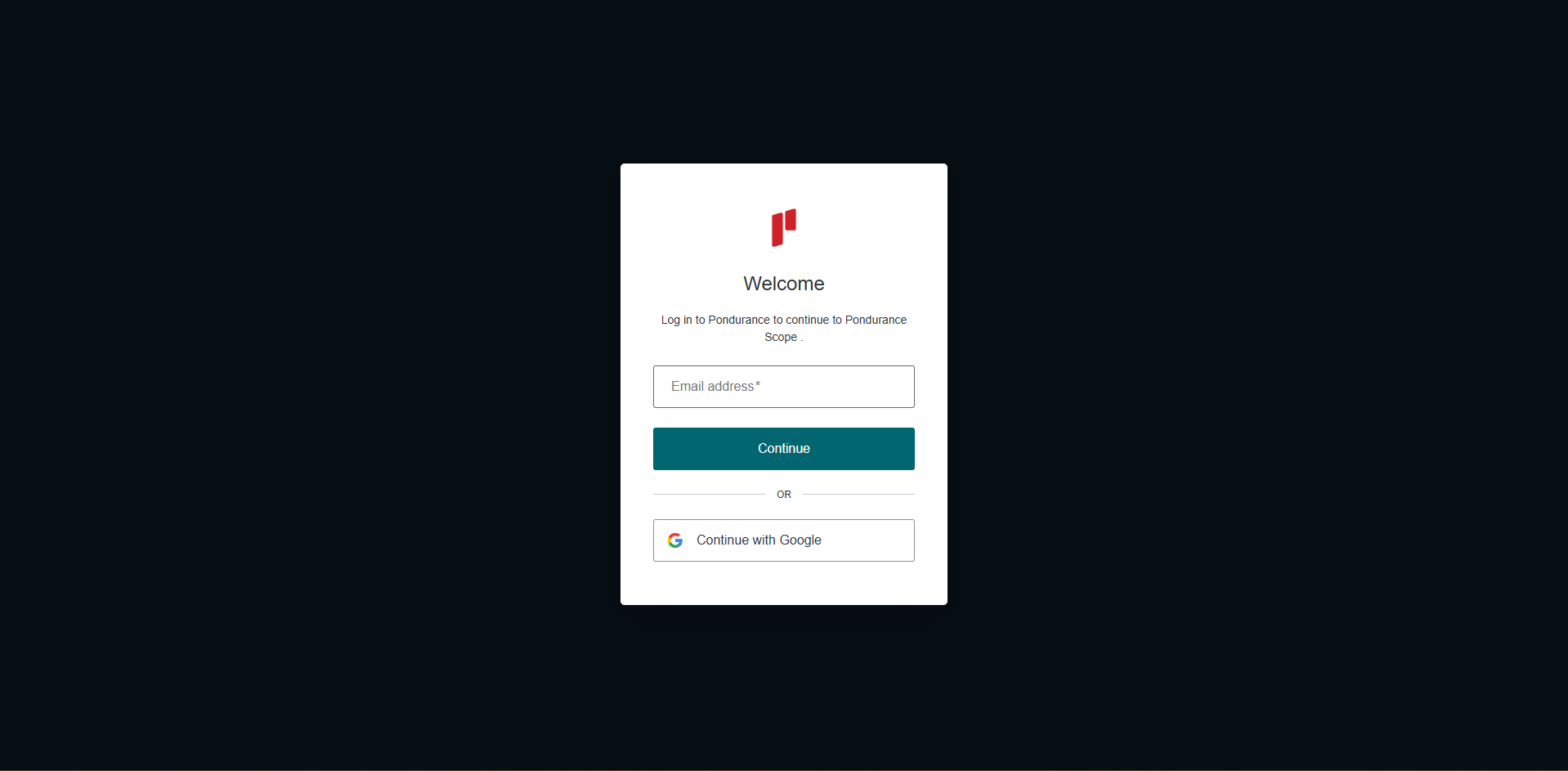
Log into the Scope application.
-
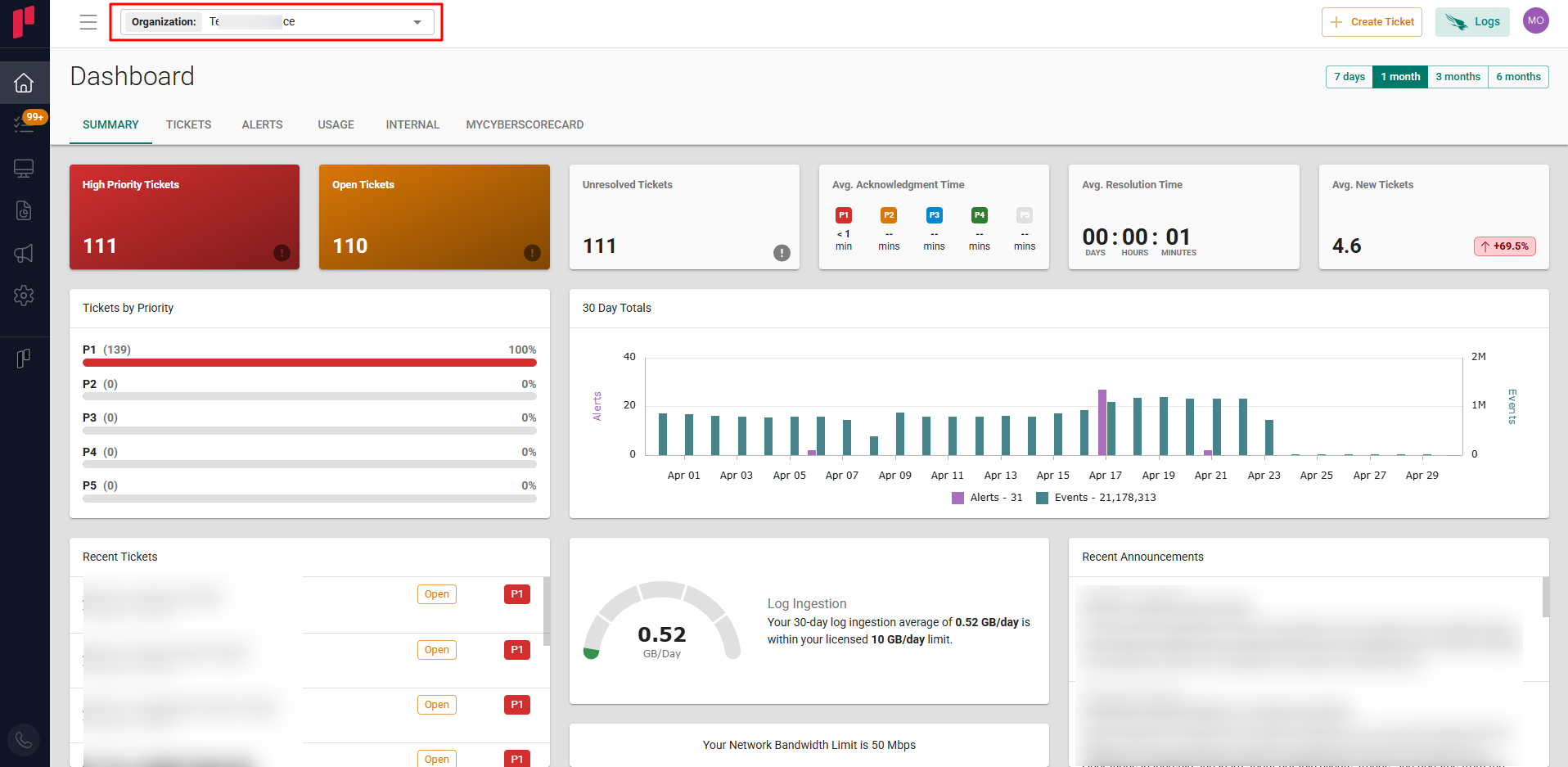
Select the required organization from the Organization dropdown.
-
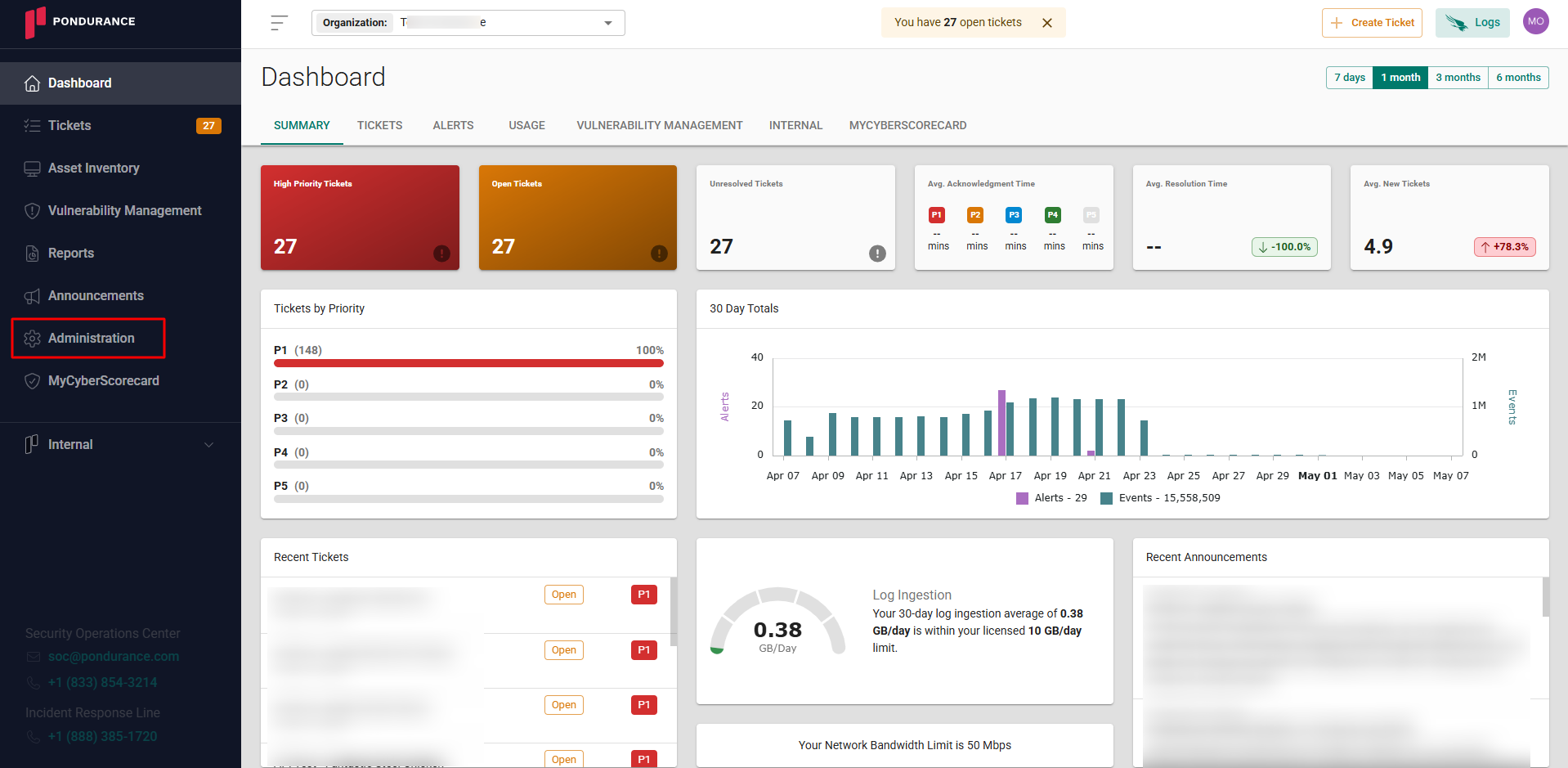
Select Administration from the side menu.
-
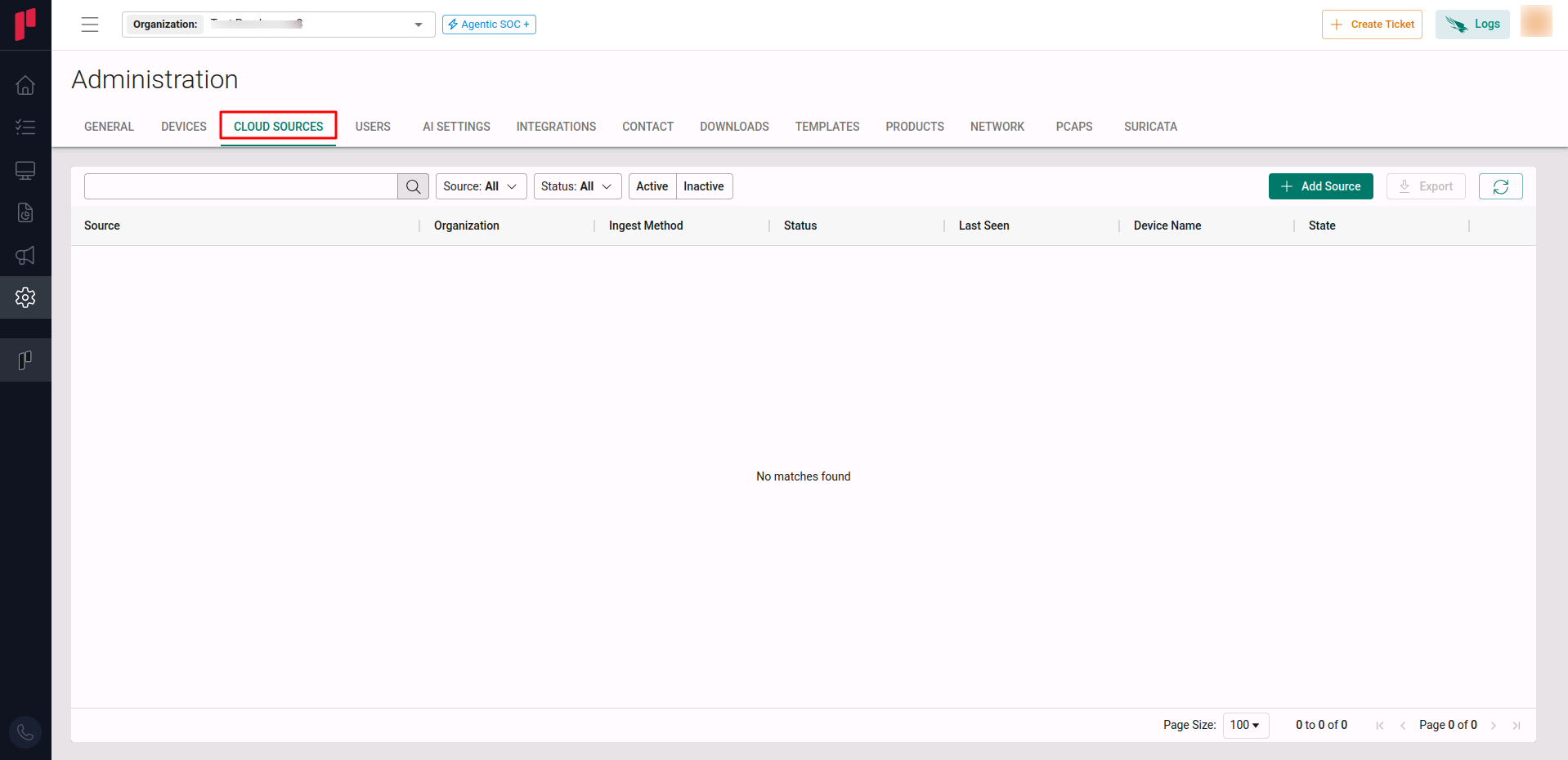
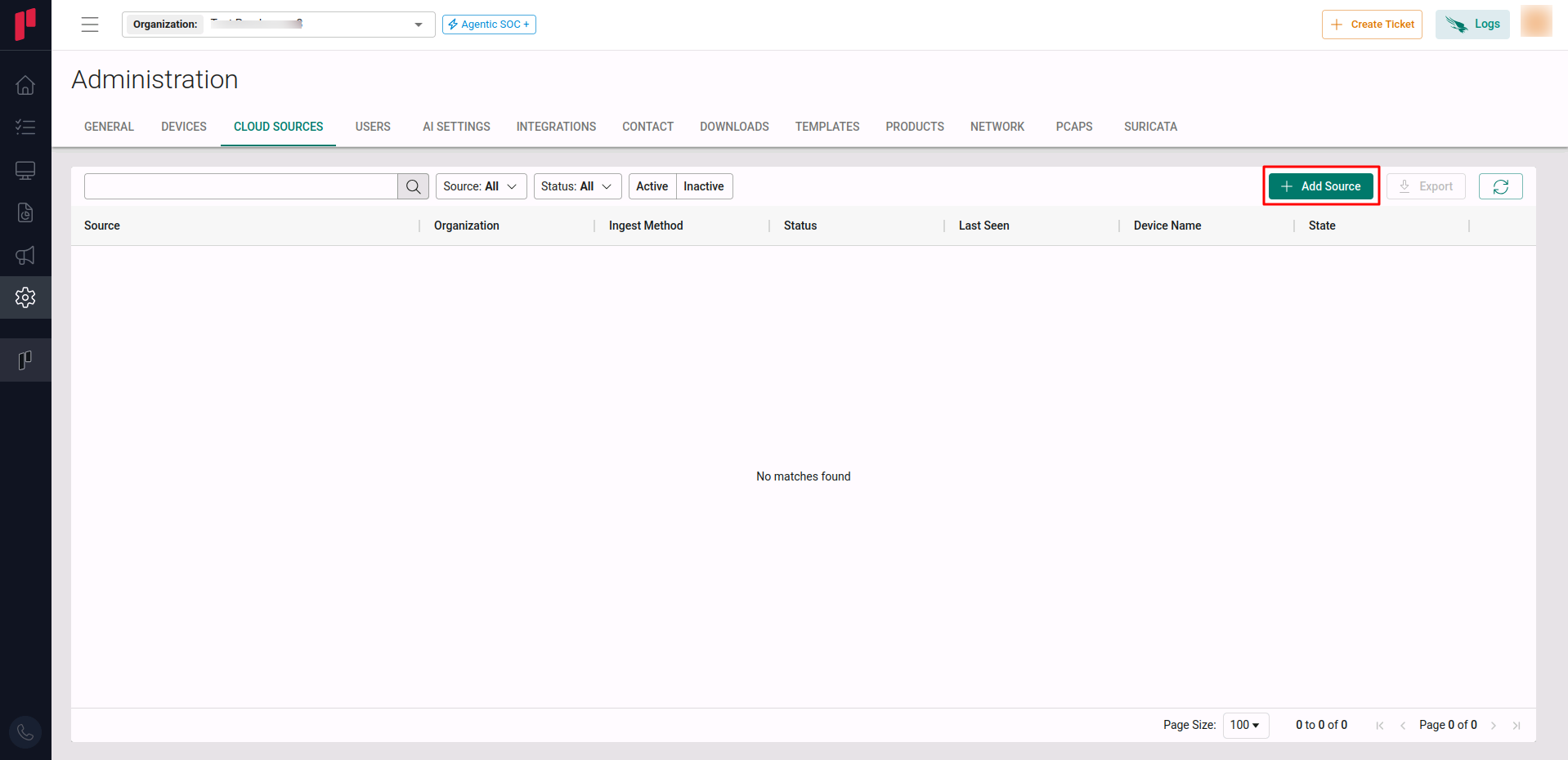
Click on the Cloud sources tab.
-
Click on the +Add Source button.
-
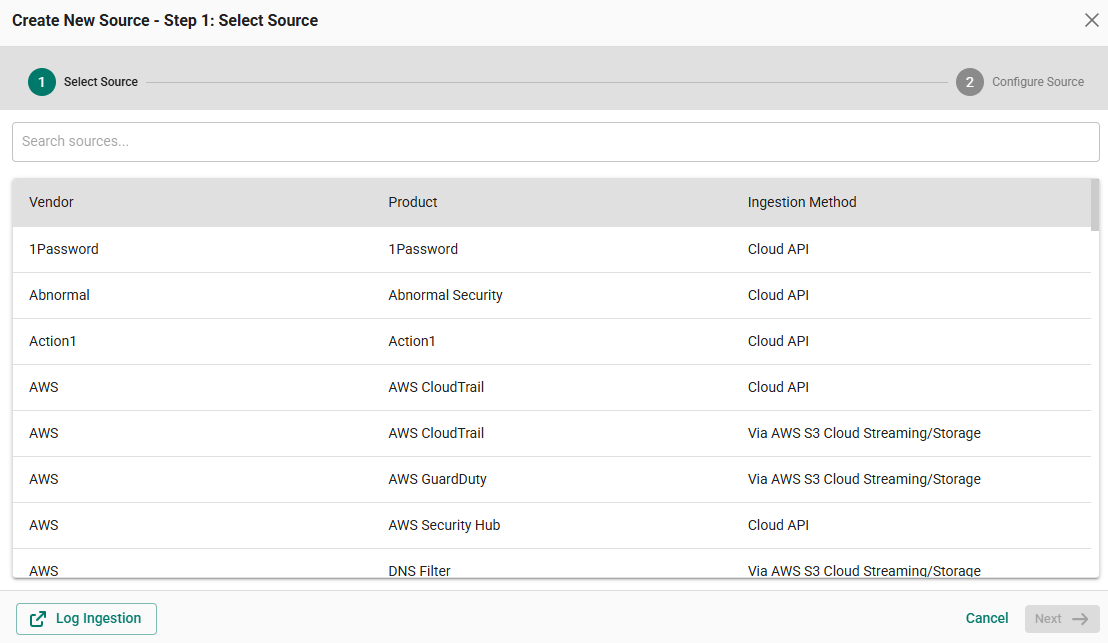
In Step 1 of the Add Source wizard, search for Rubrik, select the cloud source and click Next.
-
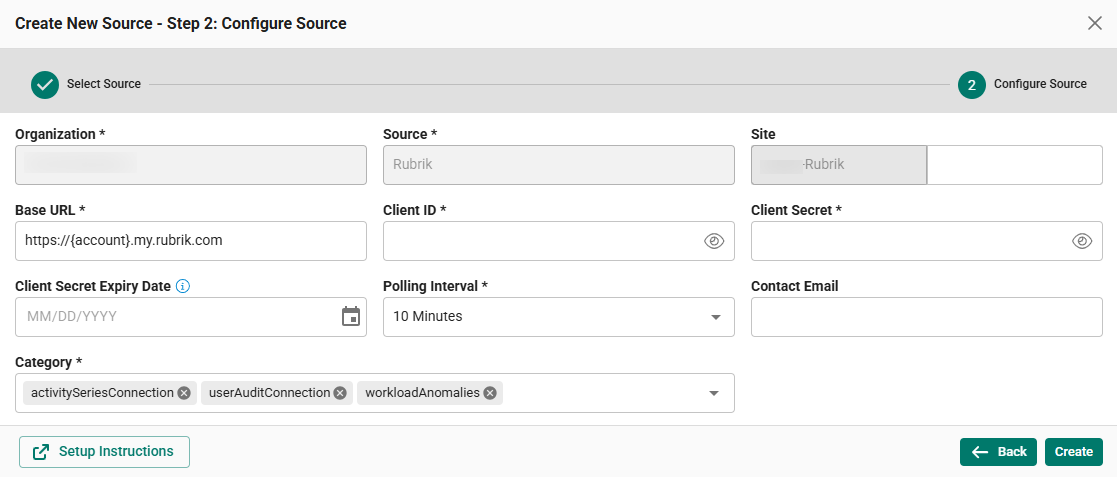
In Step 2 of the Add Source wizard, provide the connection parameters
-
Site: The user-defined name for the Rubrik cloud source.
-
Base URL: The Rubrik Base URL formed in Step 1, for example
https://abc.my.rubrik.com. -
Client ID: The Client ID generated in Step 1.
-
Client Secret: The Client Secret generated in Step 1.
-
Client Secret Expiry Date (Optional) - The expiry date for the generated Client Secret.
-
Polling Interval: The polling interval for making periodic API calls to the Rubrik API. Select the required interval from the dropdown.
-
Contact Email: The email address of the person who registers the Rubrik cloud source in Scope.
-
Once the required connection parameters are entered, the Rubrik registration is complete in Scope and is ready for ingestion of Rubrik logs.