AWS CloudTrail
Overview
Configuring a cloud source in Scope is a two-step process.
-
Creating an IAM user and generating AWS CloudTrail credentials in the AWS Management Console. Please refer to Section 1 – AWS CloudTrail Setup
-
Setting up the AWS CloudTrail cloud source in the Scope application. Please refer to Section 2 – Scope Setup
AWS CloudTrail Setup
To get started, you’ll need to generate the following credentials in the AWS Management Console –
- Access Key
- Secret Access Key
- AWS Region(s)
Step 1: Create an IAM User
Note: If an IAM User is already available with the required permissions, skip this step and proceed to Step 2.
-
Sign in to the AWS Management Console.
-
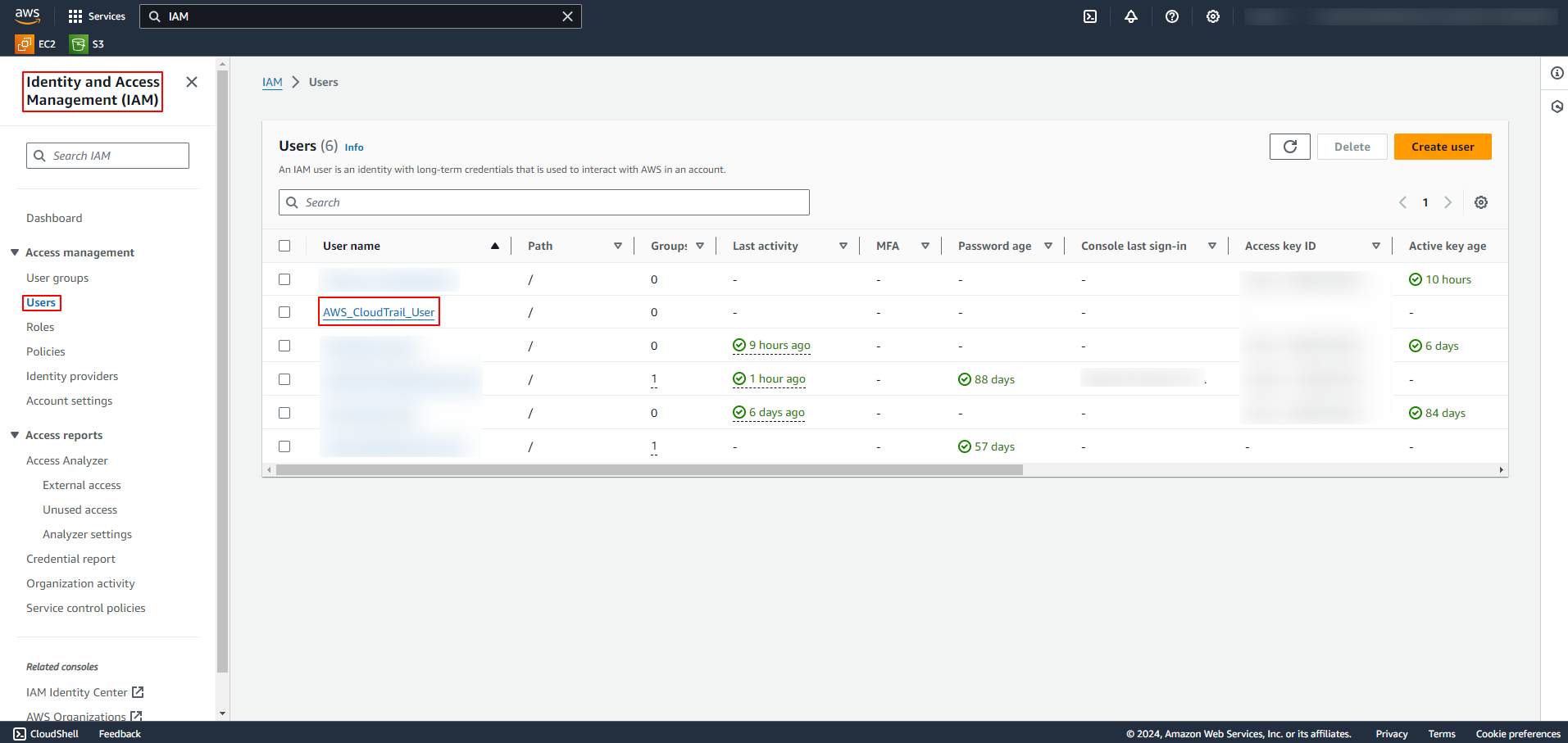
Navigate to Identity and Access Management (type
IAMin the search bar and select IAM from the dropdown).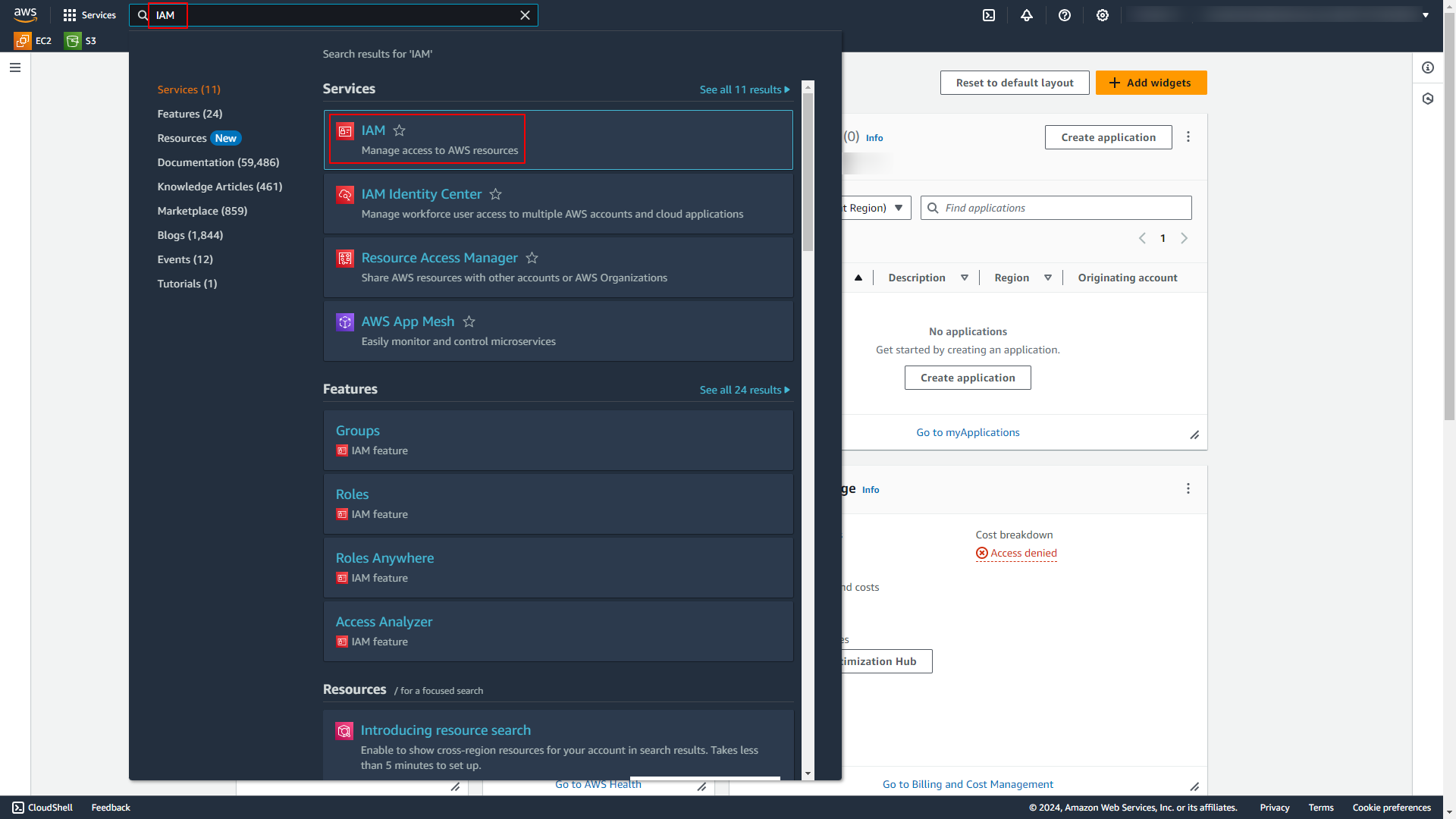
-
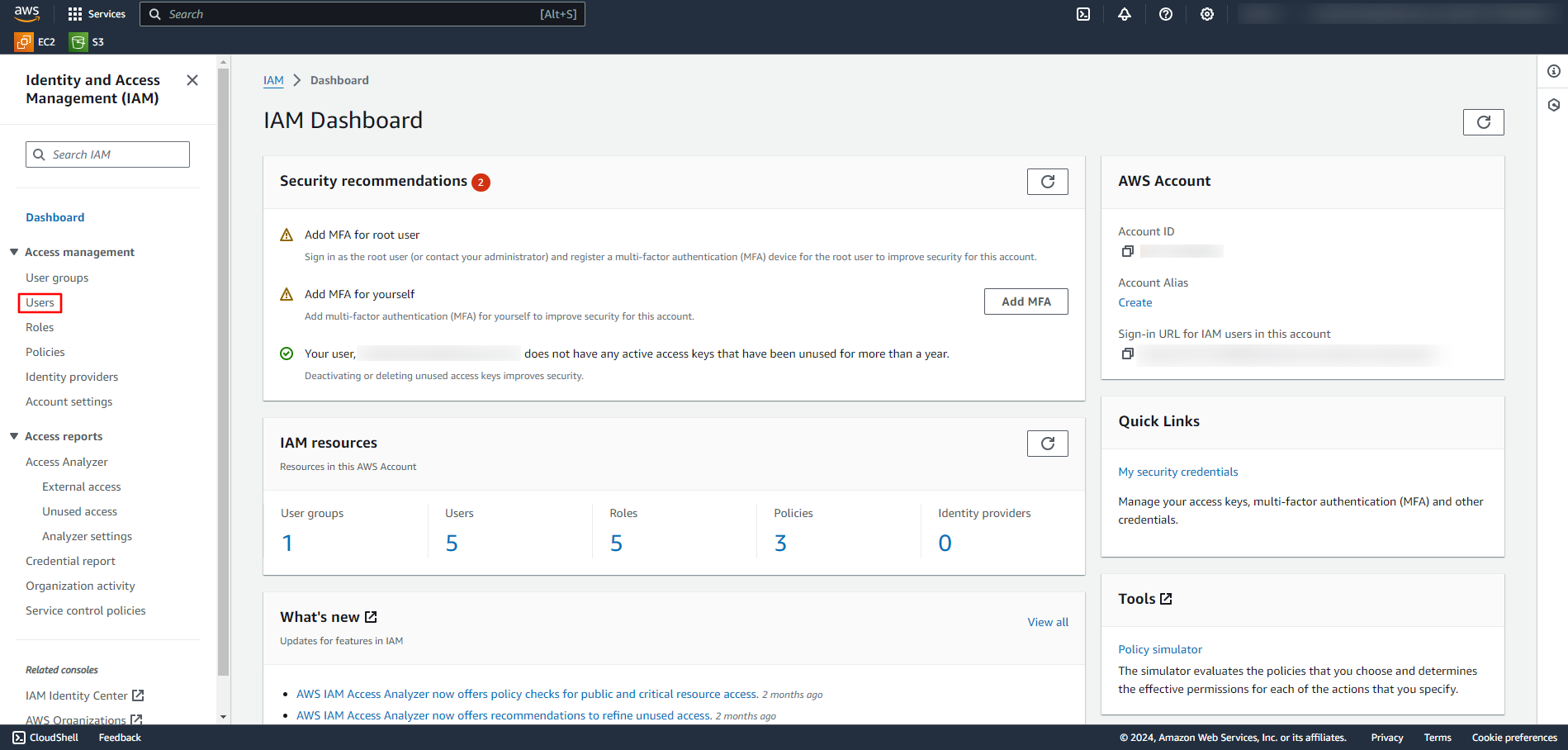
Click on Users in the left navigation pane.
-
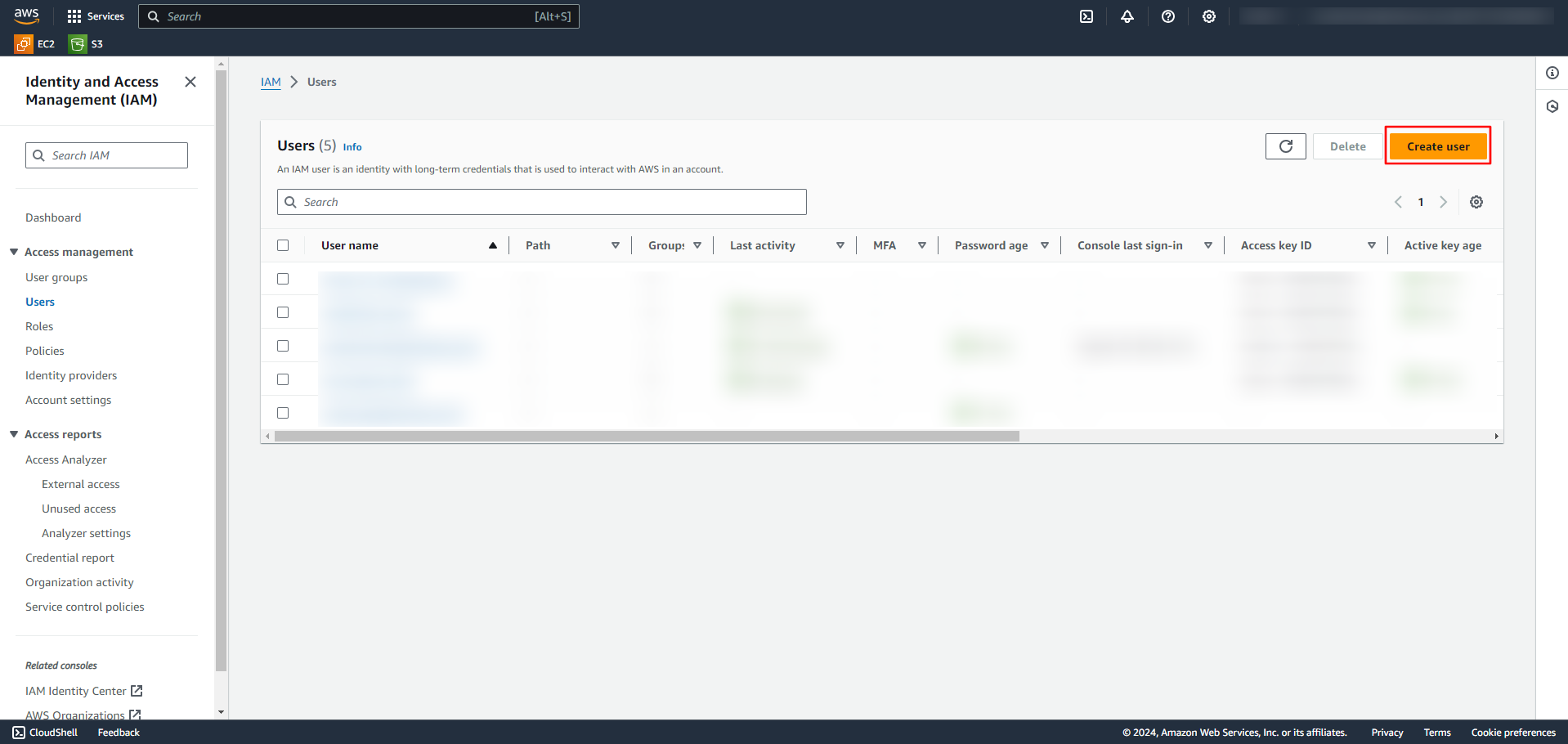
Click on Create User.
-
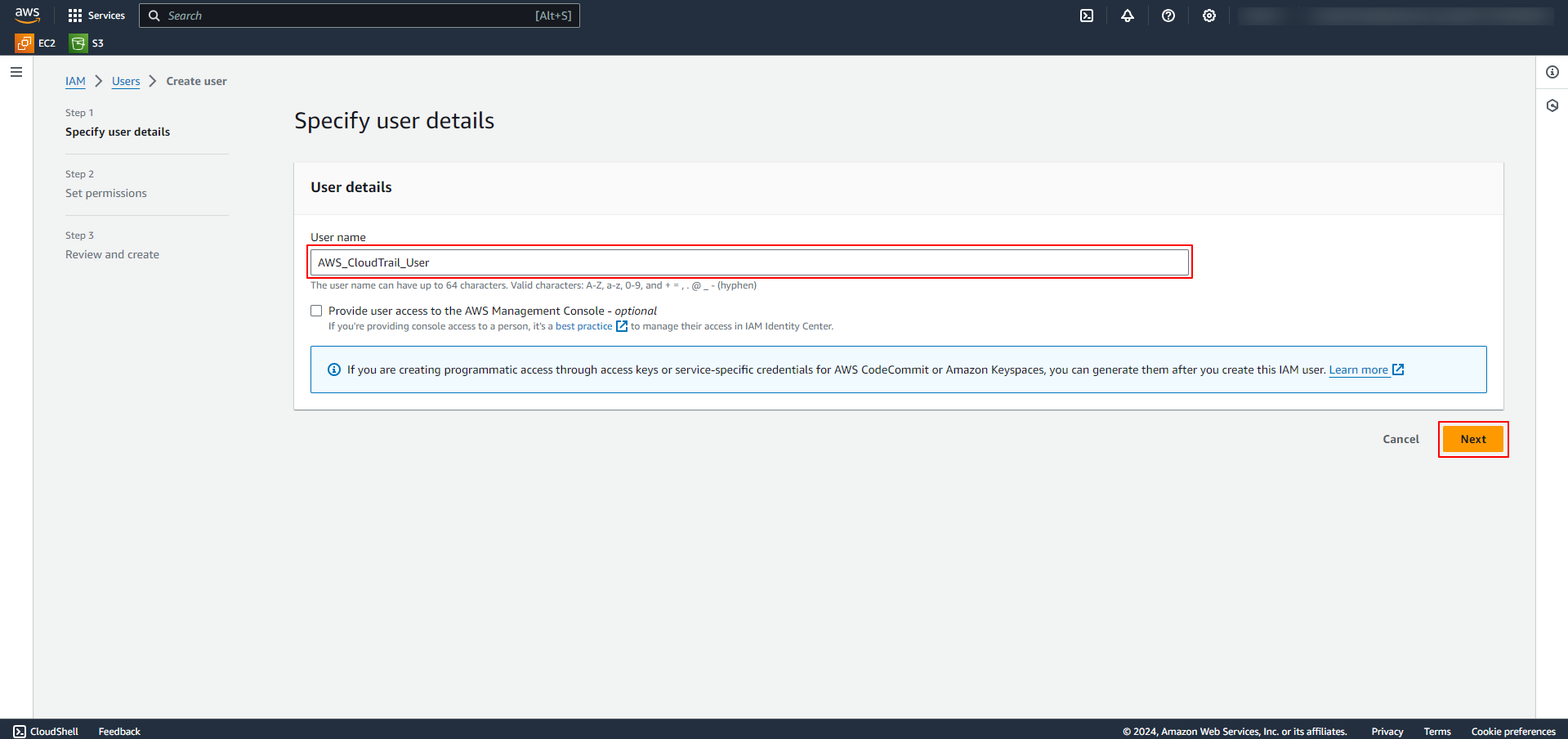
In the Specify user details section, enter a user name and click Next.
-
In the Set Permissions section, select Attach policies directly and search for and select the
AWSCloudTrail_ReadOnlyAccesspermission policy, then click Next.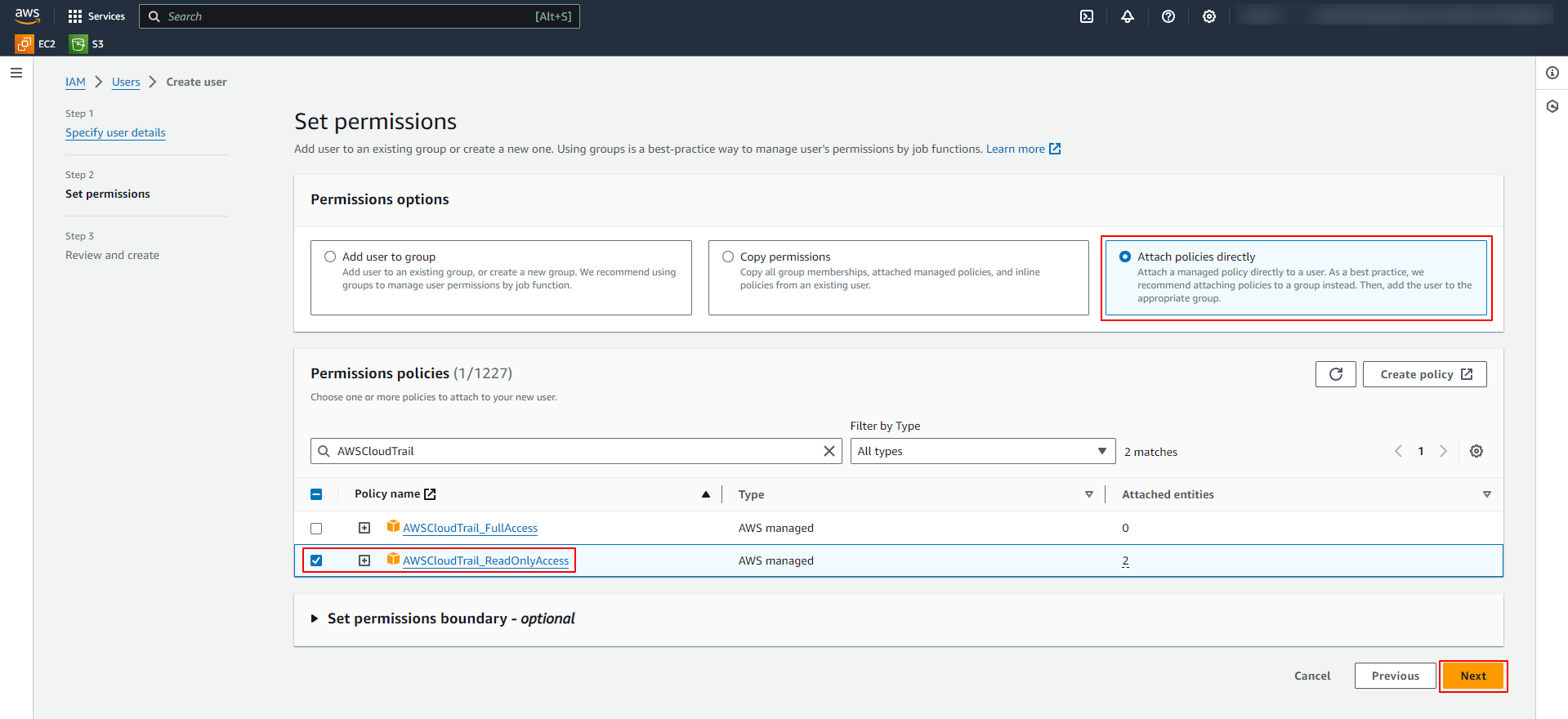
-
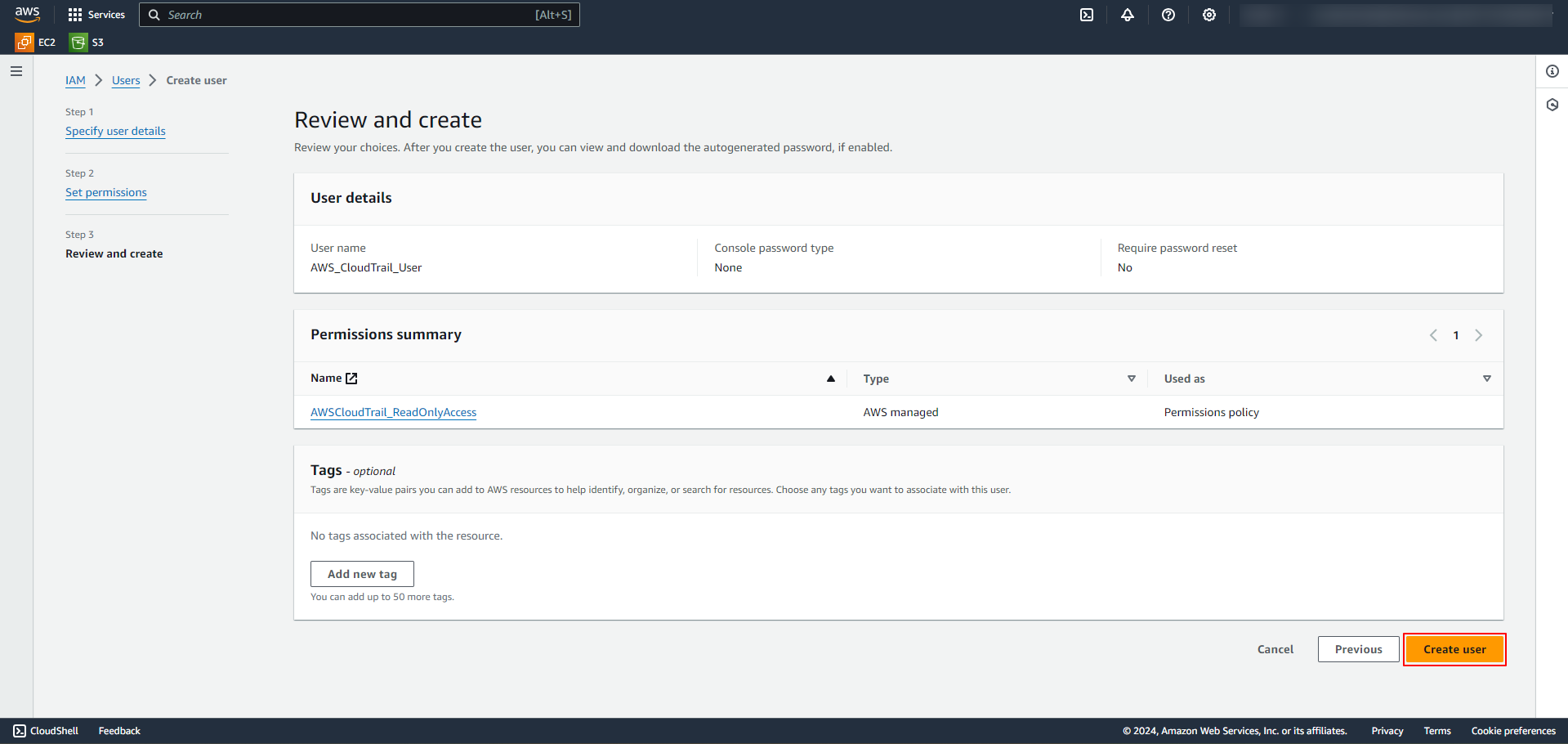
In the Review and Create section, review the user details and permissions summary, then click Create User.
-
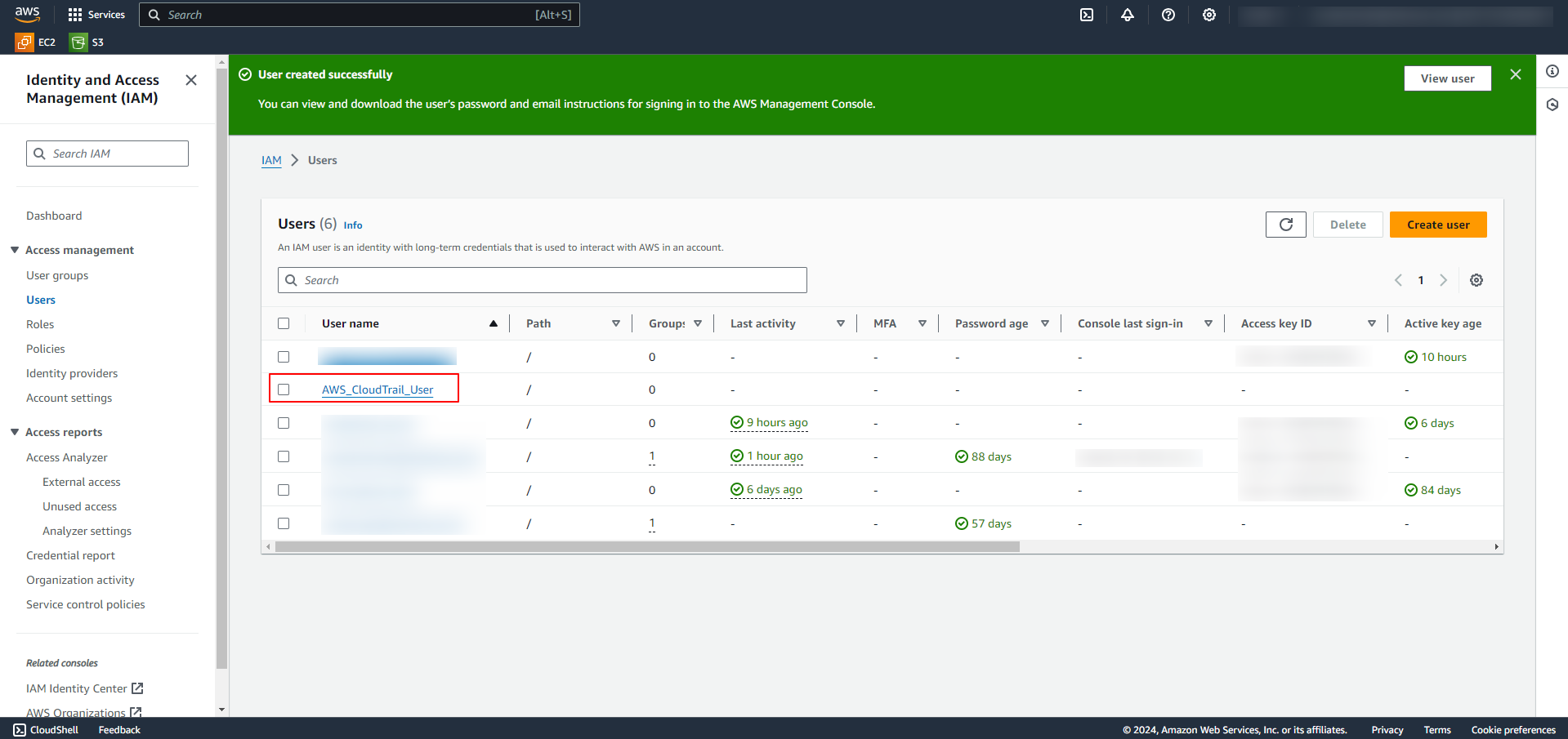
The IAM user will be created.
Step 2: Generate Access Key & Secret Access Key
-
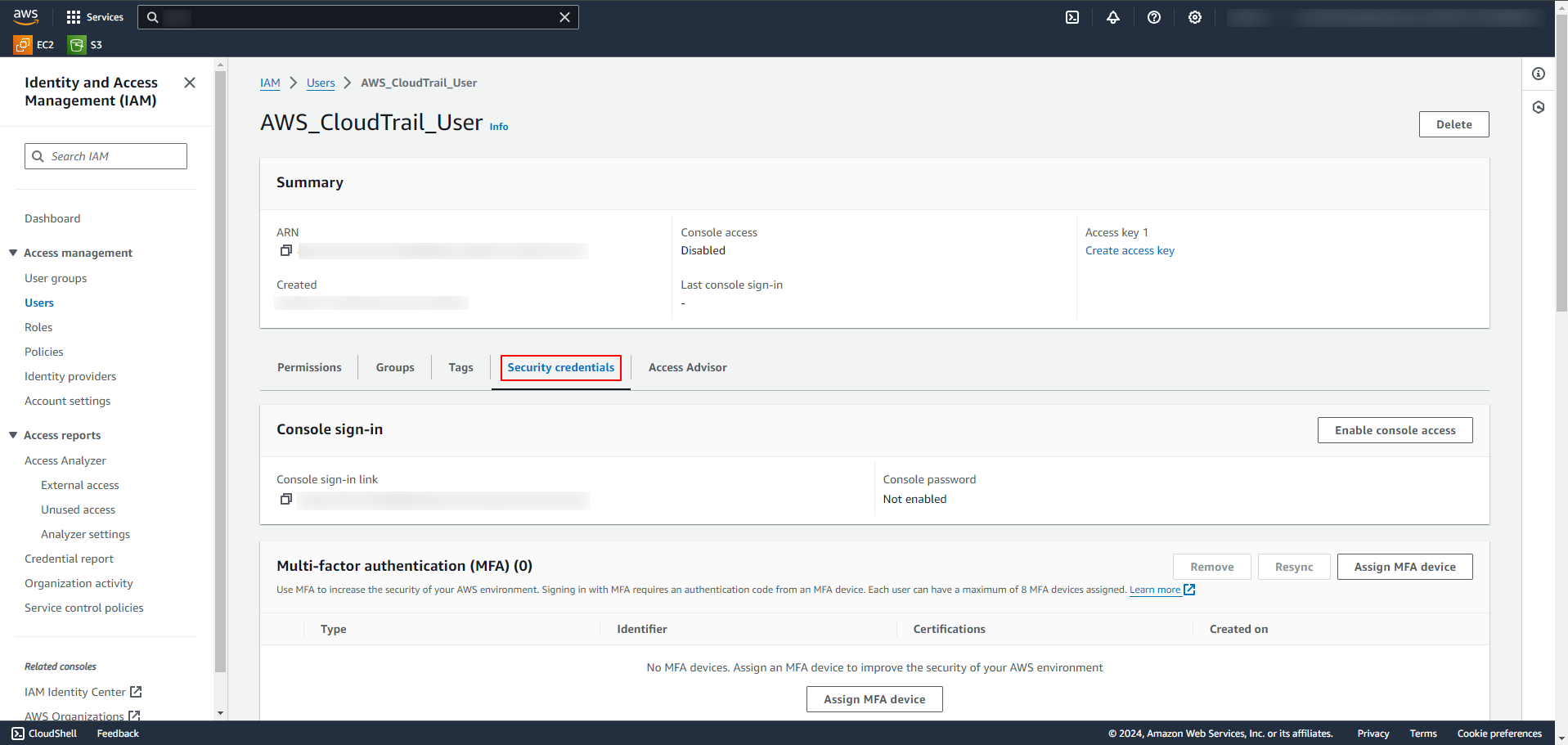
In the AWS Management Console, navigate to IAM -> Users and click on the created (or required) IAM user.
-
Select the Security Credentials tab.
-
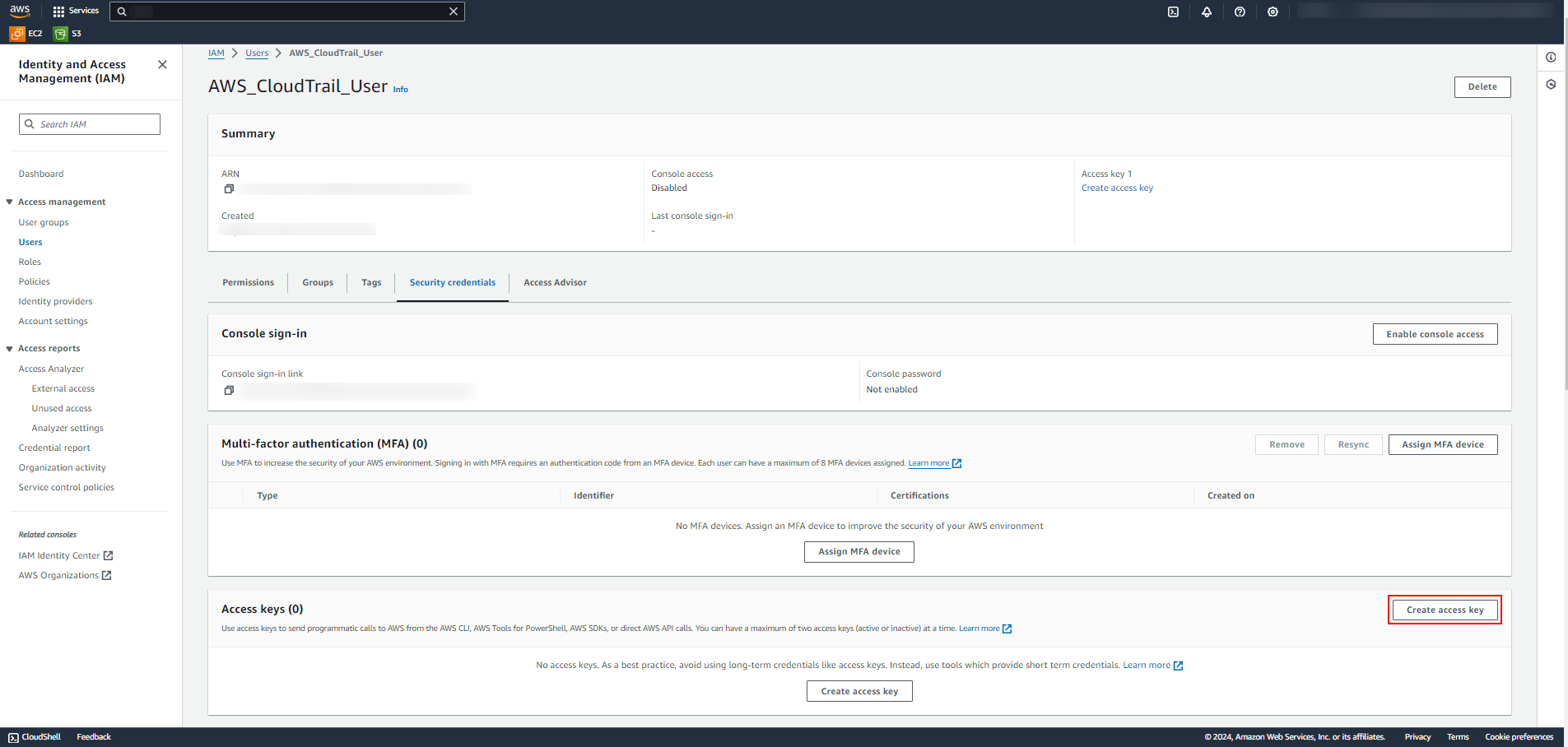
Click on Create Access Key.
-
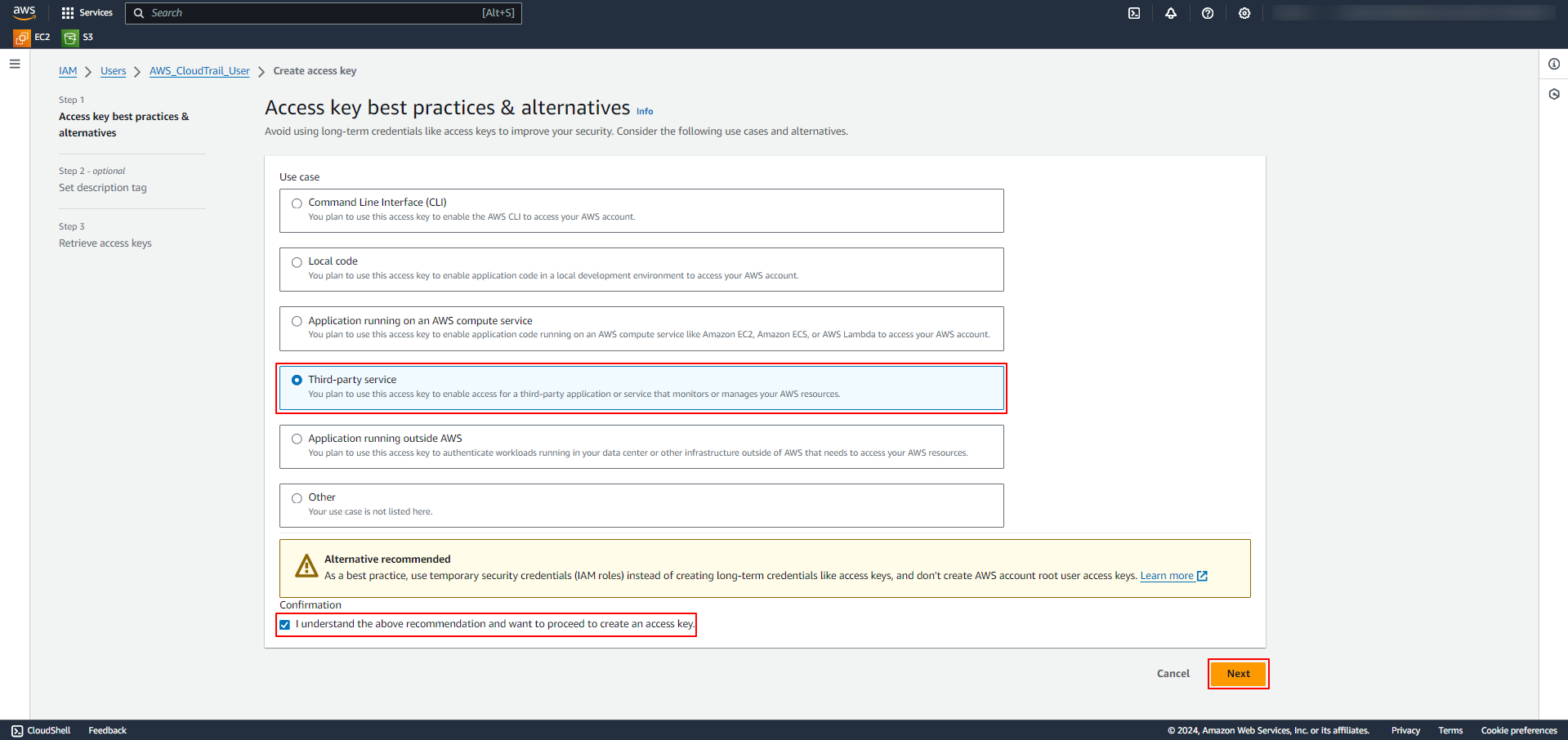
In the Access key best practices & alternatives section, select Third-party service, select the Confirmation checkbox, and click Next.
-
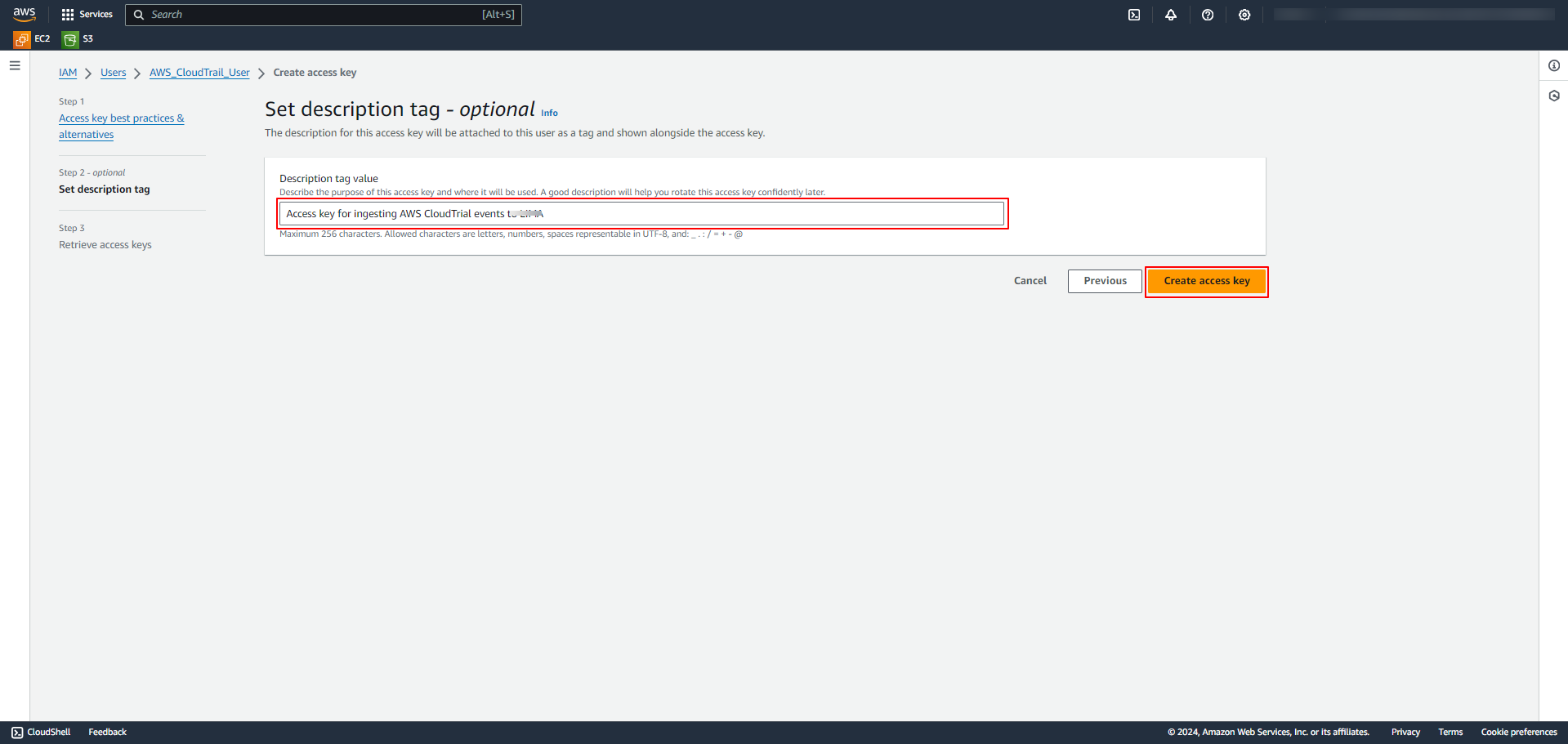
(Optional) In the Set description tag section, provide a description, then click Create access key.
-
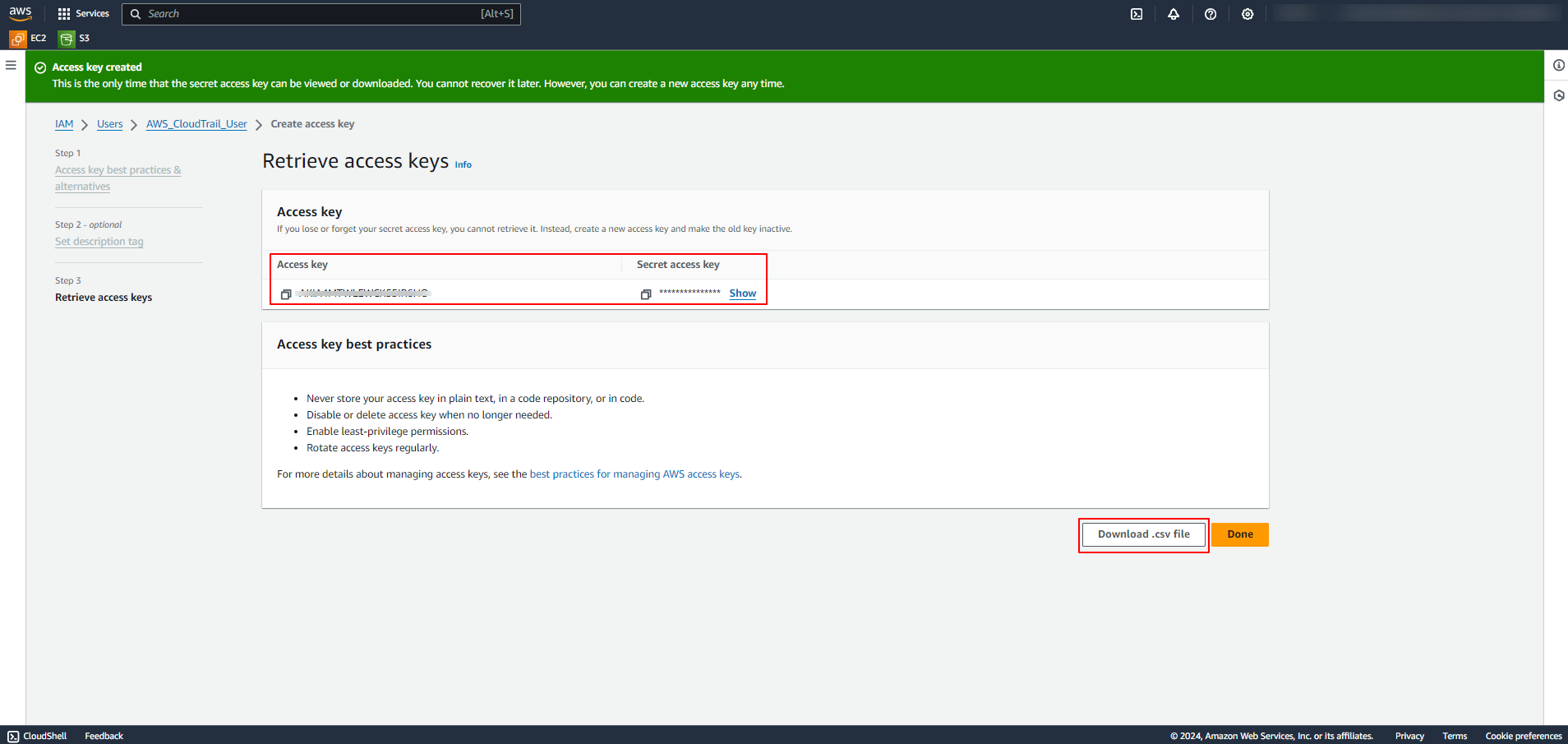
In the Retrieve access keys section, the Access key and Secret access key are generated. Copy them or click Download .csv file to download the keys. Store them in a safe location.
Note: The access keys can only be viewed or downloaded at this point. They cannot be recovered later. If the keys are lost, generate new access keys by repeating this step and deactivate the old key.
Step 3: Determine the AWS Region(s)
-
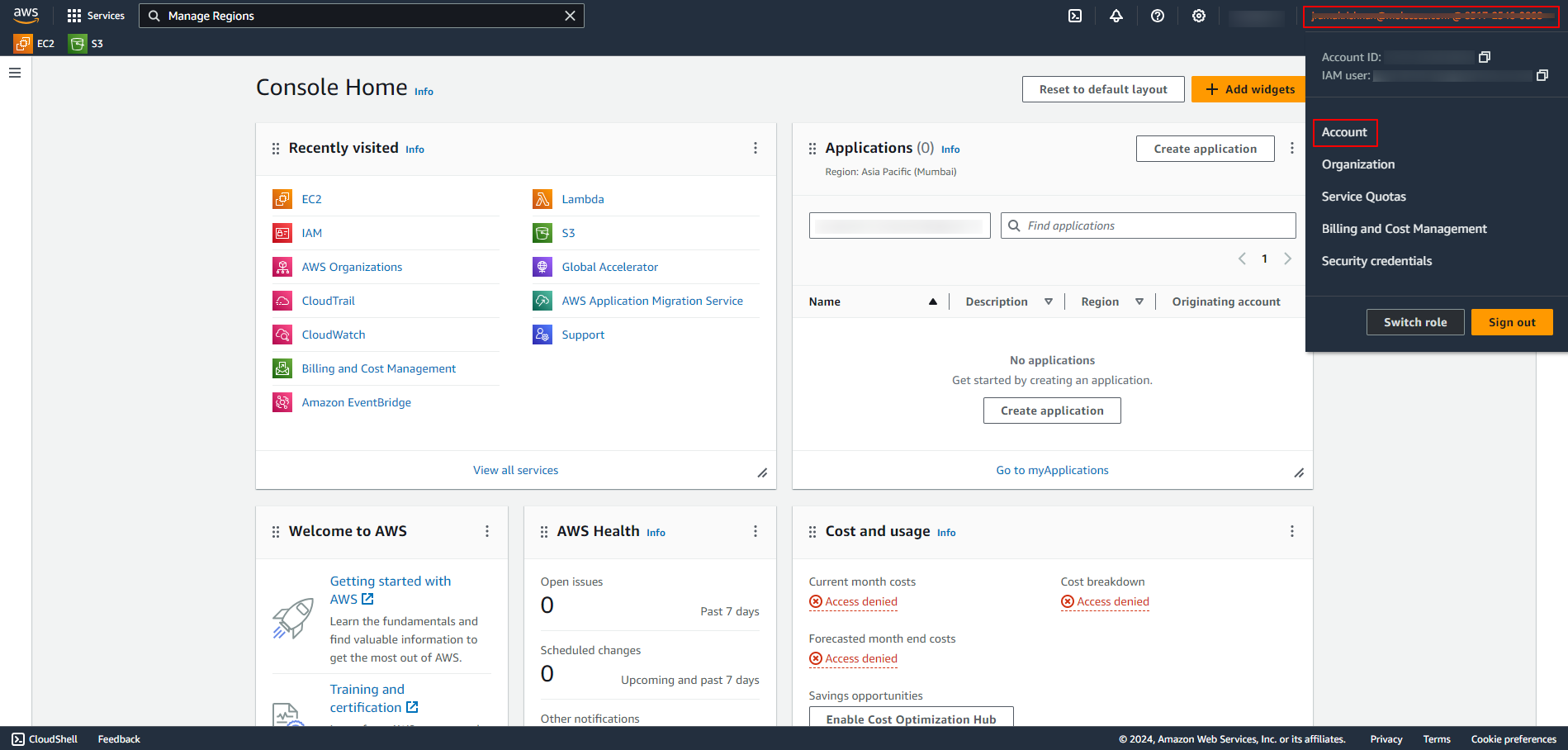
In the AWS Management Console, click on Profile Name and navigate to Account.
-
In the AWS Regions section, identify the enabled AWS Regions or the preferred regions from which CloudTrail logs are to be ingested.
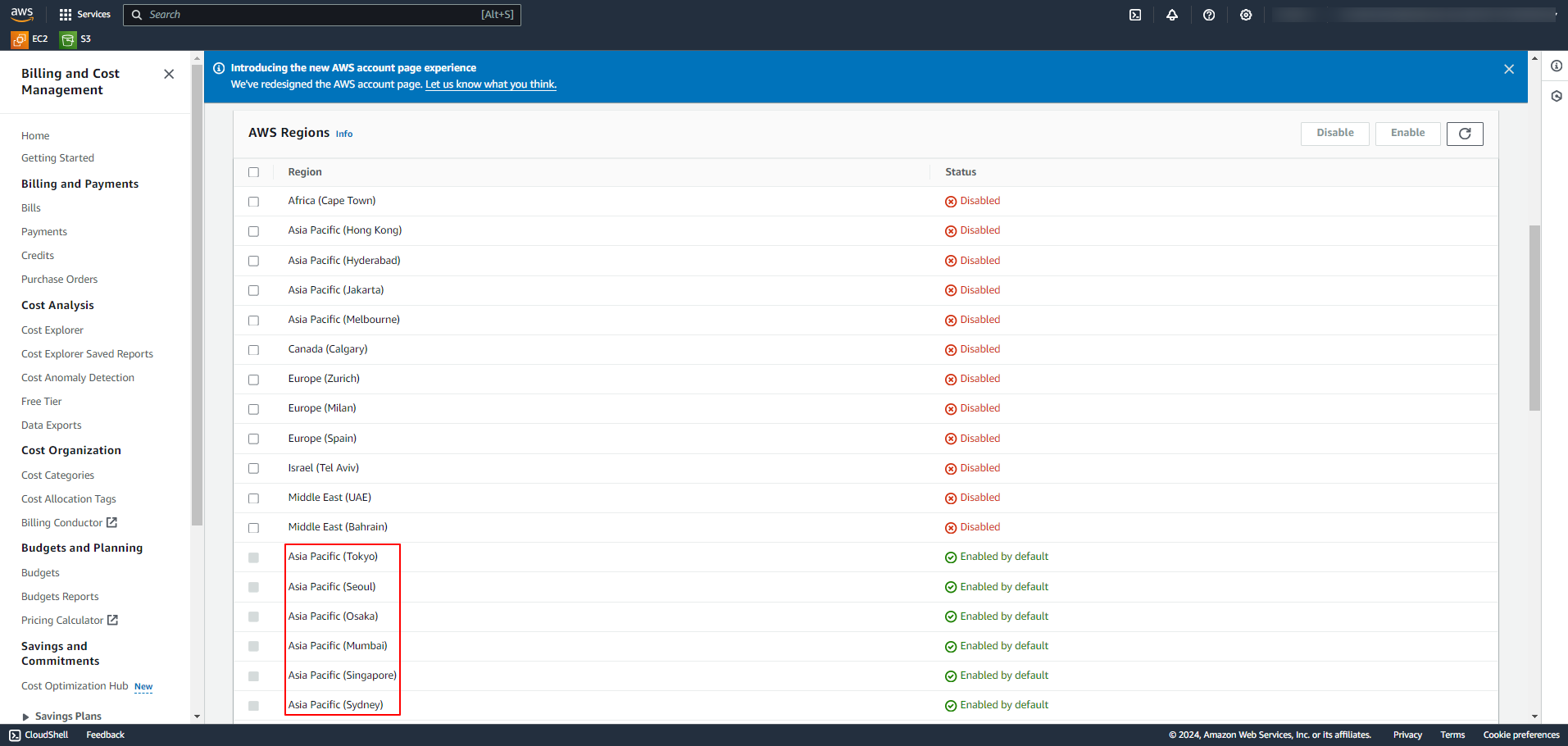
The generated Access Key, Secret Access Key, and AWS Region(s) are to be configured in Scope Setup: Step 1 for initiating the AWS CloudTrail log ingestion.
Scope Setup
Step 1: AWS CloudTrail Cloud Source Registration in the Scope Application
Once the credentials are generated, they must be configured in the Scope application to establish the connection and enable data ingestion from the AWS CloudTrail environment.
In the Scope application, to register an AWS CloudTrail cloud source, navigate to the cloud source registration page –
-
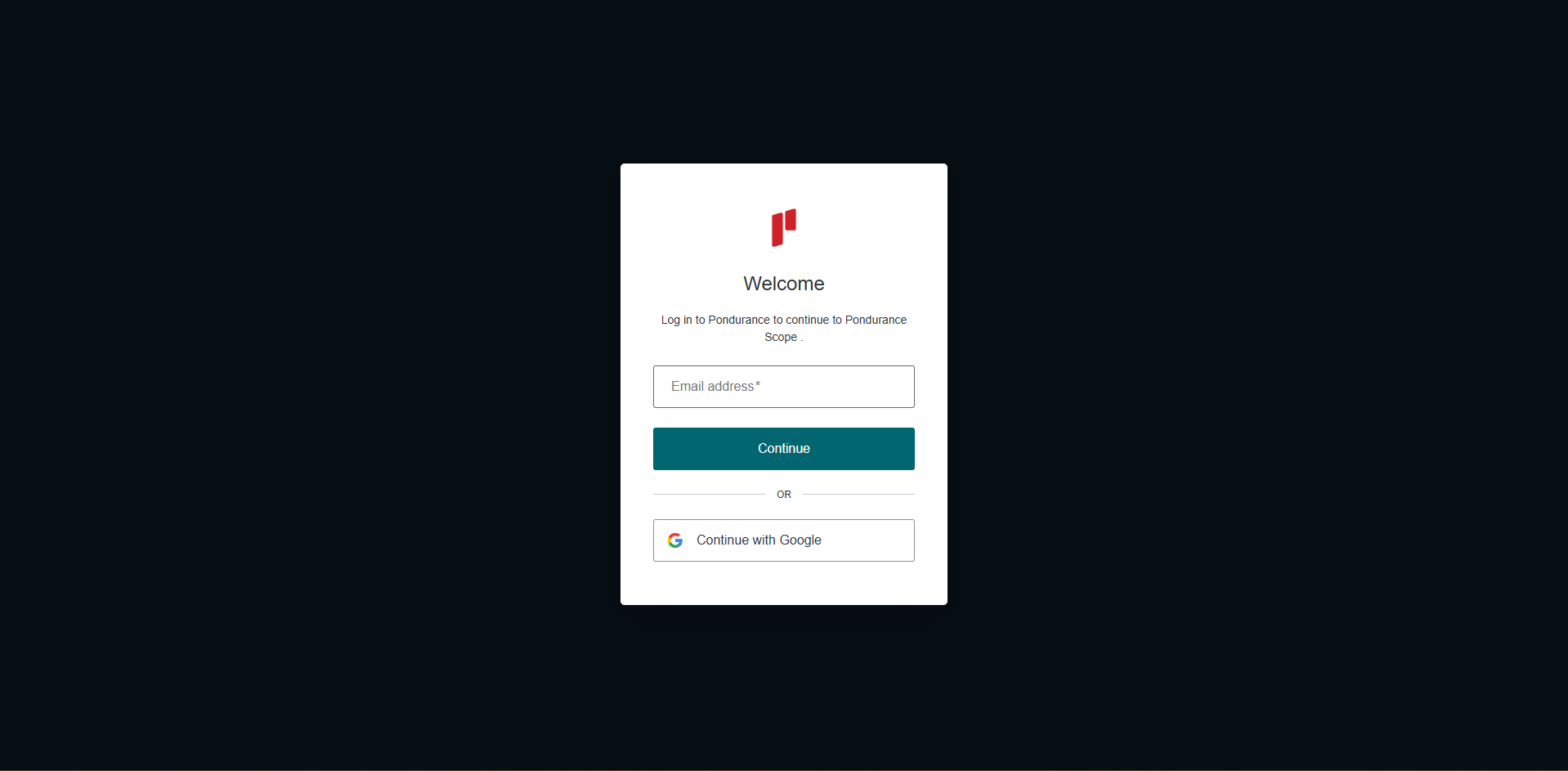
Log into the Scope application
-
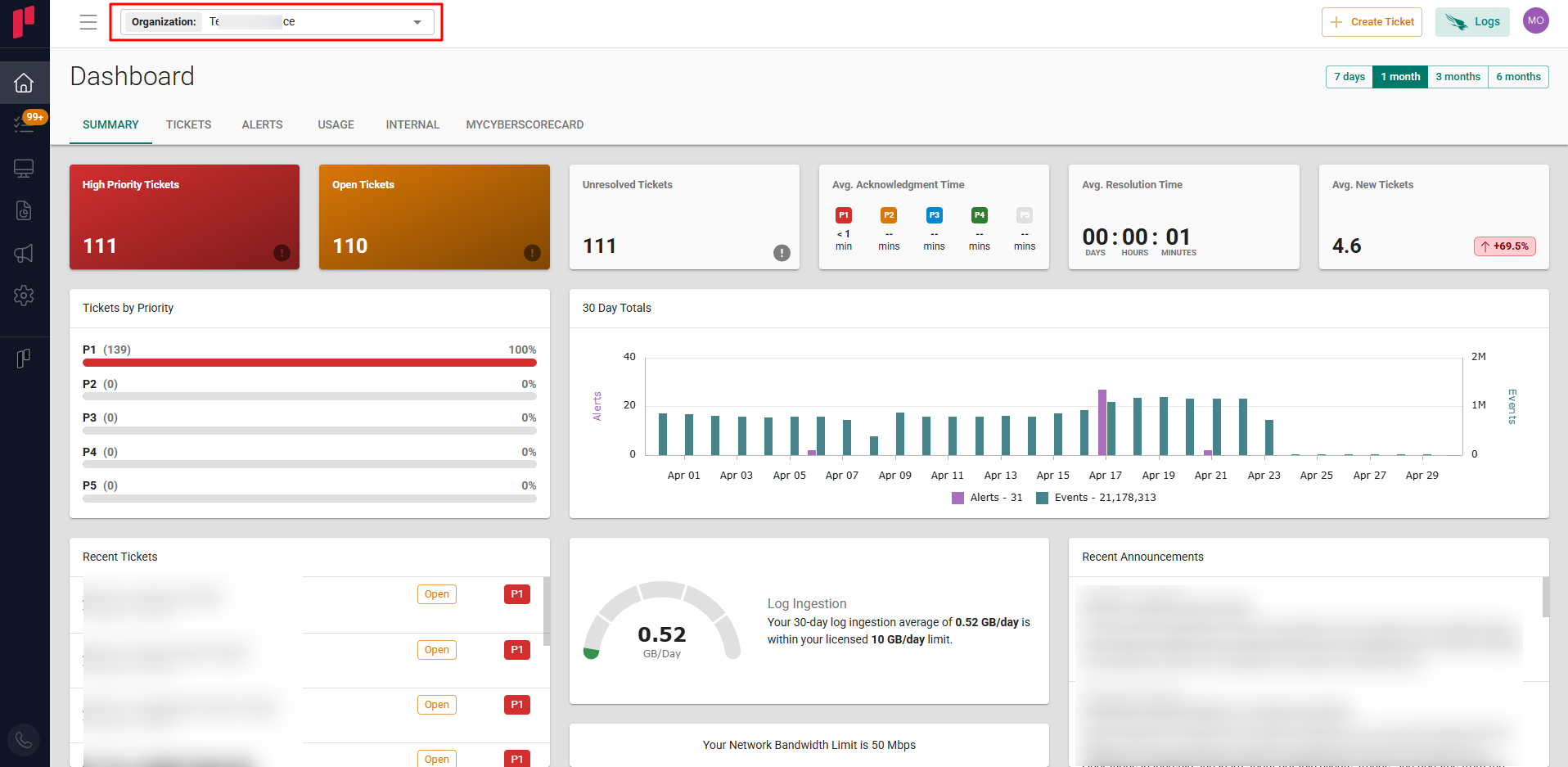
Select the required Organization from the Organization dropdown
-
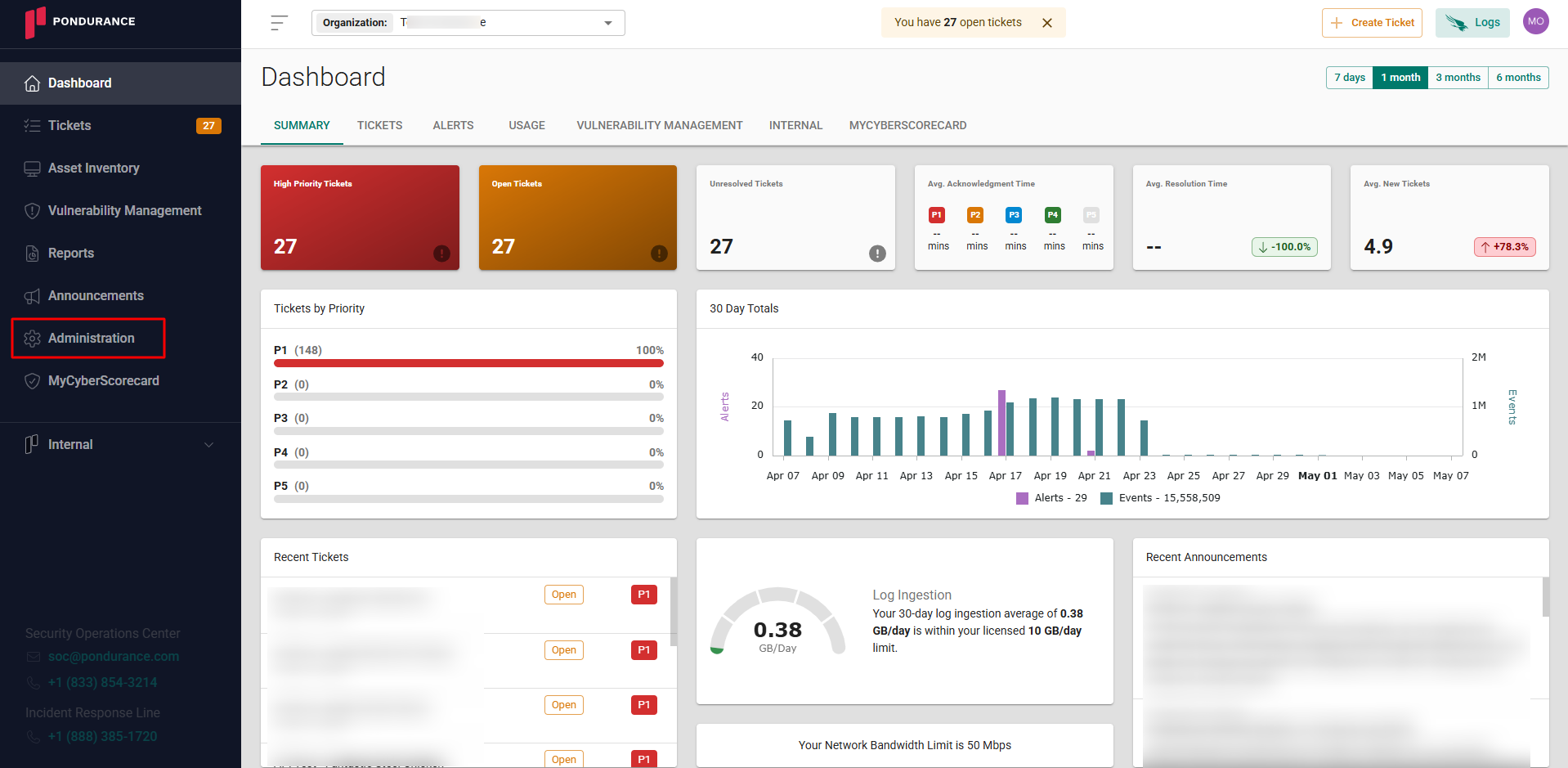
Navigate to the side menu -> Administration
-
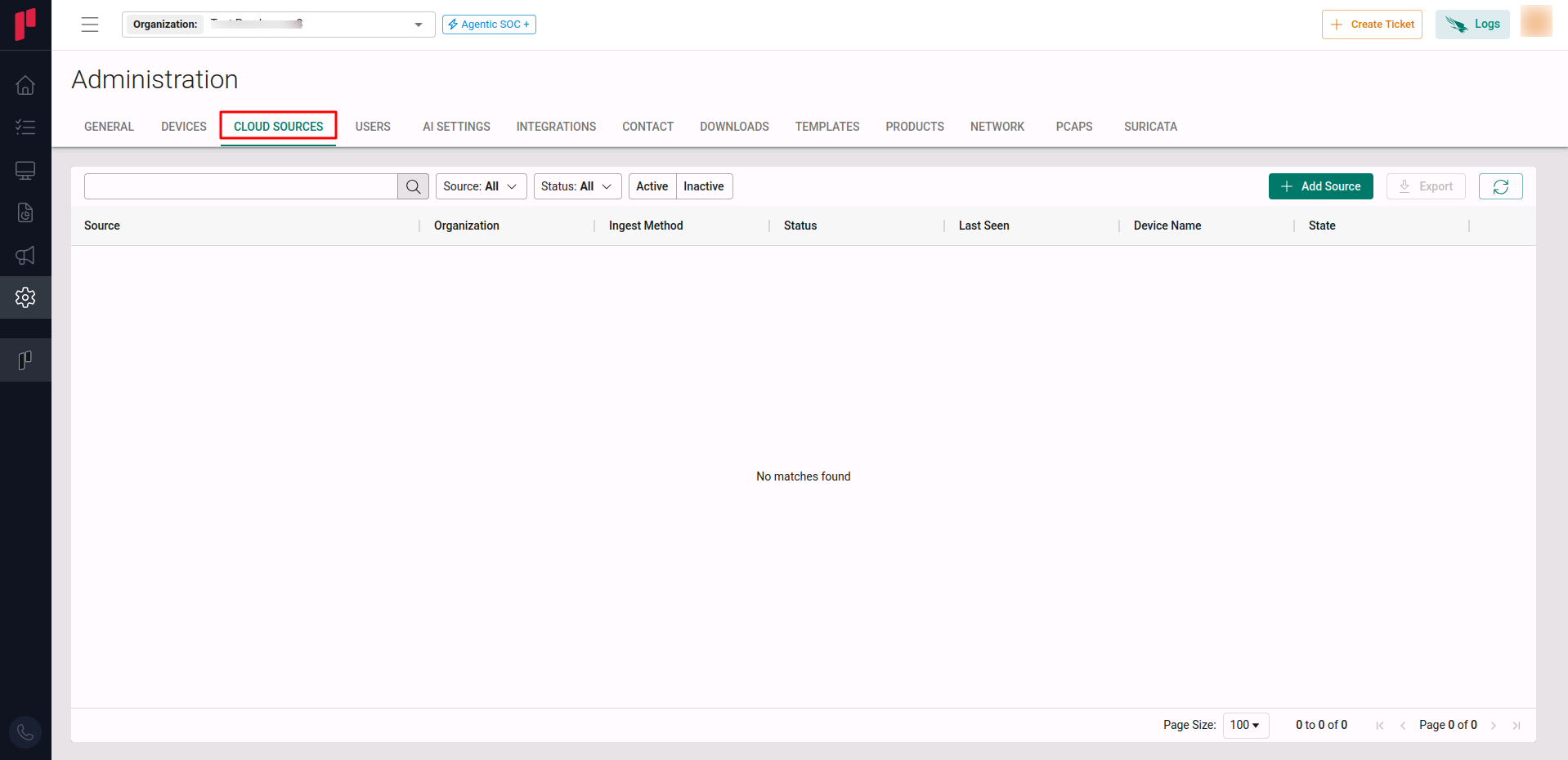
Navigate to the Cloud sources tab
-
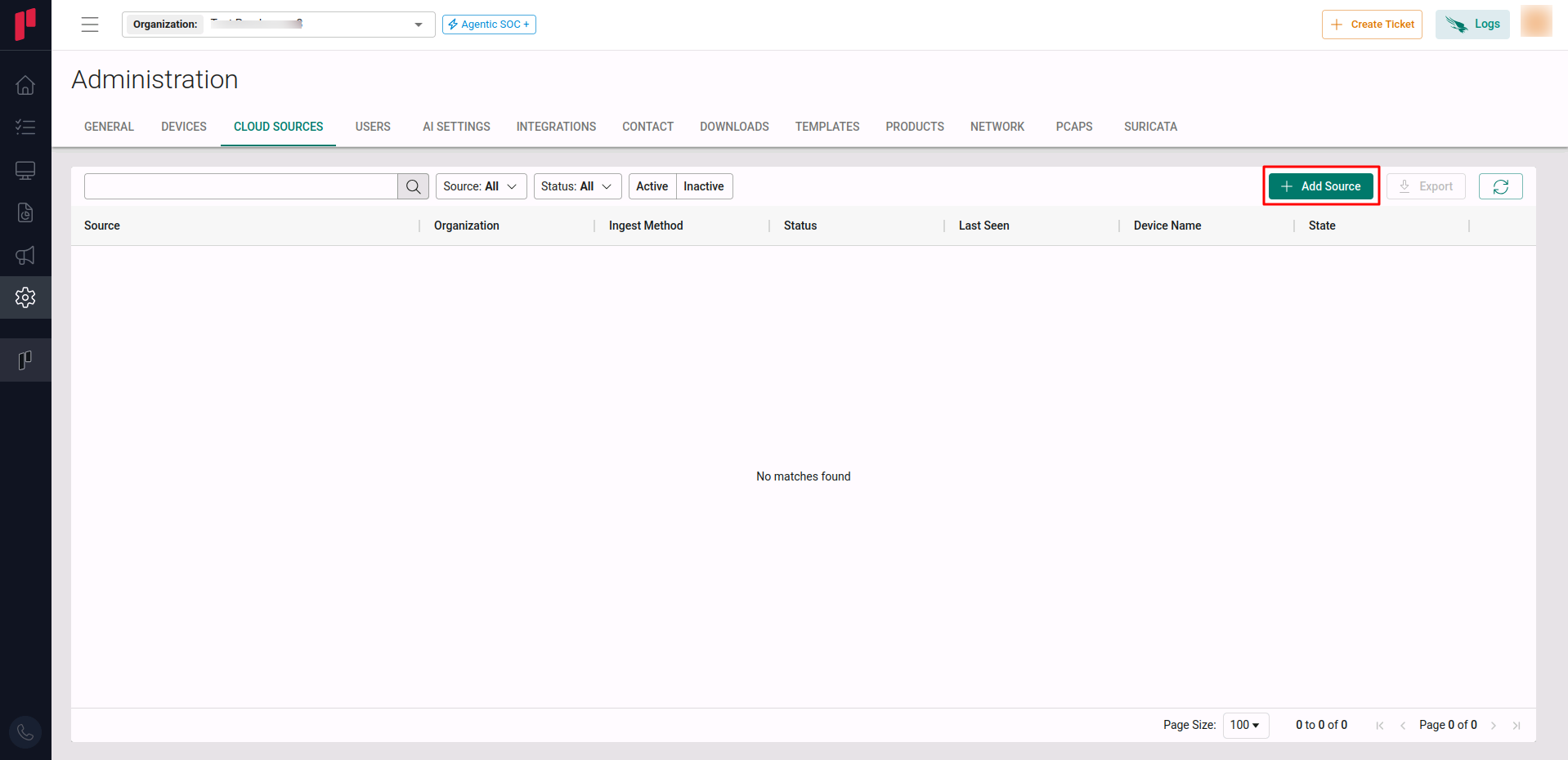
Click on the +Add Source button
-
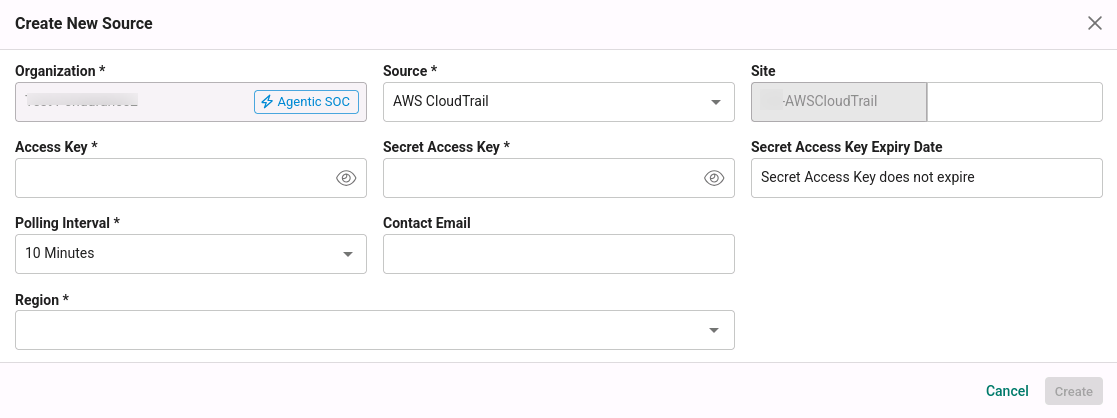
In the Add Source pop-up, provide the parameters below.
-
Source: Select the AWS CloudTrail source from the Source dropdown.
-
Site: The user defined name for the AWS CloudTrail cloud source.
-
Access Key: The Access Key generated in Step 2.
-
Secret Access Key: The Secret Access Key generated in Step 2.
-
Polling Interval: The polling interval for making periodic API calls to the AWS CloudTrail SDK. The user can select the time interval from the dropdown.
-
Contact Email: The email address of the person who registers the AWS CloudTrail cloud source in Scope.
-
Region: Select the region(s) from which AWS CloudTrail events are ingested (identified in Step 3).
-
Once the required connection parameters are entered, the AWS CloudTrail cloud source registration is complete in Scope and is ready for ingestion of AWS CloudTrail logs.