Google Pub Sub
Overview
This source supports ingestion of multiple log sources through Google Pub/Sub.
Supported Sources:
- Google Apps Script
- Google Artifact Registry
- Google Cloud Asset Inventory
- Google Cloud Billing
- Google Cloud DNS
- Google Cloud IAM
- Google Cloud KMS
- Google Cloud Load Balancing
- Google Cloud Logging
- Google Cloud Monitoring
- Google Cloud Platform (generic)
- Google Cloud Pub/Sub
- Google Cloud SQL
- Google Cloud Storage
- Google Compute Engine
- Google Container Analysis
- Google Firestore
- Google IAM Credentials
- Google Identity-Aware Proxy
- Google Kubernetes Engine
- Google Managed Kafka
- Google Network Management
- Google Organization Policy
- Google OS Login
- Google Resource Manager
- Google Secret Manager
- Google Security Command Center
- Google Security Token Service
- Google Service Networking
- Google Vertex AI
- Google Web Security Scanner
Setup Instructions
Configuring a cloud source in Scope is a two-step process.
-
Obtaining the required Google Pub/Sub credentials and subscription path from the Google Cloud console. Please refer to Section 1 – Google Pub/Sub Setup.
-
Setting up the Google Pub/Sub cloud source in the Scope application. Please refer to Section 2 – Scope Setup.
Google Pub/Sub Setup
To get started, you’ll need to obtain the following information from the Google Cloud console –
-
Service Account Credentials JSON
-
Subscription Path
Step 1: Create a Service Account
-
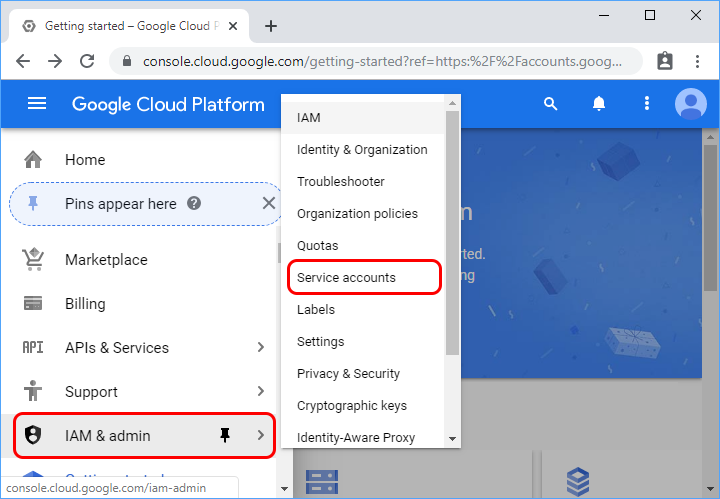
In the Google Cloud console, navigate to IAM & Admin -> Service Accounts.
-
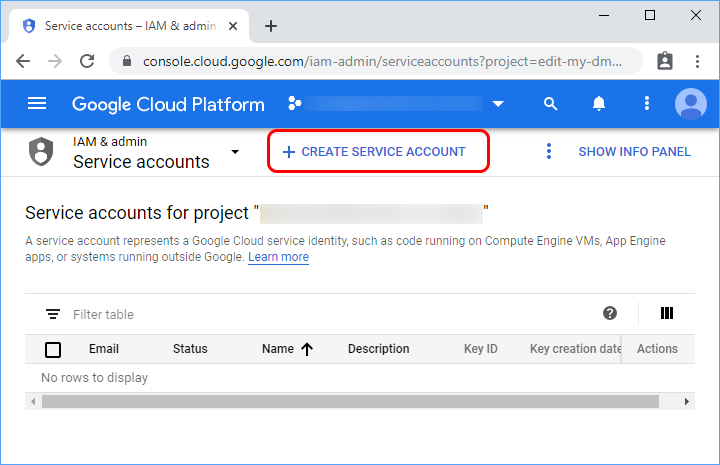
Click Create service account.
-
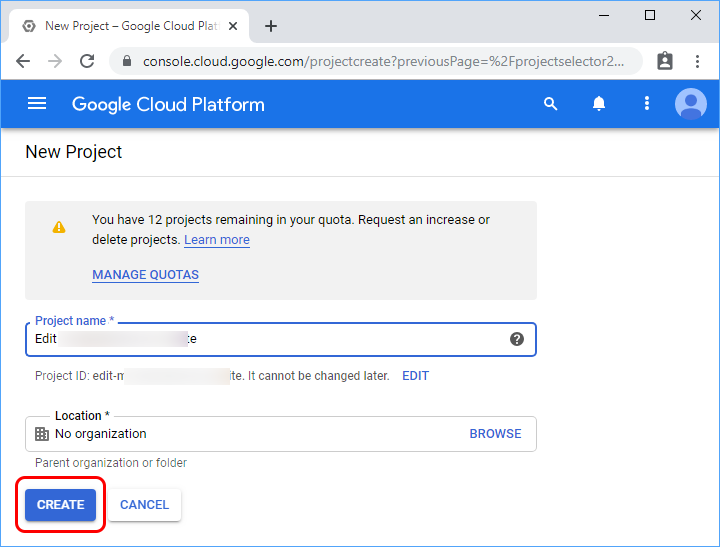
Fill in the service account details, then click Create and continue.
Note: Google generates a unique service account ID by default. To change it, modify the Service account ID field before creating the account.
-
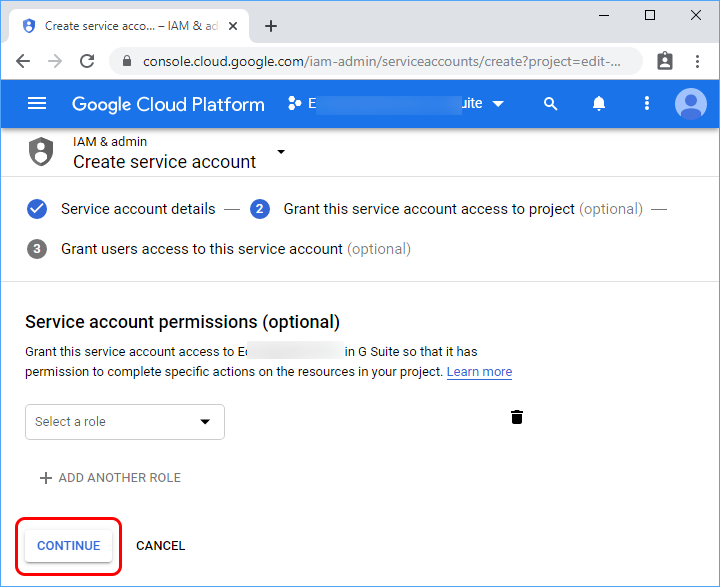
Assign the Pub/Sub Subscriber role (
roles/pubsub.subscriber). -
Click Continue.
-
Optionally, enter the users or groups that can manage and perform actions with this service account.
-
Click Done.
The service account is now created.
Step 2: Create Service Account Credentials
Create a public/private key pair for the service account. Scope uses these credentials to authorize actions performed by the service account.
-
In the Google Cloud console, navigate to IAM & Admin -> Service Accounts.
-
Select the service account created in Step 1.
-
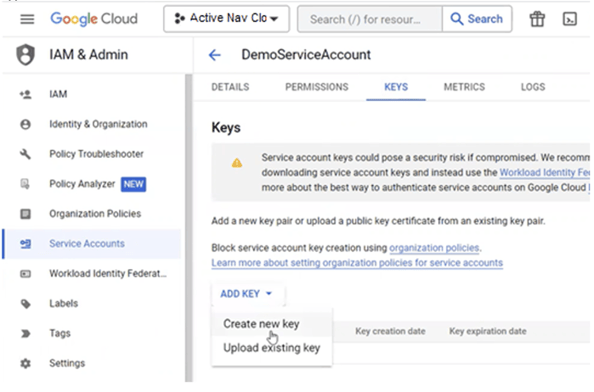
Open the Keys tab.
-
Click Add key -> Create new key.
-
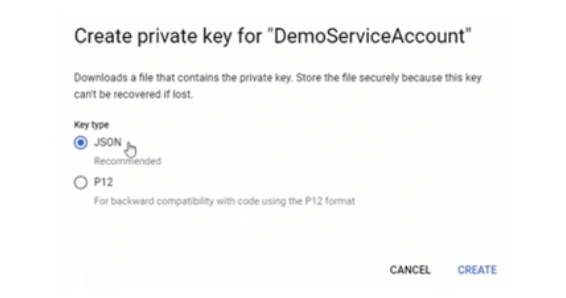
Select JSON, then click Create.
-
Save the downloaded JSON file as
credentials.jsonin a secure working directory.Note: The downloaded JSON file contains the service account’s private key. This is the only opportunity to download that private key. Store the file securely, do not commit it to a repository, and use it when configuring the Service Account Key in Scope Setup: Step 1.
-
Click Close, if displayed.
Step 3: Get the Subscription Path
-
In the Google Cloud console, select the project that contains the required subscription.
-
Navigate to Pub/Sub -> Subscriptions.
-
Find the required subscription. Use the filter box to search by name or ID, if needed.
-
Click the Subscription ID to open its details page.
-
Copy the Subscription name shown at the top of the details page. The subscription name uses the following format:
projects/<PROJECT_ID>/subscriptions/<SUBSCRIPTION_ID>.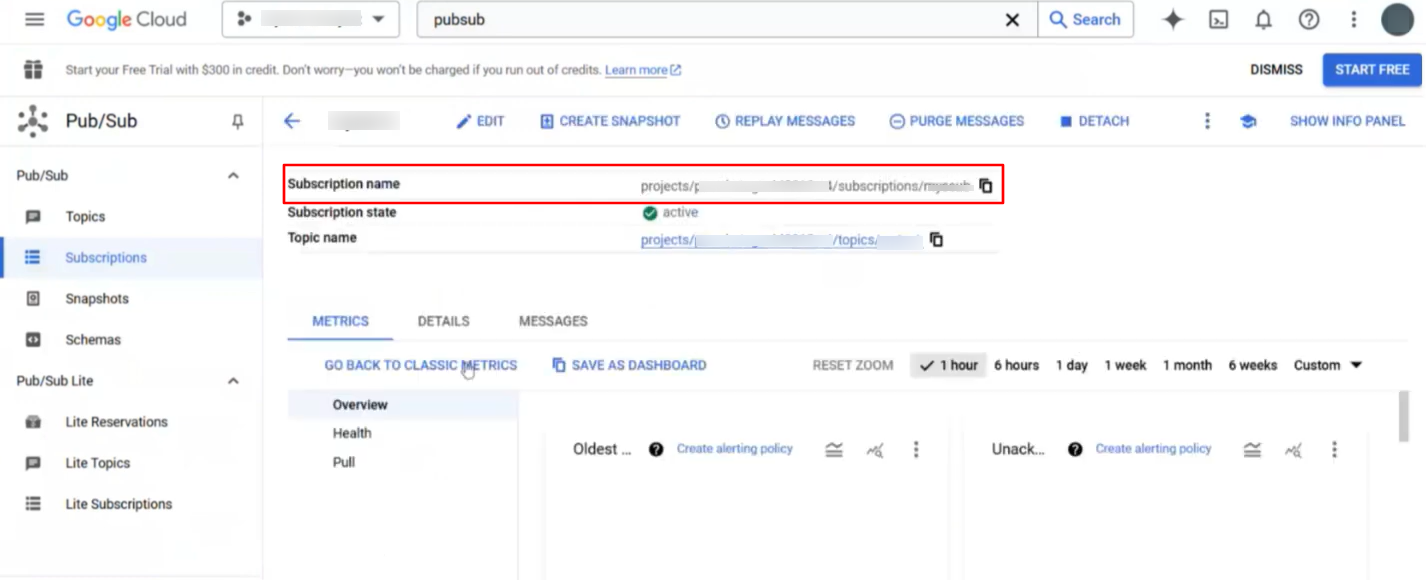
The generated service account credentials and subscription path are to be configured in Scope Setup: Step 1 for initiating Google Pub/Sub log ingestion.
Scope Setup
Step 1: Google Pub Sub Cloud Source Registration in the Scope Application
Once the credentials are obtained, configure them in the Scope application to establish the connection and enable data ingestion from Google Pub/Sub.
In the Scope application, to register a Google Pub/Sub cloud source, navigate to the cloud source registration page –
-
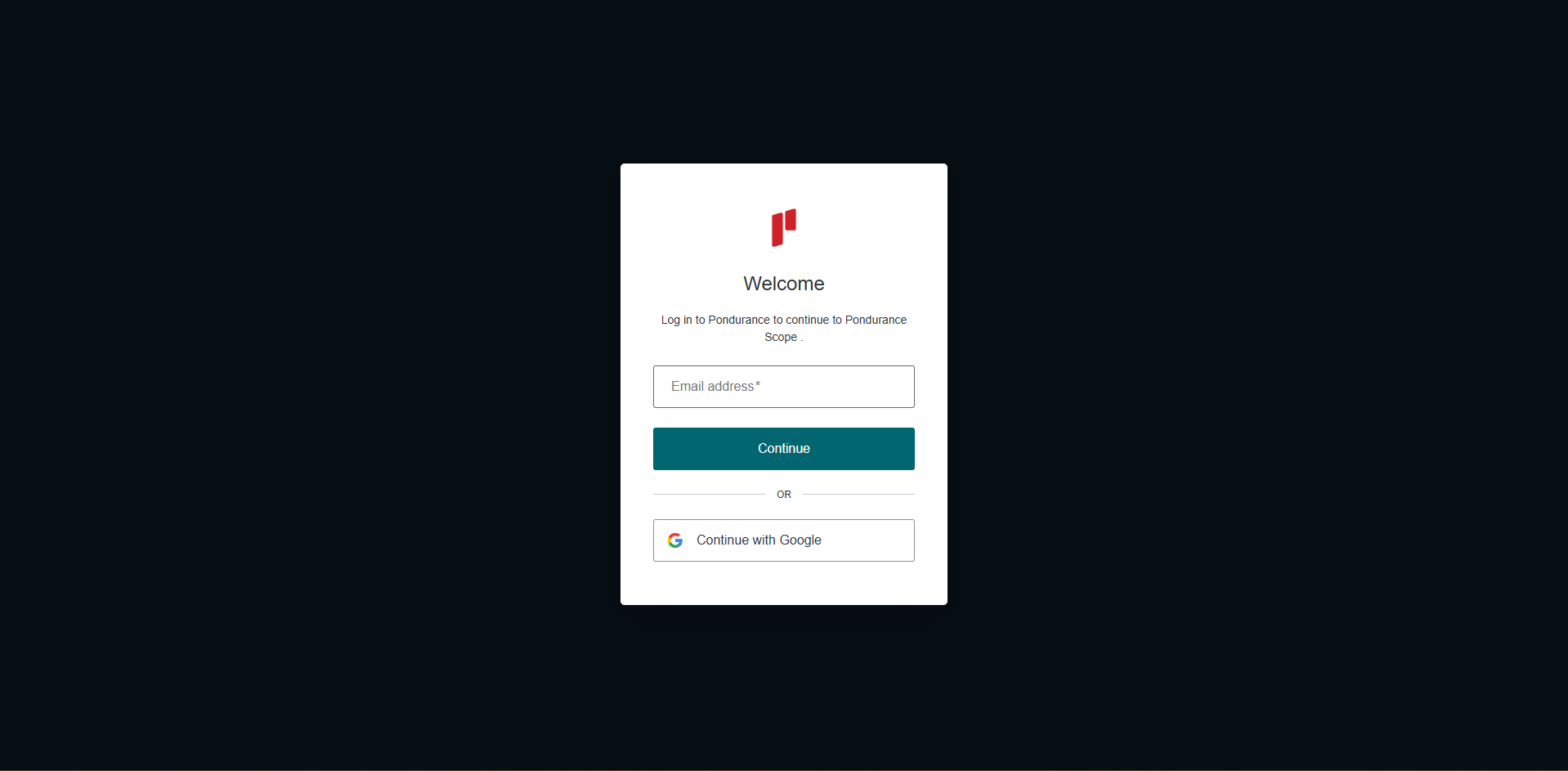
Log into the Scope application
-
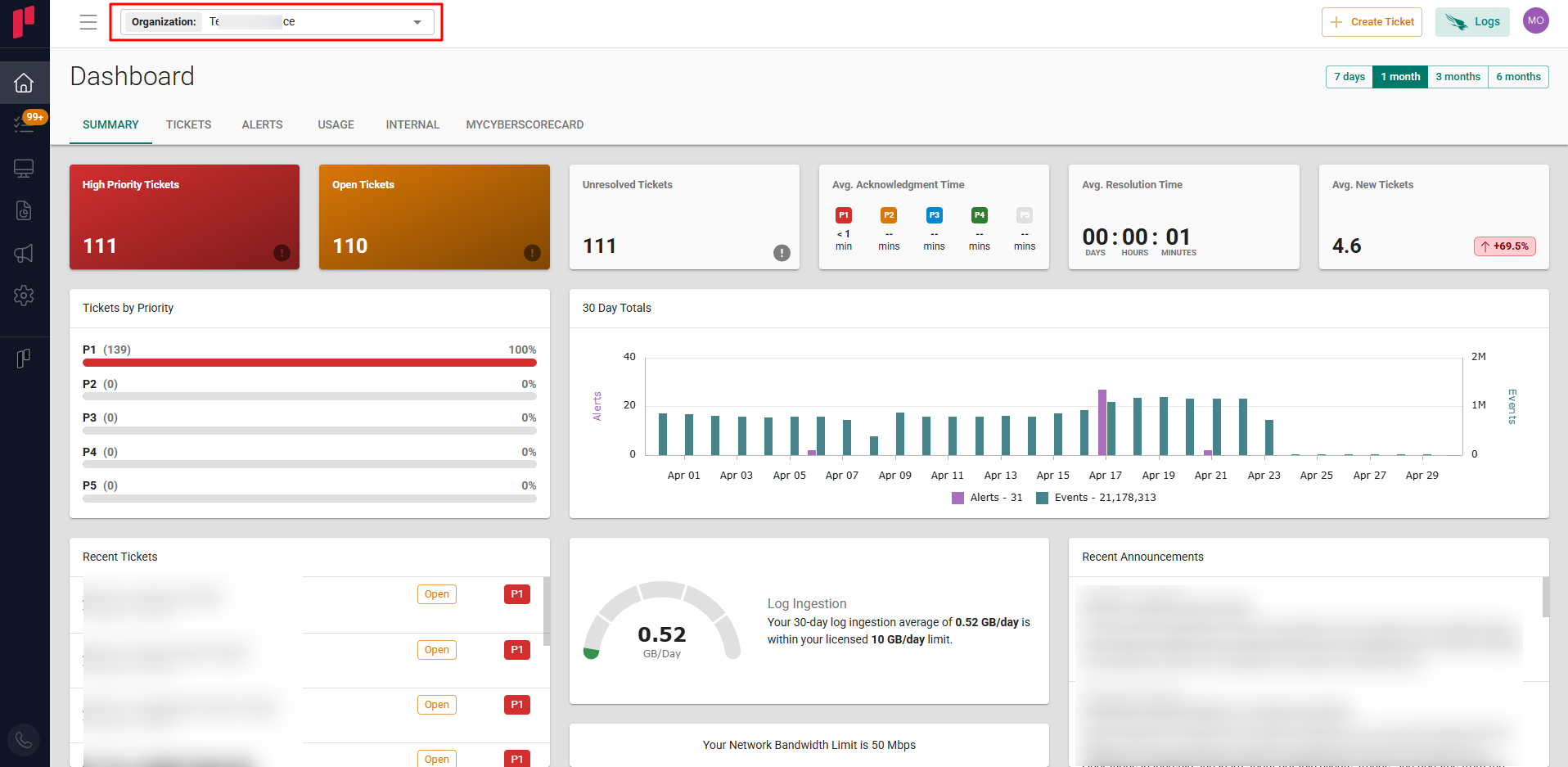
Select the required Organization from the Organization dropdown
-
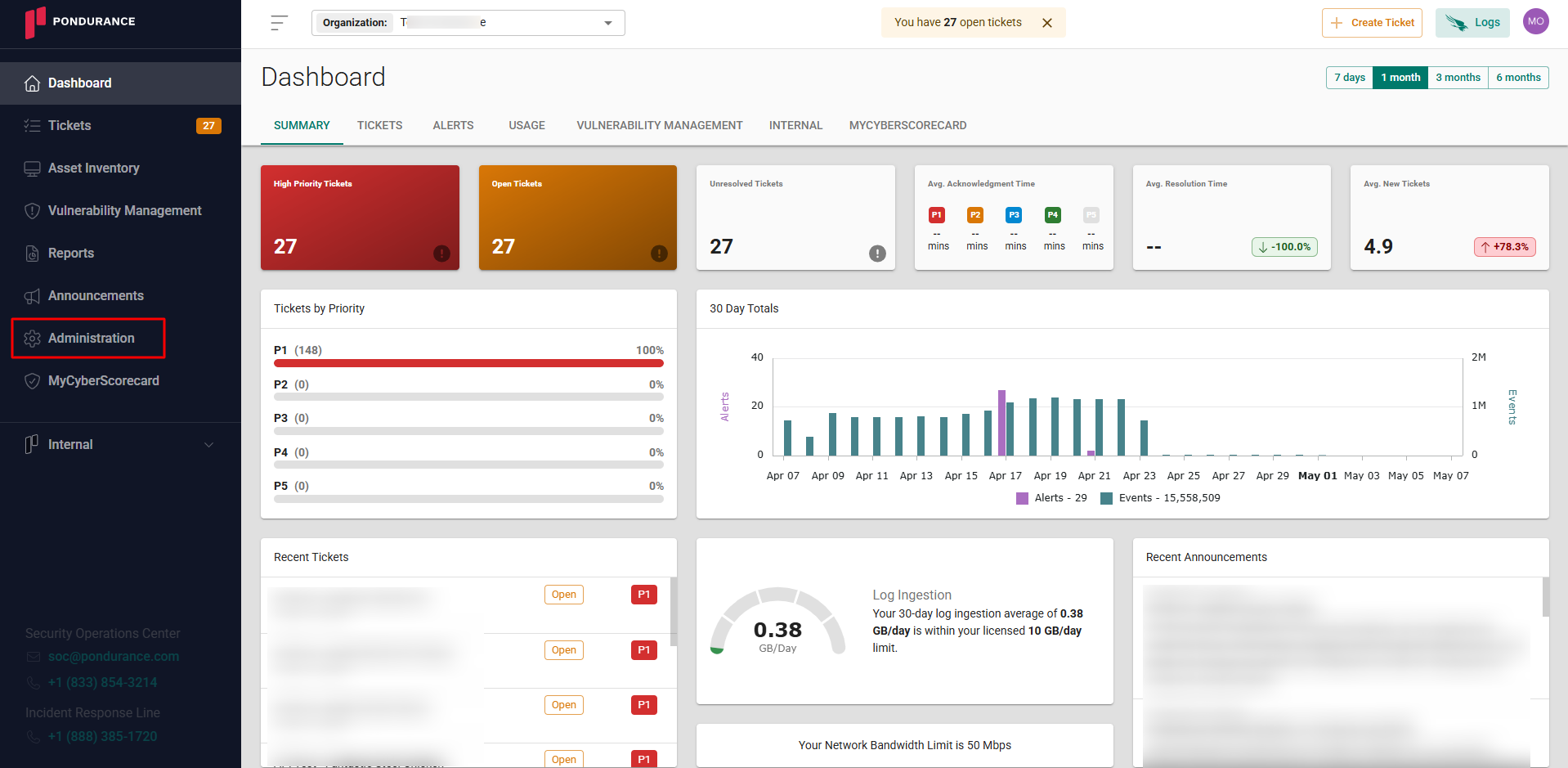
Navigate to the side menu -> Administration
-
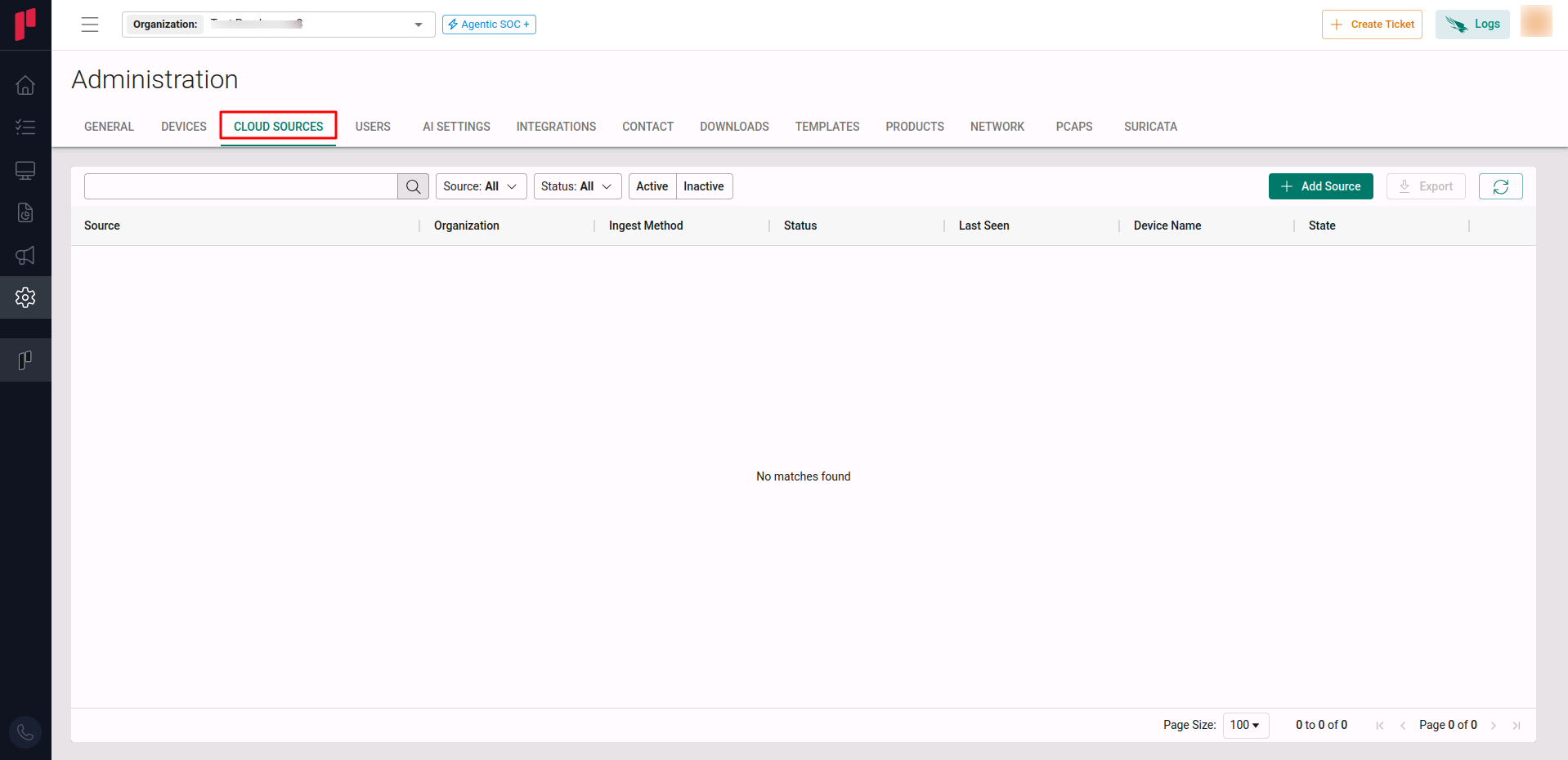
Navigate to the Cloud sources tab
-
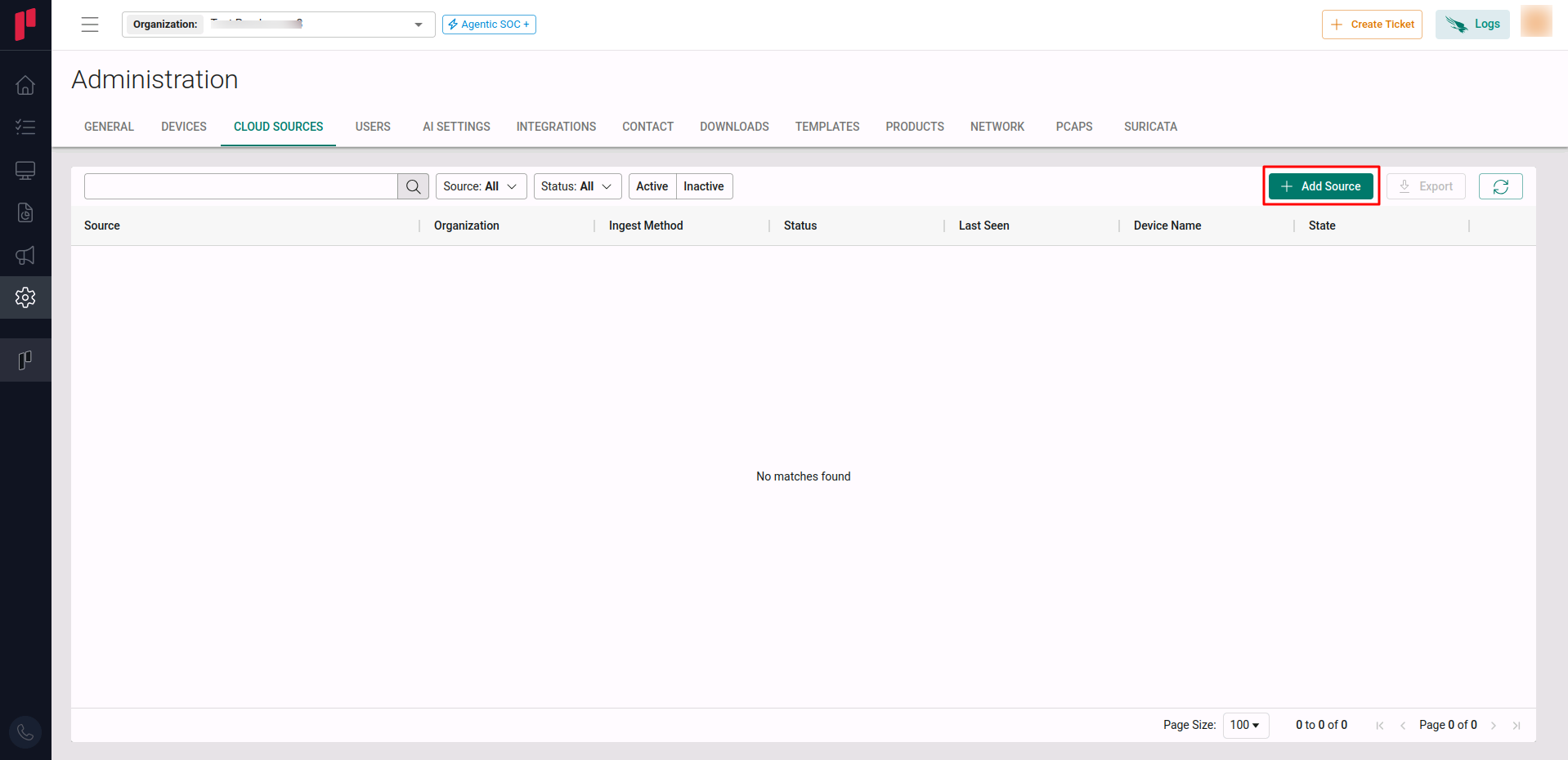
Click on the +Add Source button
-
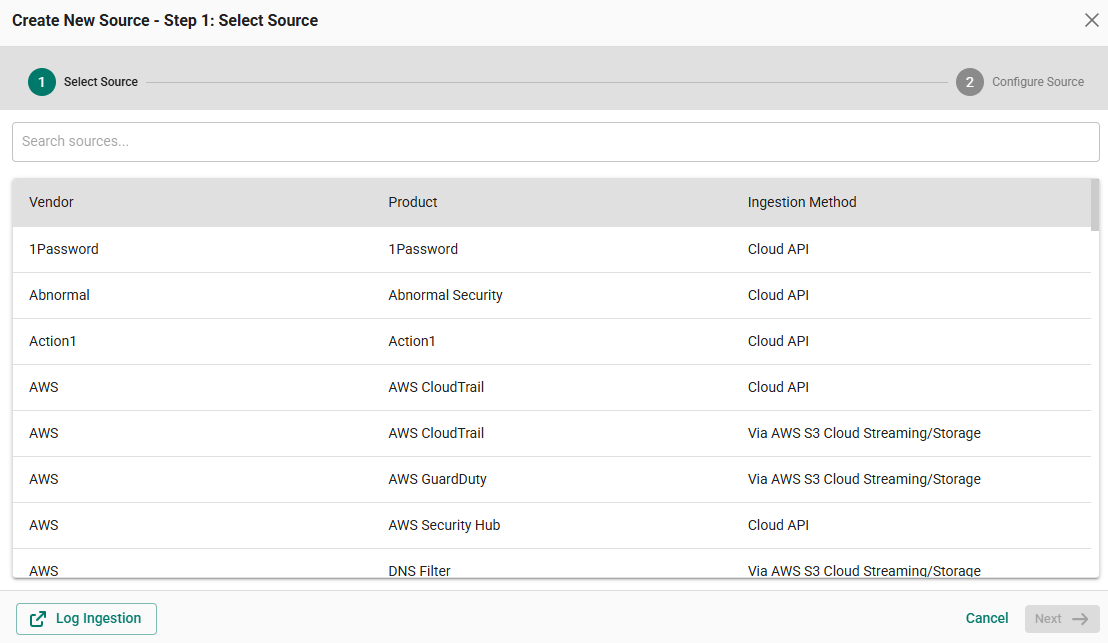
In Step 1 of the Add Source wizard, search for Google Pub Sub, select the cloud source and click Next.
-
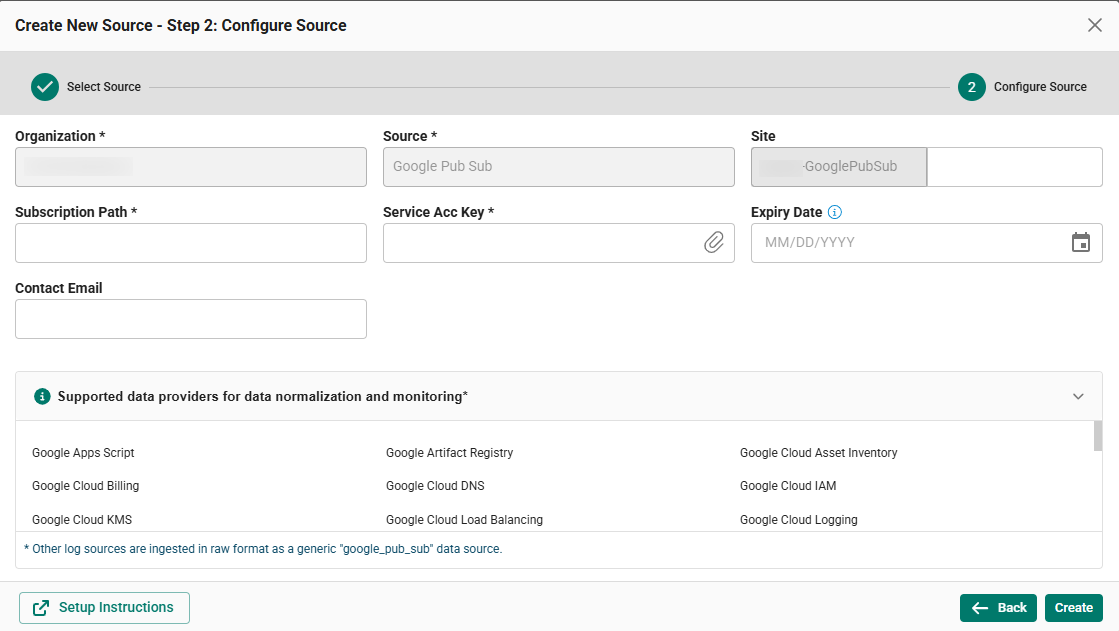
In Step 2 of the Add Source wizard, provide the parameters below.
-
Site: The user defined name for the Google Pub/Sub cloud source.
-
Subscription Path: The subscription name obtained from Step 3.
-
Service Account Key: The service account JSON credentials generated in Step 2.
-
Expiry Date: Optional. Provide the applicable expiry date.
-
Contact Email: Provide the email address of the person registering the Google Pub/Sub cloud source in Scope.
-
Once the Google Pub/Sub details are validated, the cloud source registration is complete in Scope and is ready for ingestion of Google Pub/Sub logs.