Medigate
Overview
Configuring a cloud source in Scope is a two-step process.
-
Generating Medigate API credentials in the Medigate Portal. Please refer to Section 1 – Medigate Setup
-
Setting up the Medigate cloud source in the Scope application. Please refer to Section 2 – Scope Setup
Medigate Setup
To get started, you’ll need to generate the following credentials in the Medigate Portal –
- Client ID
- Client Secret
- Base URL
Step 1: Create an API User
-
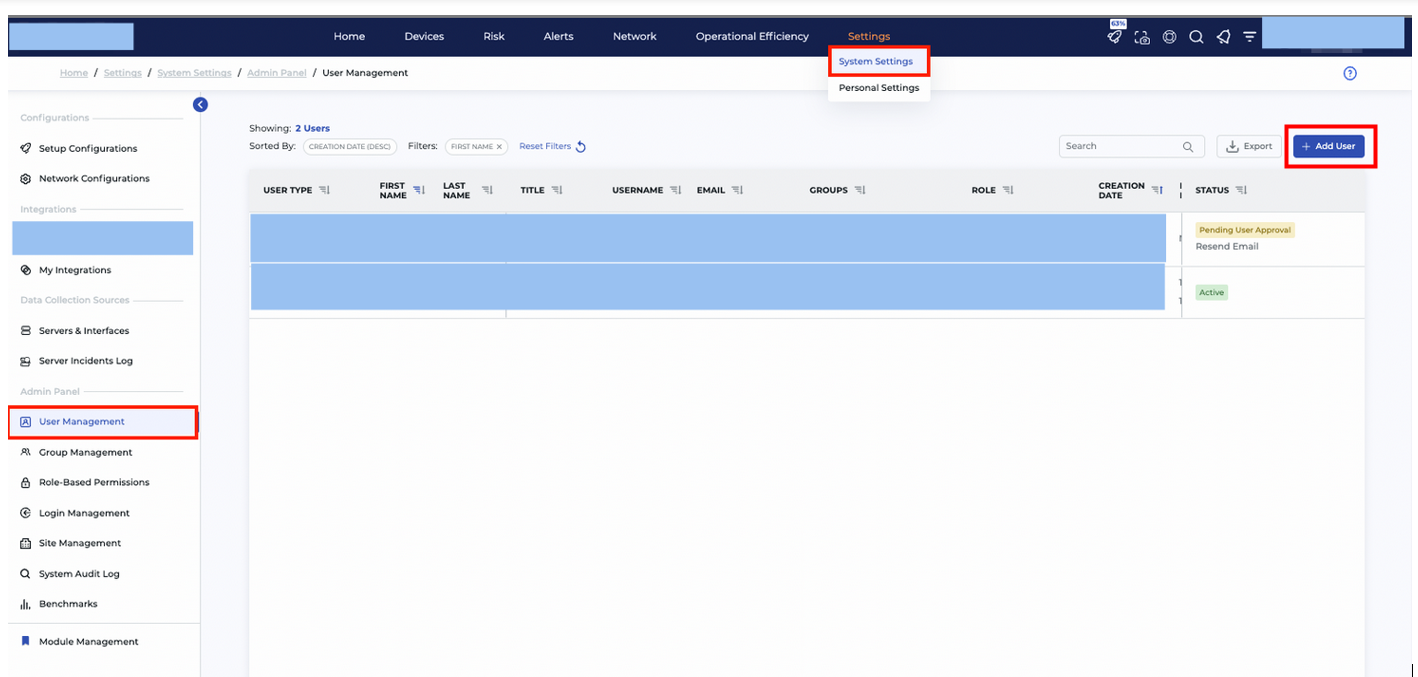
Log into the Medigate account and navigate to: Settings -> System Settings -> User Management -> User Creation (Add User) -> API User Creation
-
Create the API User.
Step 2: Generate the API Token
-
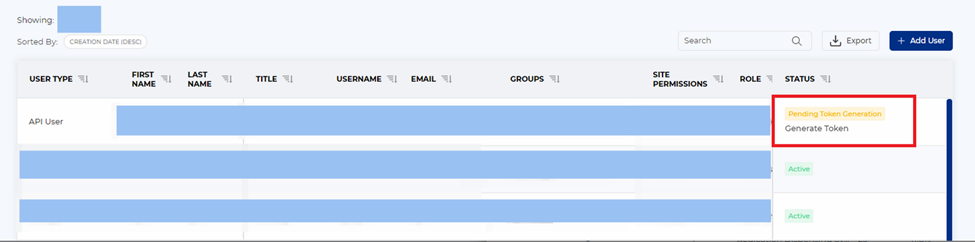
Once the API User is created, navigate to: User Management -> Created API User
-
Hover over the Status column for the created API User and click Generate Token.
-
Copy the generated API Token.
Note: For security reasons, the API Token is generated and displayed only once. Ensure that it is securely stored before navigating away from the page.
The Client ID and Client Secret are to be configured in Scope Setup: Step 1 for initiating the Medigate log ingestion.
Scope Setup
Step 1: Medigate Cloud Source Registration in the Scope Application
Once the credentials are generated, they must be configured in the Scope application to establish the connection and enable data ingestion from the Medigate environment.
In the Scope application, to register a Medigate cloud source, navigate to the cloud source registration page –
-
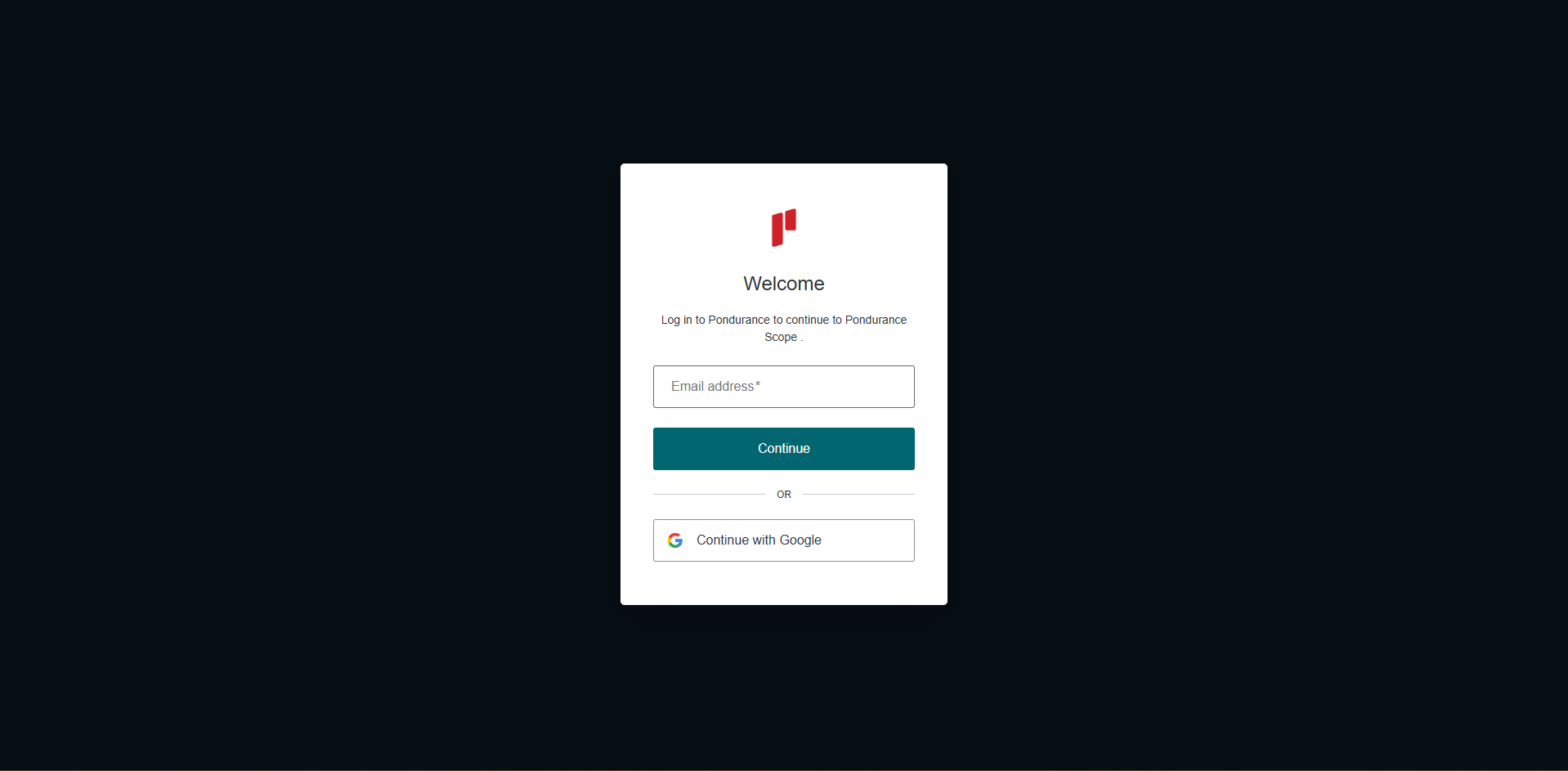
Log into the Scope application
-
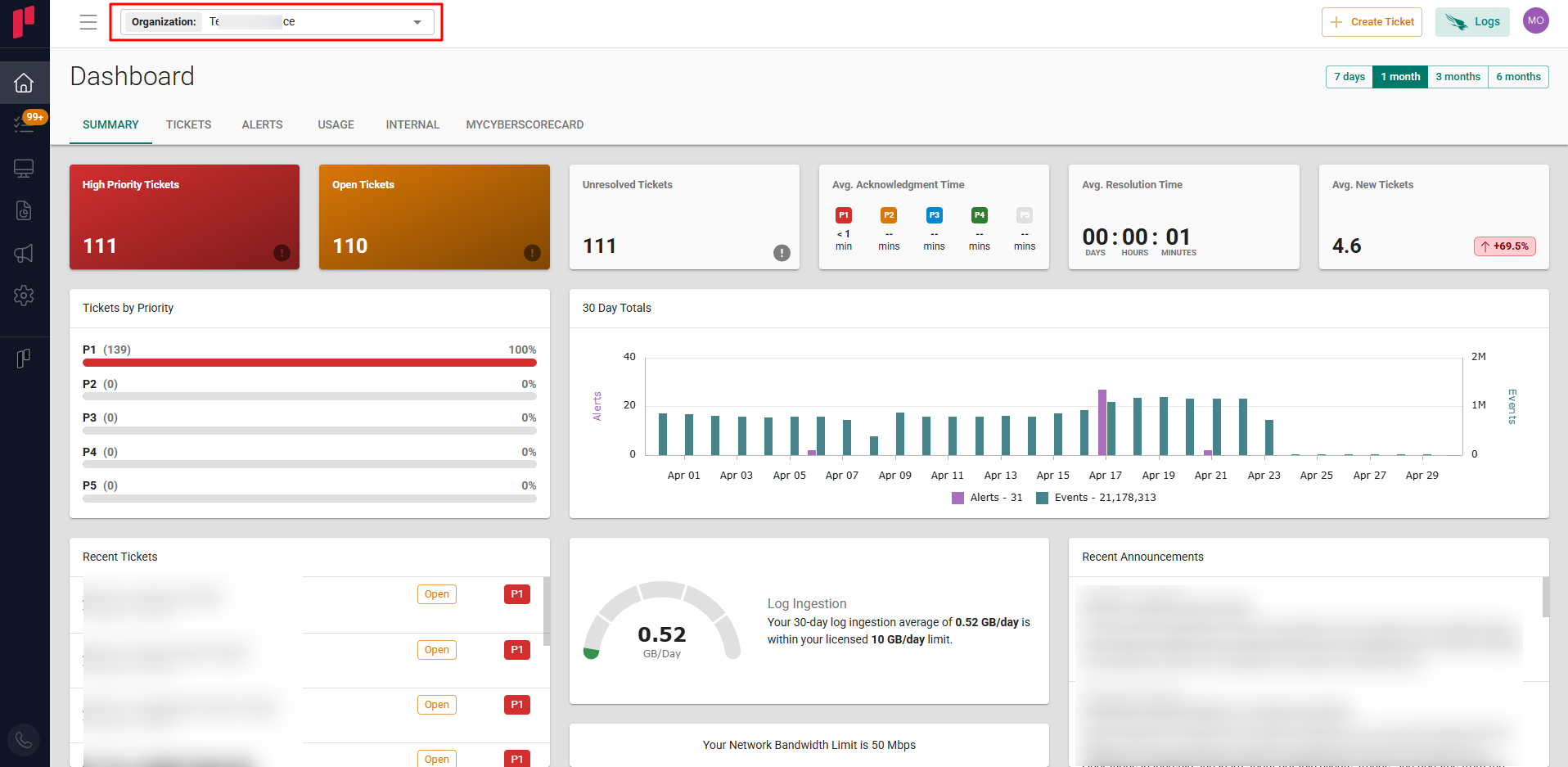
Select the required Organization from the Organization dropdown
-
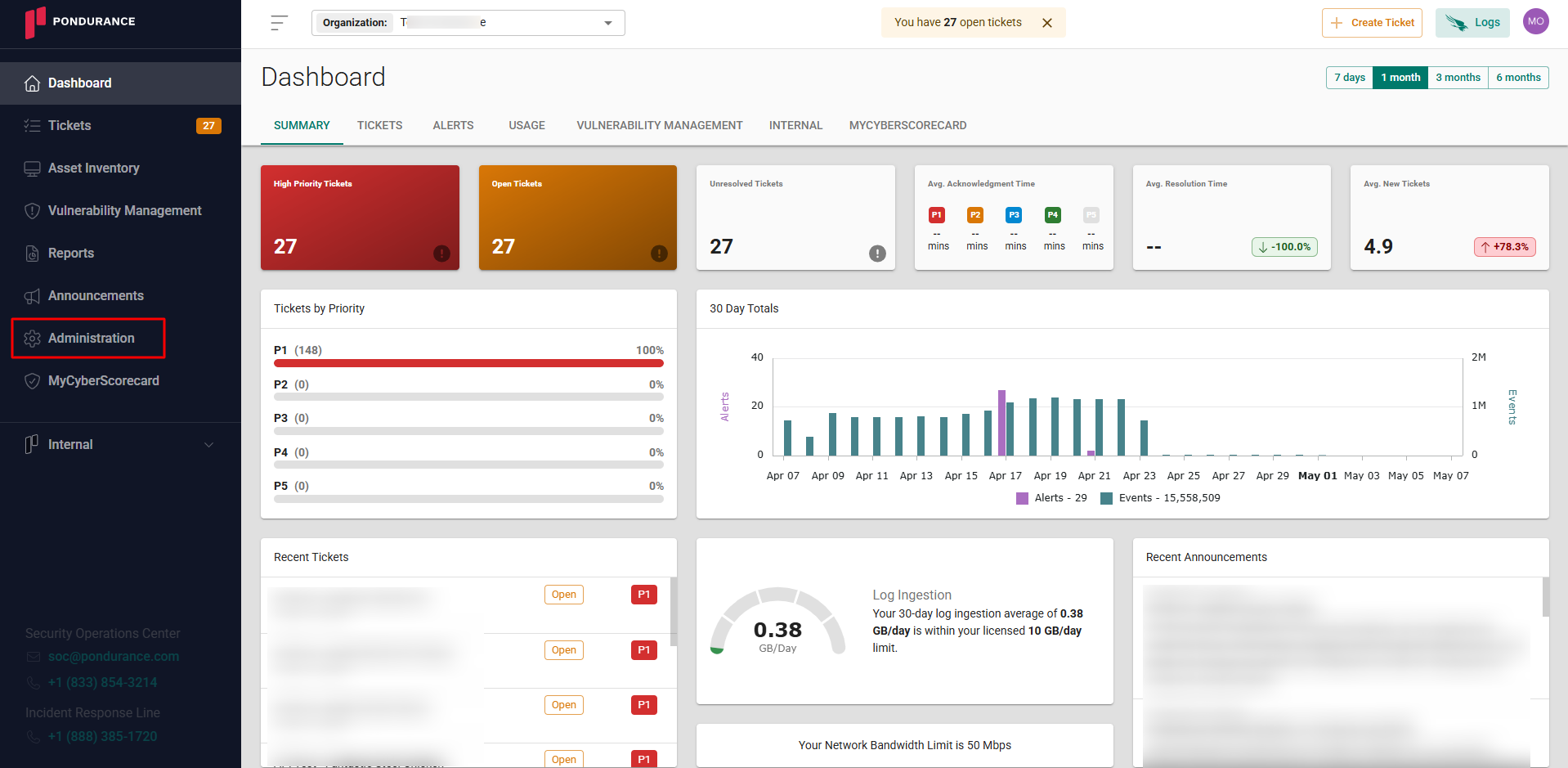
Navigate to the side menu -> Administration
-
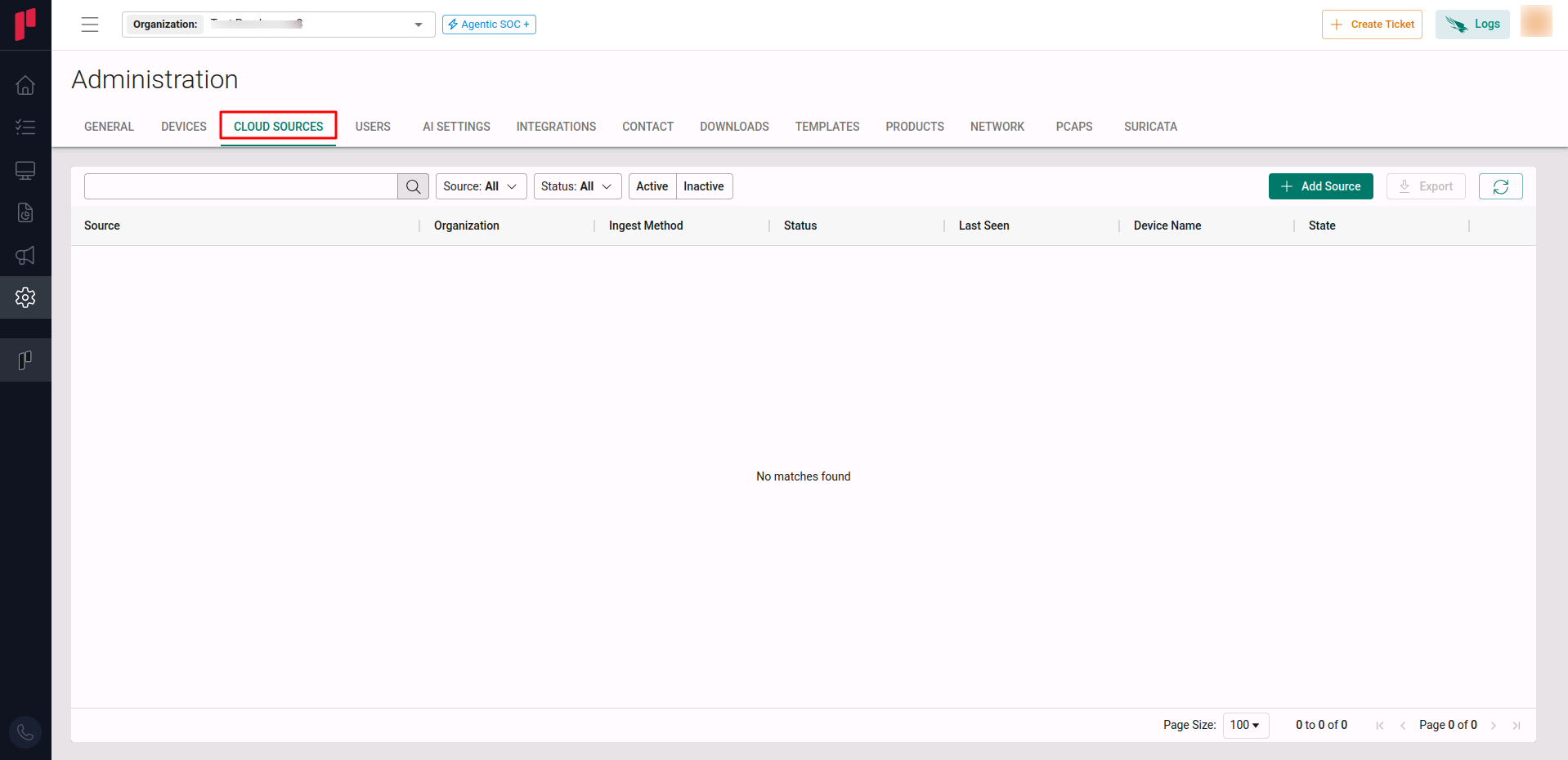
Navigate to the Cloud sources tab
-
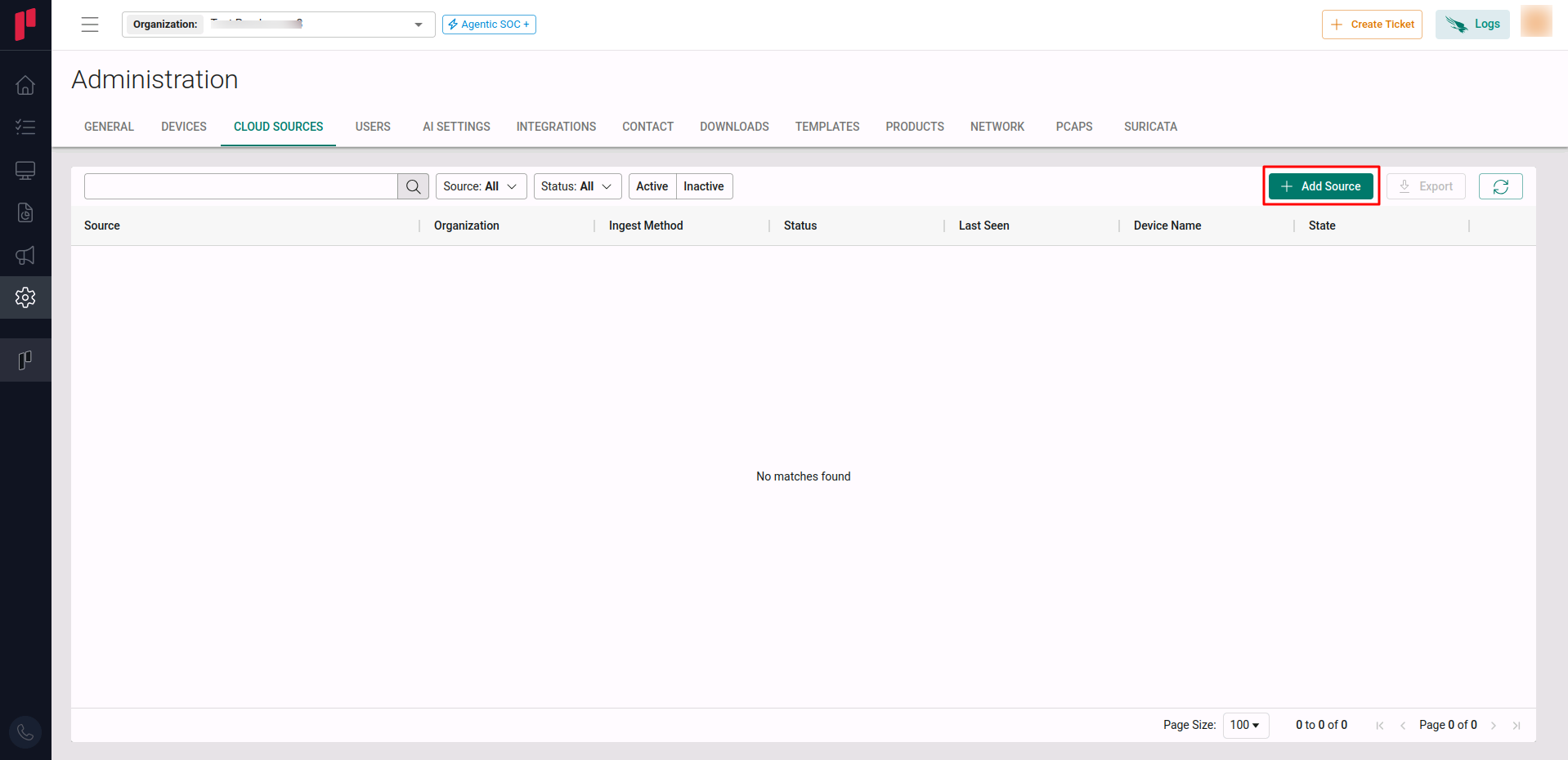
Click on the +Add Source button
-
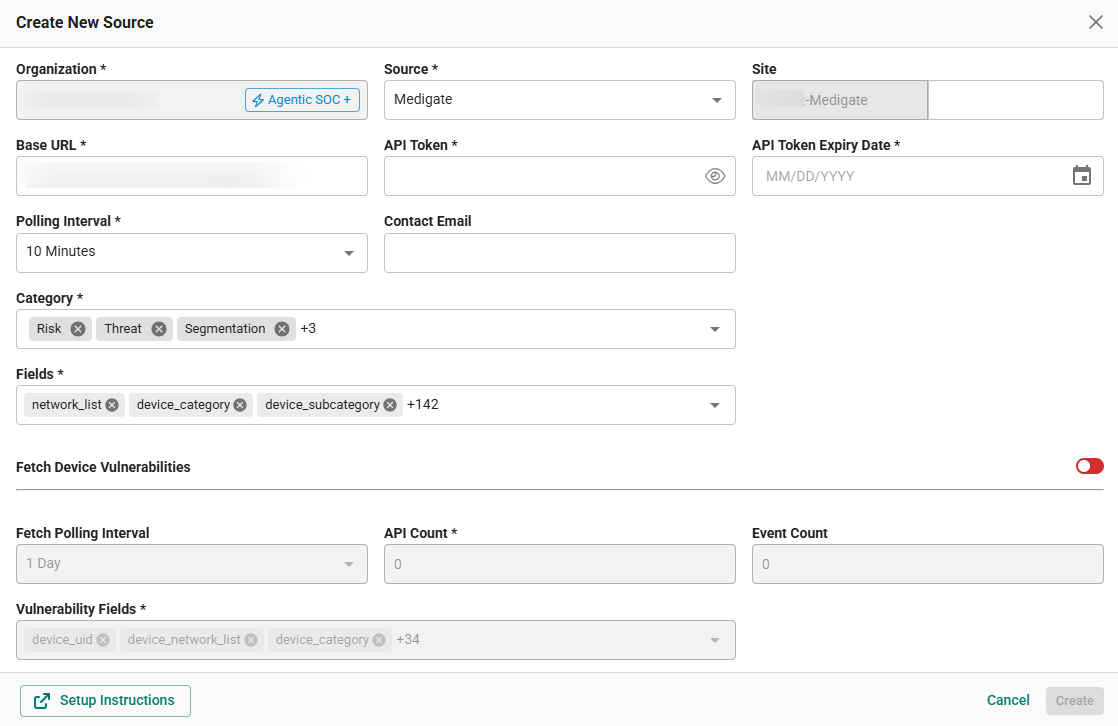
In the Add Source pop-up, provide the parameters below.
-
Source: Select the Medigate source from the Source dropdown.
-
Site: The user defined name for the Medigate cloud source.
-
Base URL: Enter the API URL (issued by Medigate).
-
Client ID: The Client ID generated in Step 1.
-
Client Secret: The Client Secret generated in Step 1.
-
Client Secret Expiry Date: Expiry date of the generated Client Secret.
Note: If the credentials do not have an expiry date, the expiry date can be set to a very far away date to avoid false alerts.
-
Log Types: The event categories to ingest. Supported categories include: Alerts, Device Vulnerabilities.
-
Polling Interval: The polling interval for making periodic API calls to the Medigate API. The user can select the time interval from the dropdown.
-
Contact Email: The email address of the person who registers the Medigate cloud source in Scope.
-
Fetch Device Vulnerability (Toggle): Enabling this toggle button will fetch the Vulnerability events from Medigate devices for either the configured time interval or on-demand. Since the vulnerability scans are not run on an hour-to-hour basis, pre-defined time periods from the dropdown (1 day / 1 week / 2 week / 1 month / 3 month / 6 month) can be selected to fetch details of devices with their related vulnerabilities from the Medigate database. If there is a need to fetch the logs immediately, then the on-demand option can be used to fetch the vulnerabilities from the Medigate database. By default, this option will be enabled.
-
Once the required connection parameters are entered, the Medigate cloud source registration is complete in Scope and is ready for ingestion of Medigate alerts and device vulnerability logs.