Dropbox
Overview
Configuring a cloud source in Scope is a two-step process.
-
Generating Dropbox client credentials in Dropbox Console. Please refer to Section 1 – Dropbox Setup
-
Setting up the Dropbox cloud source in the Scope application. Please refer to Section 2 - Scope Setup
Dropbox Setup
To get started, you’ll need to generate the following client credentials in the Dropbox portal –
- Client Key (App Key)
- Client Secret (App Secret)
Step 1: Create an App in Dropbox
-
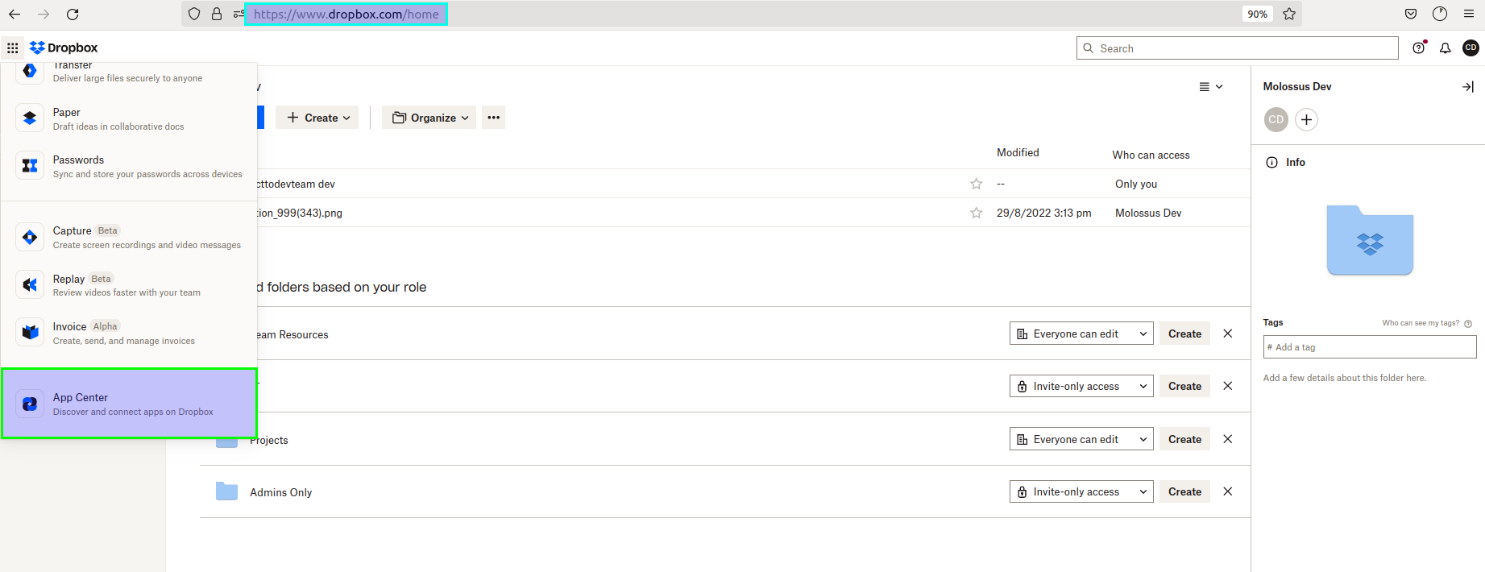
Log into your Dropbox account and click on App Center.
-
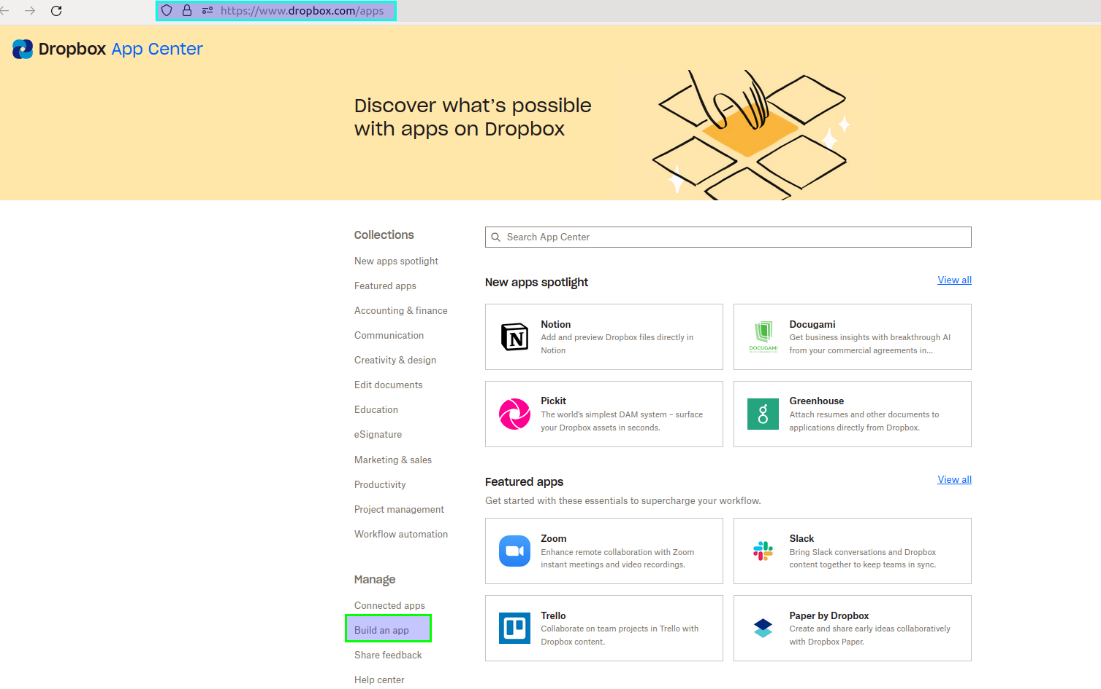
Click Build an app from the left menu.
-
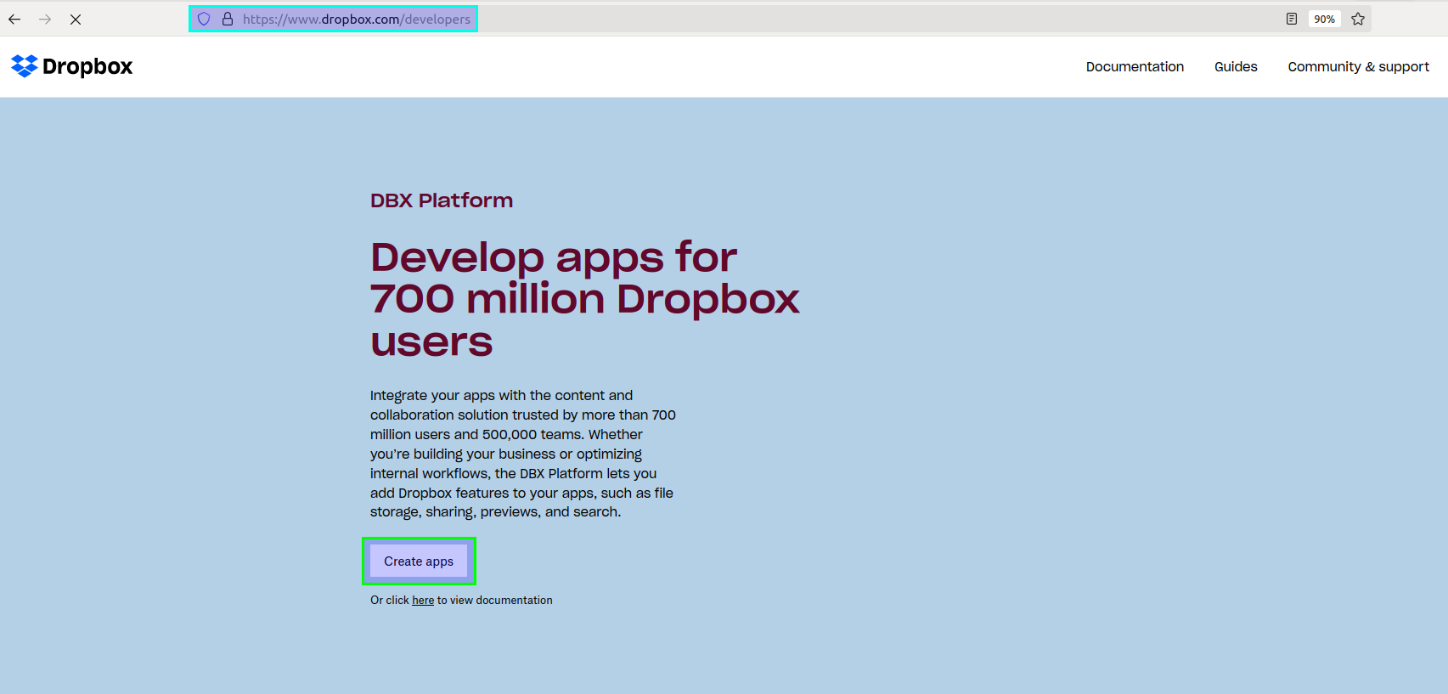
Click Create apps.
-
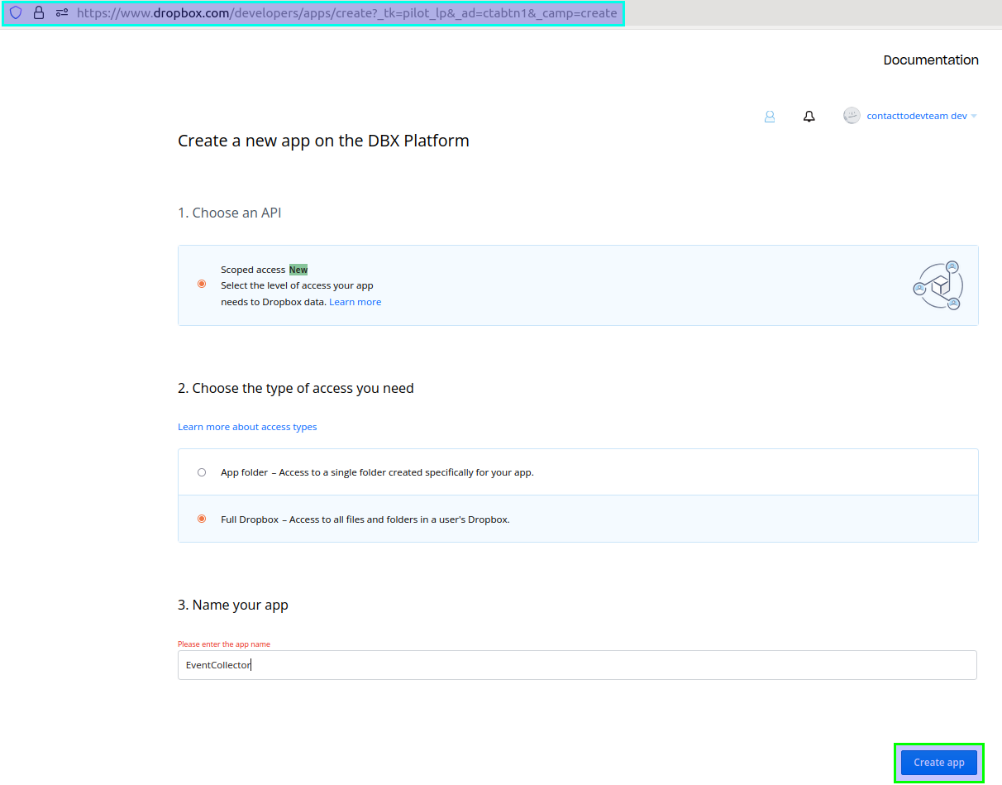
Provide a Name (user defined) and type of access for the app in Dropbox.
Step 2: Configure Required App Permissions
-
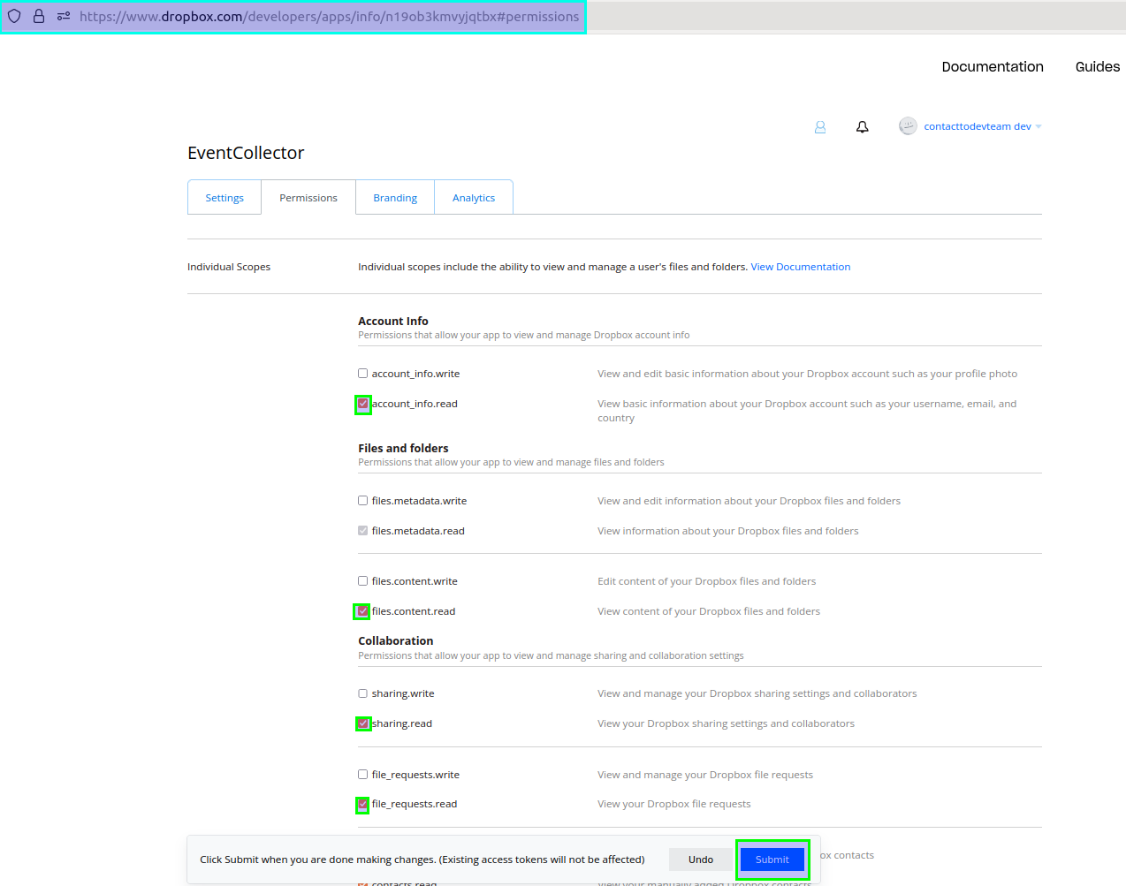
In the Permissions tab, select the read permissions for the various category activities required to consume events through the Dropbox API.
Step 3: Obtain the App Key and App Secret
-
From the Settings tab, copy the App Key and App Secret.
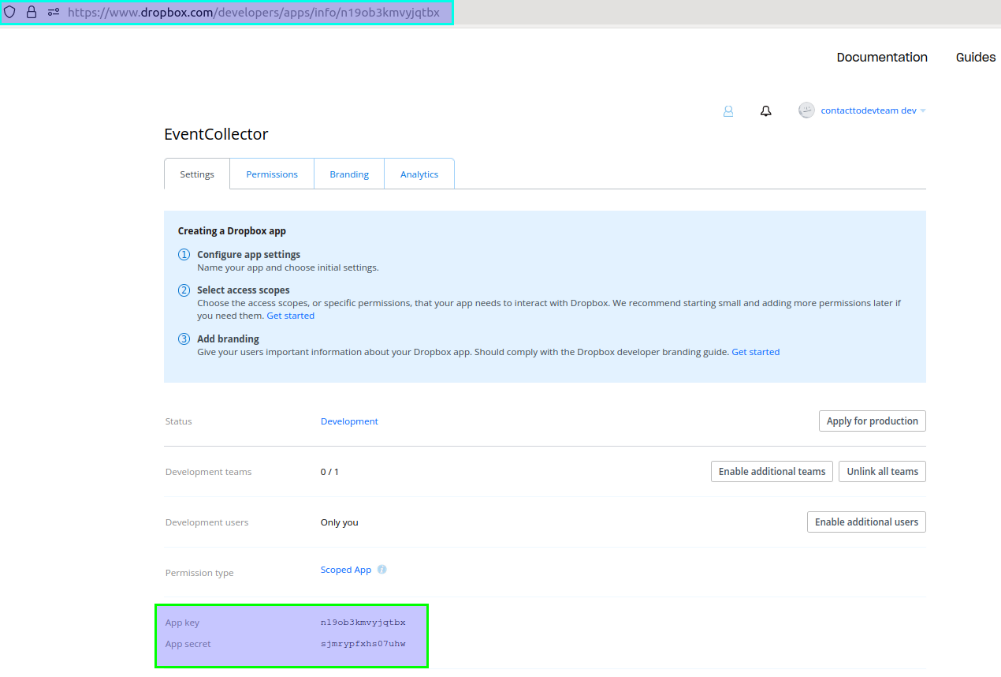
The generated App Key and App Secret are to be configured in Scope Setup: Step 1 for initiating the Dropbox log ingestion.
Scope Setup
Step 1: Dropbox Cloud Source Registration in the Scope Application
Once the App Key and App Secret are generated, they must be configured in the Scope application.
In the Scope application, to register a Dropbox cloud source, navigate to the cloud source registration page –
-
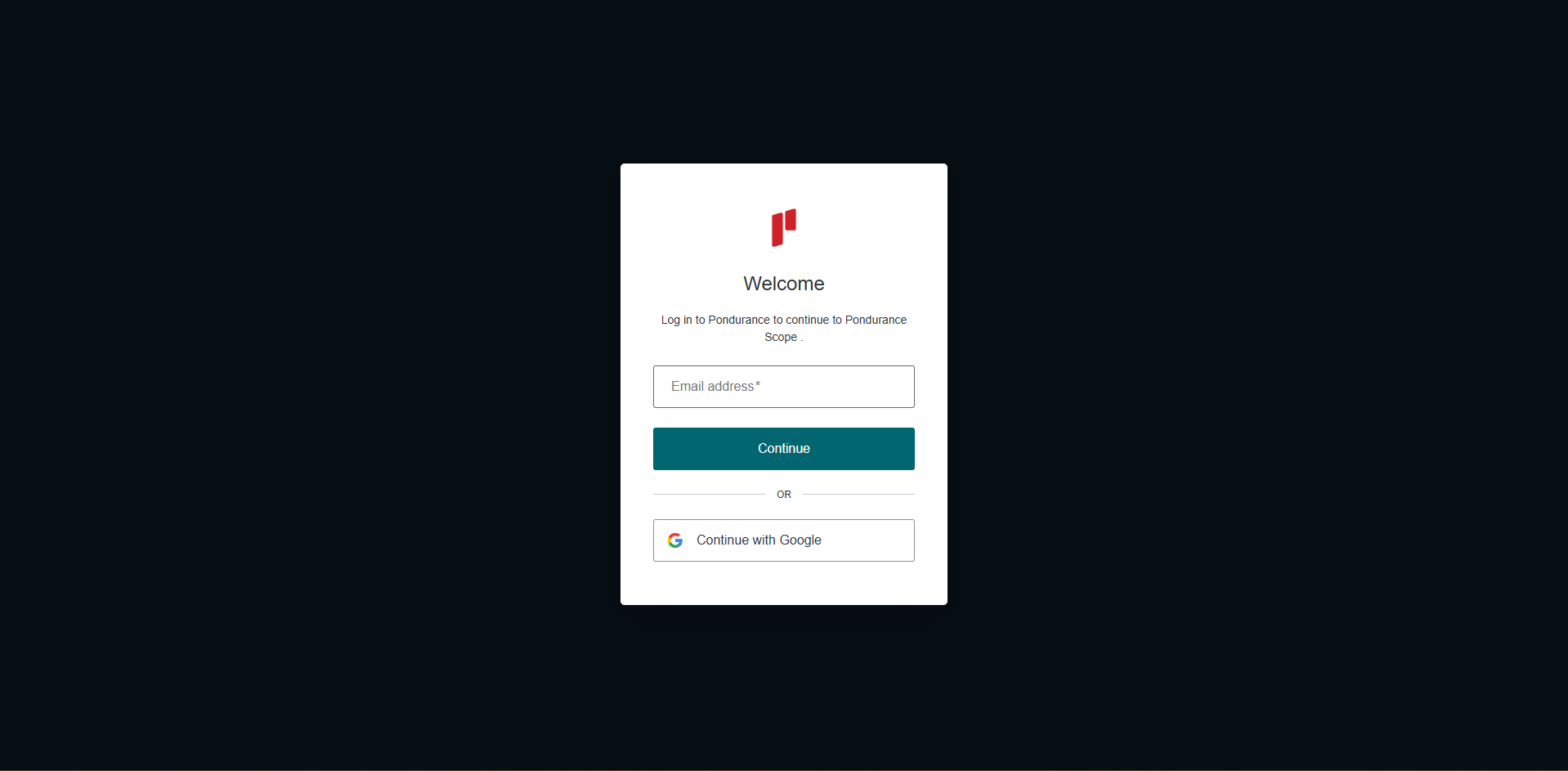
Log into the Scope application
-
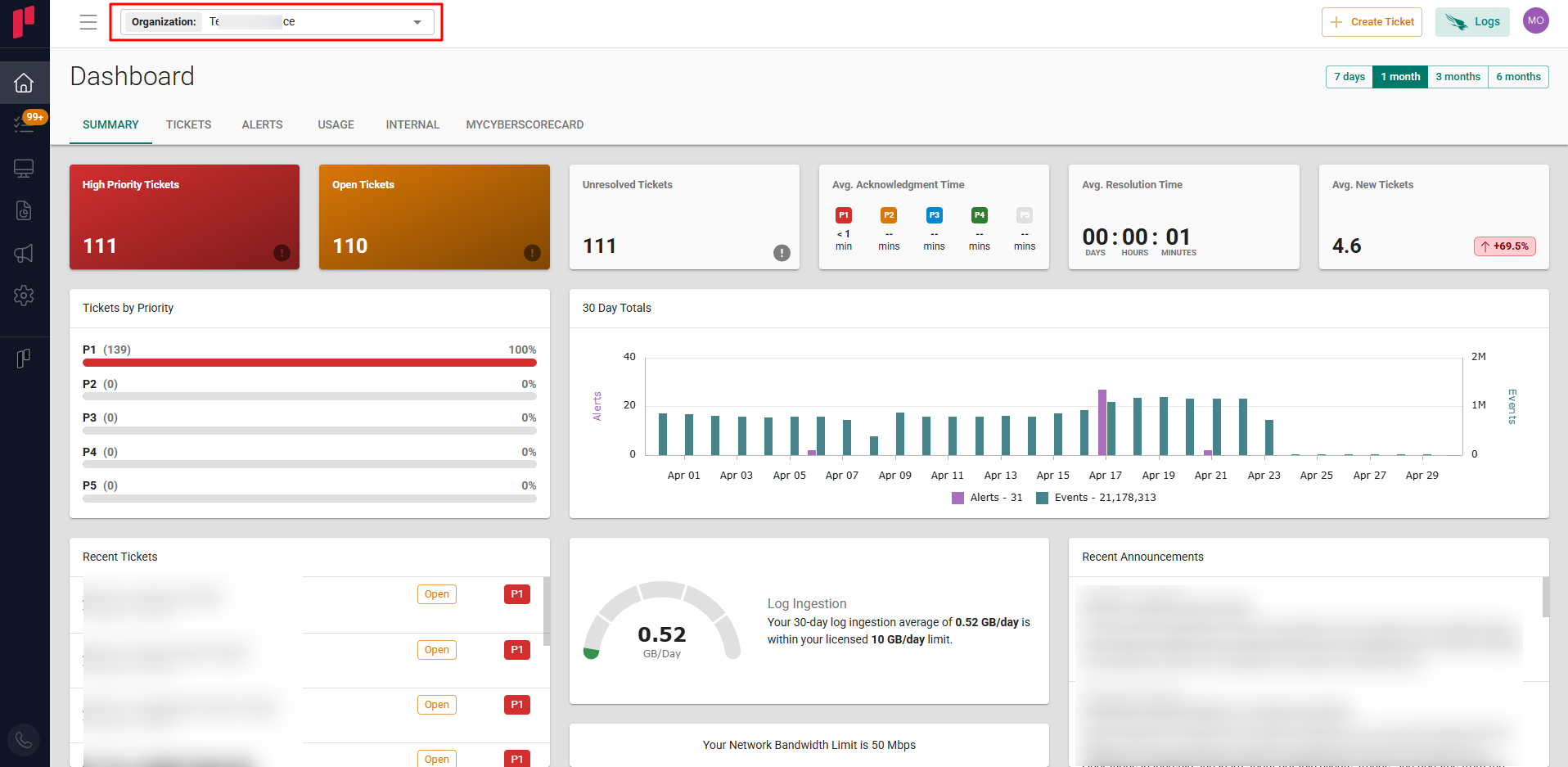
Select the required Organization from the Organization dropdown
-
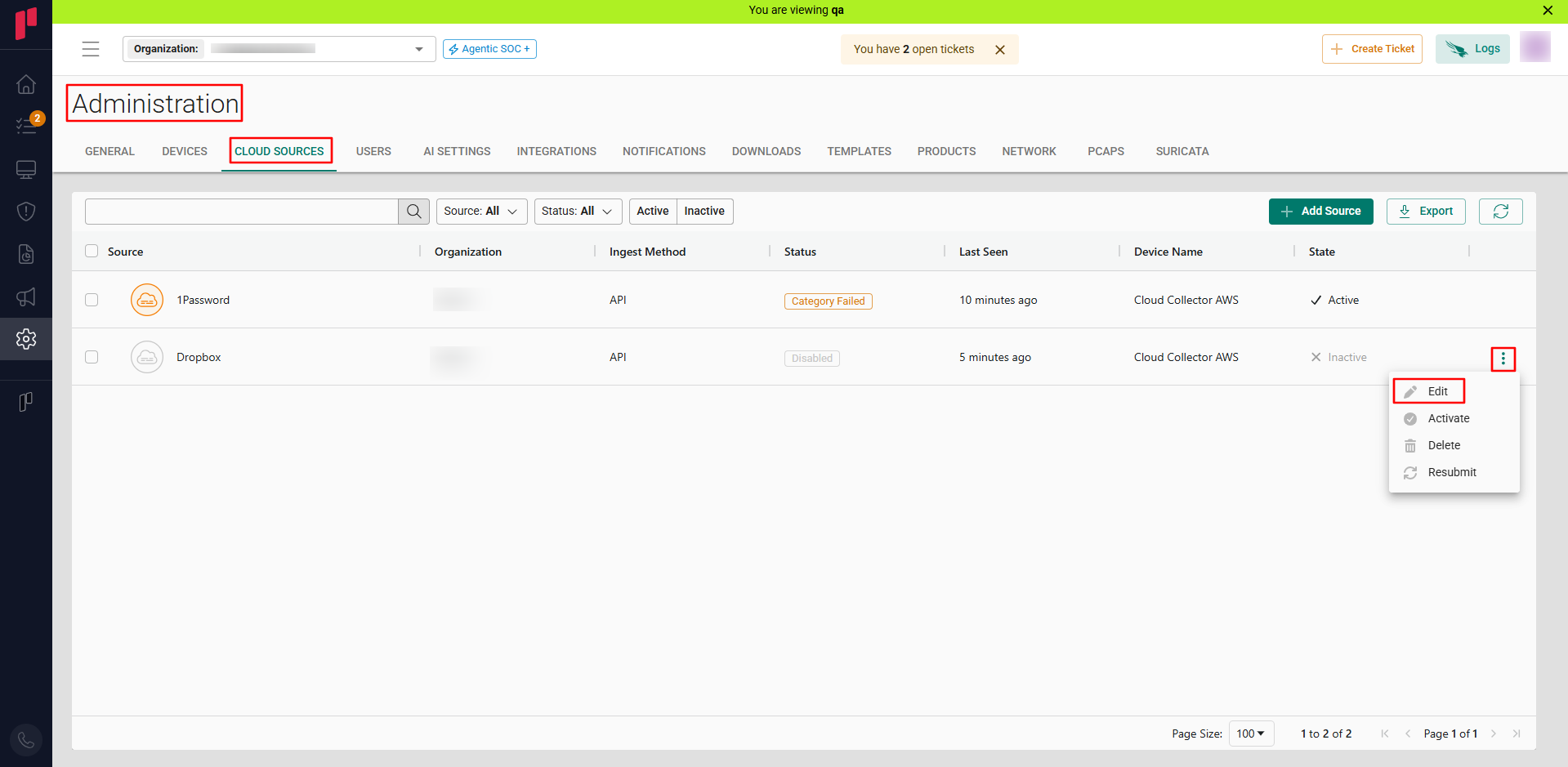
Navigate to the side menu -> Administration
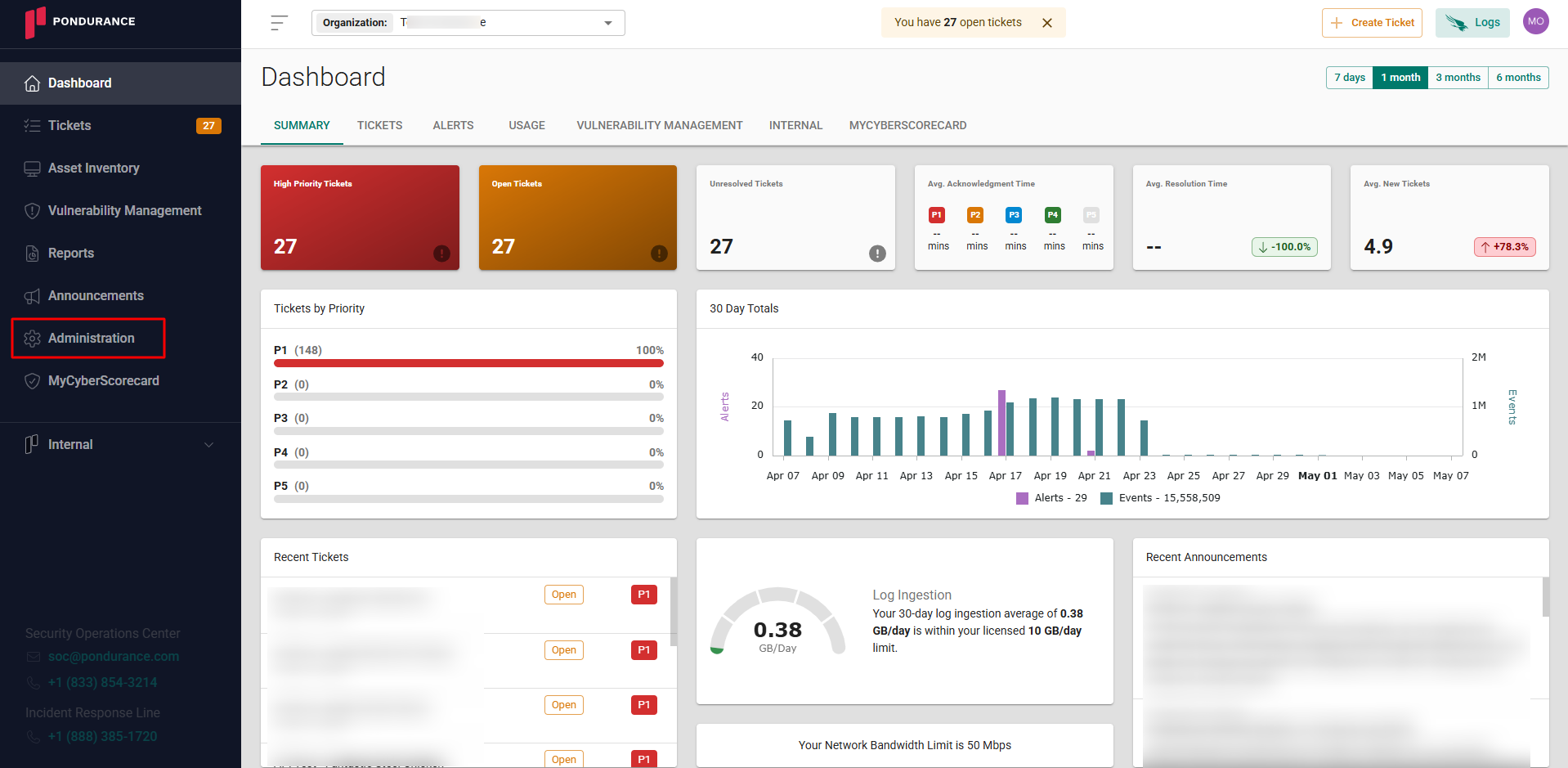
-
Navigate to the Cloud sources tab
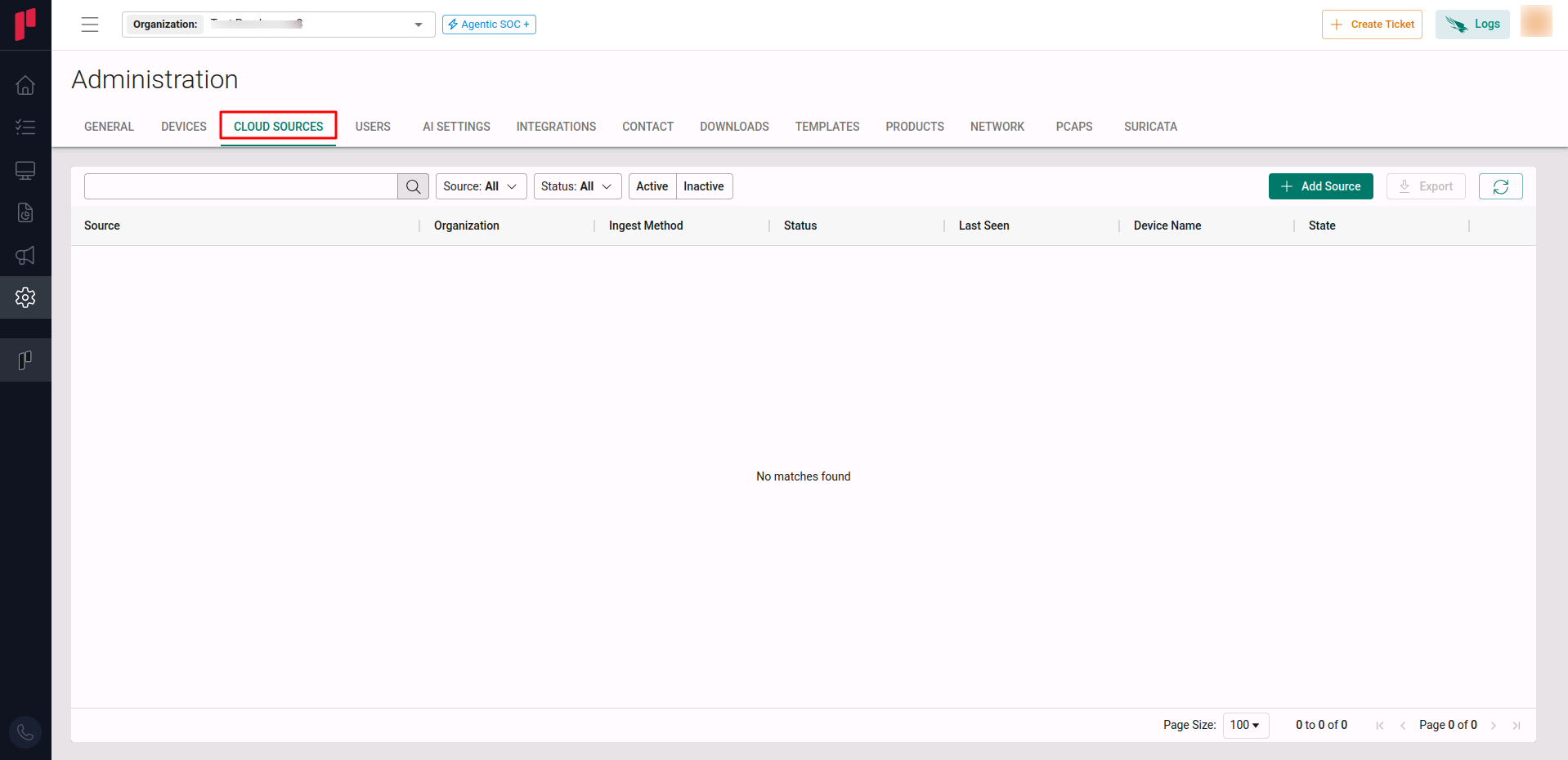
-
Click on the +Add Source button
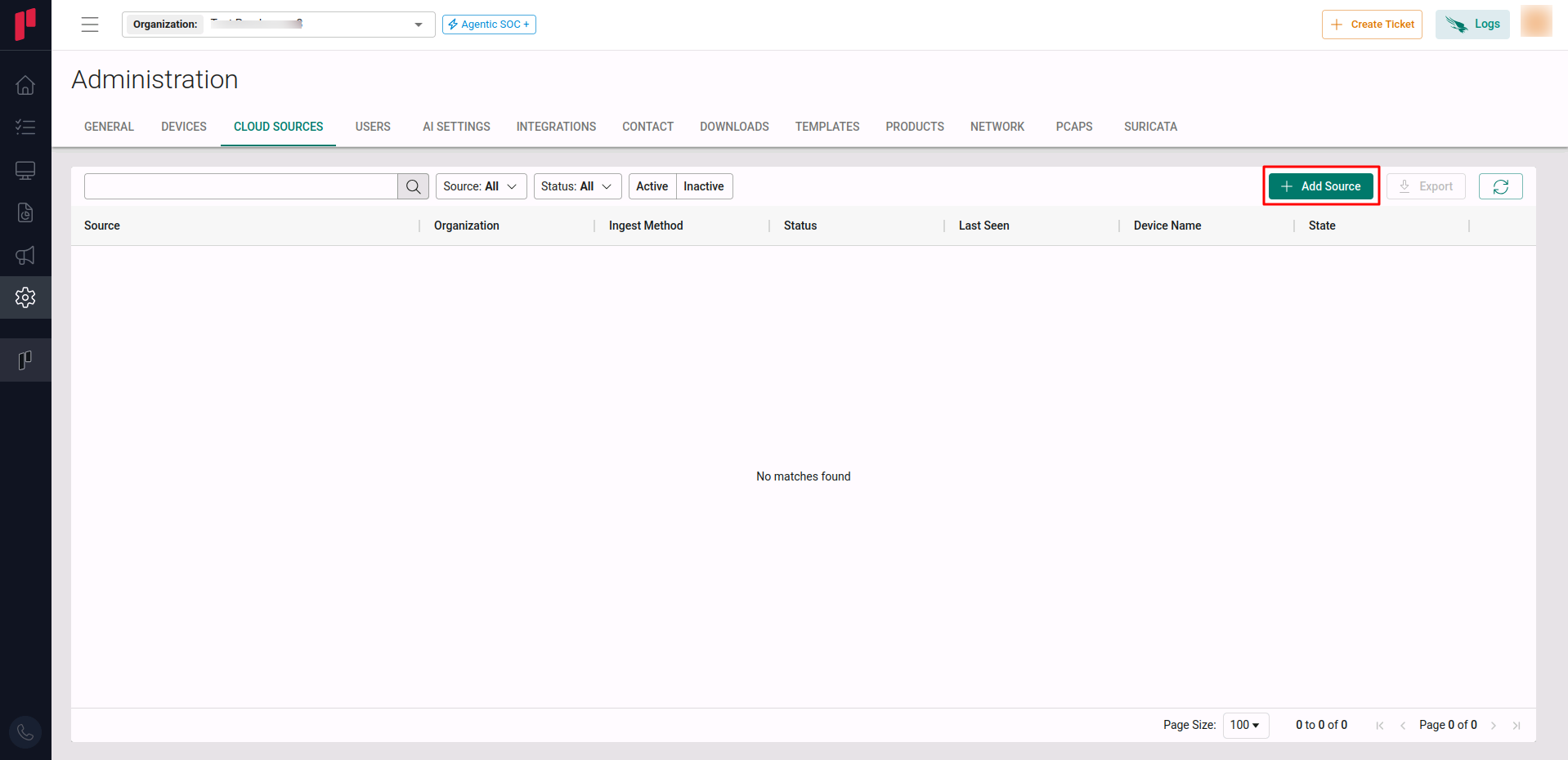
-
In the Add Source pop-up, provide the parameters below.
-
Source: Select the Dropbox source from the Source dropdown.
-
Site: The user defined name for the Dropbox cloud source.
-
Client Key: The App Key from Step 3.
-
Client Secret: The App Secret from Step 3.
-
Polling Interval: The polling interval for making periodic API calls to the Dropbox cloud source. The user can select the time interval from the dropdown.
-
Contact Email: The email address of the person who registers the Dropbox cloud source in Scope.
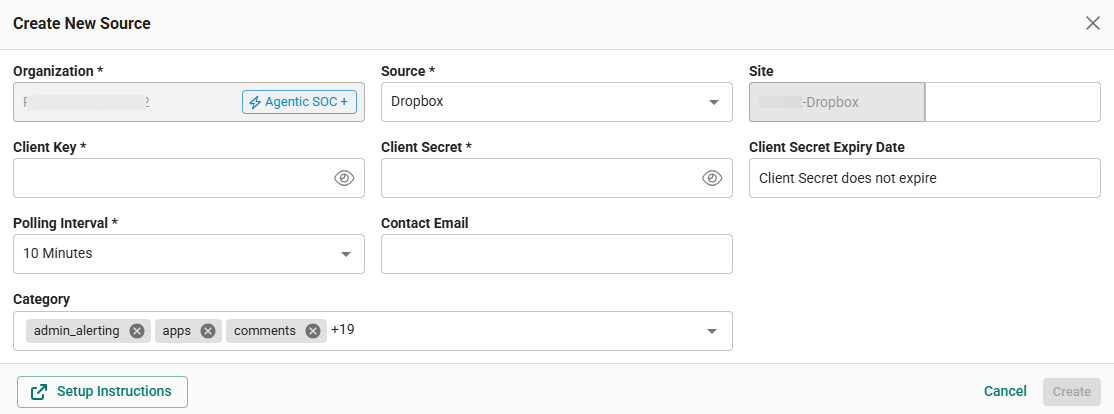
-
Step 2: Generate the Authorization URL
-
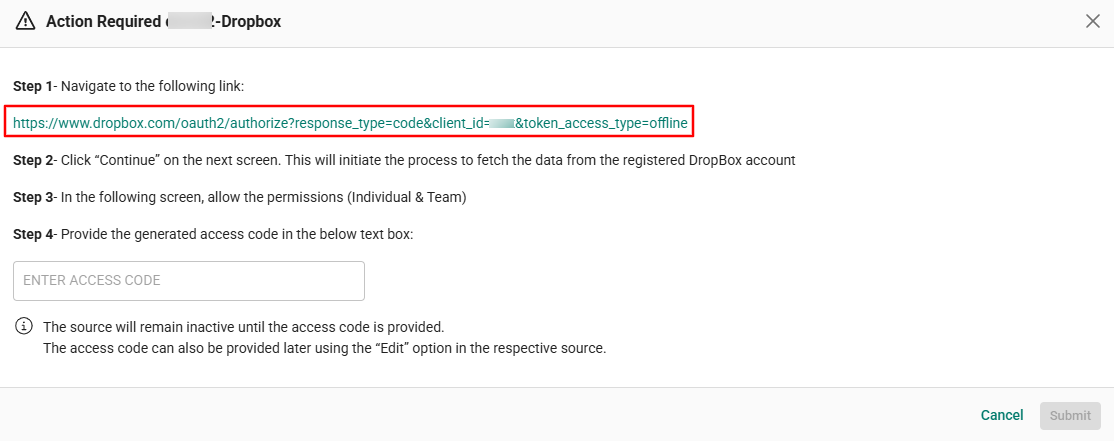
After registering the Dropbox cloud source, the Scope application generates an Authorization URL.
-
Open the Authorization URL in your browser.
Step 3: Generate the Access Code in Dropbox
-
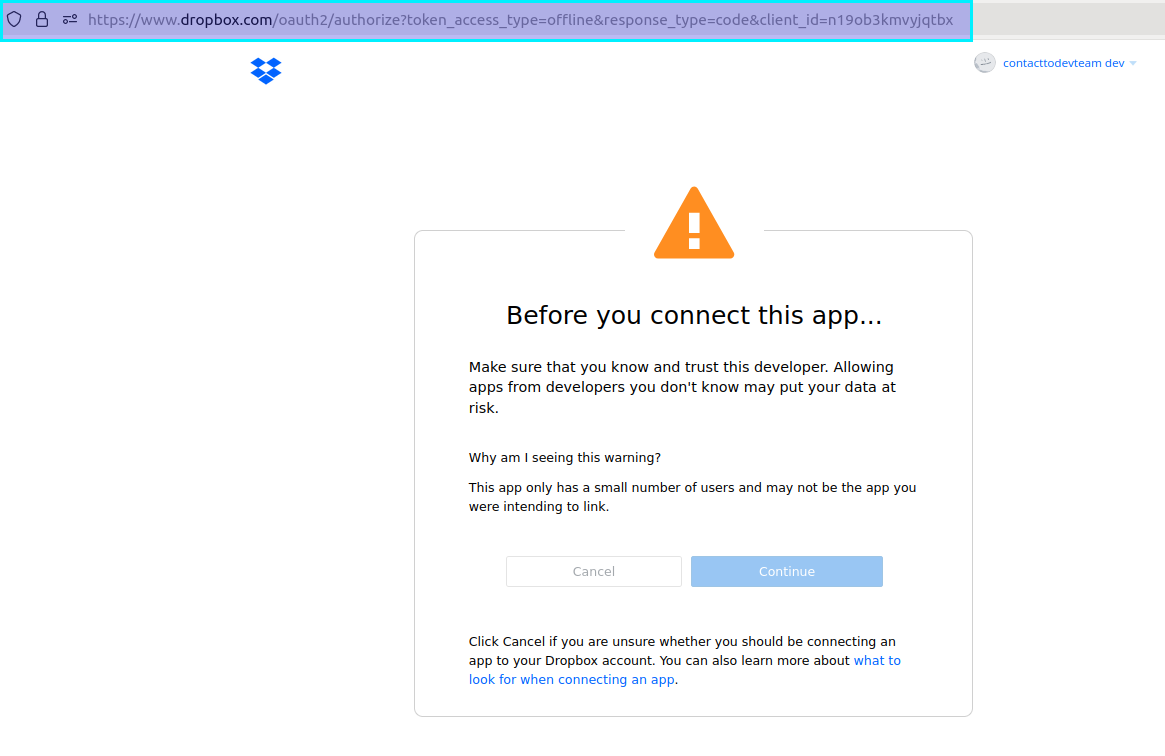
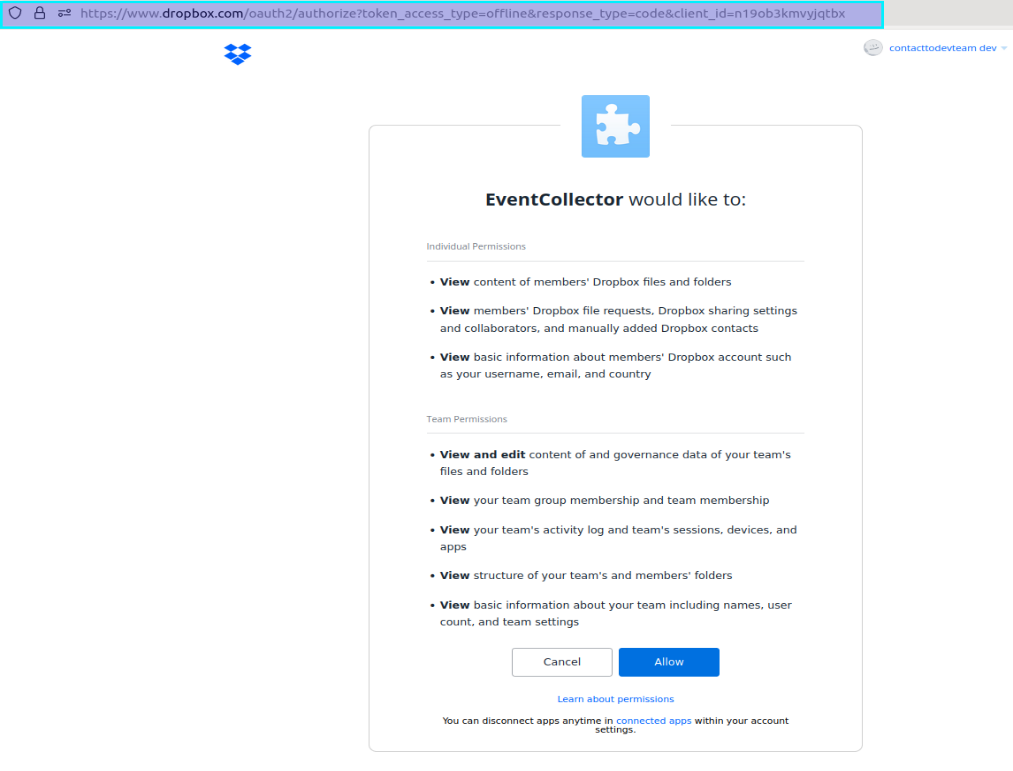
Navigate to the Authorization URL received in Scope Setup: Step 2.
-
Provide authorization access to the created app in Dropbox.
-
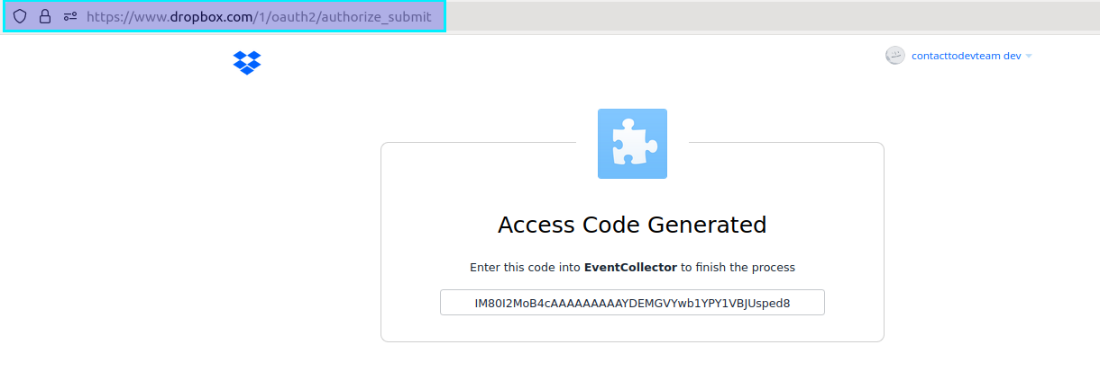
Copy the generated Access Code displayed on the page.
Step 4: Update the Access Code in Scope
-
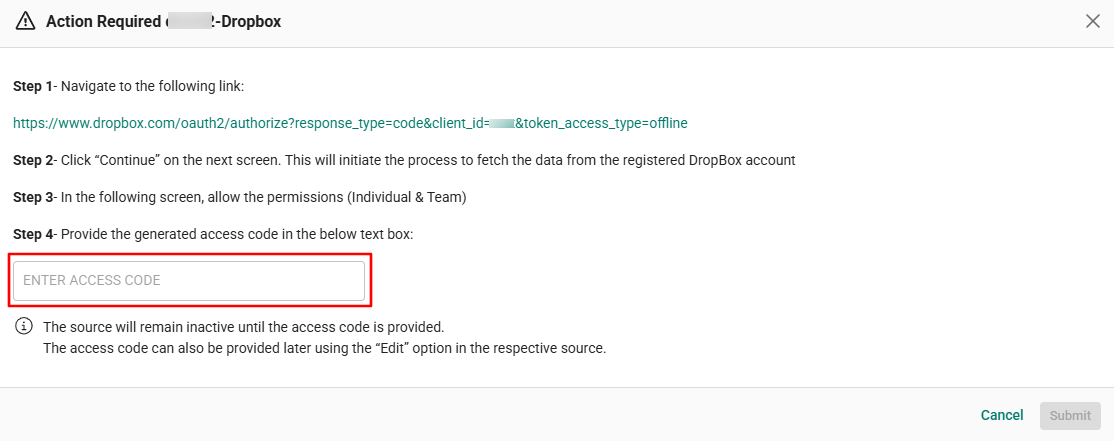
Update the Access Code in the Dropbox cloud source registration screen. (Option 1)
-
The access code can also be provided later using the “Edit” option in the respective source. (Option 2)
-
In the Scope Portal, navigate to the registered Dropbox cloud source and click Edit.
-
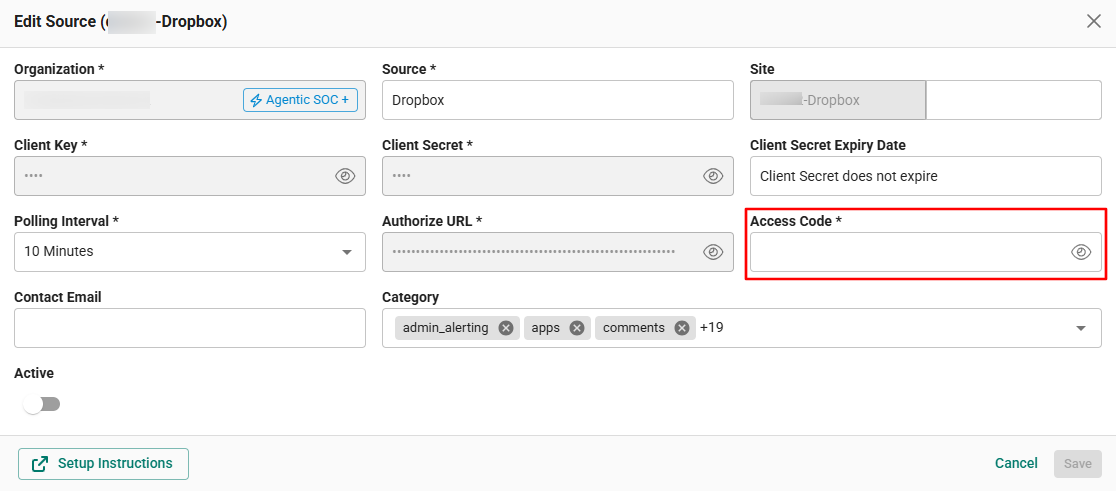
Enter the obtained Access Code.
-
Click Save.
-
Once the Access Code is validated by the Dropbox service, the cloud source registration is complete in Scope and is ready for ingestion of Dropbox logs.