Bitwarden
Overview
Configuring a cloud source in Scope is a two-step process.
-
Generating the client credentials in Bitwarden Admin Console. Please refer to Section 1 - Bitwarden Setup.
-
Setting up the Bitwarden cloud source in the Scope application. Please refer to Section 2 - Scope Setup.
Bitwarden Setup
To get started, obtain the following information from Bitwarden:
- Client ID
- Client Secret
- Base URL
Step 1: Generate Client Credentials
-
Log in to the Bitwarden Admin Console as an Owner.
-
Navigate to Settings -> Organization info.
-
Locate the API key section and click View API key.
-
Complete the authentication prompt, if requested.
-
Copy and securely store the Client ID and Client Secret.
Note: The organization Client ID will be of the format
organization.<organization-id>.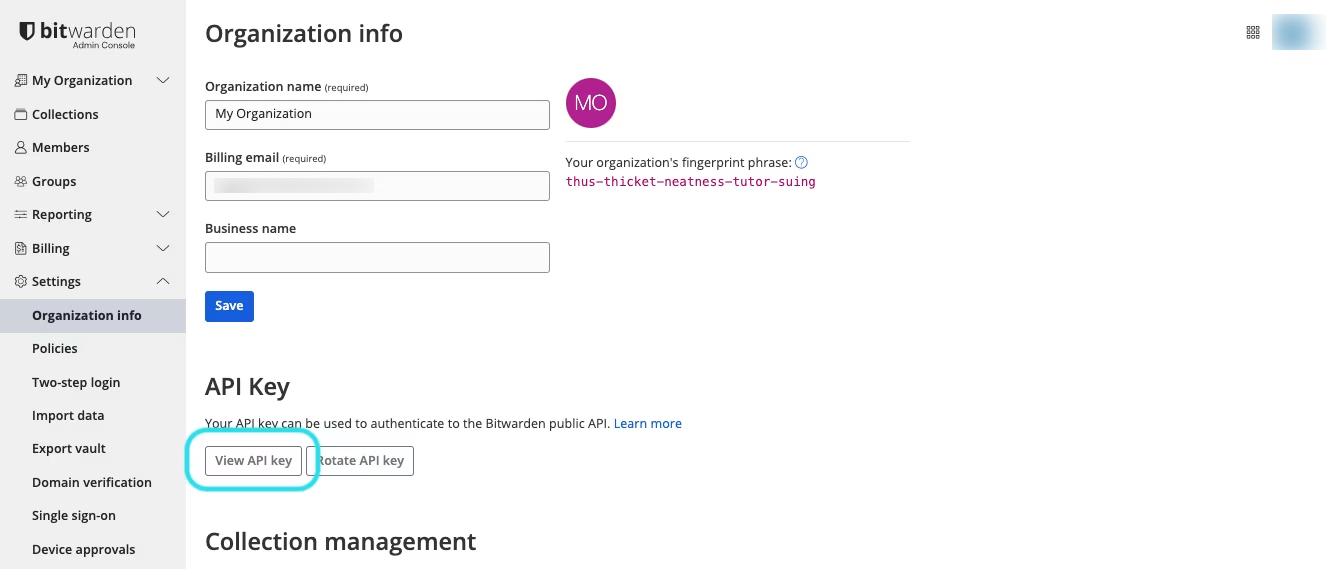
Step 2: Identify the Base URL
Use the applicable Base URL for your Bitwarden cloud region or self-hosted deployment, as described on the Bitwarden website under the section Base URL.
The generated Client ID, Client Secret & Base URL are to be configured in Scope Setup: Step 1 for initiating the Bitwarden event log ingestion.
Scope Setup
Step 1: Bitwarden Cloud Source Registration in the Scope Application
In the Scope application, to register a Bitwarden cloud source, navigate to the cloud source registration page.
-
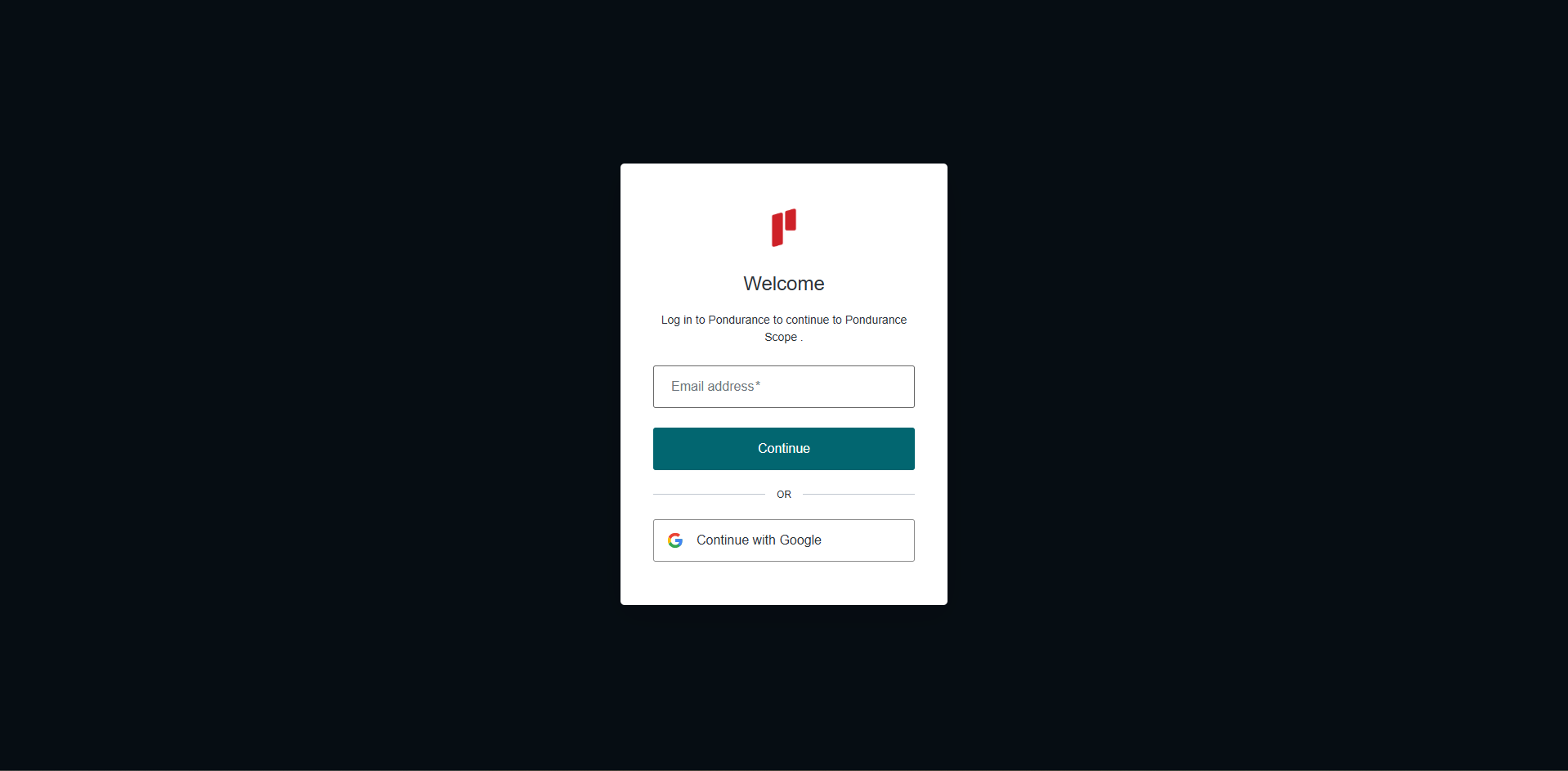
Log into the Scope application.
-
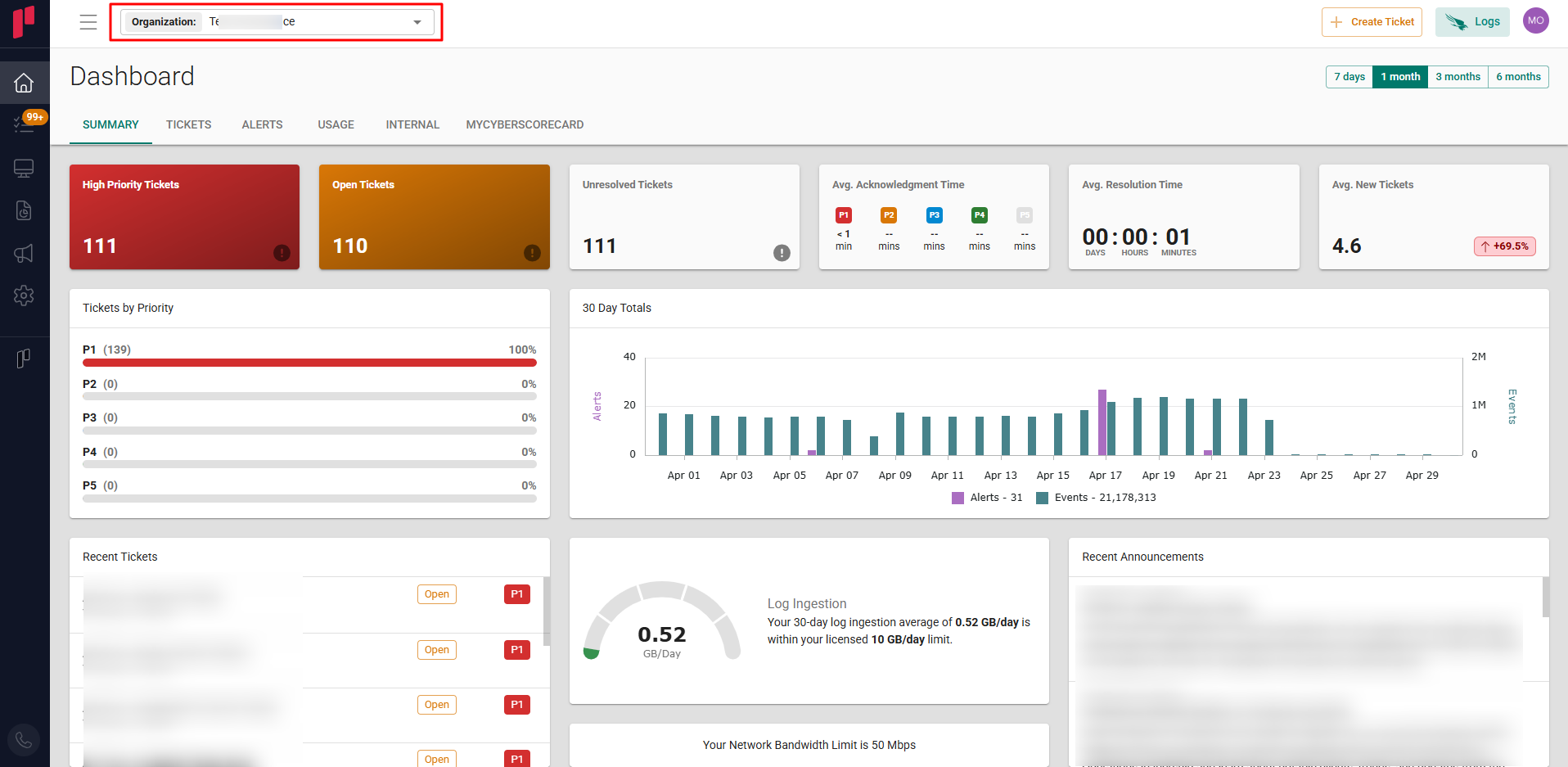
Select the required organization from the Organization dropdown.
-
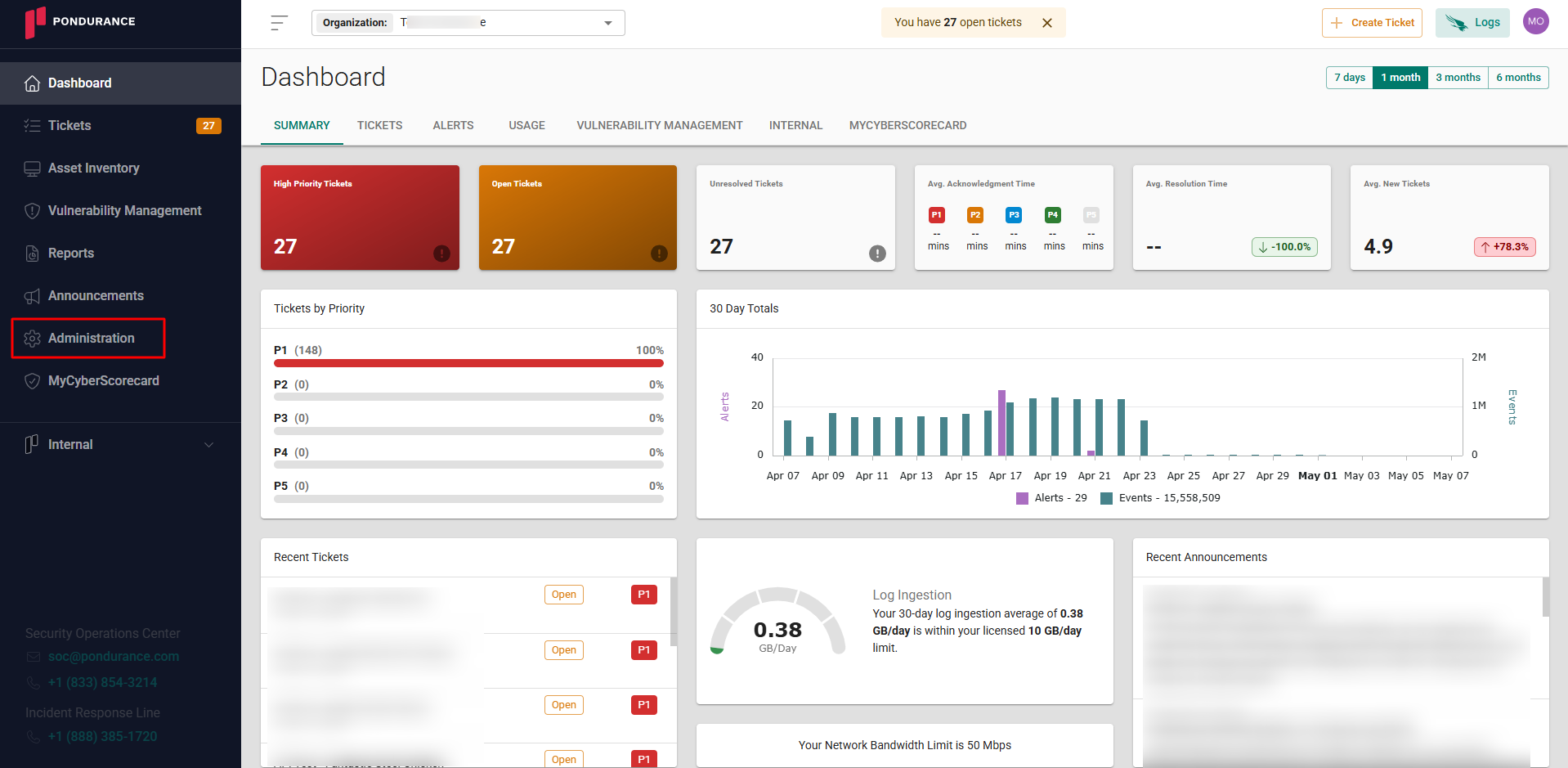
Select Administration from the side menu.
-
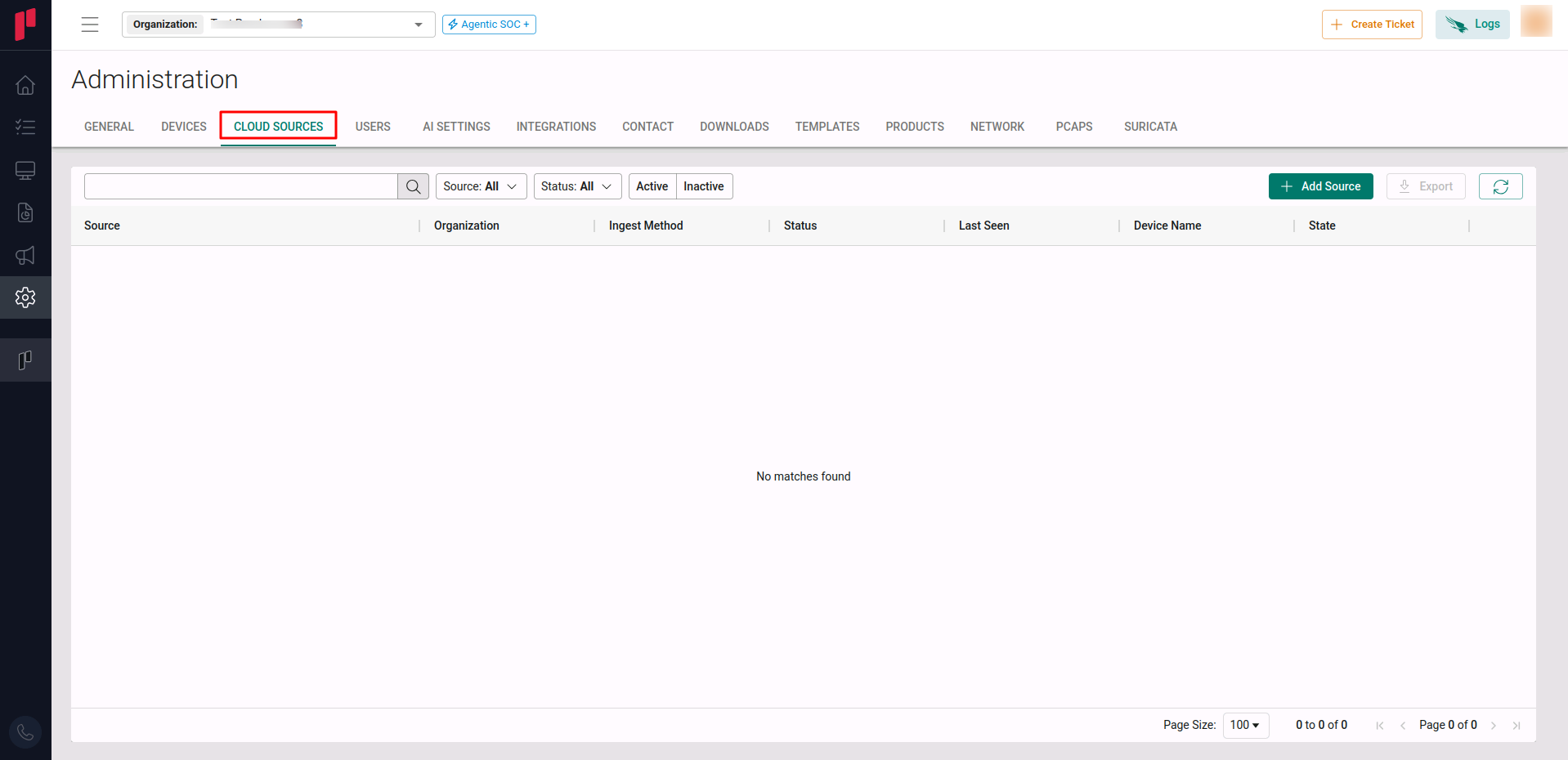
Click on the Cloud sources tab.
-
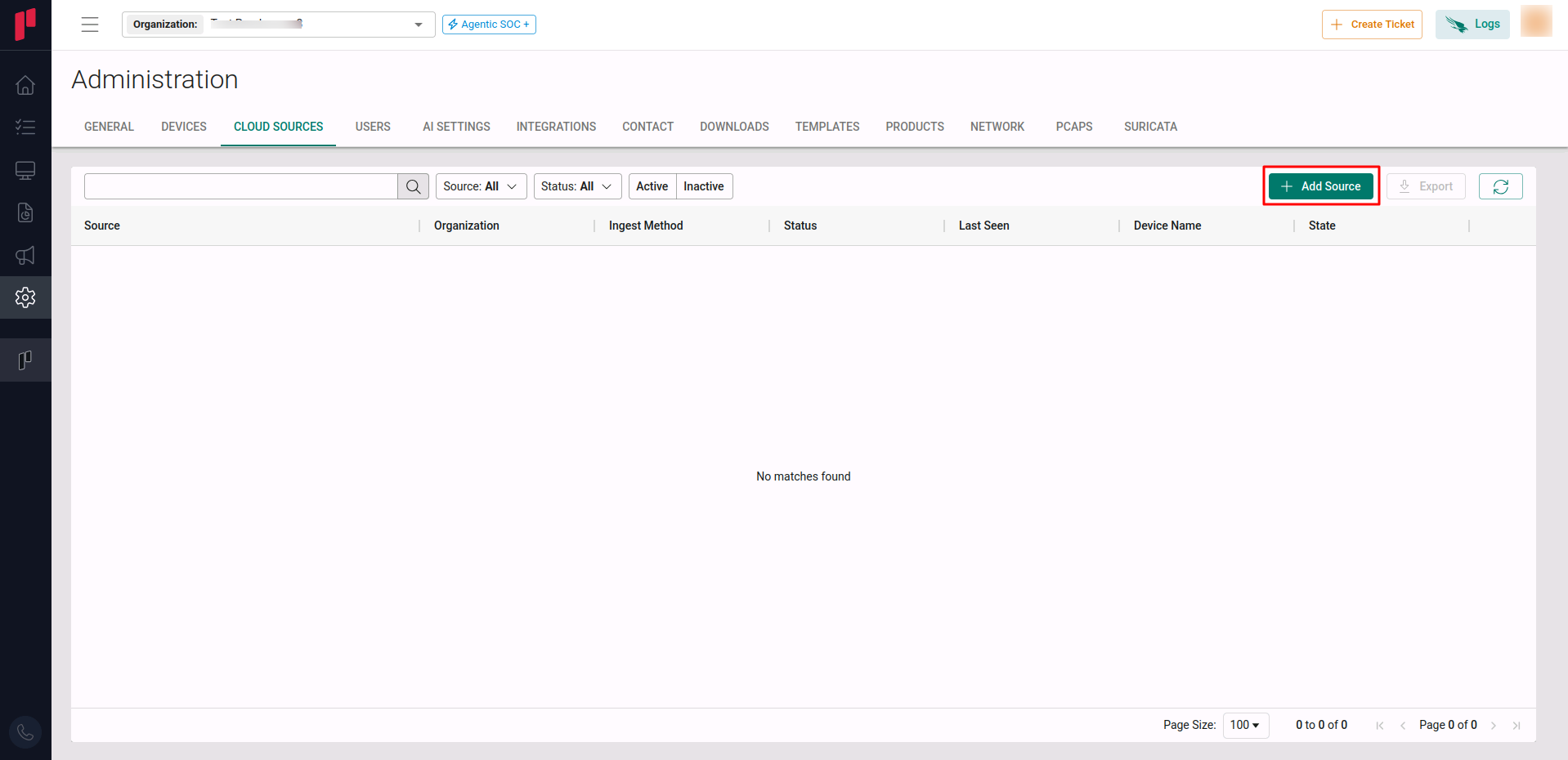
Click on the +Add Source button.
-
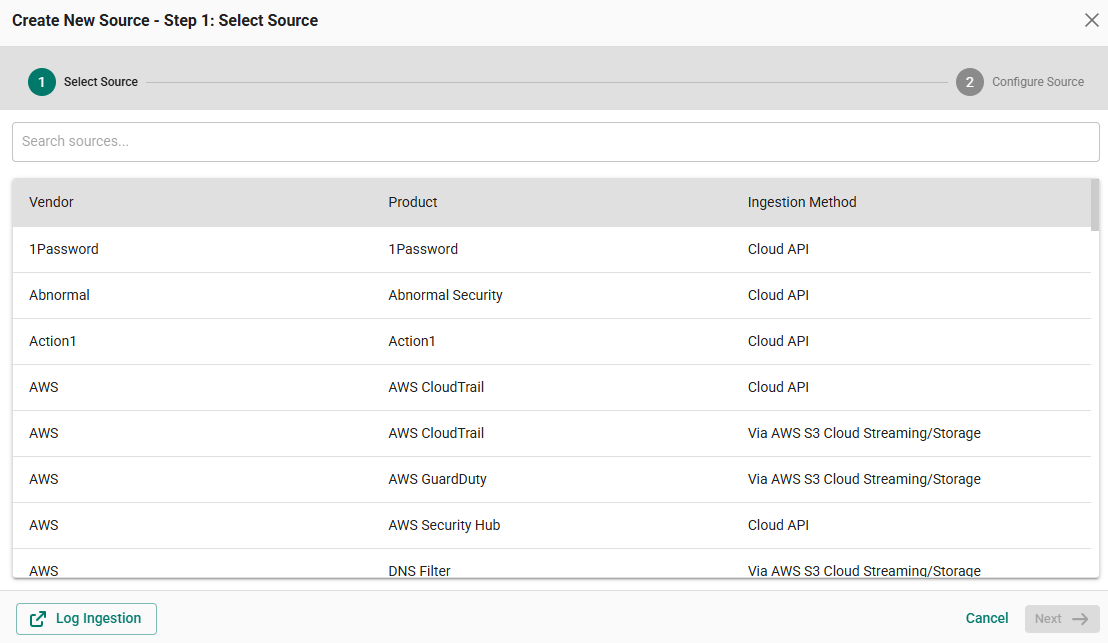
In Step 1 of the Add Source wizard, search for Bitwarden, select the cloud source and click Next.
-
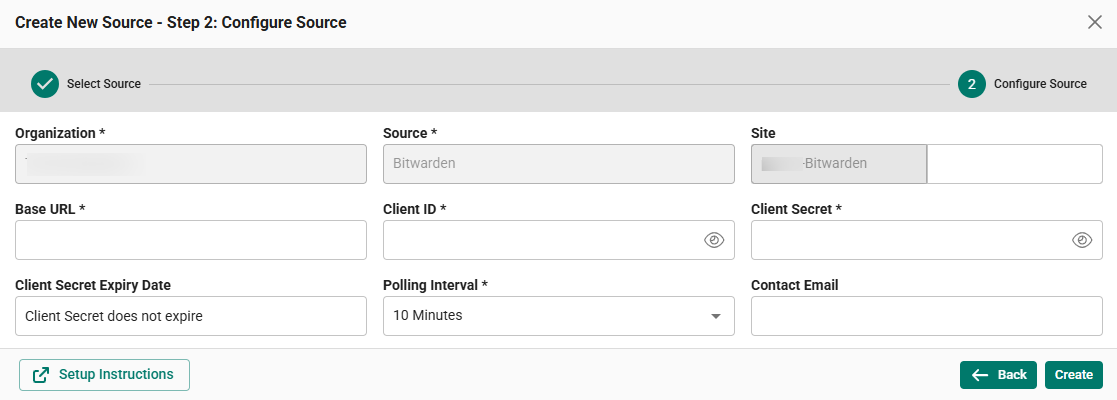
In Step 2 of the Add Source wizard, provide the connection parameters
-
Site: The user-defined name for the Bitwarden cloud source.
-
Base URL: The Bitwarden Base URL identified in Bitwarden Setup: Step 2.
-
Client ID: The Client ID obtained in Bitwarden Setup: Step 1.
-
Client Secret: The Client Secret obtained in Bitwarden Setup: Step 1.
-
Polling Interval: The interval for making periodic API calls to Bitwarden API. Select the required interval from the dropdown.
-
Contact Email: The email address of the person who registers the Bitwarden cloud source in Scope.
-
Once the required connection parameters are entered, the Bitwarden registration is complete in Scope and is ready for ingestion of Bitwarden logs.