Sophos EDR
Overview
Configuring a cloud source in Scope is a two-step process.
-
Generating Sophos EDR client credentials in the Sophos Central Portal. Please refer to Section 1 – Sophos EDR Setup
-
Setting up the Sophos EDR cloud source in the Scope application. Please refer to Section 2 – Scope Setup
Sophos EDR Setup
To get started, you’ll need to generate the following client credentials in the Sophos Central portal –
- Client ID
- Client Secret
- Client Secret Expiry Date
The API credentials can be generated using any of the following management hierarchy accounts:
Step 1.a: Generate API Credentials using a Partner Account
-
Log into the Sophos Central Partner account.
-
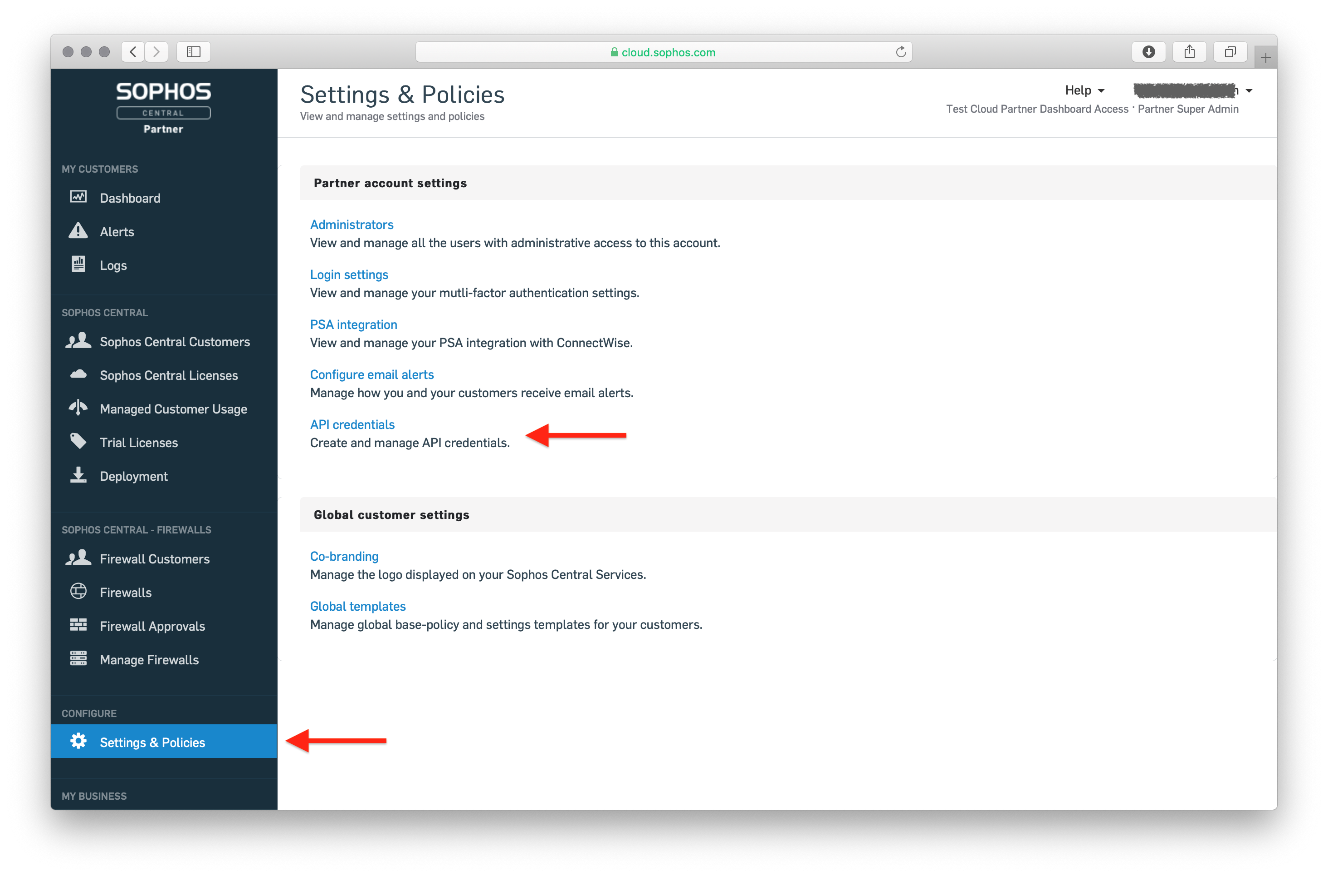
Click Settings & Policies -> API Credentials.
-
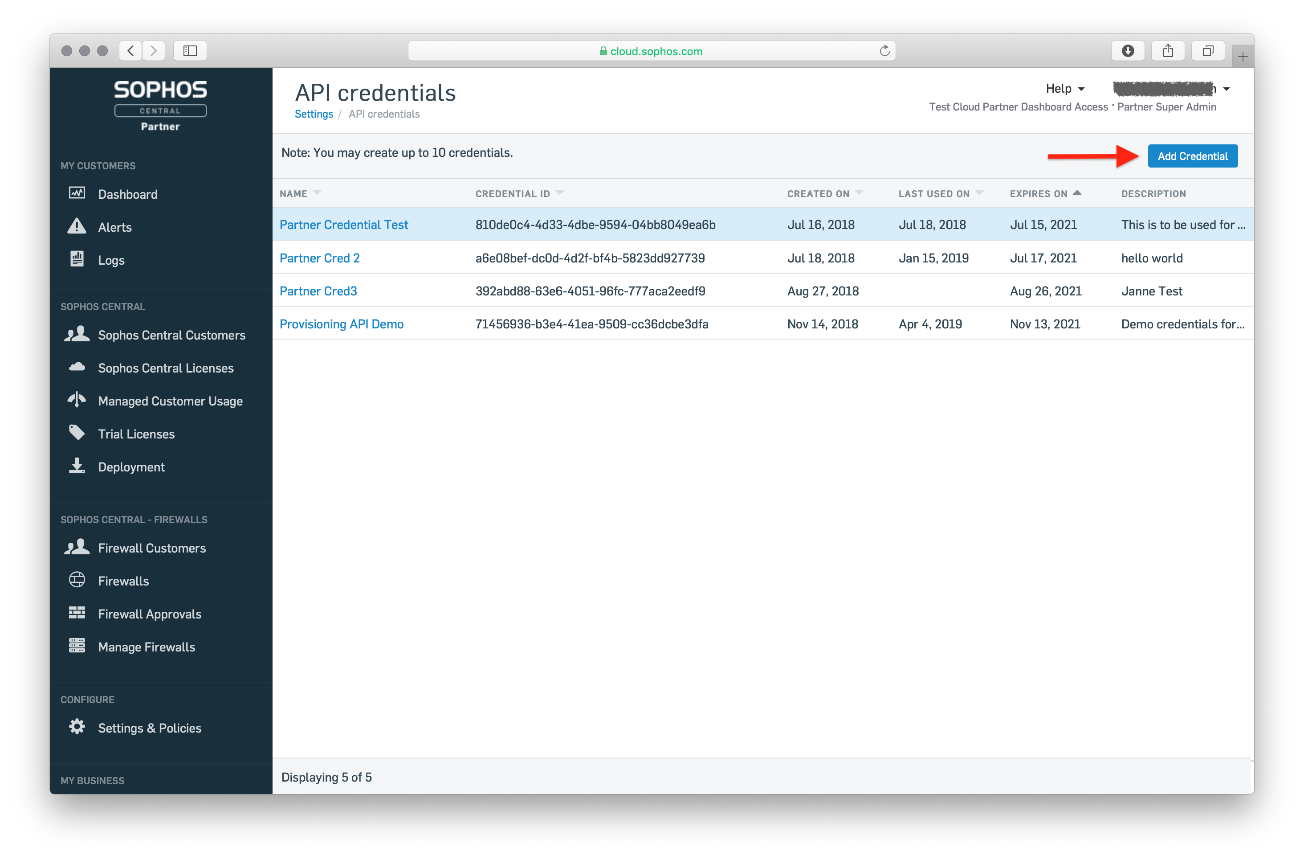
In the API credentials page, click API Credential.
-
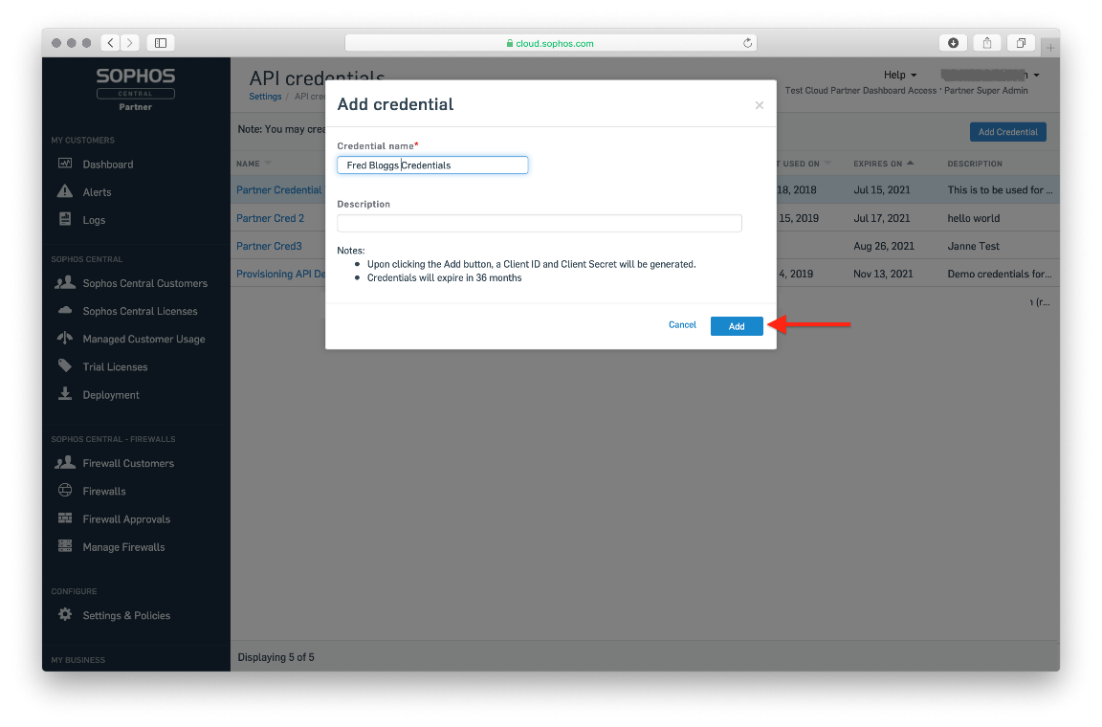
Provide a Name and Description for the credential set, then click Add.
-
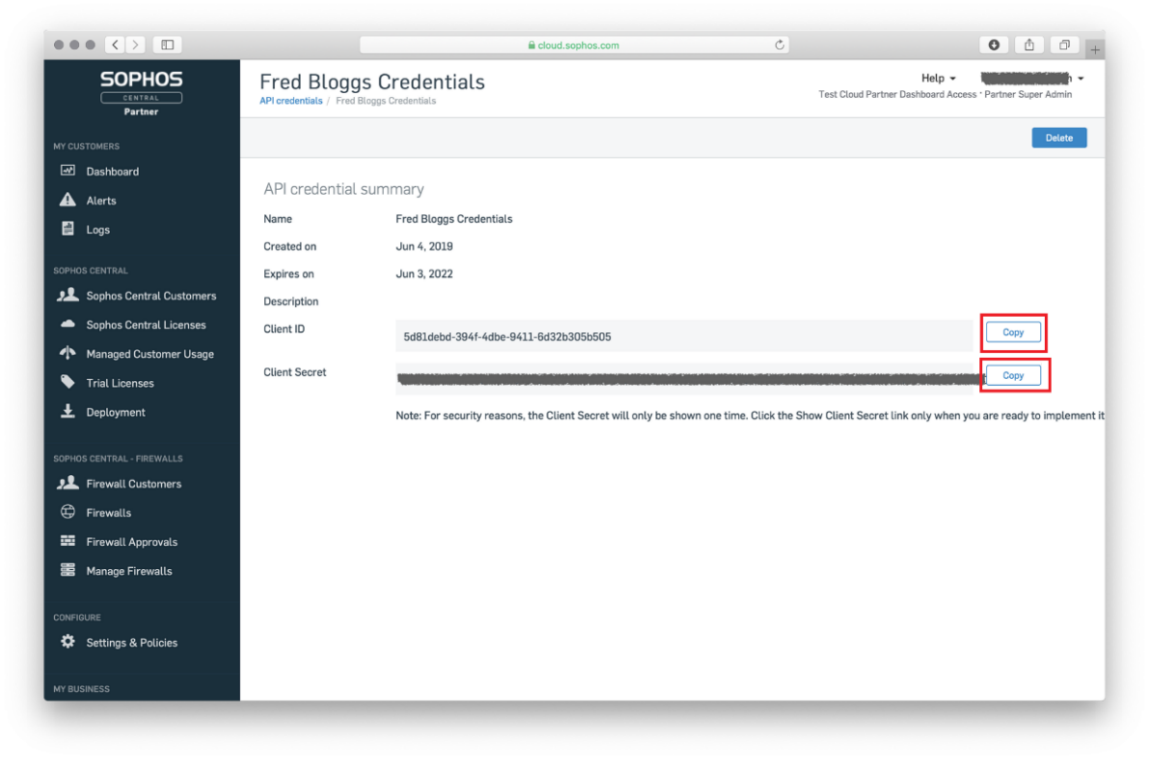
Copy the Client ID and Client Secret.
Note: The Client Secret will be displayed only once. Save it in a secure location immediately.
Proceed to Scope Setup: Step 1 and configure the generated Client ID, Client Secret & Client Secret Expiry Date to initiate Sophos EDR log ingestion.
Step 1.b: Generate API Credentials using an Organization Account
-
Log into the Sophos Central Organization account.
-
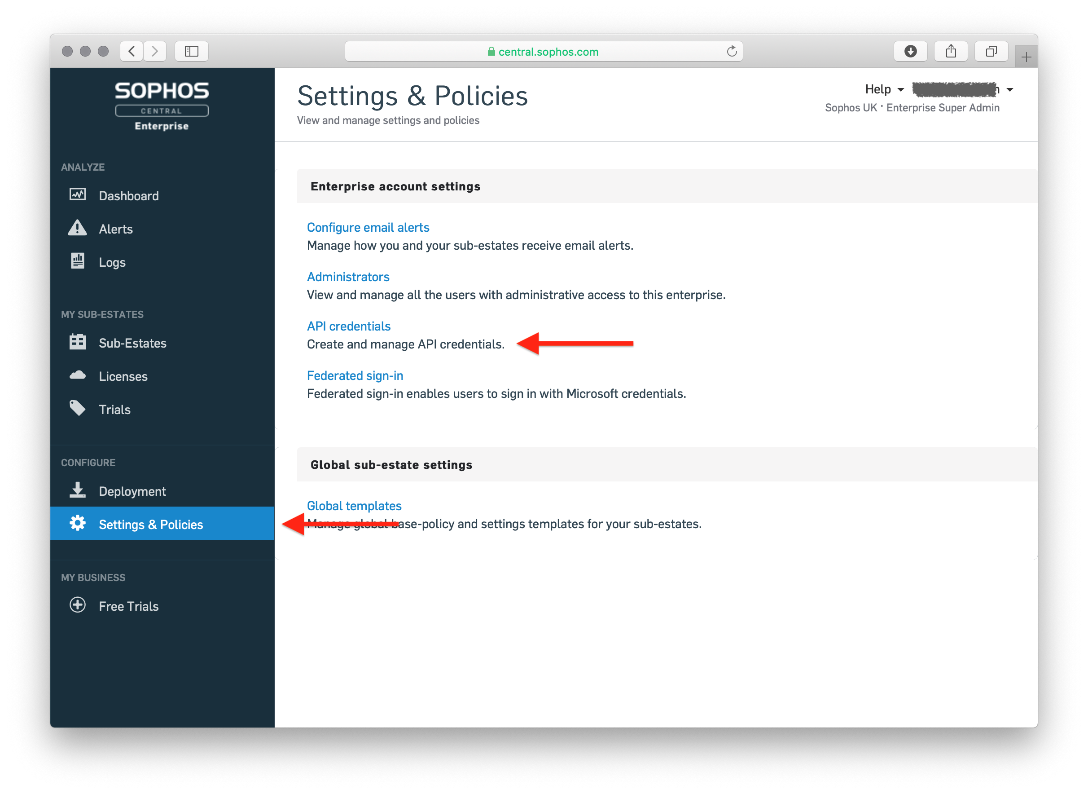
Click Settings & Policies -> API Credentials.
-
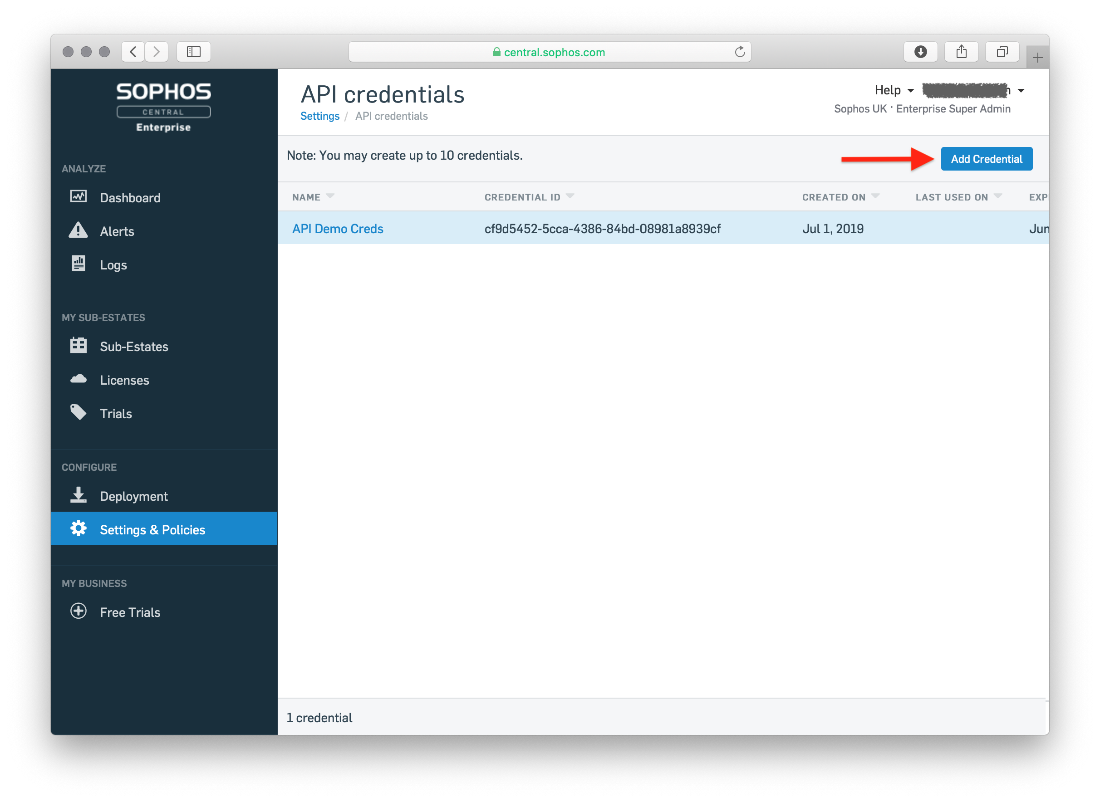
In the API credentials page, click API Credential.
-
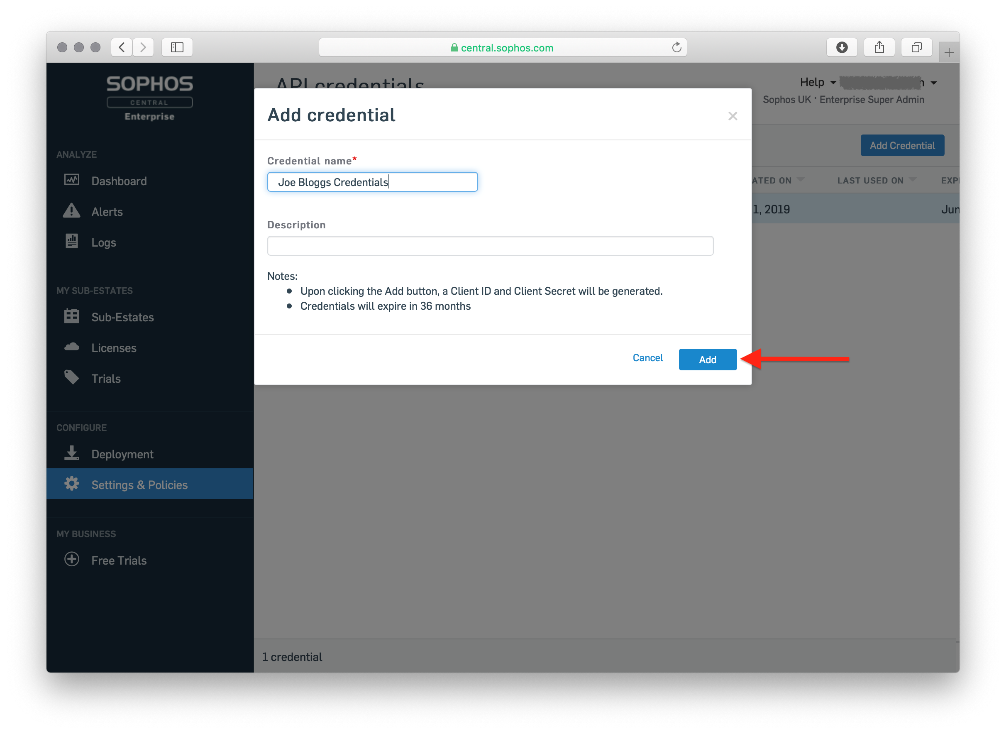
Provide a Name and Description for the credential set, then click Add.
-
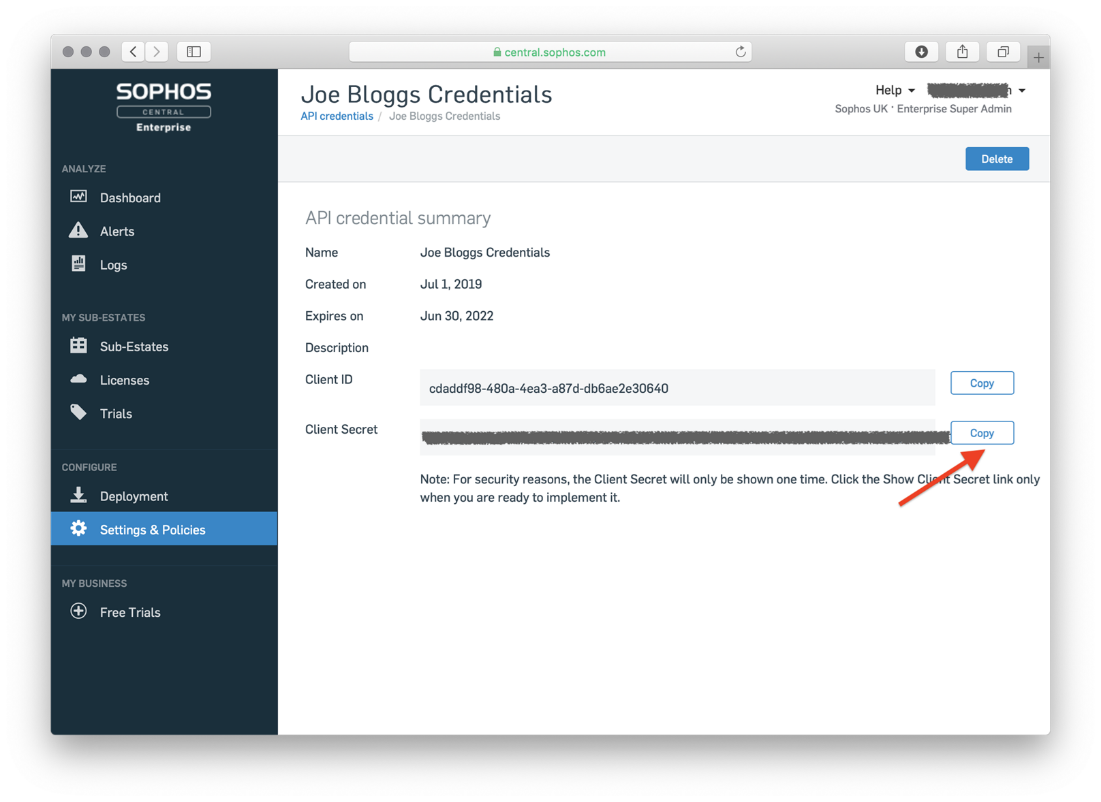
Copy the Client ID and Client Secret.
Note: The Client Secret will be displayed only once. Save it in a secure location immediately.
Proceed to Scope Setup: Step 1 and configure the generated Client ID, Client Secret & Client Secret Expiry Date to initiate Sophos EDR log ingestion.
Step 1.c: Generate API Credentials using a Tenant Account
Note: The Tenant account user must have the Super Admin role to generate the Client Credentials.
-
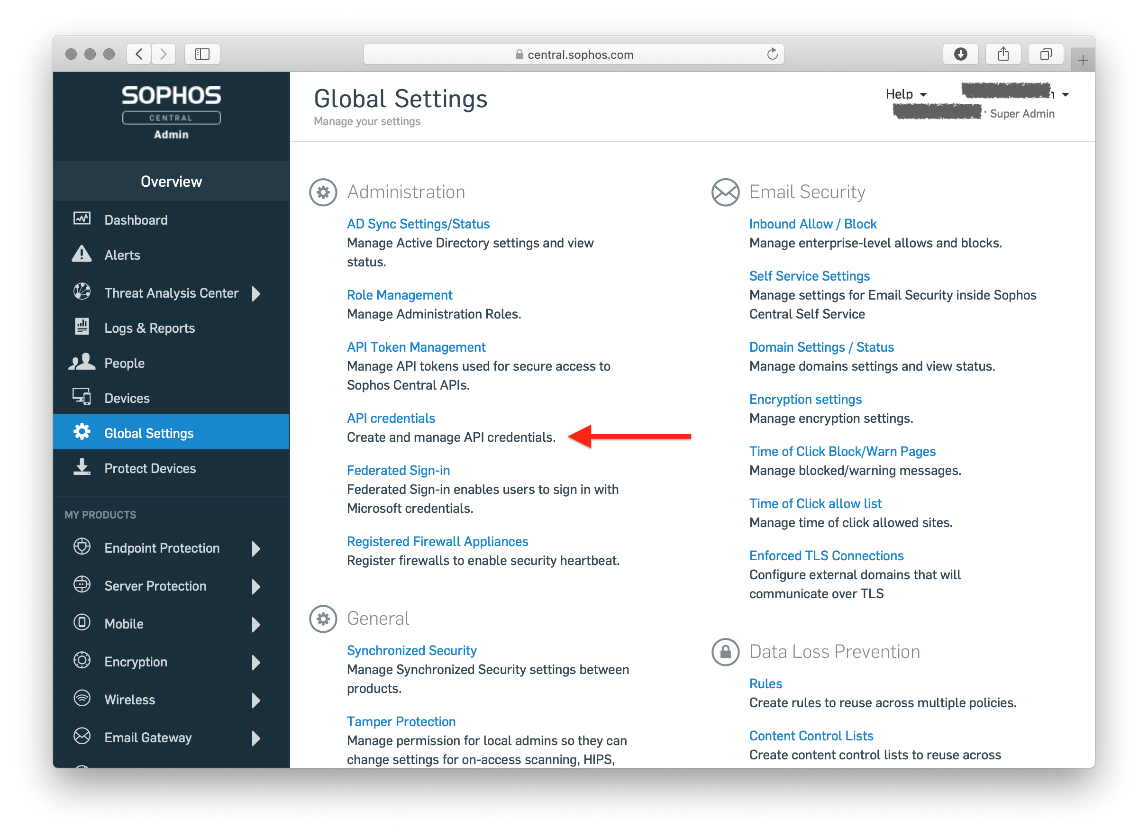
Log into the Sophos Central Admin account.
-
Click Global Settings -> API Credentials.
-
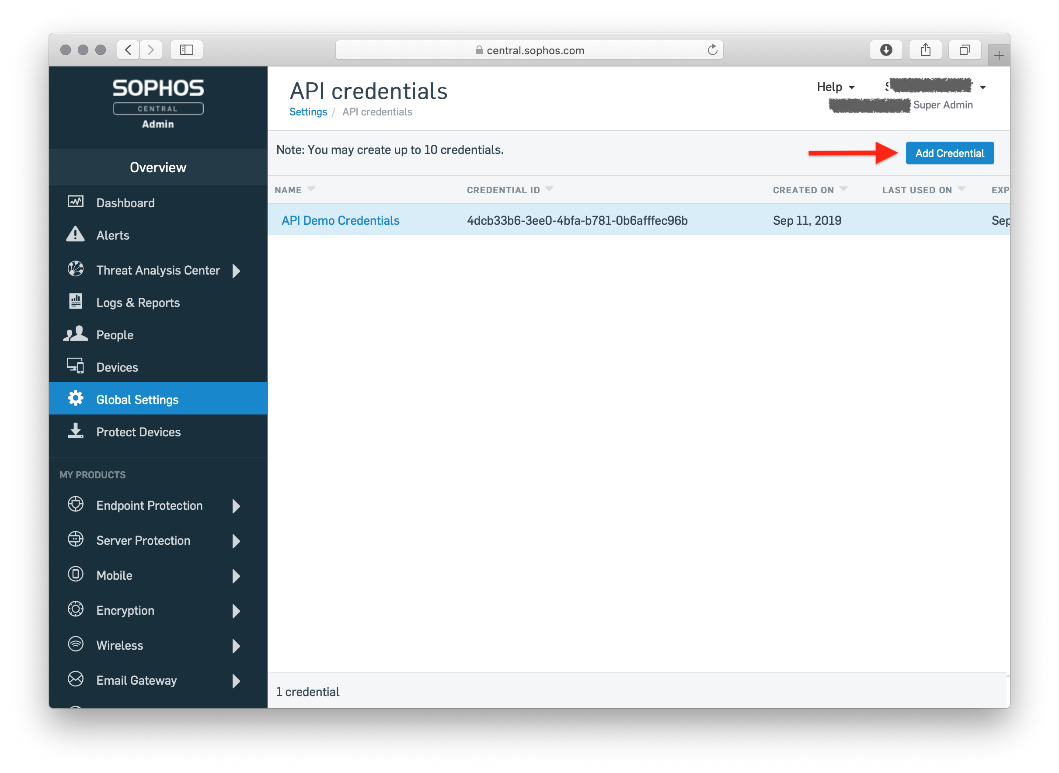
In the API credentials page, click API Credential.
-
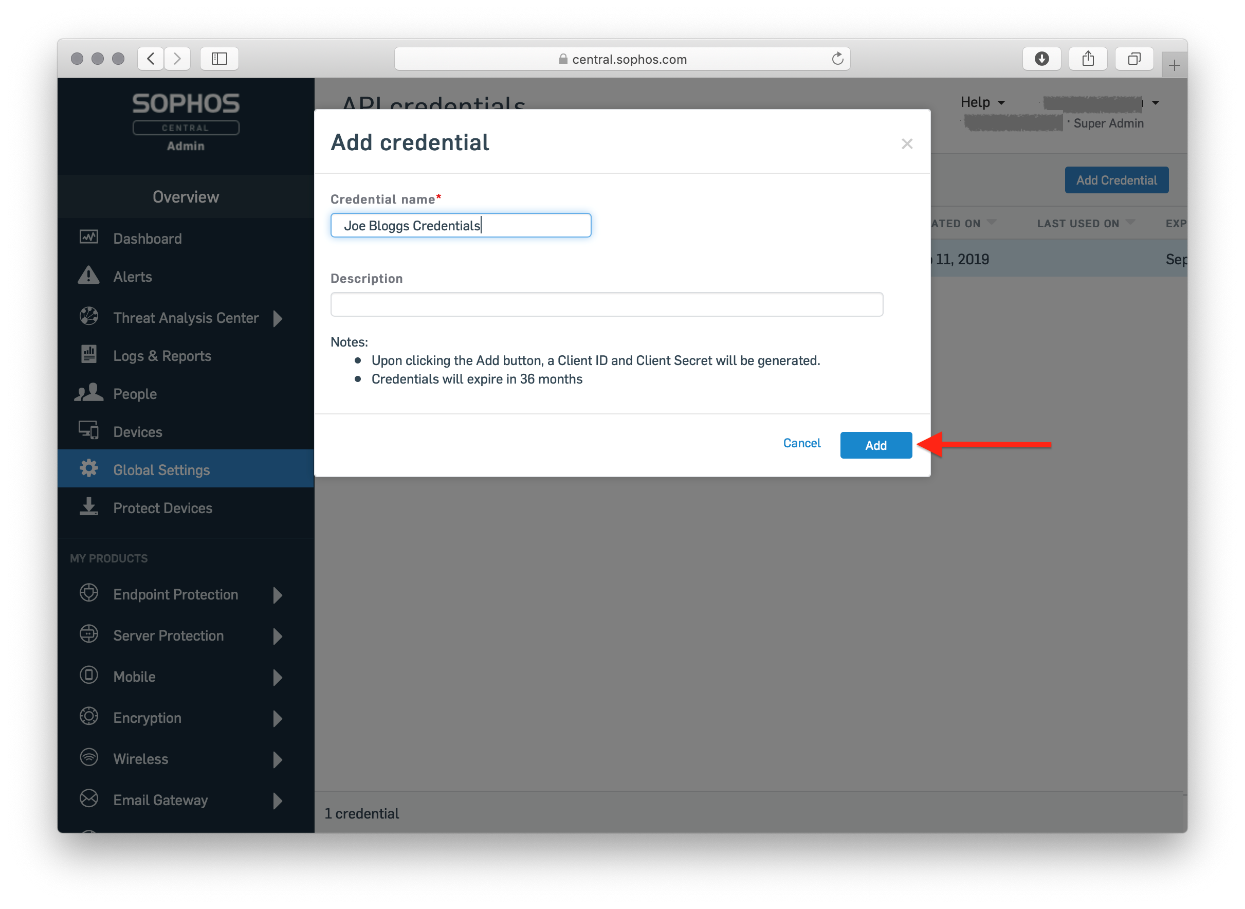
Provide a Name and Description for the credential set, then click Add.
-
Copy the Client ID and Client Secret.
Note: The Client Secret will be displayed only once. Save it in a secure location immediately.
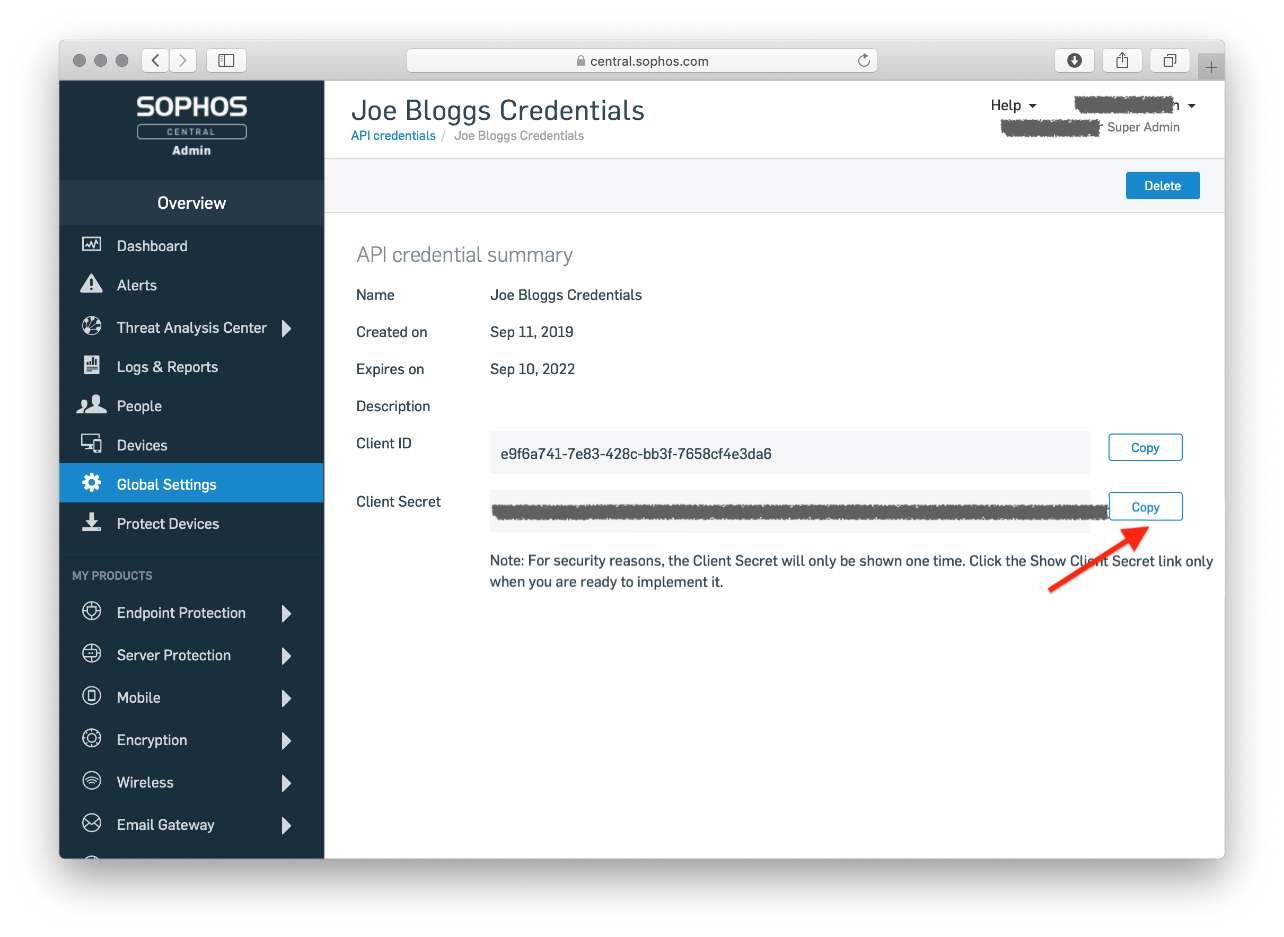
The generated Client ID, Client Secret & Client Secret Expiry Date are to be configured in Scope Setup: Step 1 for initiating the Sophos EDR log ingestion.
Scope Setup
Step 1: Sophos EDR Cloud Source Registration in the Scope Application
Once the credentials are generated, they must be configured in the Scope application to establish the connection and enable data ingestion from the Sophos EDR environment.
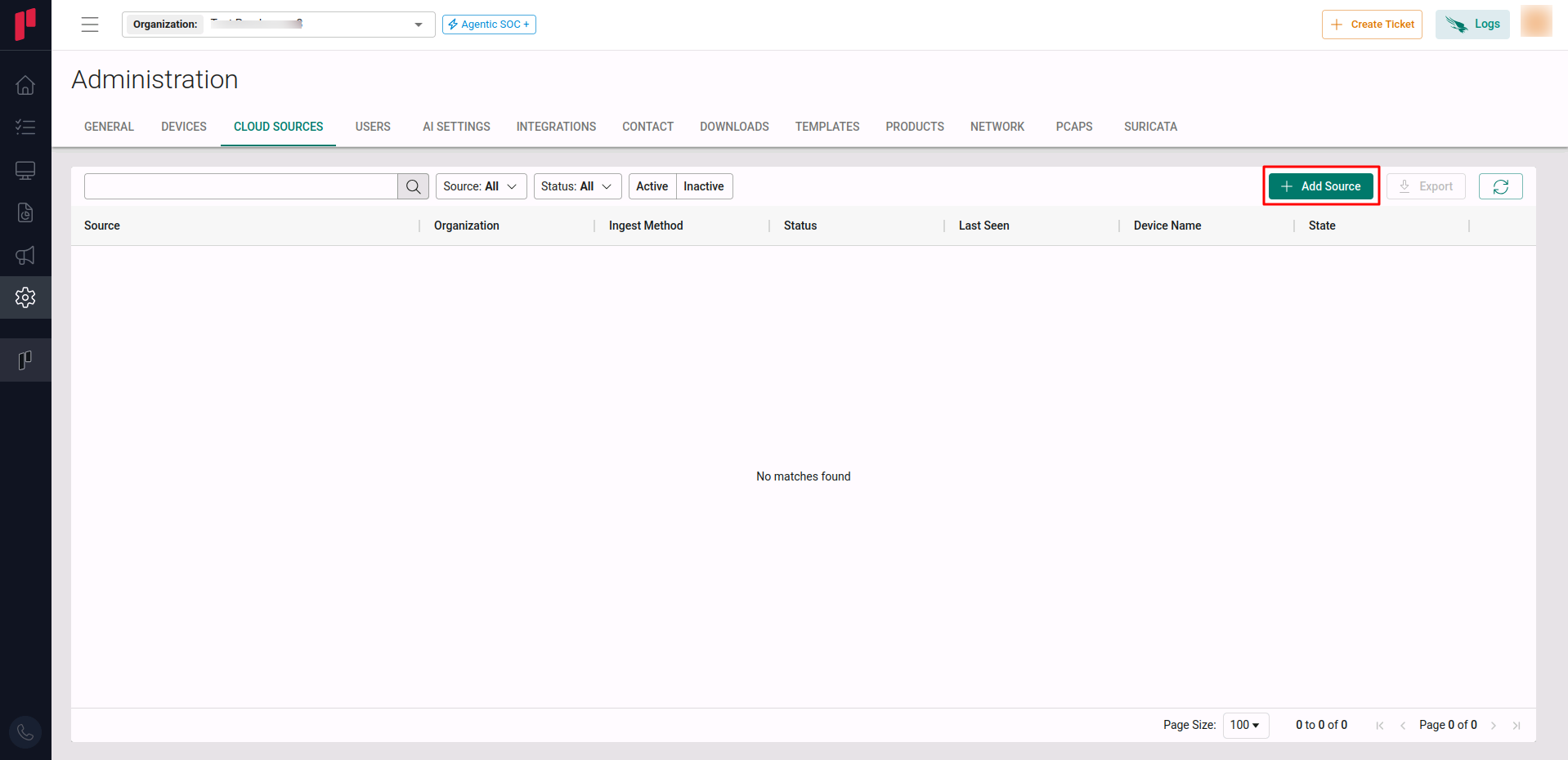
In the Scope application, to register a Sophos EDR cloud source, navigate to the cloud source registration page –
-
Log into the Scope application
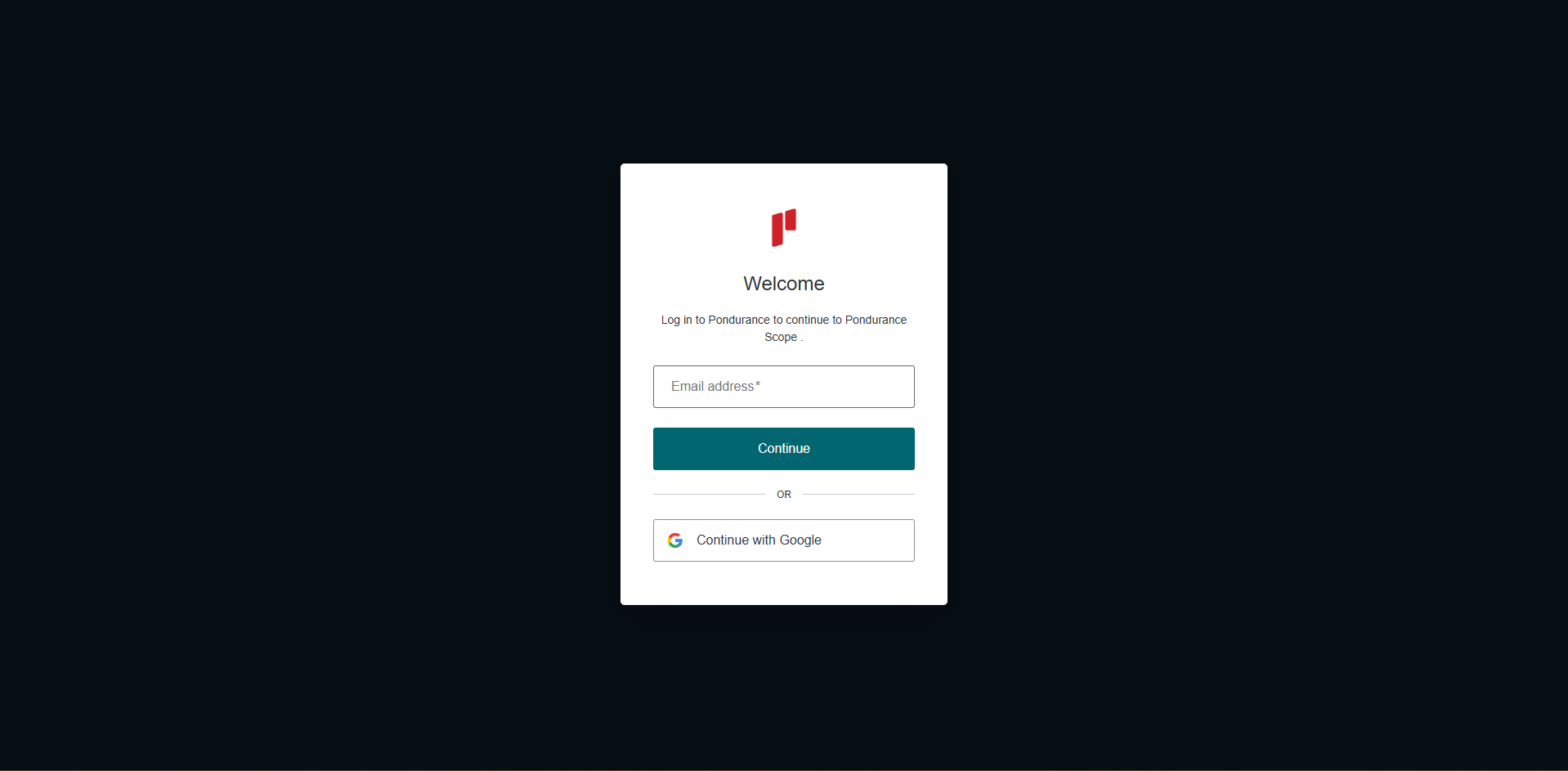
-
Select the required Organization from the Organization dropdown
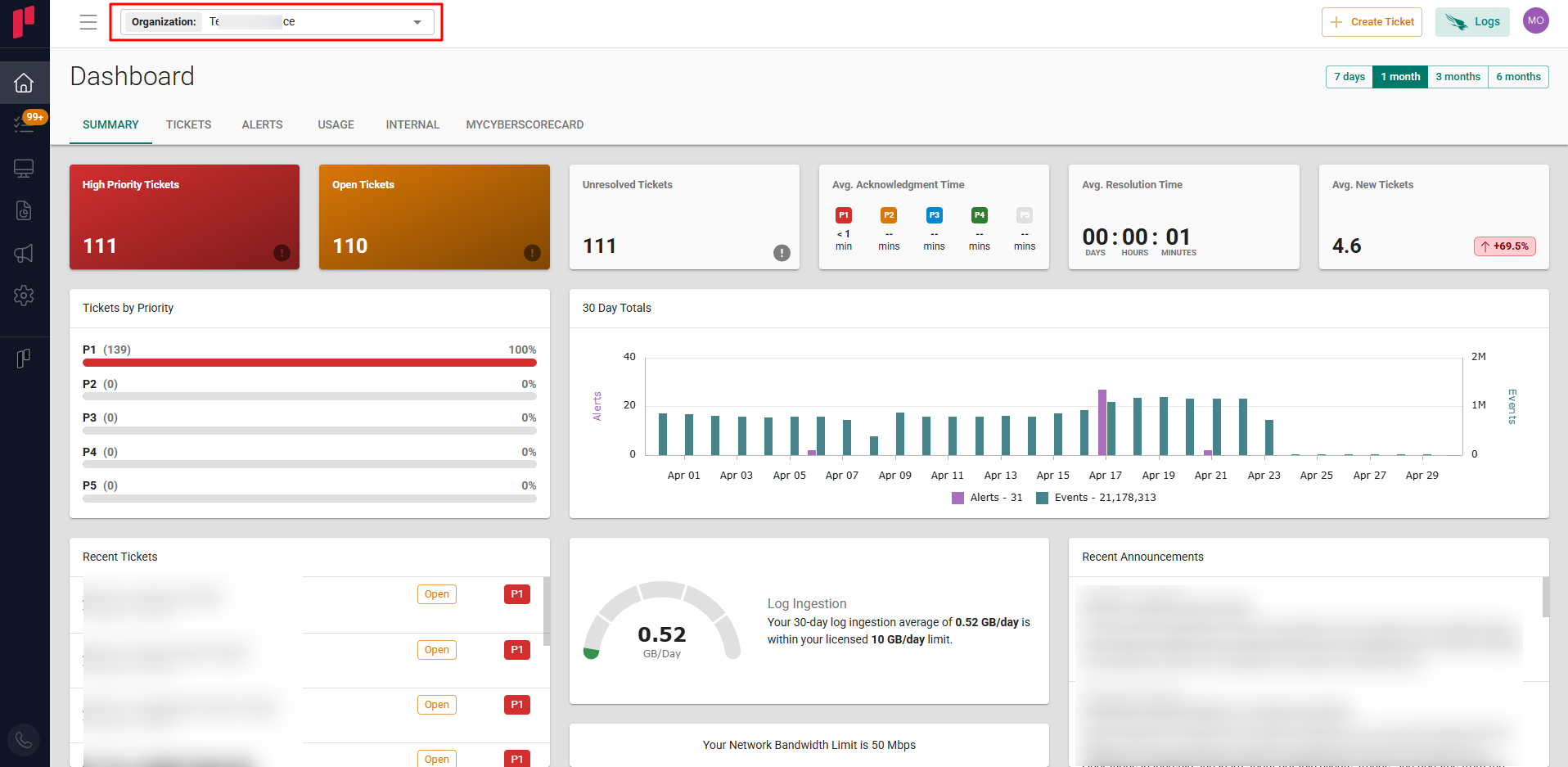
-
Navigate to the side menu -> Administration
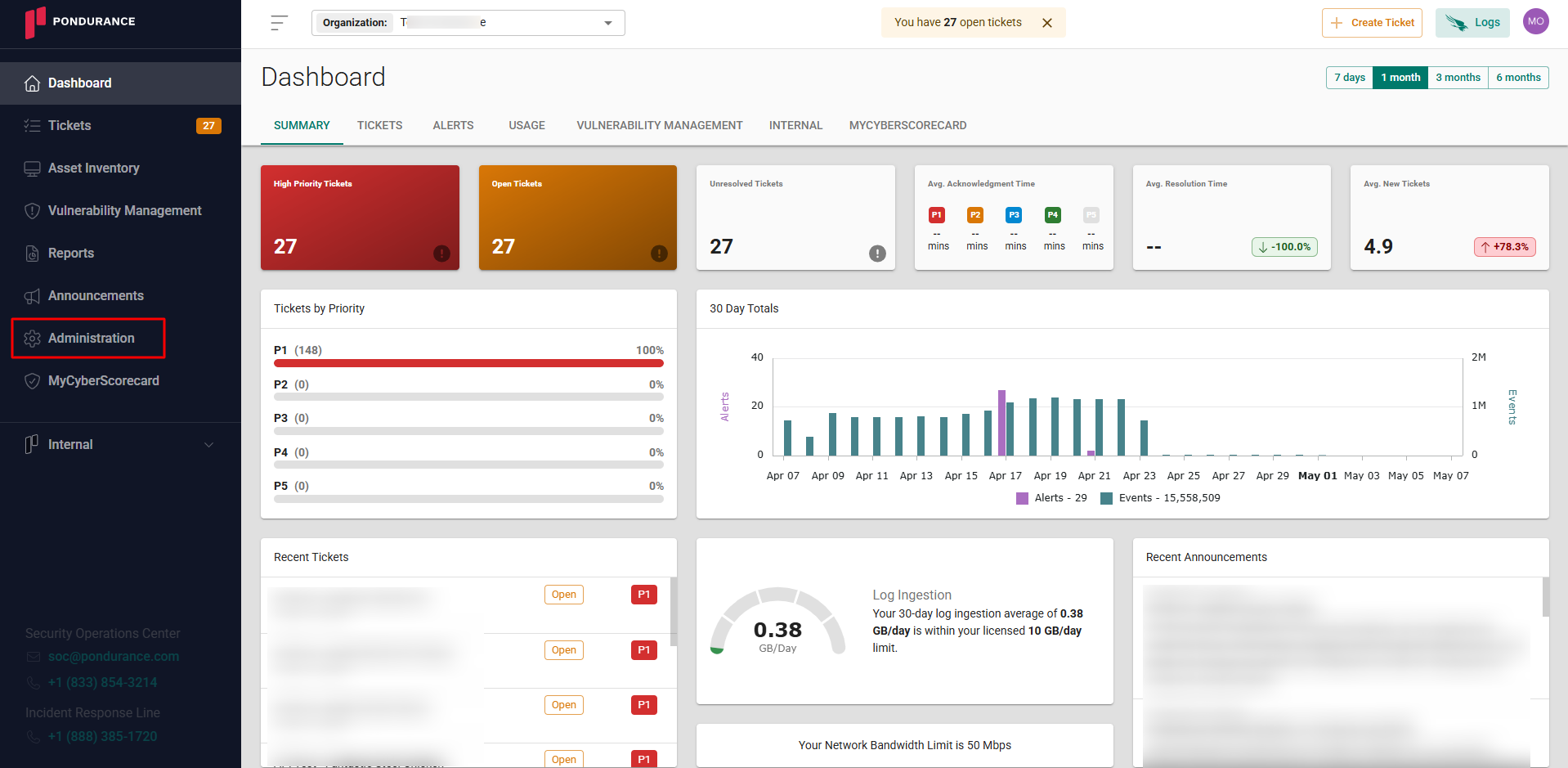
-
Navigate to the Cloud sources tab
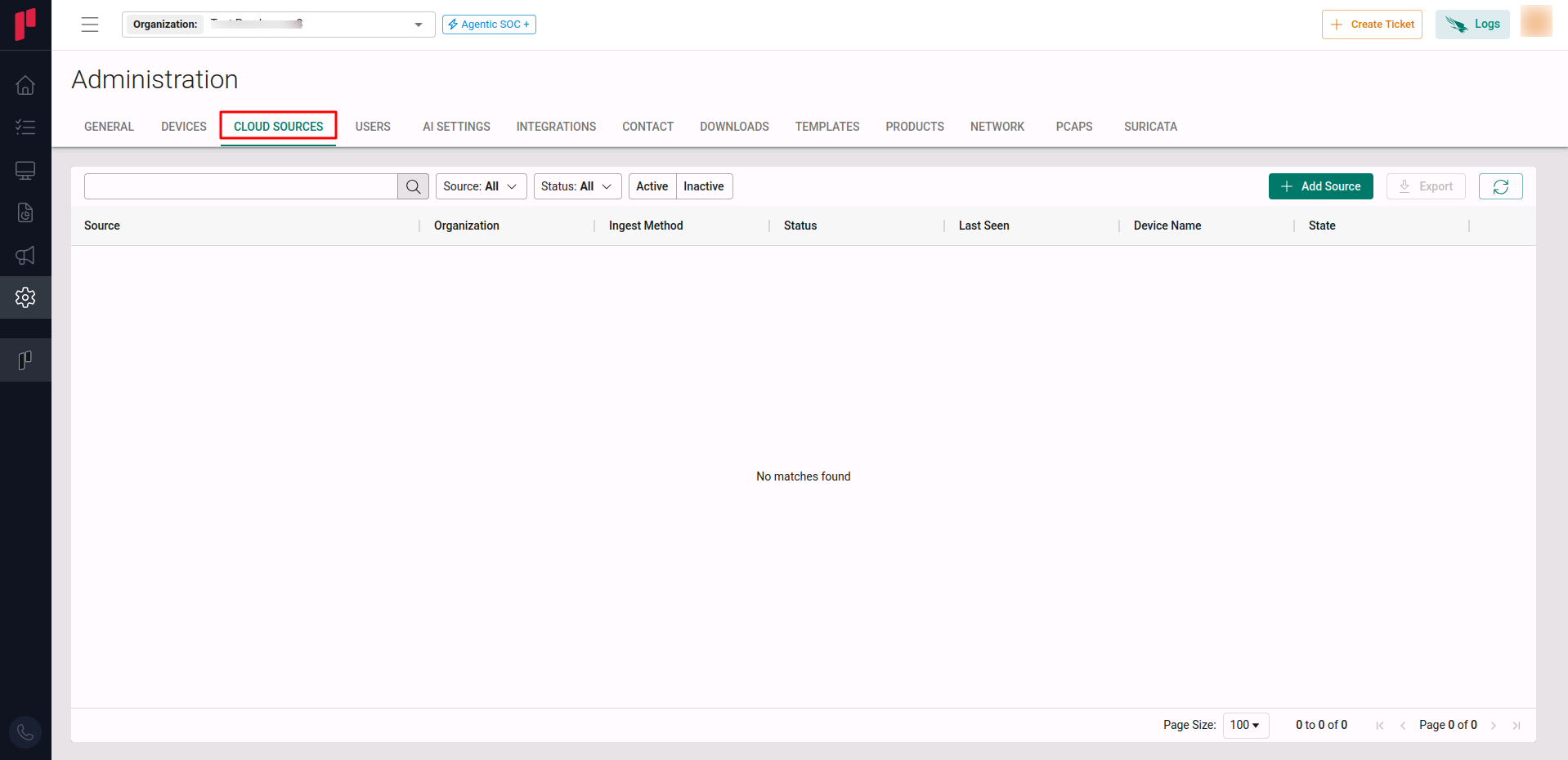
-
Click on the +Add Source button
-
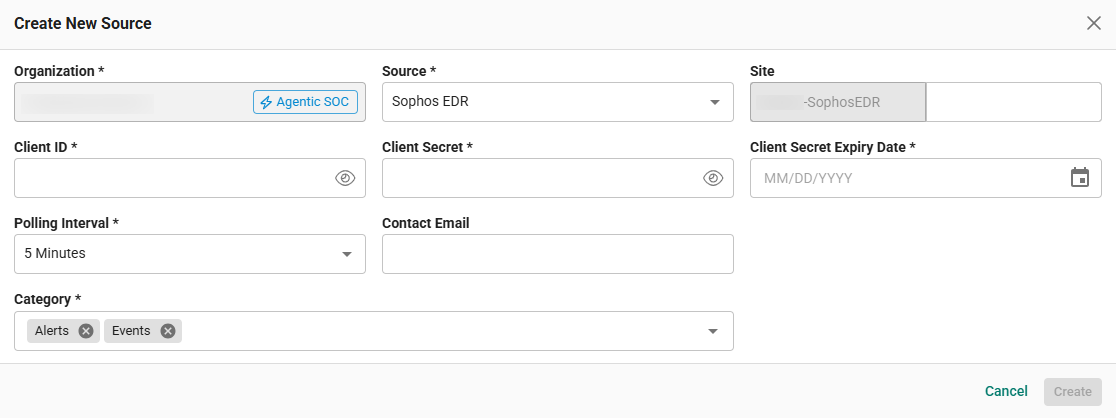
In the Add Source pop-up, provide the parameters below.
-
Source: Select the Sophos EDR source from the Source dropdown.
-
Client ID: The Client ID generated in Step 1.a, Step 1.b, or Step 1.c.
-
Client Secret: The Client Secret generated in Step 1.a, Step 1.b, or Step 1.c.
-
Client Secret Expiry Date: The expiry date of the Client Secret generated in Step 1.a, Step 1.b, or Step 1.c.
-
Polling Interval: The polling interval for making periodic API calls to the Sophos EDR server. The user can select the time interval from the dropdown.
-
Contact Email: The email address of the person who registers the Sophos EDR cloud source in Scope.
-
Category: Select the log types from the dropdown. By default, all supported log types are selected. Based on the selection, the APIs will request the Sophos EDR API service, and the respective types of logs will be ingested.
-
Once the required connection parameters are entered, the Sophos EDR cloud source registration is complete in Scope and is ready for ingestion of Sophos EDR logs.