Palo Alto Cortex XDR
Overview
Configuring a cloud source in Scope is a two-step process.
-
Generating Palo Alto Cortex XDR API credentials in the Cortex XDR Portal. Please refer to Section 1 – Palo Alto Cortex XDR Setup
-
Setting up the Palo Alto Cortex XDR cloud source in the Scope application. Please refer to Section 2 – Scope Setup
Palo Alto Cortex XDR Setup
To get started, you’ll need to generate the following client credentials in the Palo Alto Cortex XDR portal –
- API Key Security Level
- API Key ID
- API Key
- API Key Expiry Date
- Base URL (FQDN)
Step 1: Generate API Key, API Key ID & Base URL
-
In Cortex XDR, navigate to Settings -> Configurations -> Integrations -> API Keys.
-
Select + New Key.
-
Choose the type of API Key based on the desired security level: Advanced or Standard.
-
If you want to define a time limit on the API key authentication, mark Enable Expiration Date and select the expiration date and time.
Note: To track the expiration of a generated API key – navigate to Settings -> Configurations -> Integrations -> API Keys and check the Expiration Time field. Cortex XDR also displays an API Key Expiration notification in the Notification Center one week and one day prior to the defined expiration date.
-
Provide a comment describing the purpose for the API key (if desired).
-
Select the desired level of access for this key. You can select from the list of existing Roles, or select Custom to set permissions on a more granular level.
-
Generate the API Key.
-
Copy the API key and then click Done.
Note: You will not be able to view the API Key again after completing this step. Ensure you copy it before closing.
-
Get the API Key ID: In the API Keys table, locate the ID field and note the corresponding ID number. This value represents the
x-xdr-auth-id:{key_id}token. -
Get the Base URL (FQDN): Right-click the generated API key and select View Examples. Copy the CURL Example URL.
The example contains the unique FQDN in the format:
https://api-{fqdn}/public_api/v1/{api_name}/{call_name}/For example, if the CURL example URL is:
https://api-abc.xdr.us.paloaltonetworks.com/public_api/v1/incidents/get_incidentsthen the Base URL to be used is:
https://api-abc.xdr.us.paloaltonetworks.com
The generated API Key Security Level, API Key ID, API Key, API Key Expiry Date, and Base URL are to be configured in Scope Setup: Step 1 for initiating the Palo Alto Cortex XDR log ingestion.
Scope Setup
Step 1: Palo Alto Cortex XDR Cloud Source Registration in the Scope Application
Once the credentials are generated, they must be configured in the Scope application to establish the connection and enable data ingestion from the Palo Alto Cortex XDR environment.
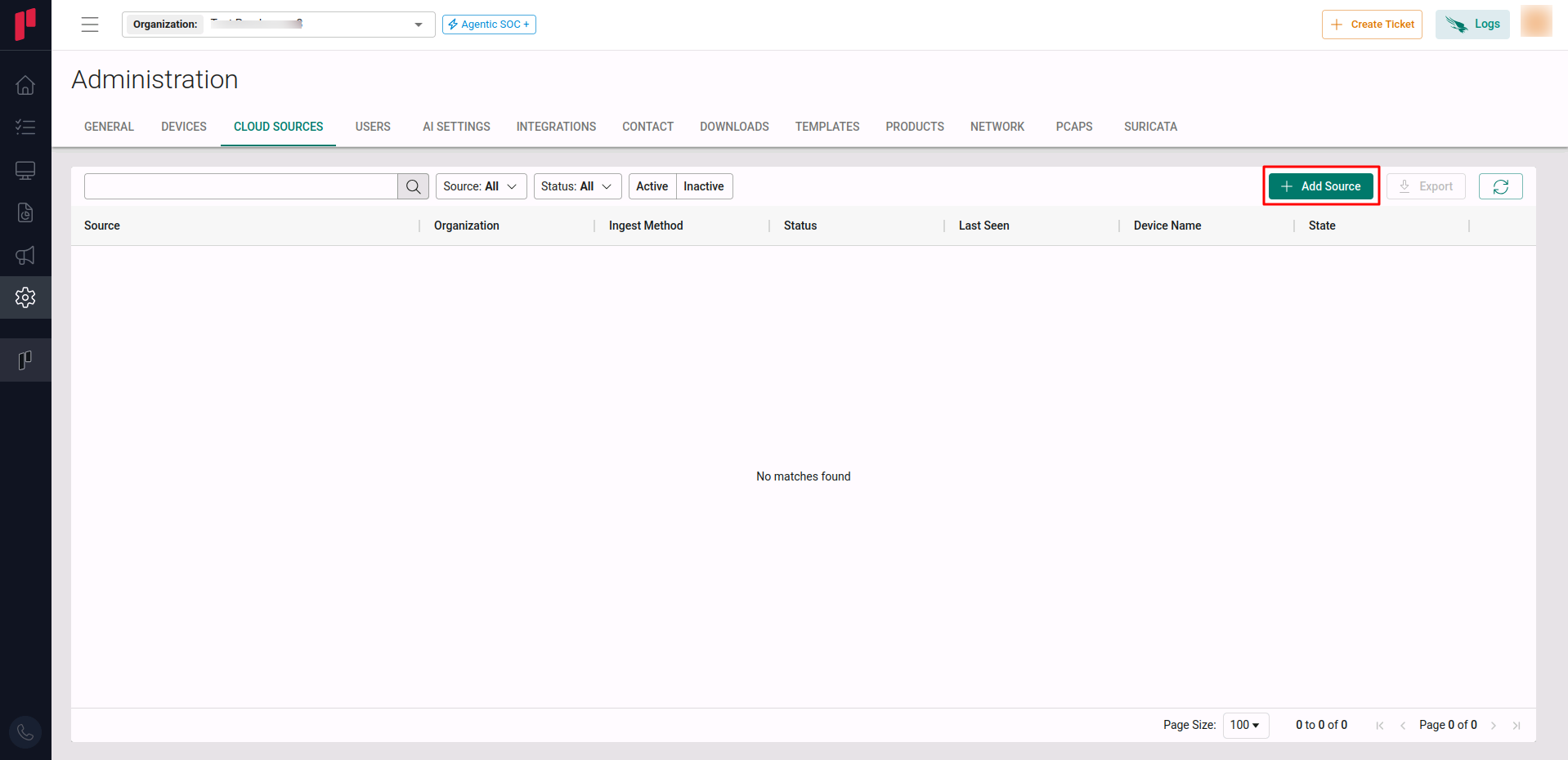
In the Scope application, to register a Palo Alto Cortex XDR cloud source, navigate to the cloud source registration page –
-
Log into the Scope application
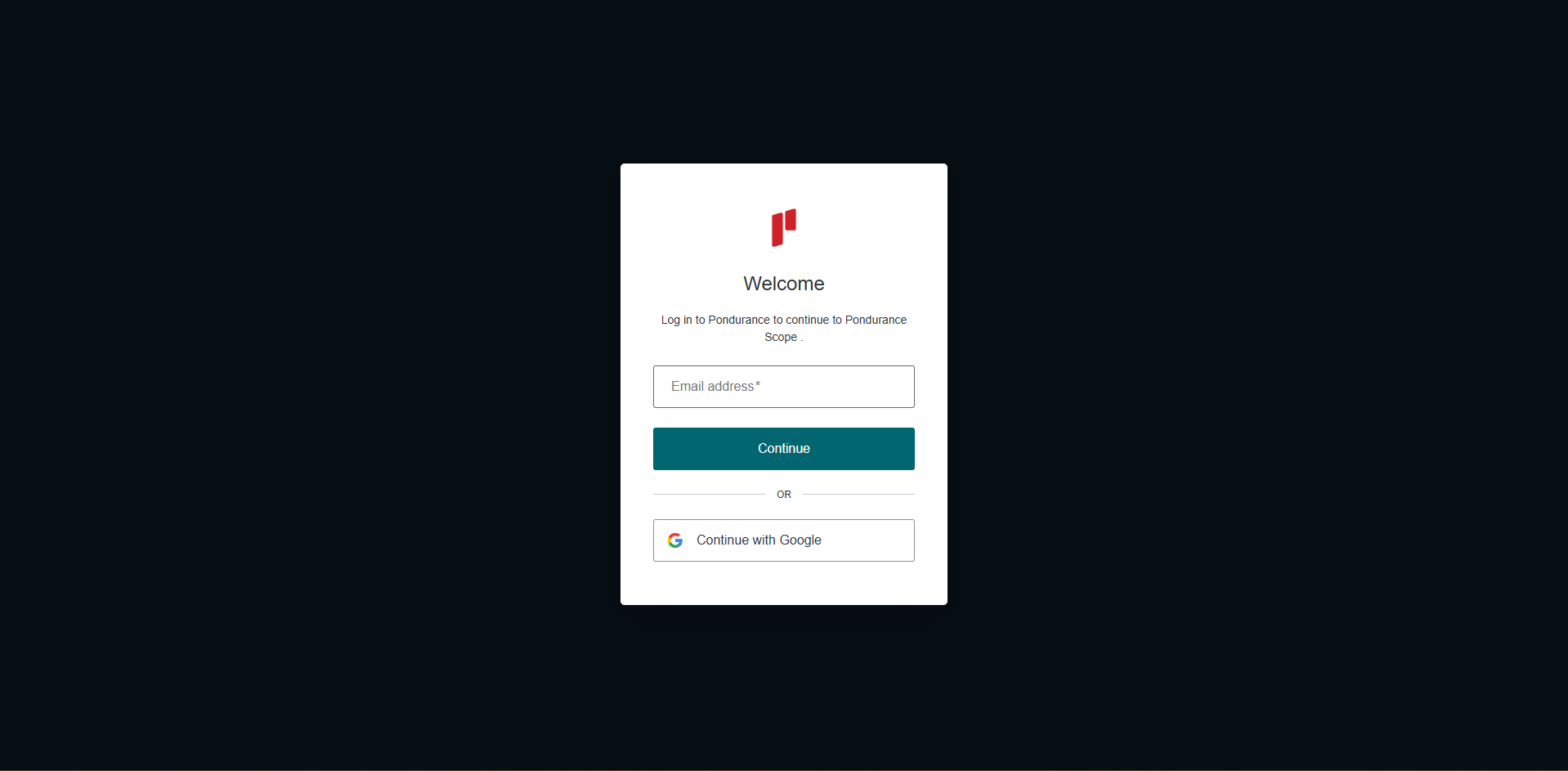
-
Select the required Organization from the Organization dropdown
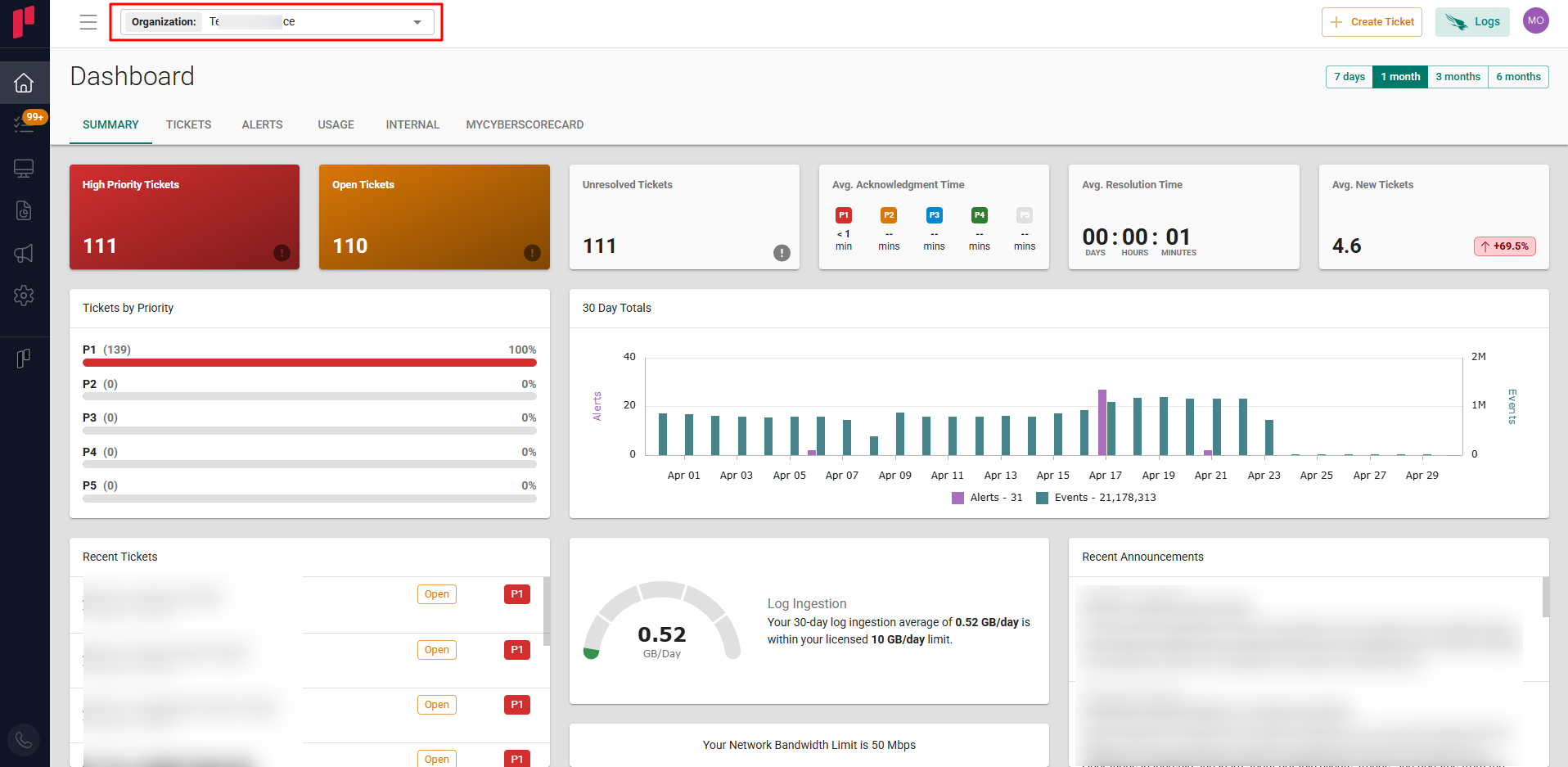
-
Navigate to the side menu -> Administration
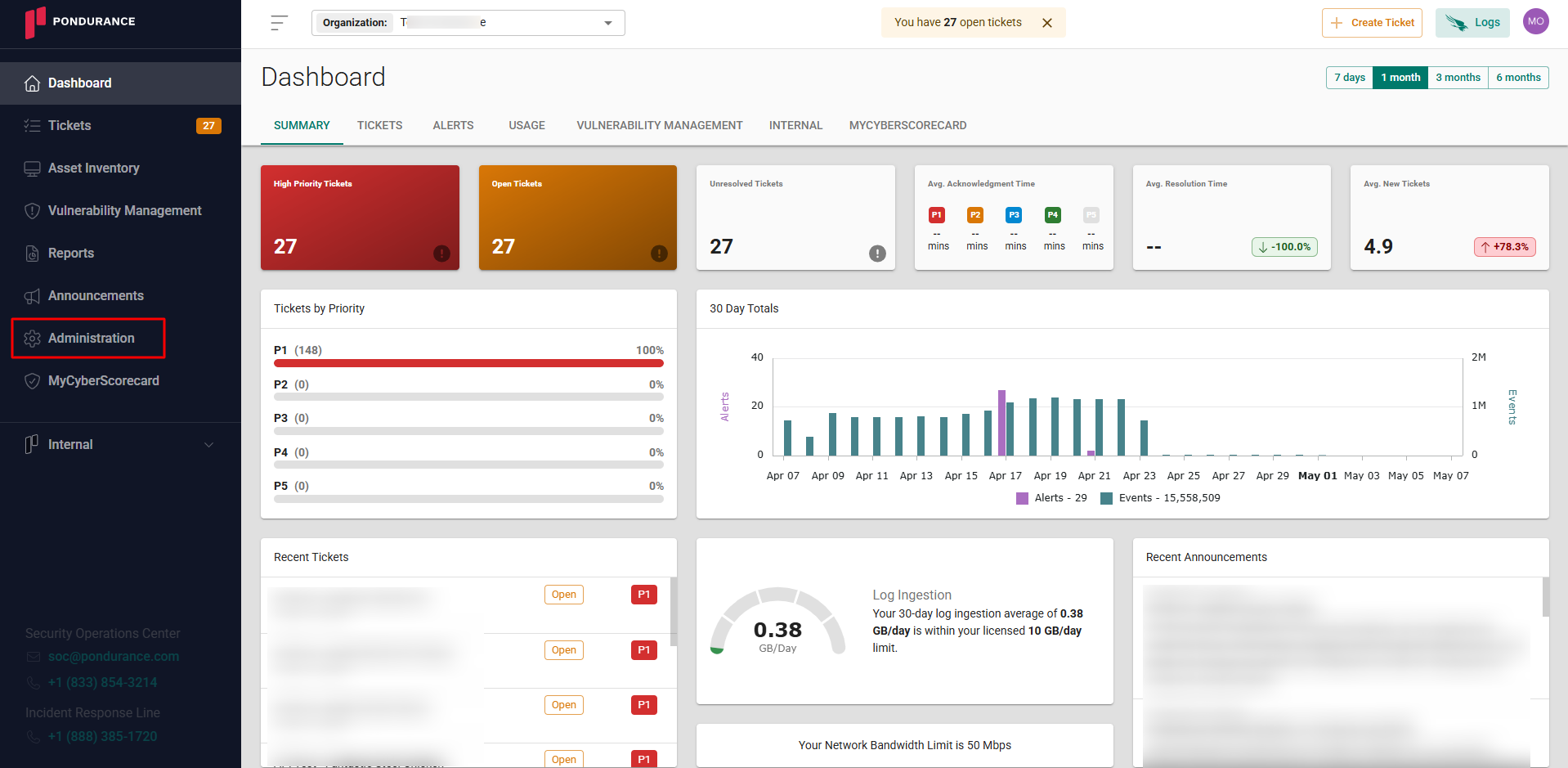
-
Navigate to the Cloud sources tab
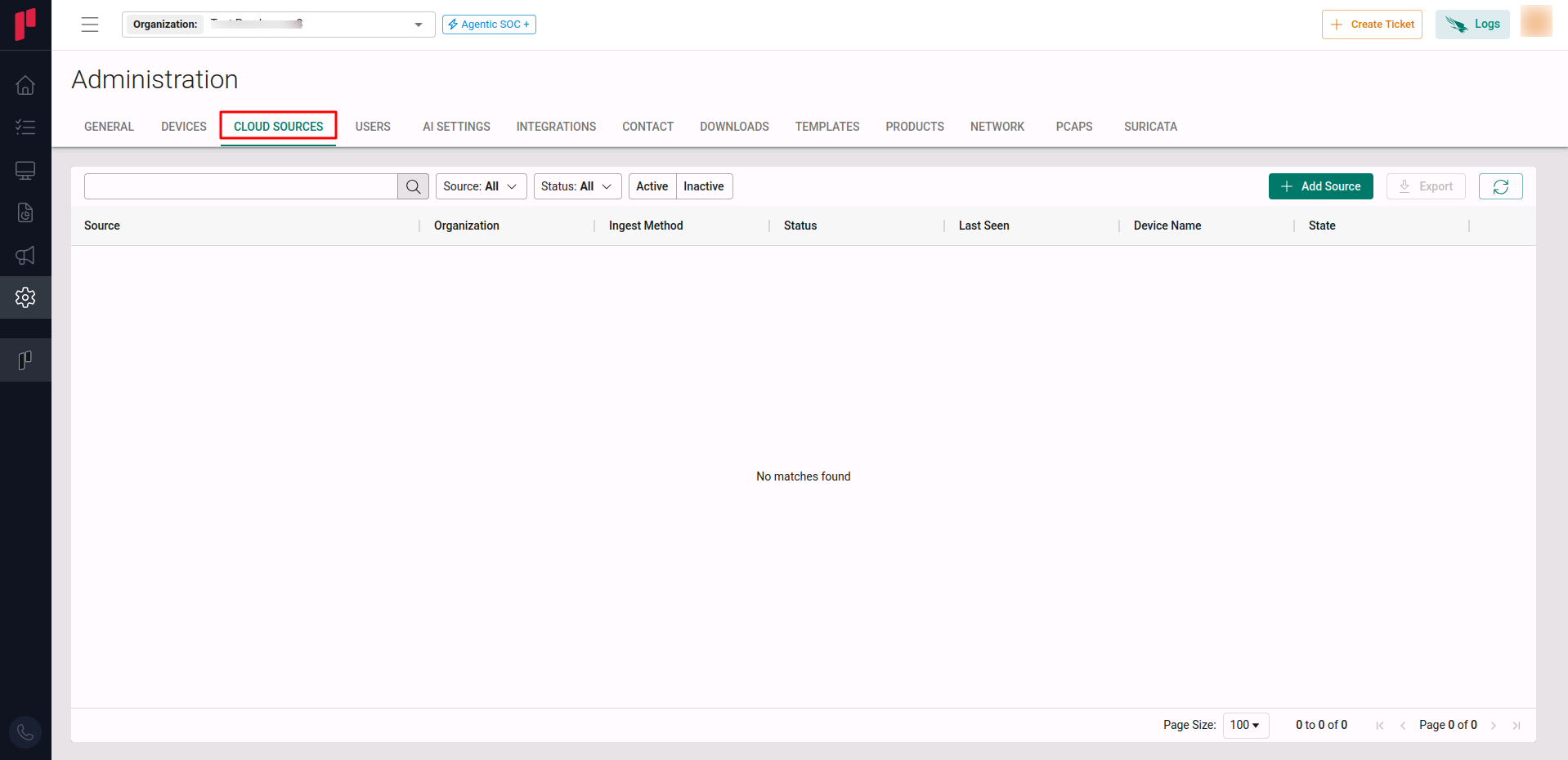
-
Click on the +Add Source button
-
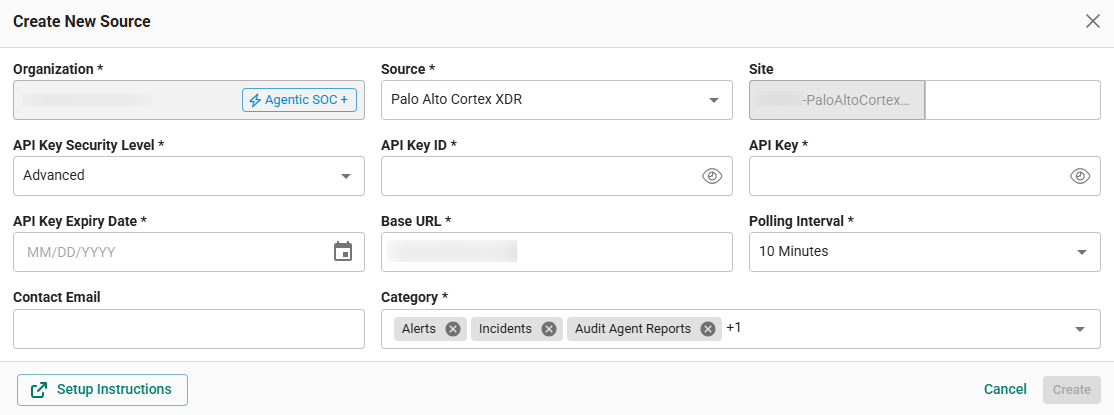
In the Add Source pop-up, provide the parameters below.
-
Source: Select the Palo Alto Cortex XDR source from the Source dropdown.
-
Site: The user defined name for the Palo Alto Cortex XDR cloud source.
-
API Key Security Level: Select the appropriate API Key Security Level (Standard / Advanced) from the dropdown.
-
API Key ID: The API Key ID noted in Step 1.
-
API Key: The API Key generated in Step 1.
-
API Key Expiry Date: The API Key Expiry Date set in Step 1.
-
Base URL: The Base URL (FQDN) identified in Step 1.
-
Polling Interval: The polling interval for making periodic API calls to the Palo Alto Cortex XDR cloud source. The user can select the time interval from the dropdown.
-
Contact Email: The email address of the person who registers the Palo Alto Cortex XDR cloud source in Scope.
-
Once the required connection parameters are entered, the Palo Alto Cortex XDR cloud source registration is complete in Scope and is ready for ingestion of Palo Alto Cortex XDR logs.