Files.com
Overview
Configuring a cloud source in Scope is a two-step process.
-
Generating an API key in the Files.com portal. Please refer to Section 1 – Files.com Setup.
-
Setting up the Files.com cloud source in the Scope application. Please refer to Section 2 – Scope Setup.
Files.com Setup
To get started, you’ll need to obtain the following information from the Files.com portal –
- API Key
- API Key Expiration Date, if configured
Step 1: Generate an API Key
-
Log in to your Files.com account as a site administrator.
-
Open Settings and navigate to the Developer API page.
-
Click Create API Key.
-
Enter a descriptive Name for the API key.
-
Select the User to associate with the API key.
Note: For integrations, Files.com recommends associating the API key with a non-administrator user whenever possible.
-
Select the Permission Scope: Files only.
-
If required, specify a Path restriction so that only a particular folder and its subfolders can be accessed.
-
Optionally, specify an Expiration Date.
-
Click Save.
-
Copy and securely store the generated API Key and record the Expiration Date, if configured.
Note: The API key is displayed only once and cannot be retrieved later. Store it securely.
The generated API Key and optional Expiration Date are to be configured in Scope Setup: Step 1 for initiating Files.com log ingestion.
Scope Setup
Step 1: Files.com Cloud Source Registration in the Scope Application
Once the API key is generated, configure it in the Scope application to establish the connection and enable data ingestion from your Files.com account.
In the Scope application, to register a Files.com cloud source, navigate to the cloud source registration page.
-
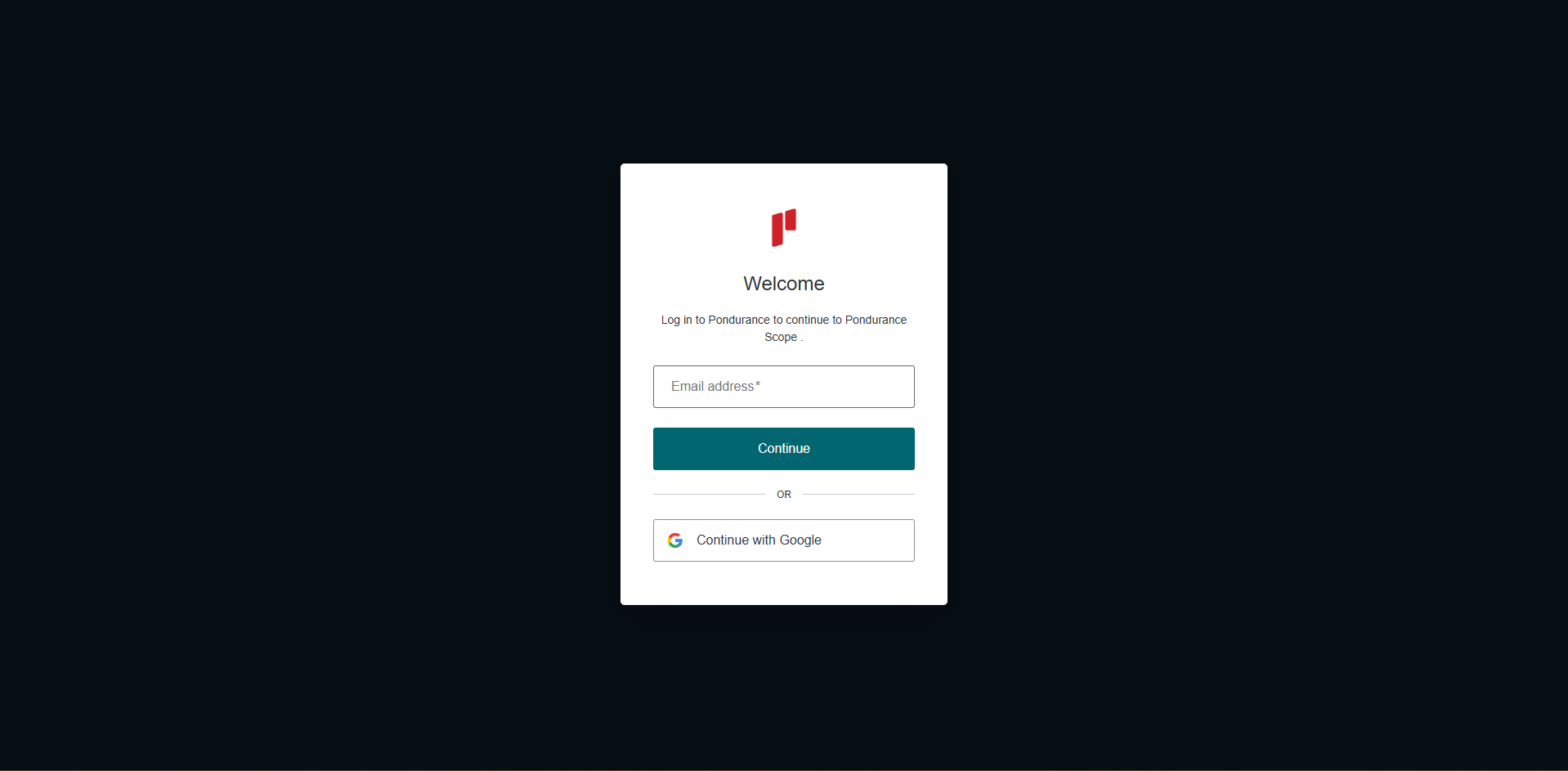
Log into the Scope application.
-
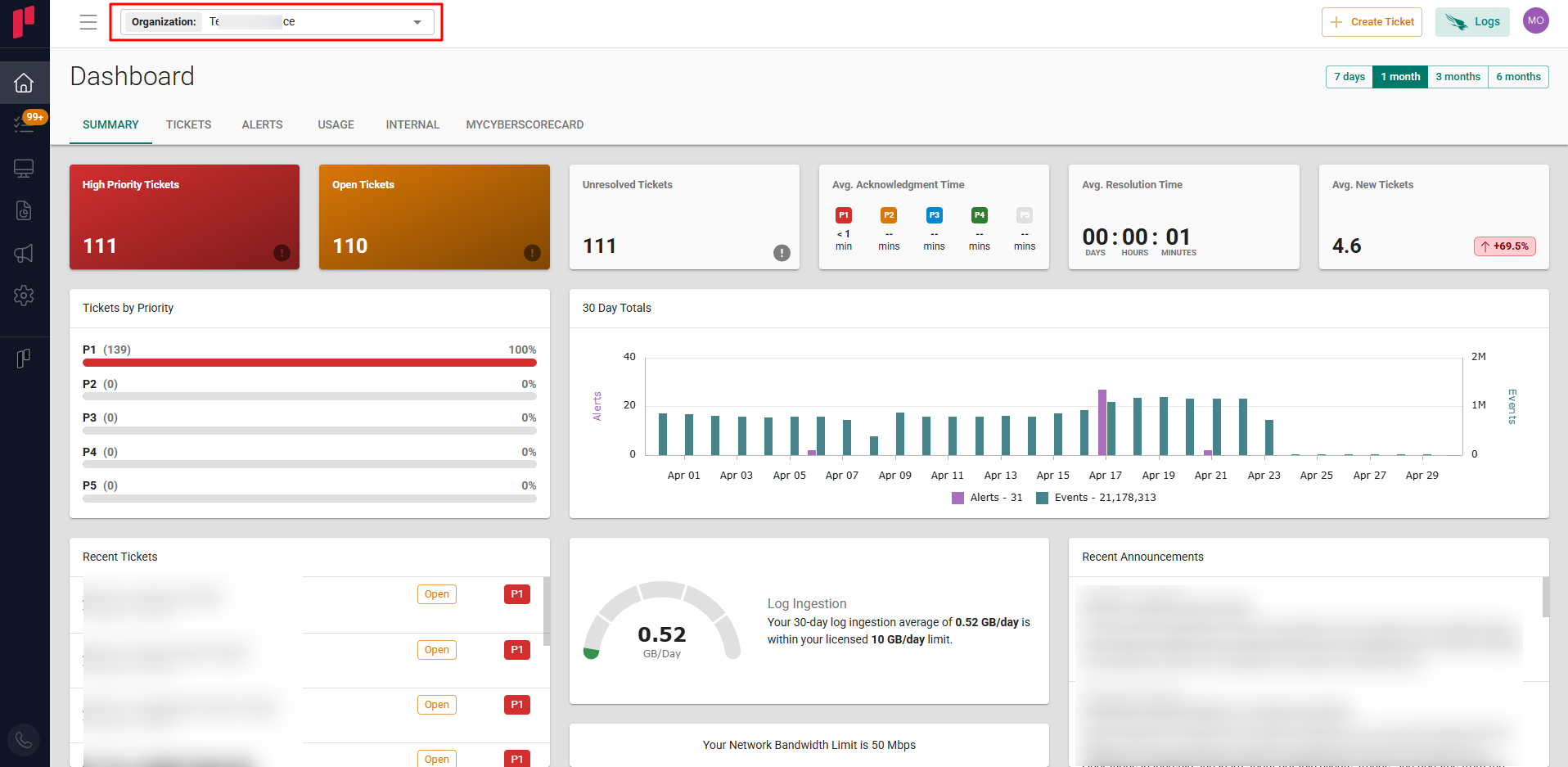
Select the required organization from the Organization dropdown.
-
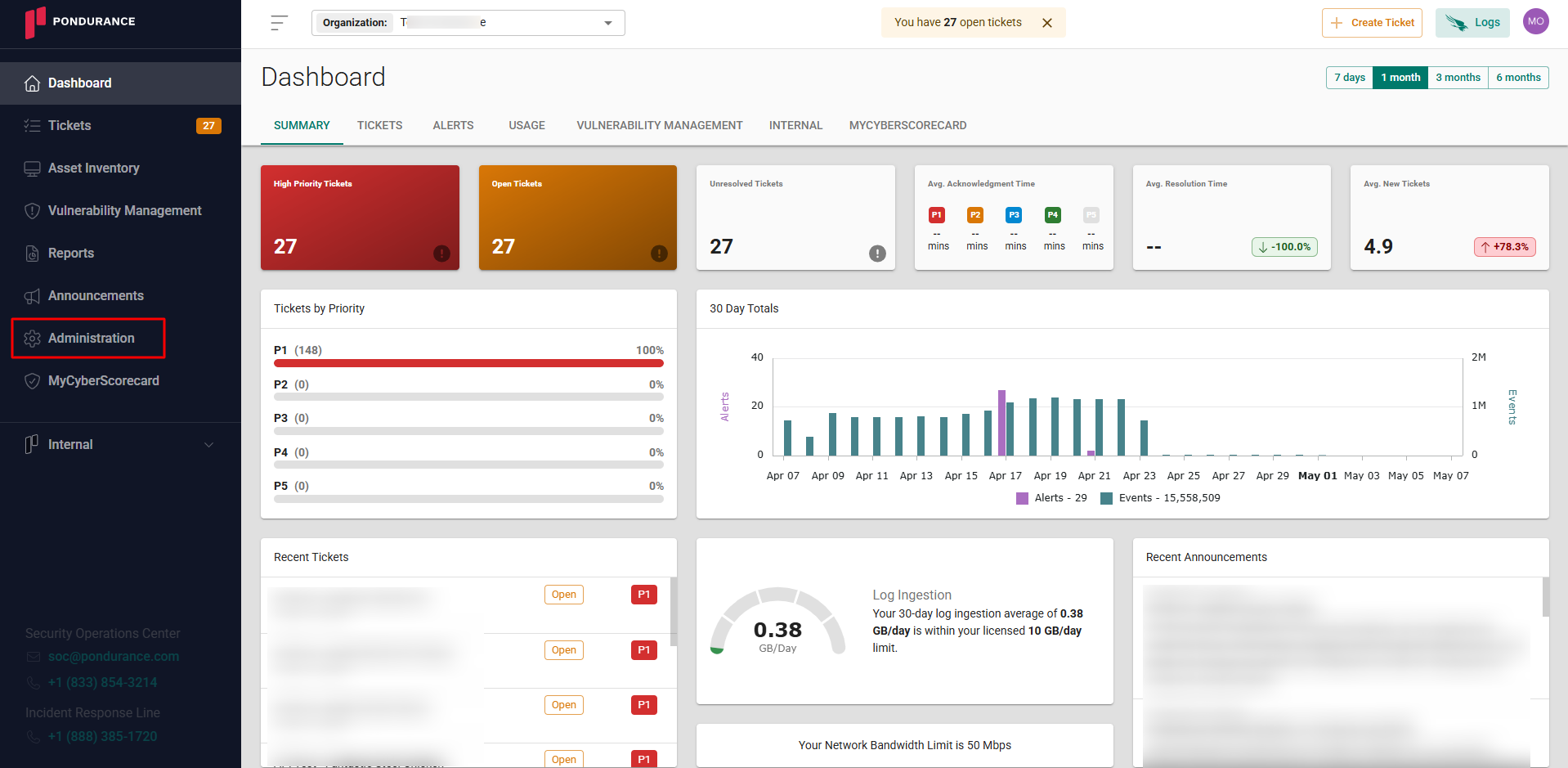
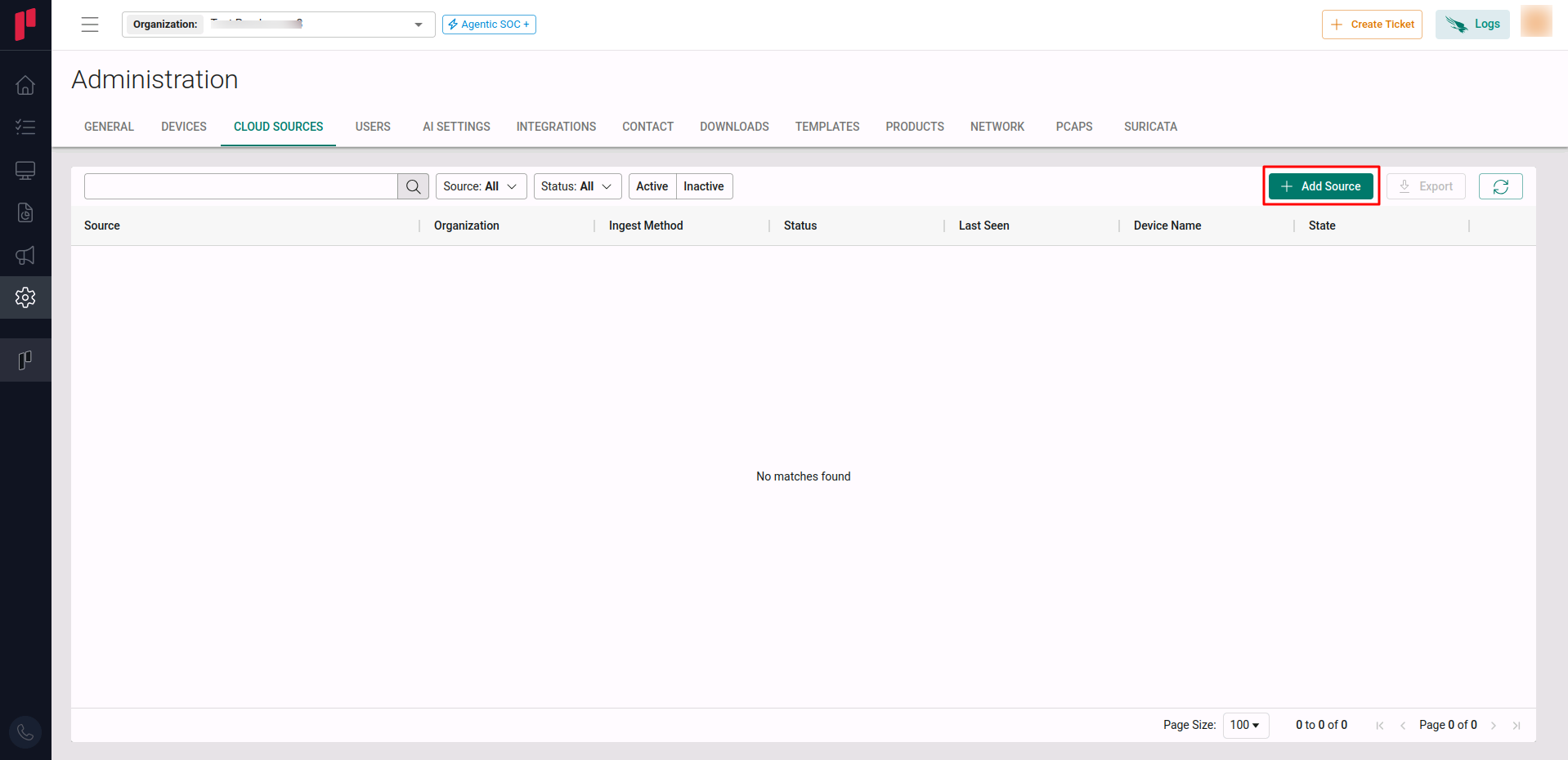
Navigate to the side menu -> Administration.
-
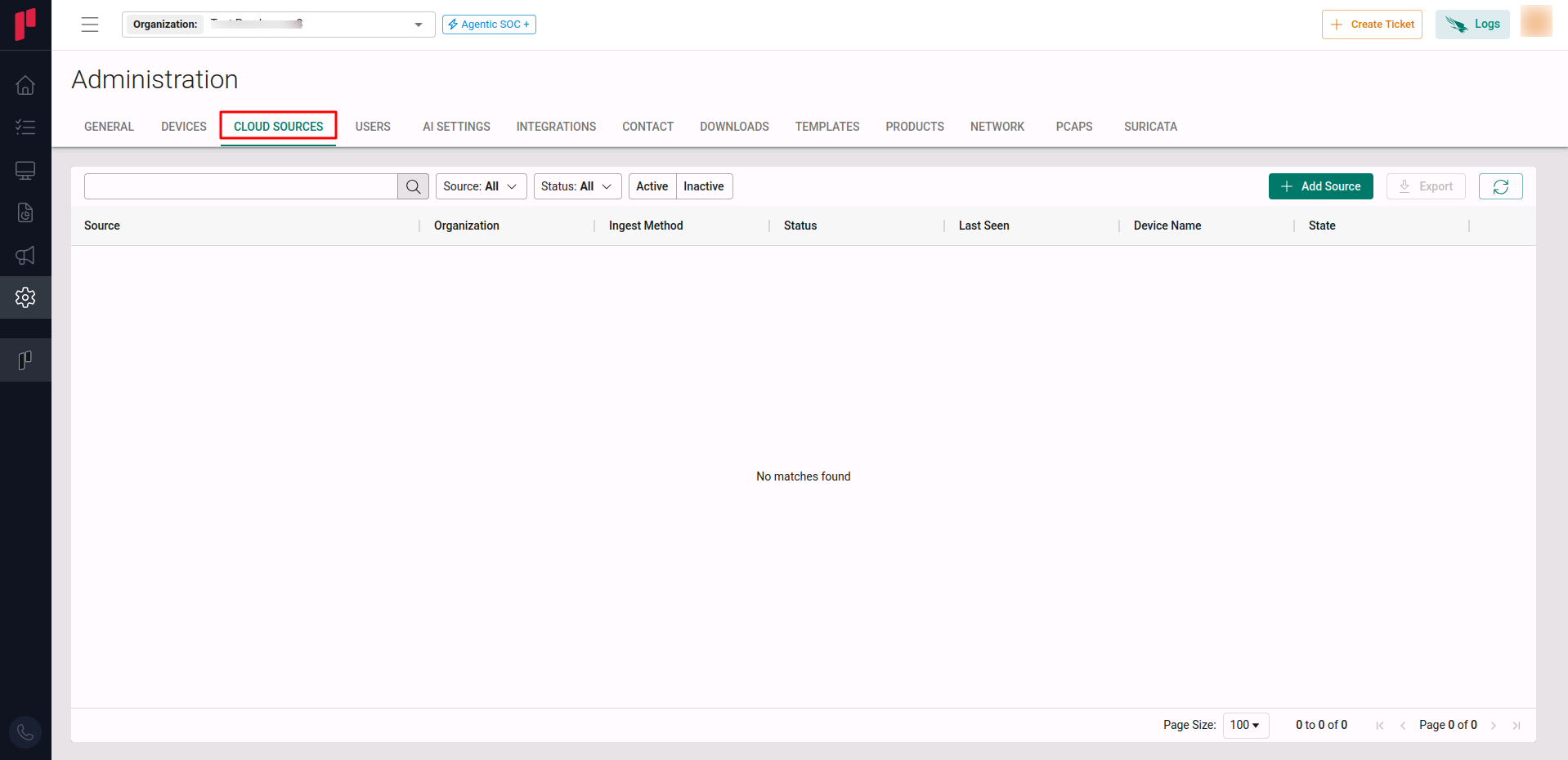
Navigate to the Cloud sources tab.
-
Click on the +Add Source button.
-
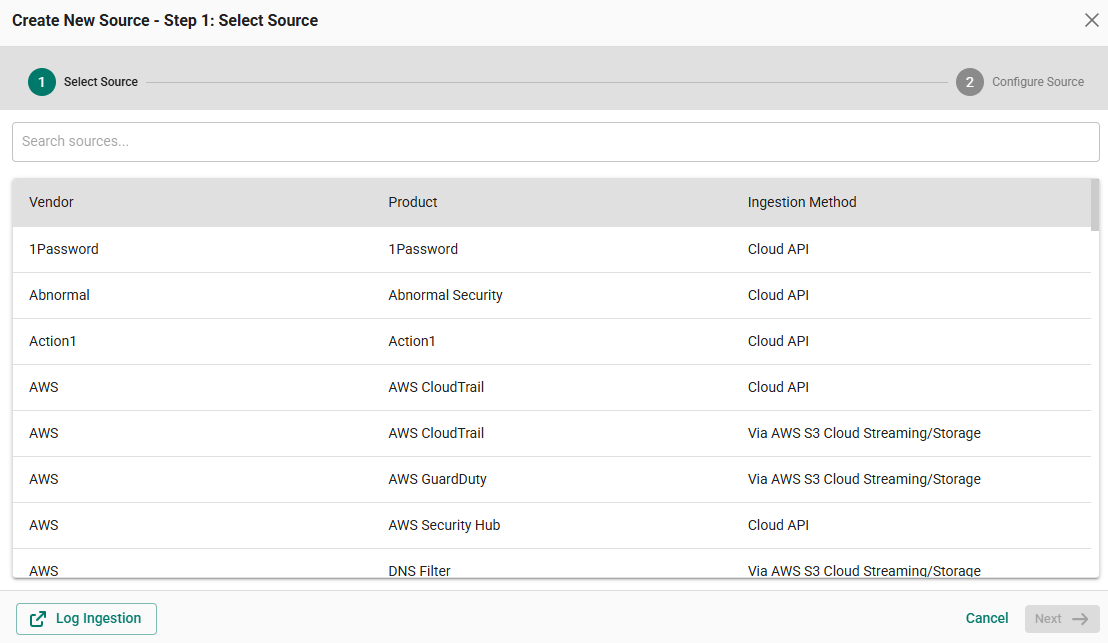
In Step 1 of the Add Source wizard, search for Files.com, select the cloud source and click Next.
-
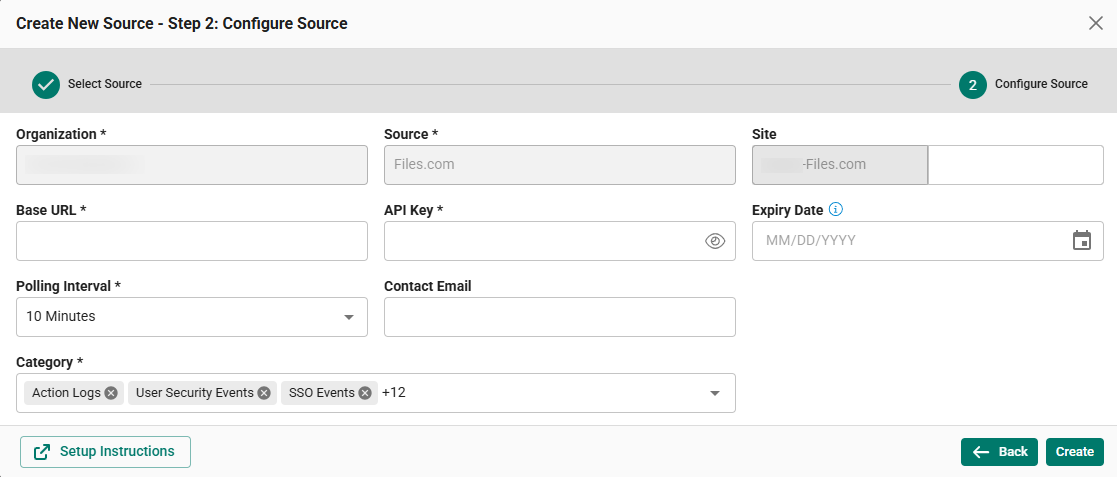
In Step 2 of the Add Source wizard, provide the parameters below.
-
Site: The user-defined name for the Files.com cloud source.
-
API Key: The API key generated in Step 1.
-
Expiry Date: The expiration date configured in Step 1. If the API key never expires, leave this field empty.
-
Polling Interval: The polling interval for making periodic API calls to the Files.com API. Select the required interval from the dropdown.
-
Contact Email: The email address of the person who registers the Files.com cloud source in Scope.
-
Once the required connection parameters are entered, the Files.com registration is complete in Scope and is ready for ingestion of Files.com logs.