NinjaOne
Overview
Configuring a cloud source in Scope is a two-step process.
-
Generating NinjaOne client credentials in the NinjaOne portal. Please refer to Section 1 – NinjaOne Setup
-
Setting up the NinjaOne cloud source in the Scope application. Please refer to Section 2 - Scope Setup
NinjaOne Setup
To get started, you’ll need to generate the following client credentials in the NinjaOne portal –
- Client ID
- Client Secret
- Base URL
Step 1: Generate Client Credentials
-
Go to Configuration -> Apps -> API -> Client App IDs and click the Add button on the right.
-
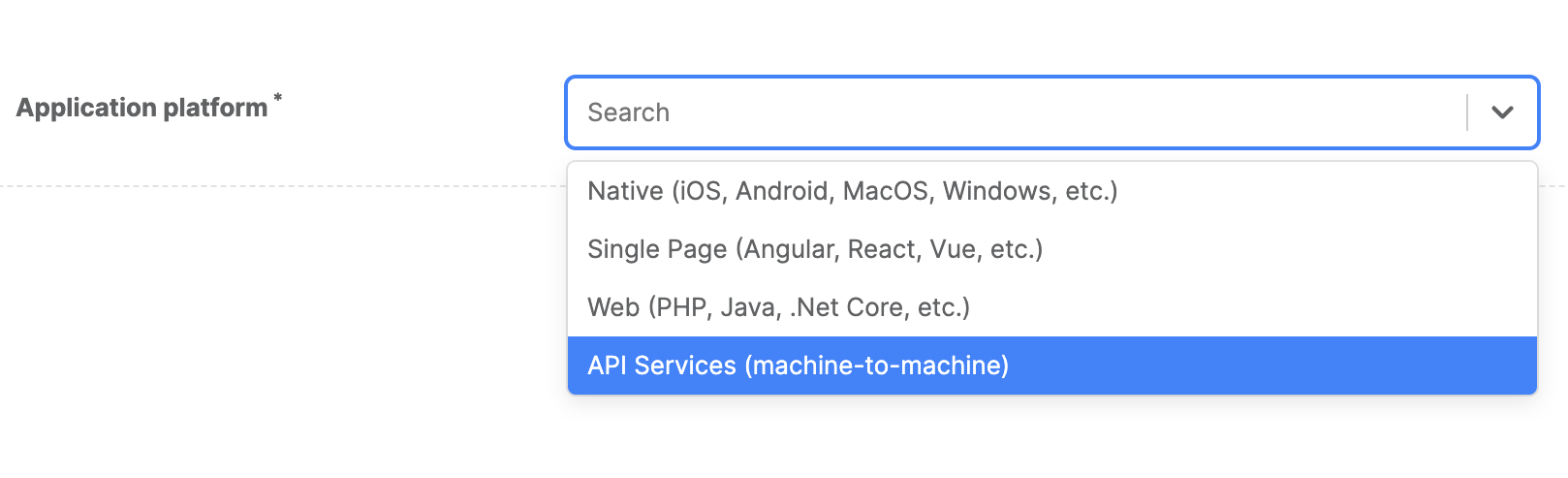
Select API Services (machine-to-machine) from the dropdown list.
-
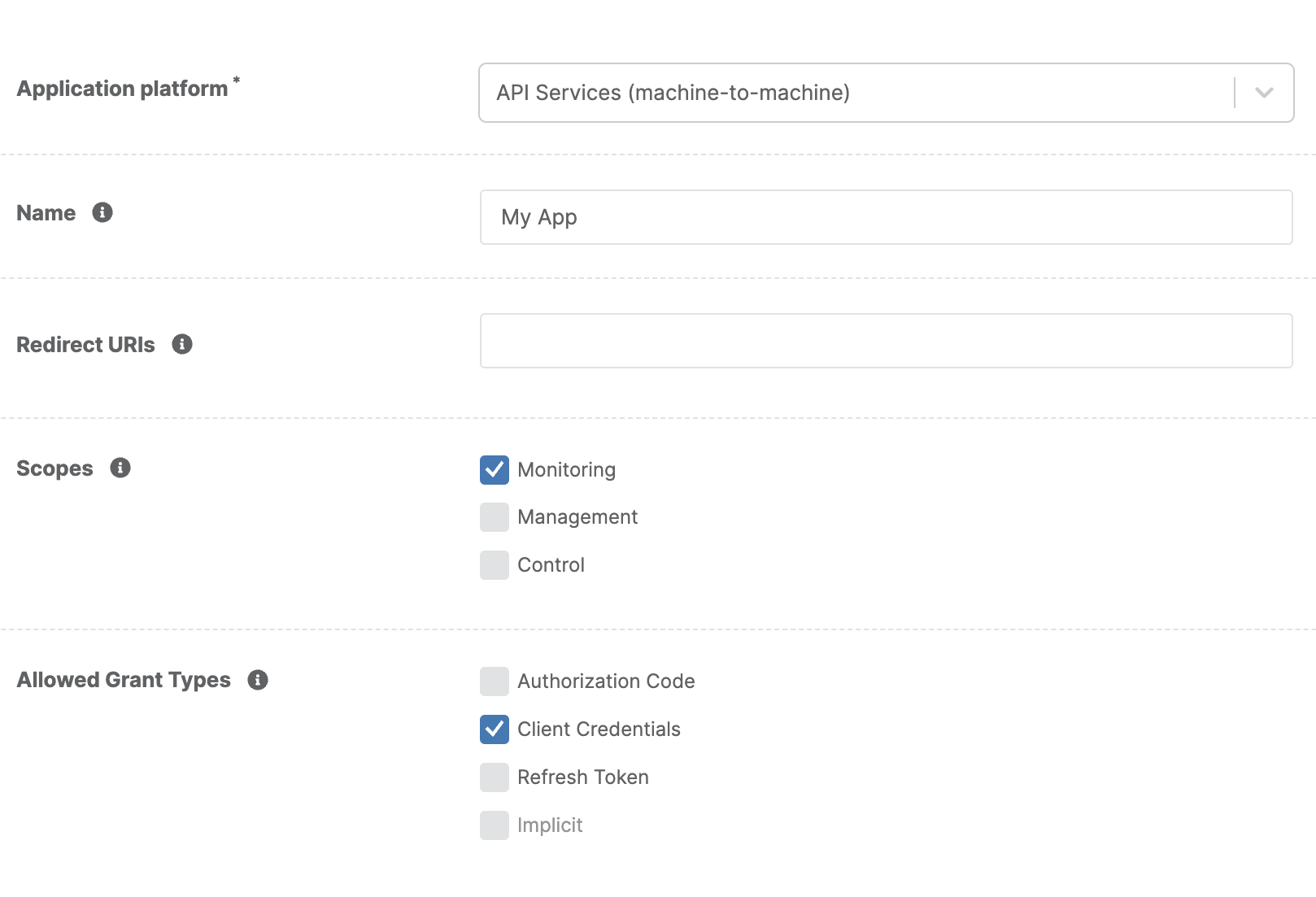
Provide the following details:
- Name: Provide a user-defined name.
- Scopes: Select the Monitoring scope.
- Allowed Grant Types: Select Client Credentials.
-
Click the Save button in the top right and you will be presented with a Client Secret. Copy this to your clipboard.
-
Click the Close button in the top right and you will see the newly created app with its Client ID.
Note: Copy and securely store both values immediately. The Client Secret is only shown once and cannot be retrieved later.
The generated client credentials are to be configured in Scope Setup: Step 1 for initiating the NinjaOne log ingestion.
Scope Setup
Step 1: NinjaOne Cloud Source Registration in the Scope Application
Once the credentials are generated, they must be configured in the Scope application to establish the connection and enable data ingestion from the NinjaOne environment.
In the Scope application, to register a NinjaOne cloud source, navigate to the cloud source registration page
-
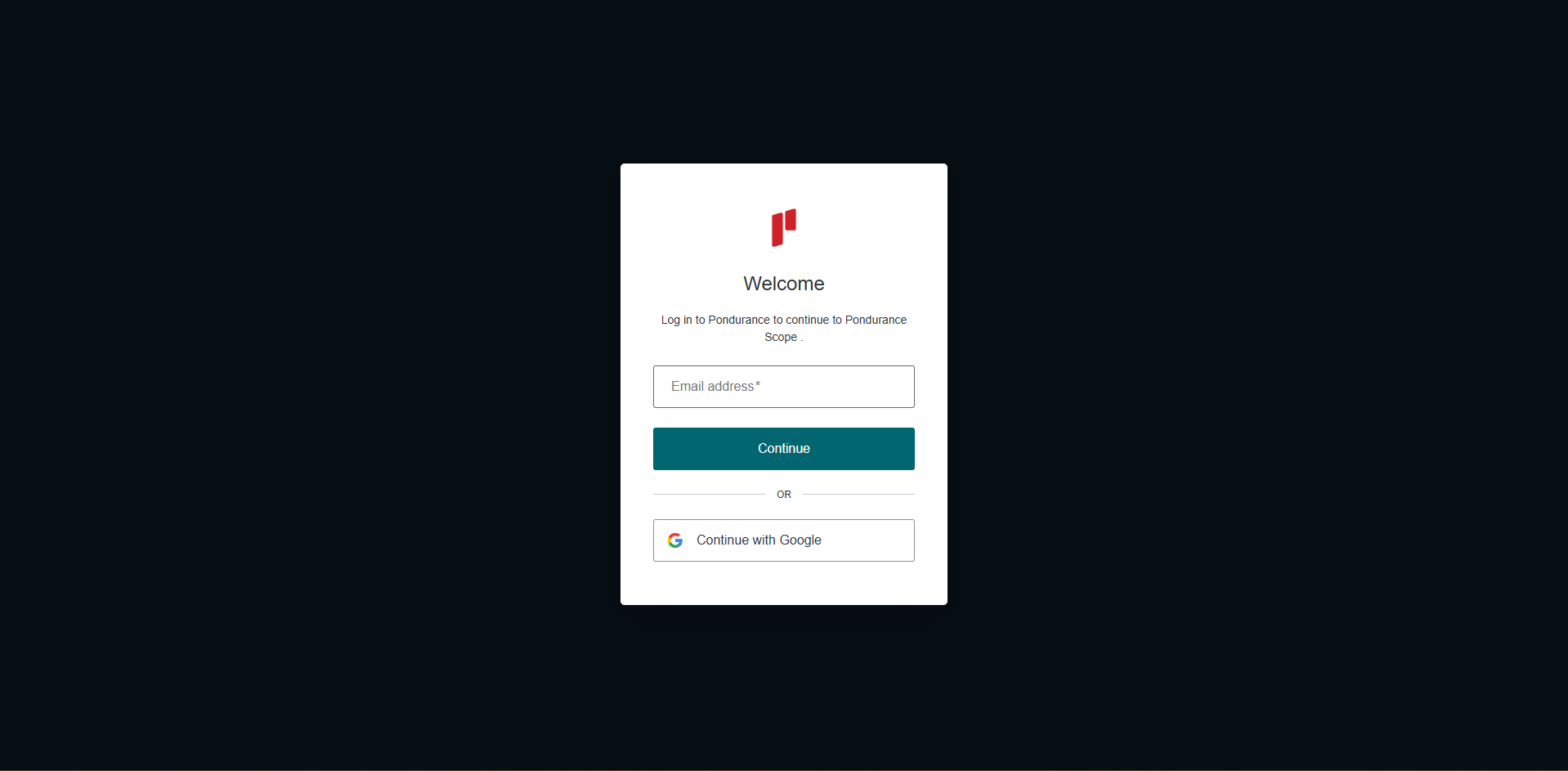
Log into the Scope application
-
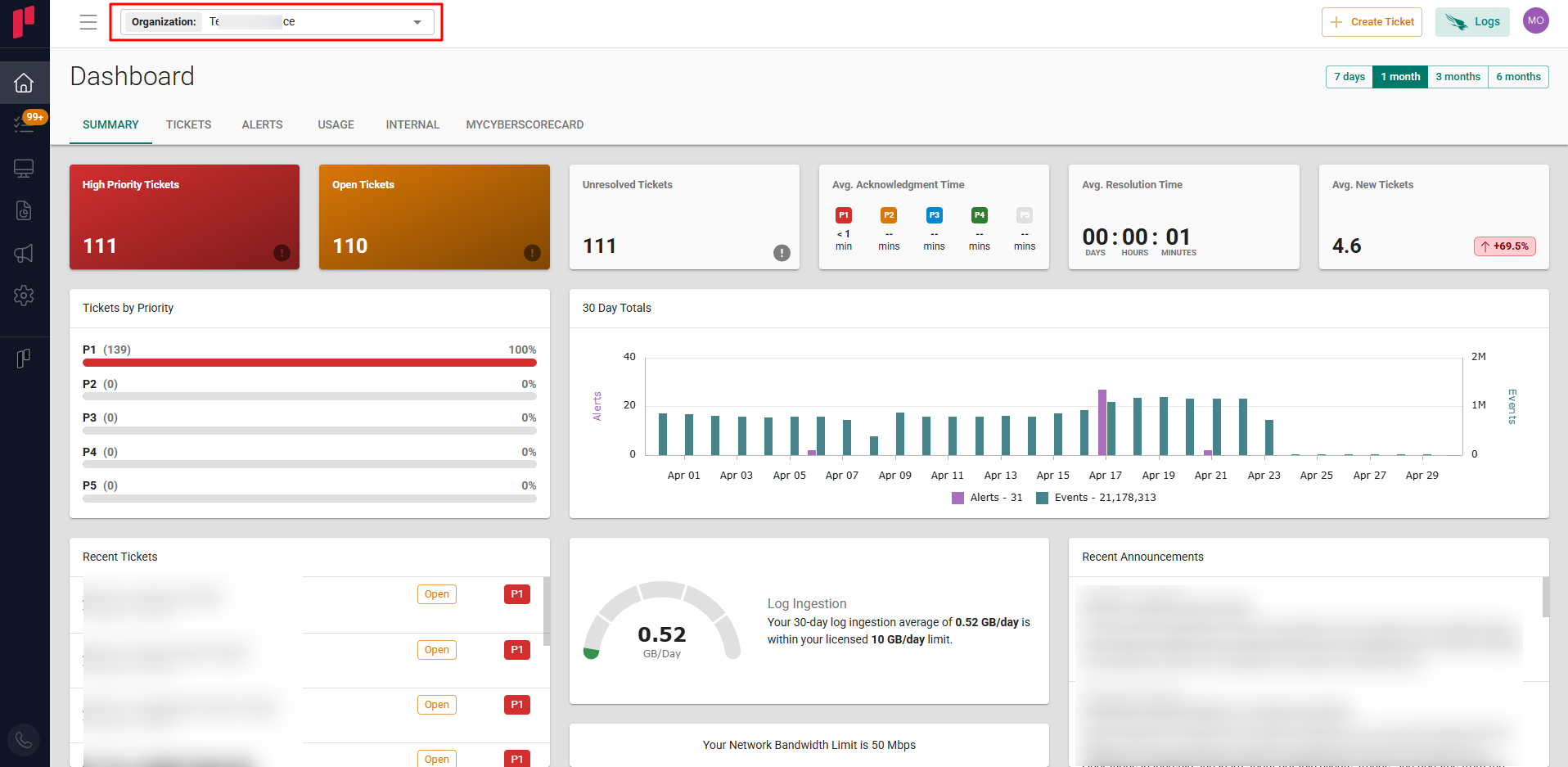
Select the required Organization from the Organization dropdown
-
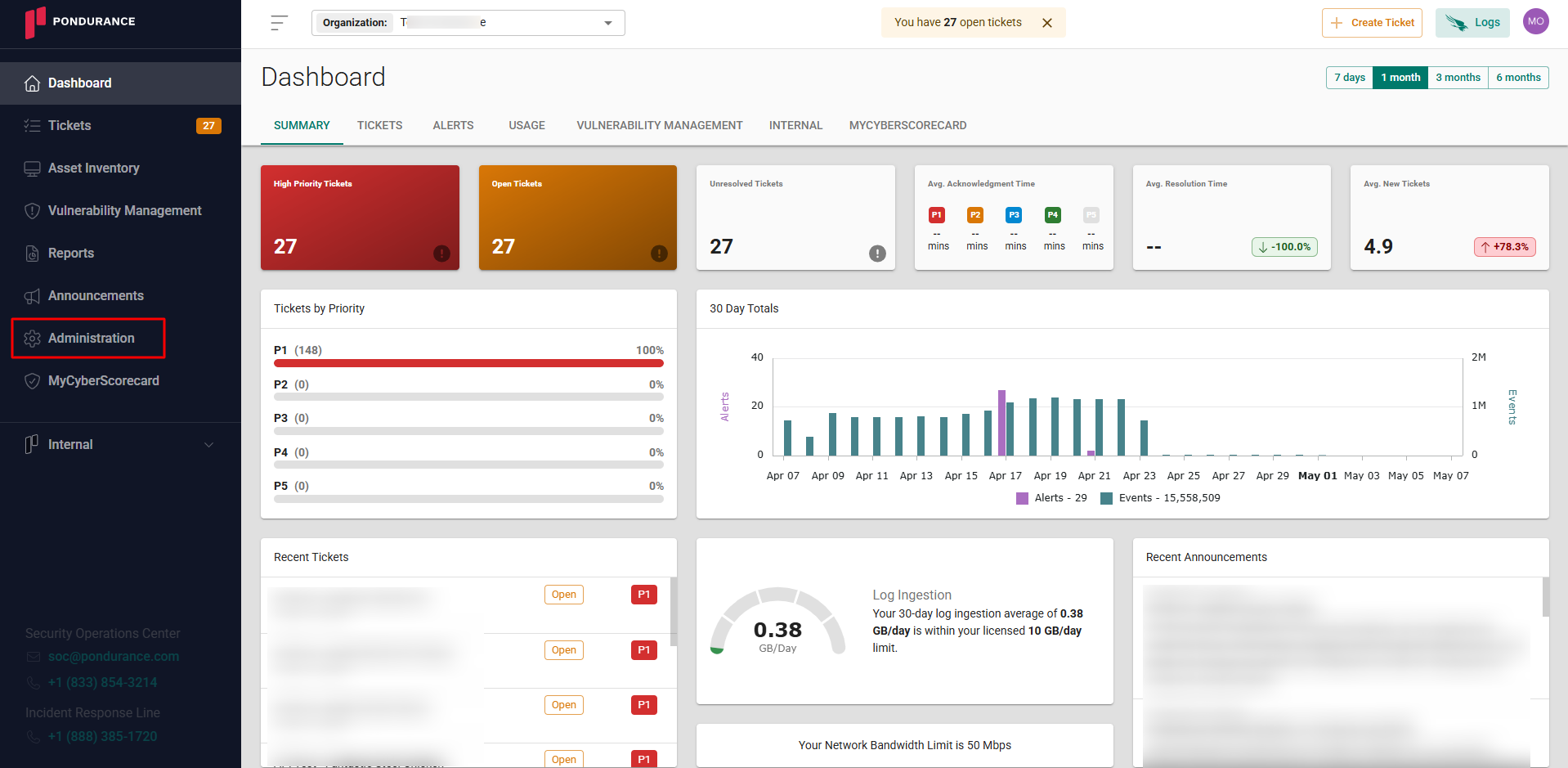
Navigate to the side menu -> Administration
-
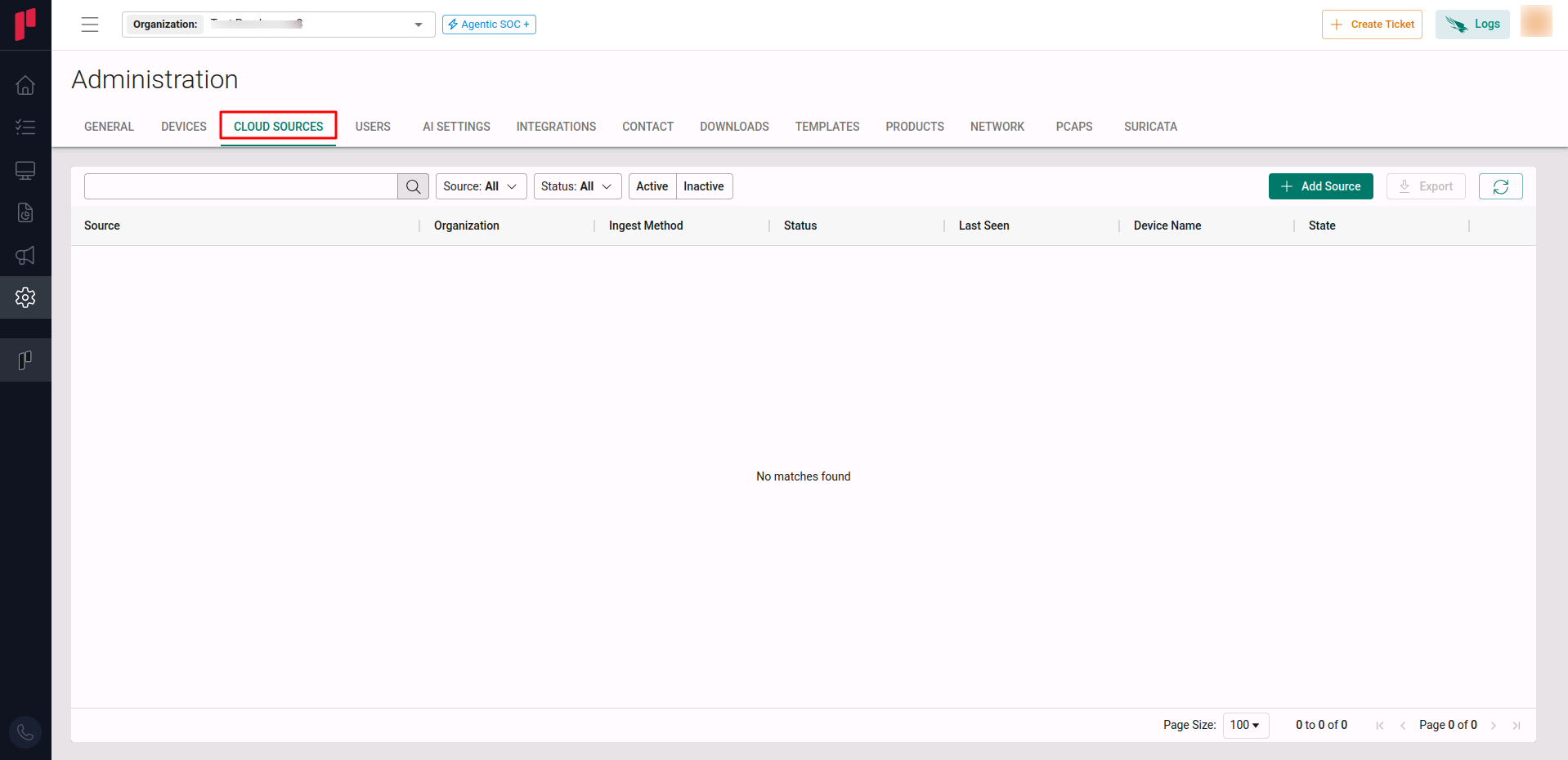
Navigate to the Cloud sources tab
-
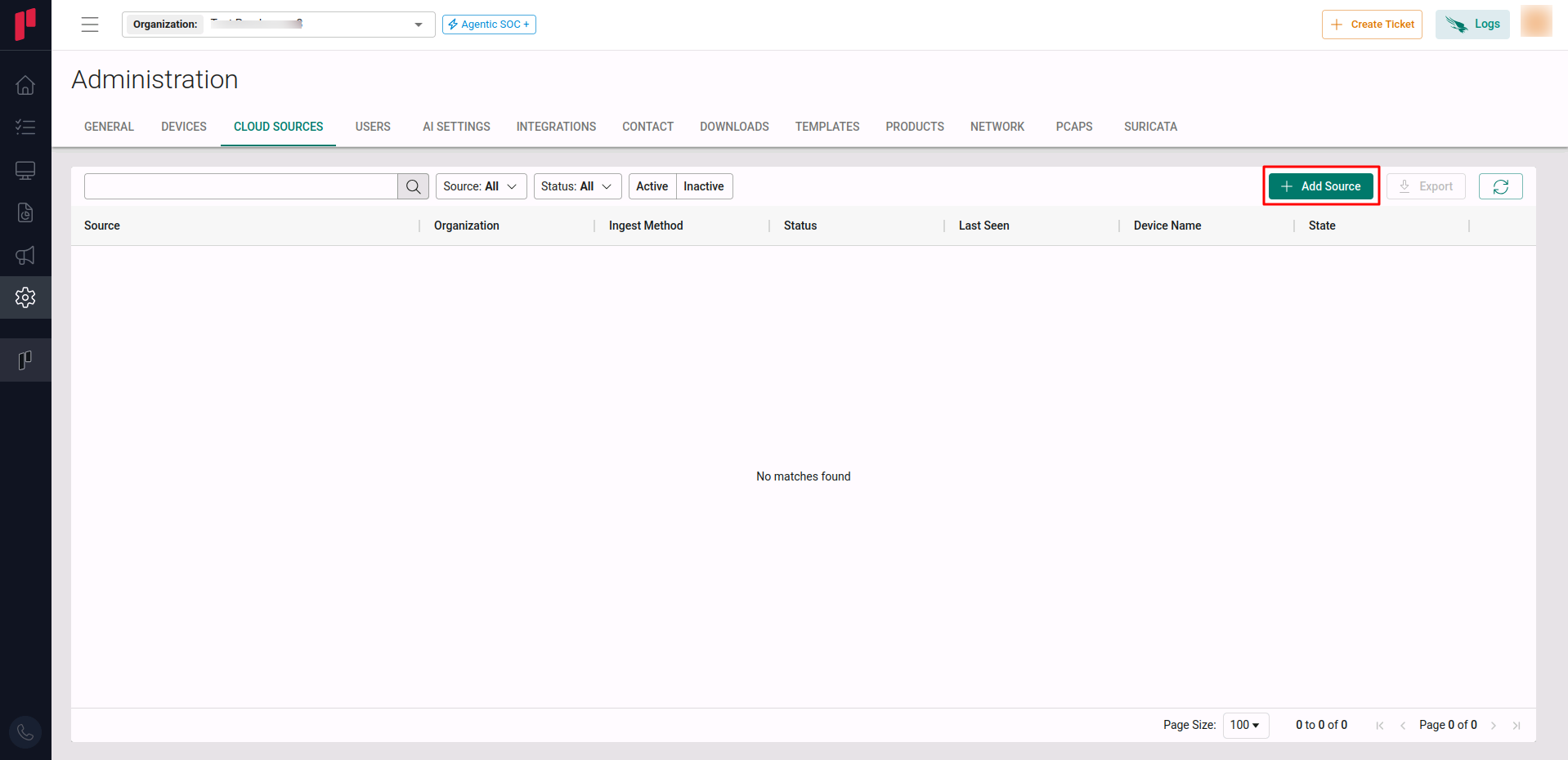
Click on the +Add Source button
-
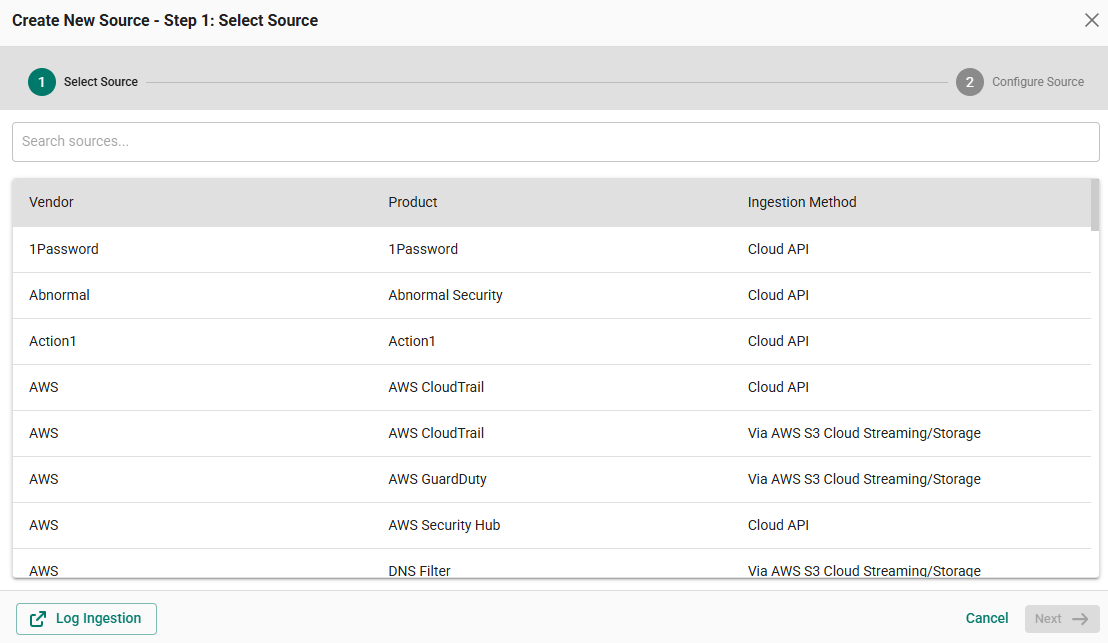
In the Step 1 of the Add Source wizard, search for NinjaOne, select the cloud source and click Next.
-
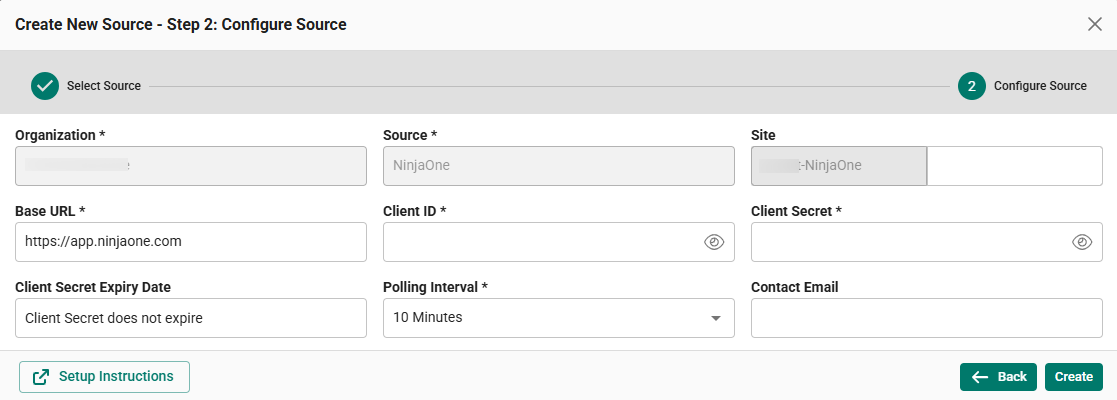
In the Step 2 of the Add Source wizard, provide the parameters below.
-
Site: The user defined name for the NinjaOne cloud source.
-
Base URL: The Base URL of your NinjaOne Tenant. By default, the value “https://app.ninjaone.com” will be available.
-
Client ID: The Client ID generated in Step 1.
-
Client Secret: The Client Secret generated in Step 1.
-
Polling Interval: The polling interval for making periodic API calls to the NinjaOne cloud source. The user can select the polling interval from the dropdown.
-
Contact Email: The email address of the person who registers the NinjaOne cloud source in Scope.
-
Once the required connection parameters are entered, the NinjaOne registration is complete in Scope and is ready for ingestion of NinjaOne logs.