JumpCloud
Overview
Configuring a cloud source in Scope is a two-step process.
-
Generating JumpCloud client credentials in the JumpCloud Admin Portal. Please refer to Section 1 – JumpCloud Setup
-
Setting up the JumpCloud cloud source in the Scope application. Please refer to Section 2 – Scope Setup
JumpCloud Setup
To get started, you’ll need to generate the following client credentials in the JumpCloud Admin Portal –
- Client ID
- Client Secret
- Client Secret Expiry Date
Step 1: Generate Client ID & Client Secret
The Service Account uses client credentials (Client ID and Client Secret) to request an access token via an OAuth 2.0 token endpoint. This token is then used to make authenticated API calls. To create a service account and generate the Client ID & Client Secret –
-
Log in to the JumpCloud Admin Portal.
-
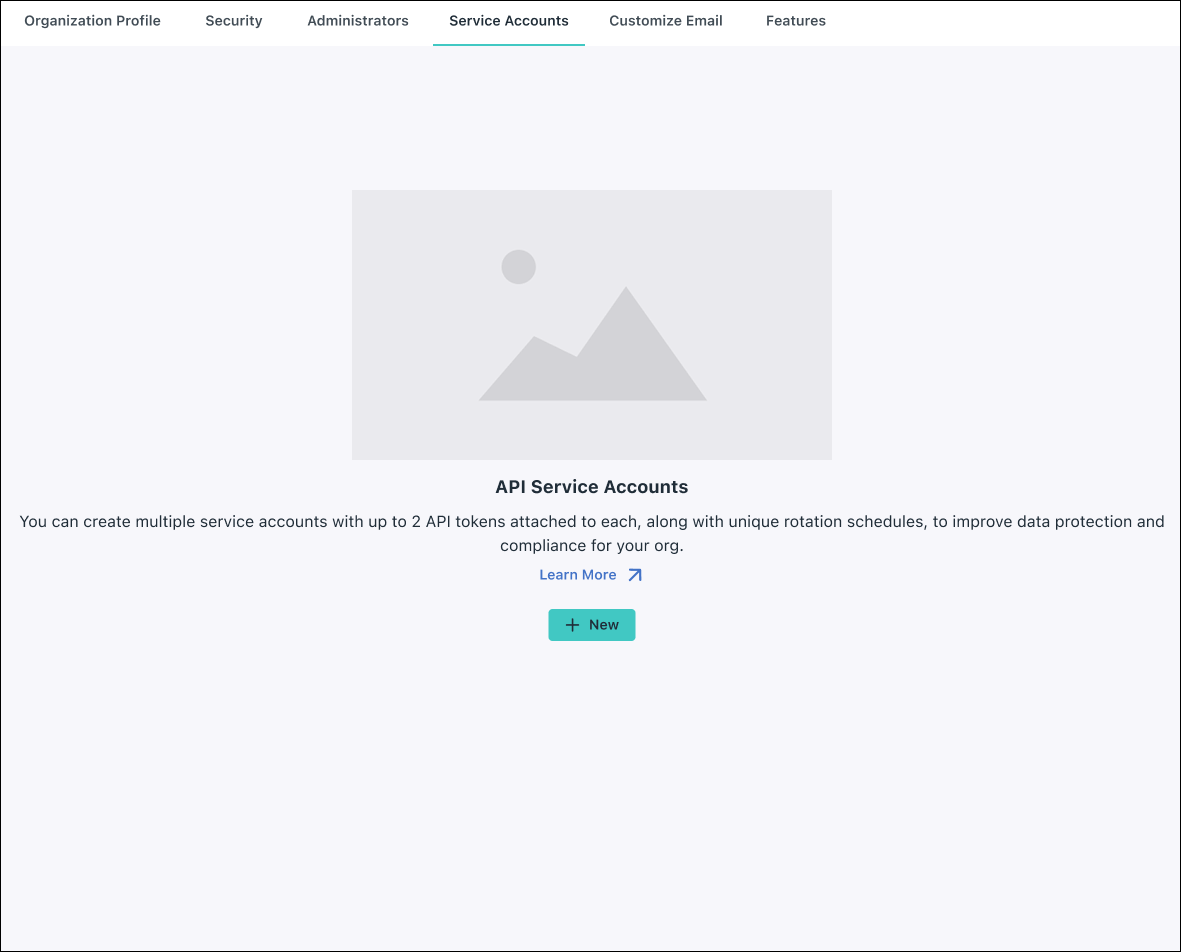
Go to Settings -> Service Accounts.
-
Click + New to add a new Service Account.
-
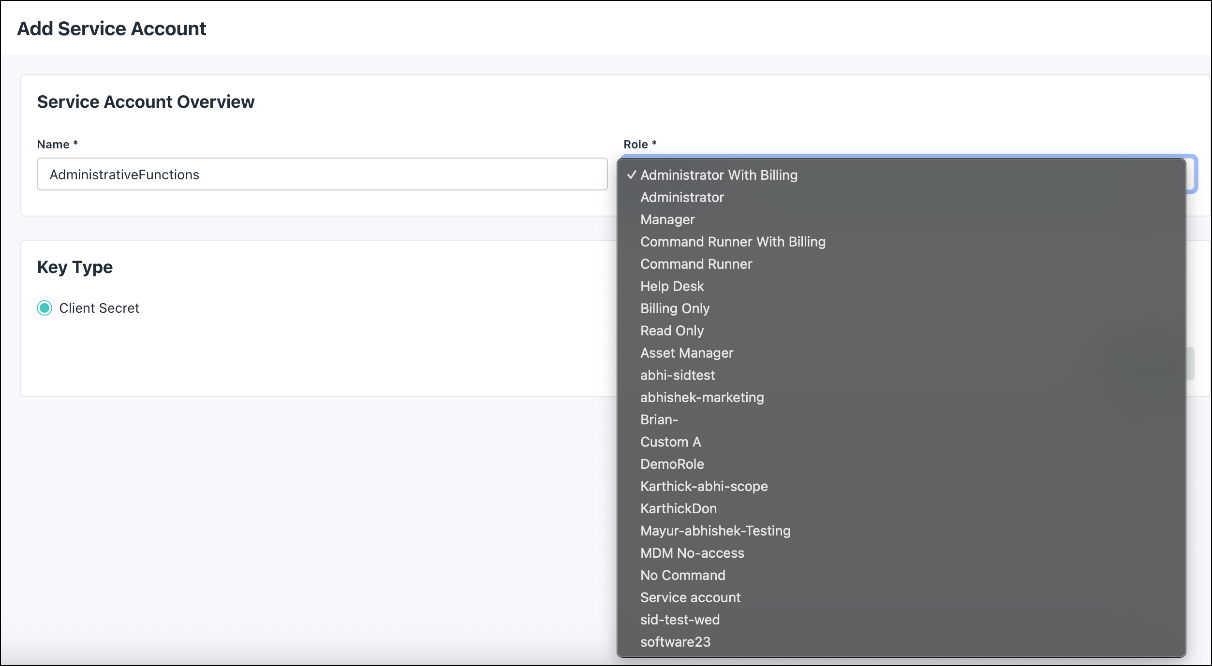
Enter the Name of the account, then select a Role from the dropdown menu. Admins can also link custom admin roles to a service account.
-
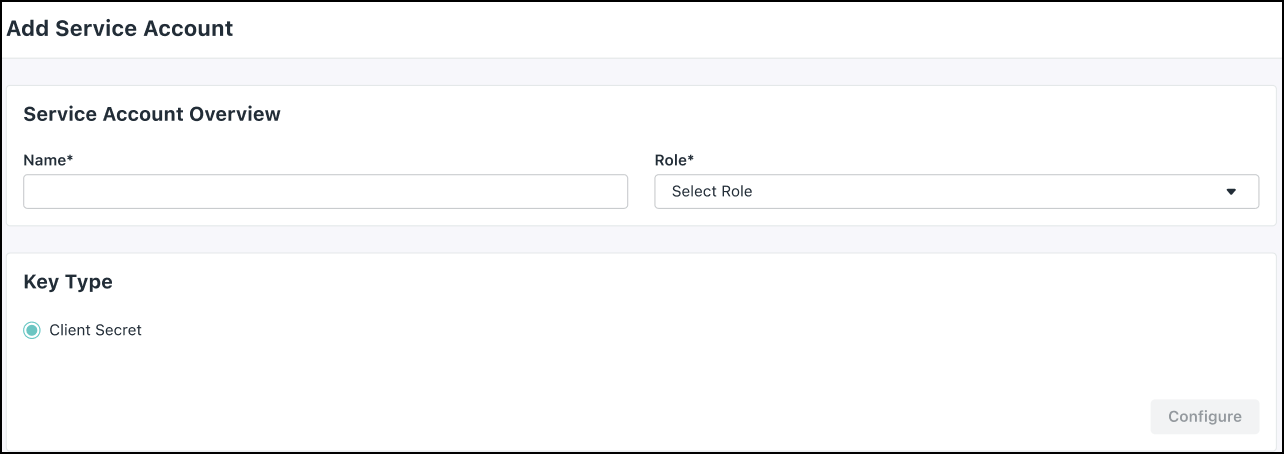
Under Key Type, select the Client Secret radio button. A pop-up for setting the expiration date appears.
-
Set an expiration date for the Service Account by selecting a date from the Secret Lifetime dropdown menu.
-
Click Activate.
-
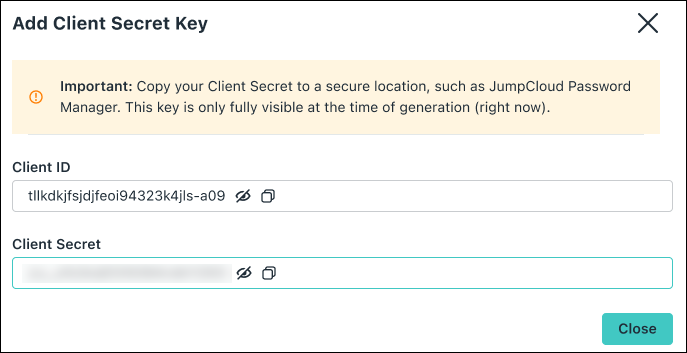
The Client ID and Client Secret are displayed. These are only shown at the time of creation. Make sure to store them in a secure place.
-
Click Close.
-
The new Service Account will appear under the Service Accounts tab in Settings.
Note: An Admin with billing role can create multiple Service Accounts. Each Service Account can have up to 2 Client Secrets. If one Client Secret is about to expire, the organization can use the other. The Admin will receive an email 7 days prior to the expiration date.
The generated Client ID, Client Secret, and Client Secret Expiry Date are to be configured in Scope Setup: Step 1 for initiating the JumpCloud log ingestion.
Scope Setup
Step 1: JumpCloud Cloud Source Registration in the Scope Application
Once the credentials are generated, they must be configured in the Scope application to establish the connection and enable data ingestion from the JumpCloud environment.
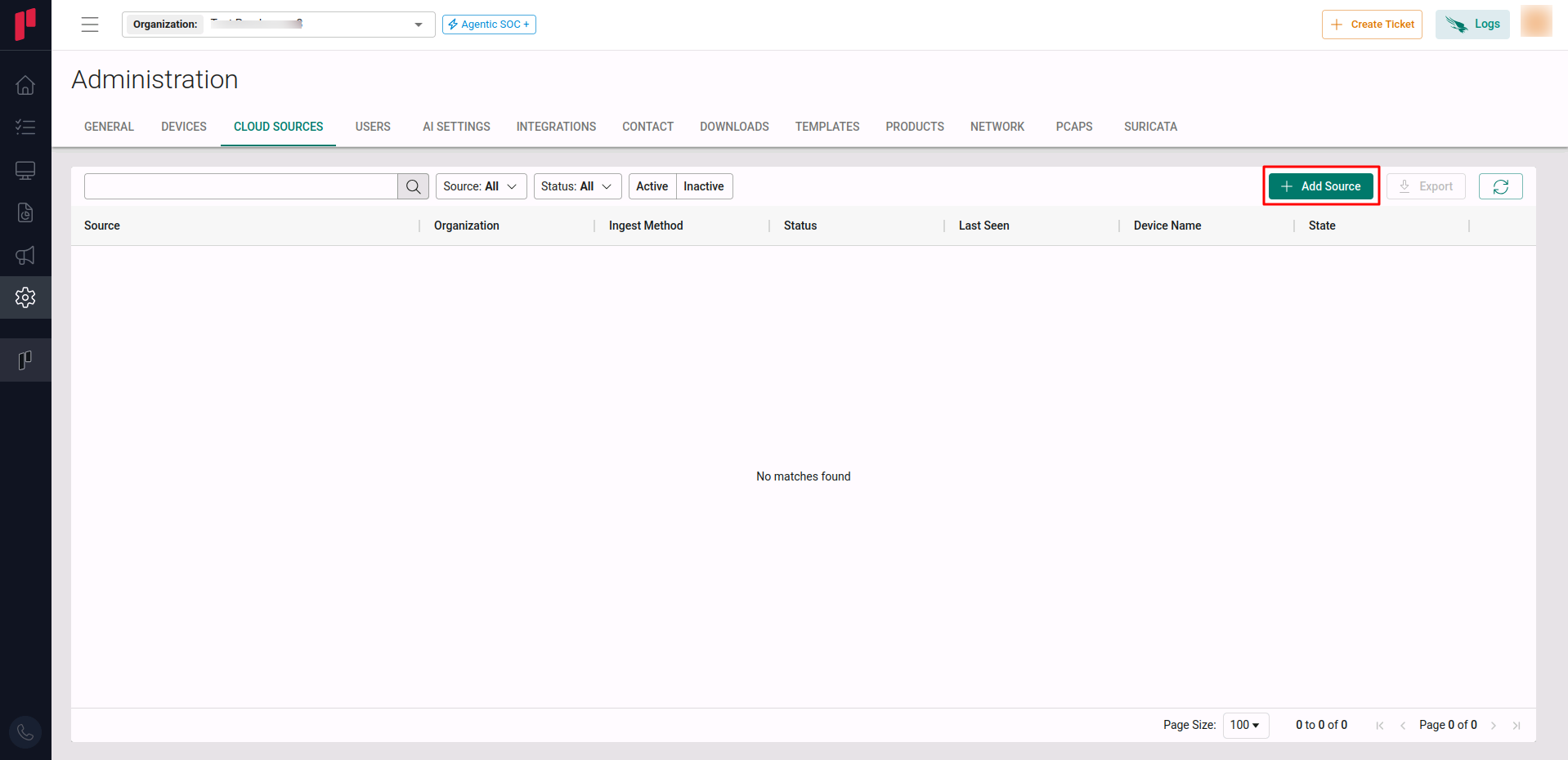
In the Scope application, to register a JumpCloud cloud source, navigate to the cloud source registration page –
-
Log into the Scope application
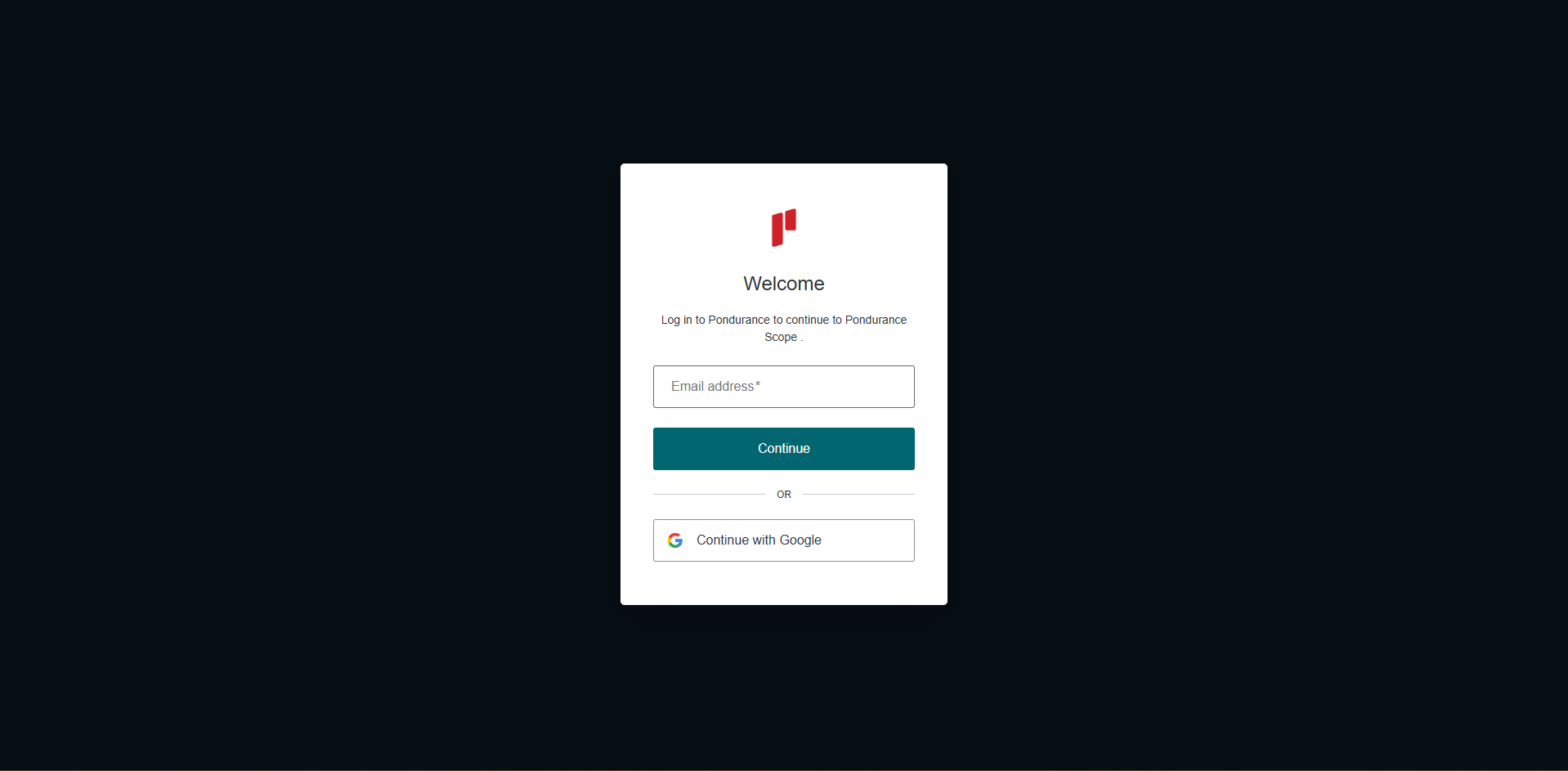
-
Select the required Organization from the Organization dropdown
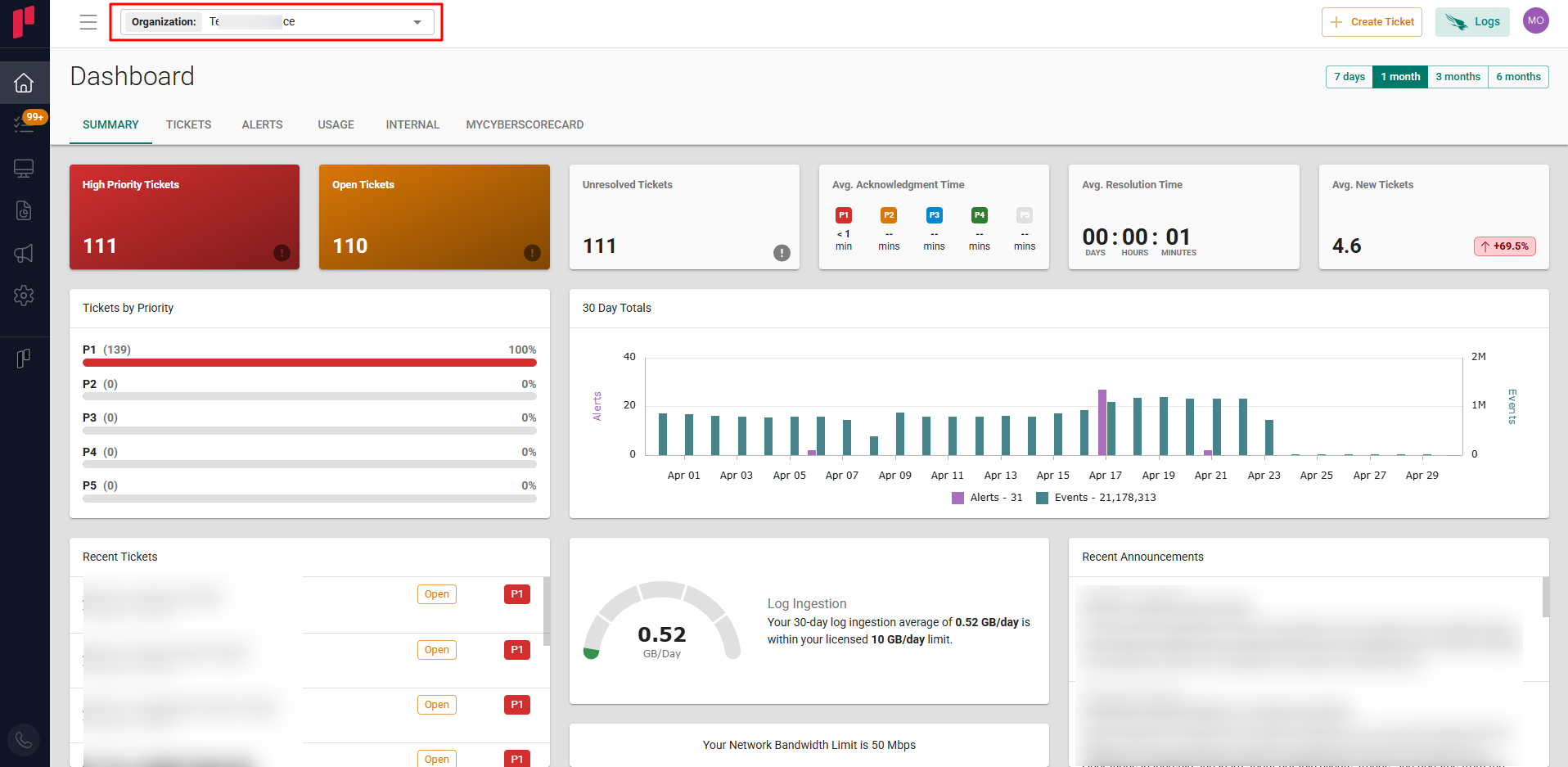
-
Navigate to the side menu -> Administration
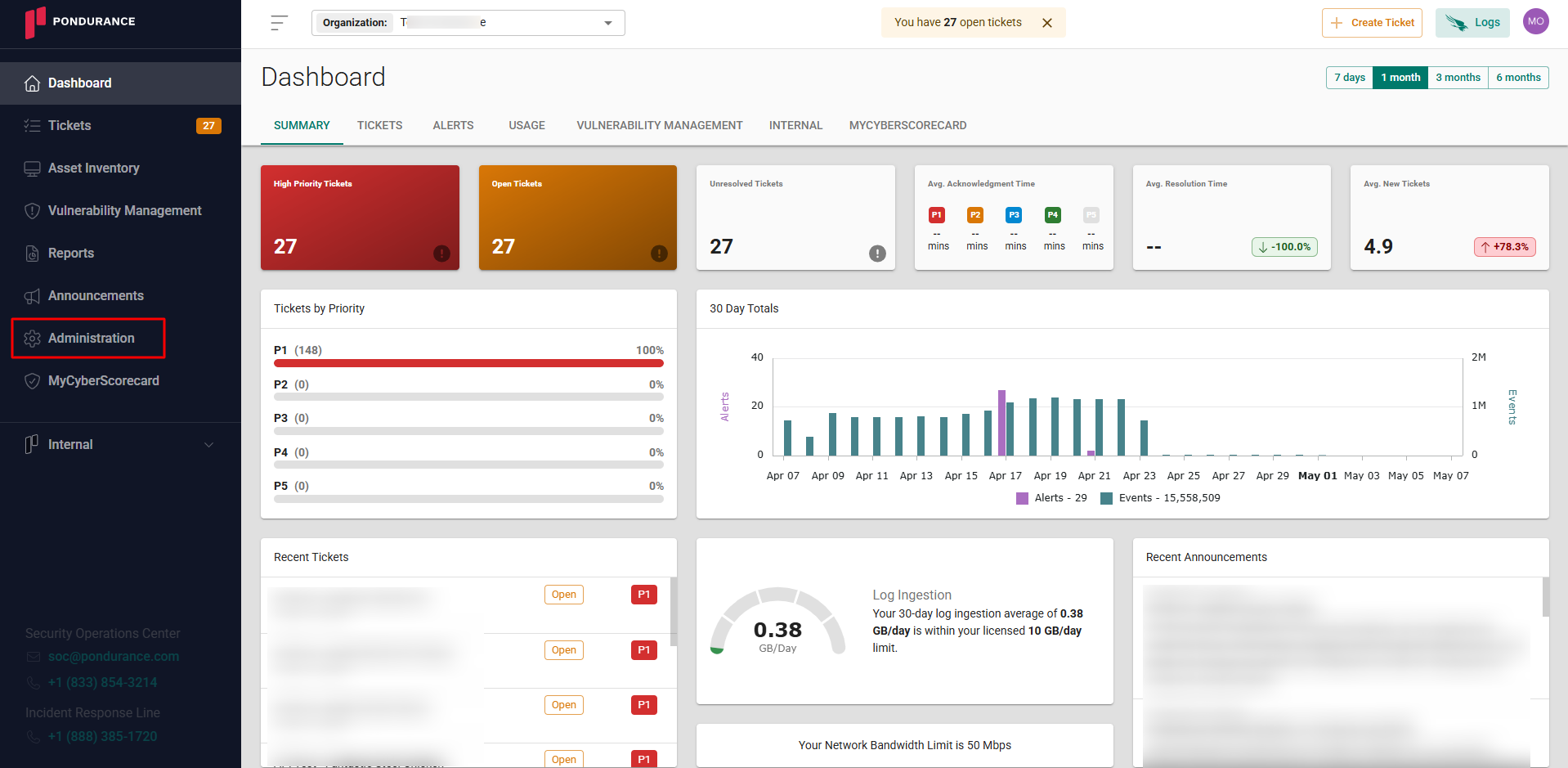
-
Navigate to the Cloud sources tab
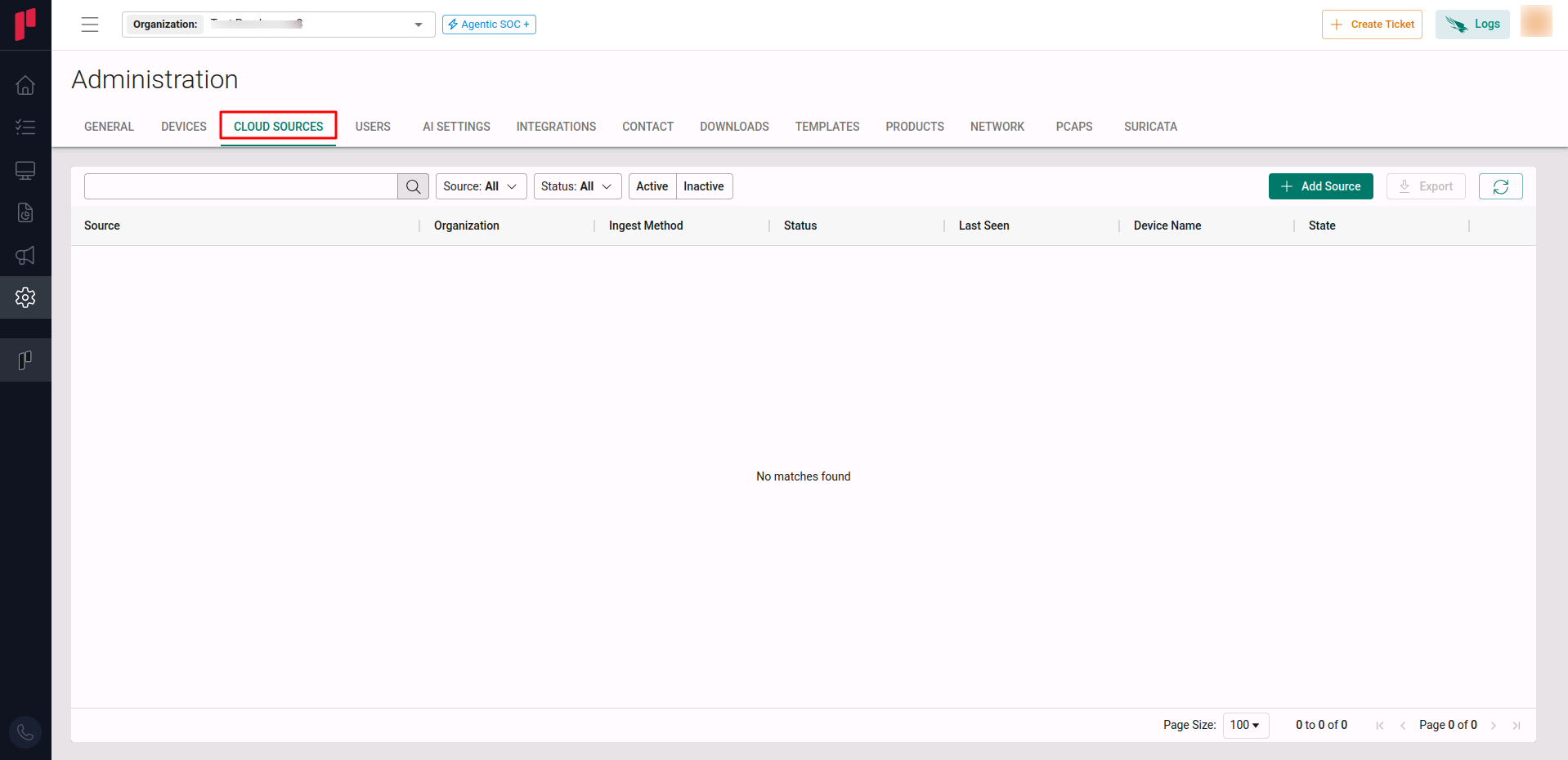
-
Click on the +Add Source button
-
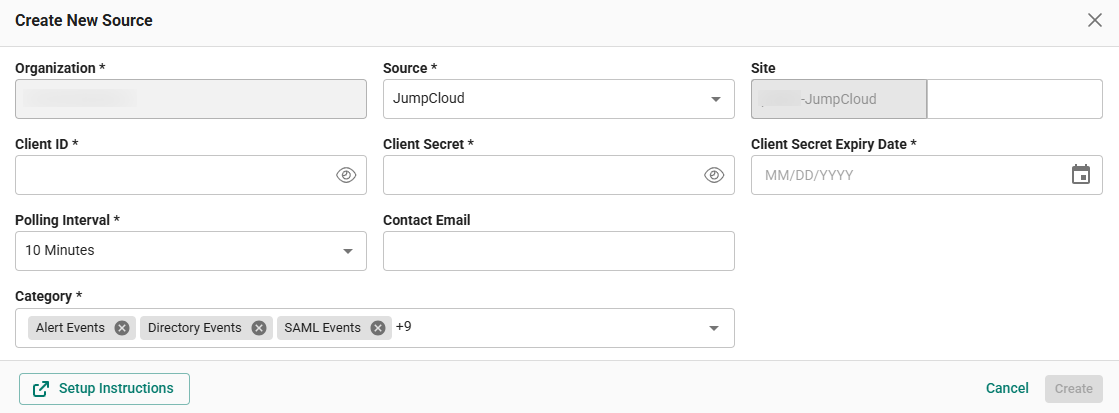
In the Add Source pop-up, provide the parameters below.
-
Source: Select the JumpCloud source from the Source dropdown.
-
Site: The user defined name for the JumpCloud cloud source.
-
Client ID: The Client ID generated in Step 1.
-
Client Secret: The Client Secret generated in Step 1.
-
Client Secret Expiry Date: The expiry date of the Client Secret set in Step 1.
-
Polling Interval: The polling interval for making periodic API calls to the JumpCloud cloud source. The user can select the time interval from the dropdown.
-
Contact Email: The email address of the person who registers the JumpCloud cloud source in Scope.
-
Once the required connection parameters are entered, the JumpCloud cloud source registration is complete in Scope and is ready for ingestion of JumpCloud logs.