Google Workspace
Overview
Configuring a cloud source in Scope is a two-step process.
-
Generating Google Workspace client credentials in Google Cloud Console. Please refer to Section 1 – Google Workspace Setup
-
Setting up the Google Workspace cloud source in the Scope application. Please refer to Section 2 - Scope Setup
Google Workspace Setup
To get started, you’ll need to generate the following client credentials in the Google workspace portal –
-
Credentials JSON file (credentials.json)
-
Google Workspace Admin Email ID
Step 1: Create a service account
-
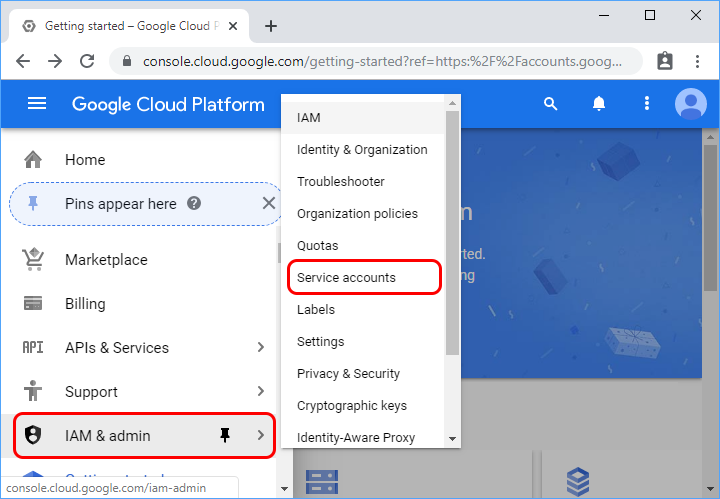
In the Google Cloud console, go to Menu -> IAM & Admin -> Service Accounts.
-
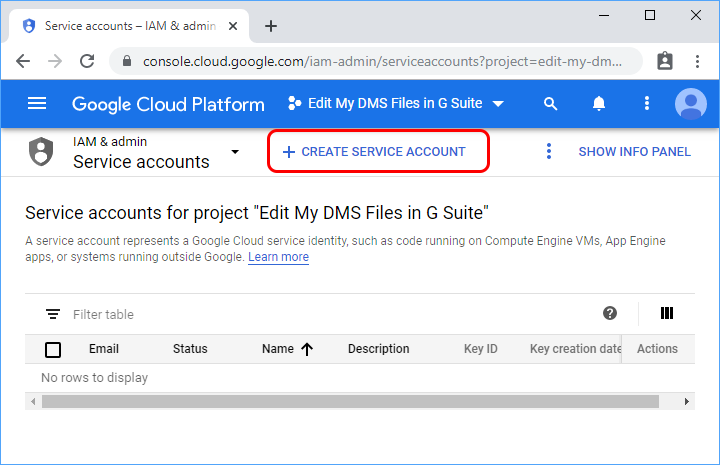
Click Create service account.
-
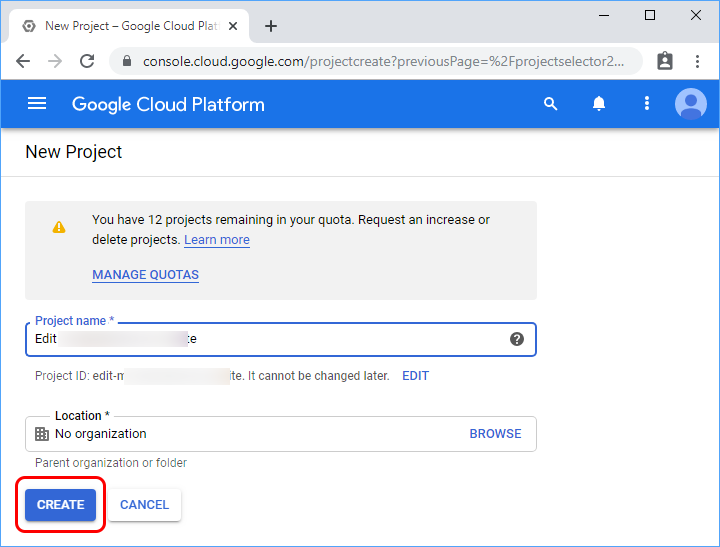
Fill in the service account details, then click Create and continue.
Note: By default, Google creates a unique service account ID. If you would like to change the ID, modify the ID in the service account ID field.
-
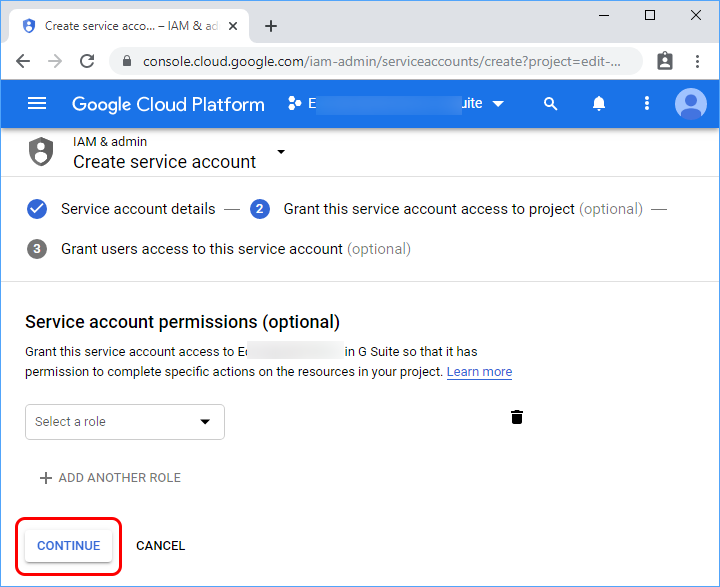
Optional: Assign roles to your service account to grant access to your Google Cloud project’s resources.
-
Click Continue.
-
Optional: Enter users or groups that can manage and perform actions with this service account.
-
Click Done. Make a note of the email address for the service account.
Step 2: Assign a role to a service account
You must assign a prebuilt or custom role to a service account by a super administrator account.
-
In the Google Admin console, go to Menu -> Account -> Admin roles.
-
Point to the role that you want to assign, and then click Assign admin.
-
Click Assign service accounts.
-
Enter the email address of the service account (which is noted in Step 1).
-
Click Add -> Assign role.
Step 3: Create credentials for a service account
You need to obtain credentials in the form of a public/private key pair. These credentials are used to authorize service account actions within your app. To obtain credentials for your service account:
-
In the Google Cloud console, go to Menu menu -> IAM & Admin -> Service Accounts.
-
Go to Service Accounts
-
Select your service account.
-
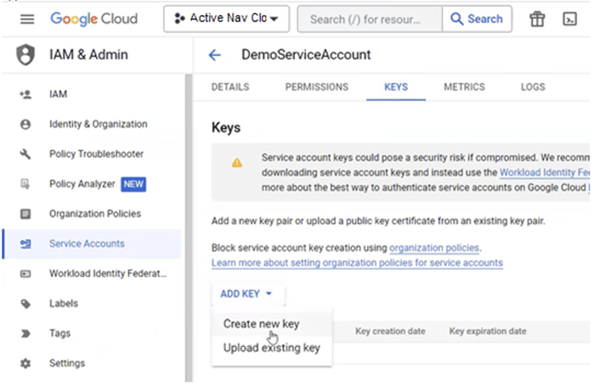
Click Keys -> Add key -> Create new key.
-
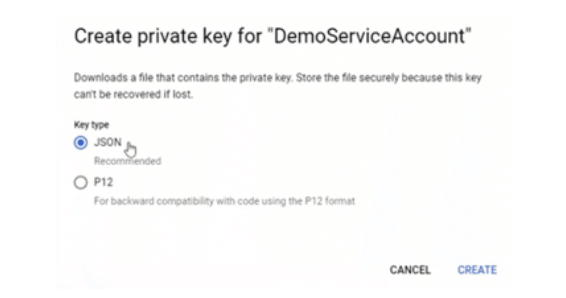
Select JSON, then click Create.
-
Your new public/private key pair is generated and downloaded to your machine as a new file. Save the downloaded JSON file as credentials.json in your working directory. This file is the only copy of this key. This needs to be configured in Scope Setup: Step 1 for initiating the Google Workspace log ingestion.
-
Click Close.
Step 4: Verify if required Google APIs are enabled
-
In the Google Cloud Console, ensure the correct project is selected from the project picker.
-
Navigate to APIs & Services -> Enabled APIs & Services.
-
Verify that the following APIs are enabled:
- Admin SDK API
- Google Workspace Alert Center API
-
If either API is not enabled, navigate to APIs & Services -> Library.
-
Search for the required API and enable it.
Step 5: Set up domain-wide delegation for a service account
To call APIs on behalf of users in a Google Workspace organization, your service account needs to be granted domain-wide delegation of authority in the Google Workspace Admin console by a super administrator account. To set up domain-wide delegation of authority for a service account:
-
In the Google Cloud console, go to Menu menu -> IAM & Admin -> Service Accounts.
-
Go to Service Accounts
-
Select your service account.
-
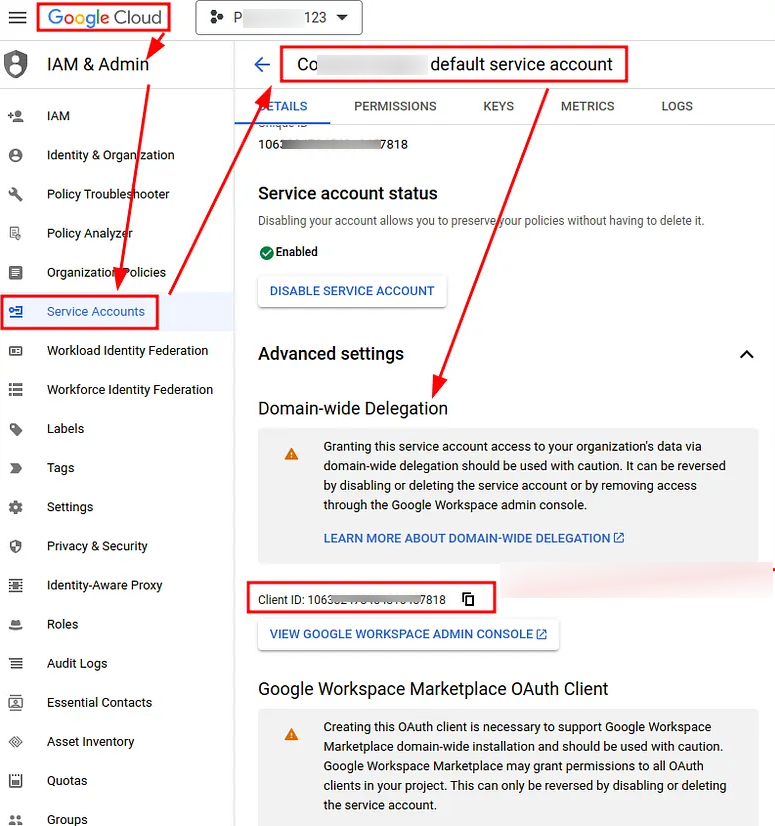
Click Show advanced settings.
-
Under “Domain-wide delegation,” find your service account’s “Client ID.” Click “Copy” to copy the client ID value to your clipboard.
-
If you have super administrator access to the relevant Google Workspace account, click View Google Workspace Admin Console, then sign in using a super administrator user account and continue following these steps. If you don’t have super administrator access to the relevant Google Workspace account, contact a super administrator for that account and send them your service account’s Client ID and the required OAuth Scopes so they can complete the following steps in the Admin console.
-
In the Google Admin console, go to Menu -> Security -> Access and data control -> API controls.
-
Go to API controls
-
Click Manage Domain Wide Delegation.
-
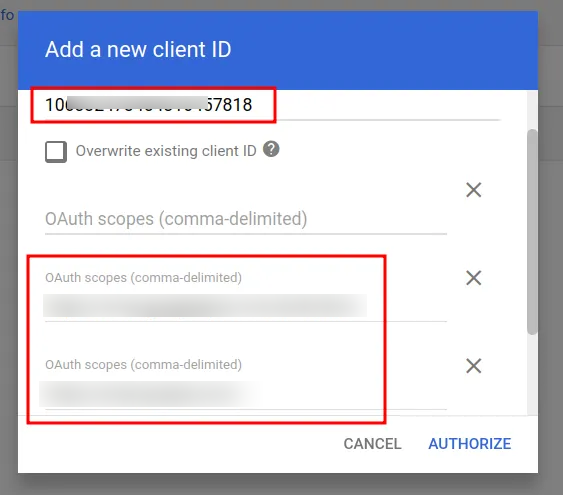
Click Add new.
-
In the “Client ID” field, paste the client ID that you previously copied.
-
In the “OAuth Scopes” field, enter the following scopes –
Category Scopes Alert Center https://www.googleapis.com/auth/apps.alertsAudit https://www.googleapis.com/auth/admin.reports.audit.readonlyhttps://www.googleapis.com/auth/admin.reports.usage.readonlyhttps://www.googleapis.com/auth/admin.directory.group.readonlyhttps://www.googleapis.com/auth/admin.directory.orgunit.readonlyhttps://www.googleapis.com/auth/admin.directory.user.readonlyhttps://www.googleapis.com/auth/admin.directory.rolemanagement.readonly -
Click Authorize.
-
Scope Setup
Step 1: Google Workspace cloud source registration in the Scope Application.
Once the credentials are generated, they must be uploaded and configured in the Scope application to establish the connection and enable data ingestion from the Google Workspace environment through the Scope application.
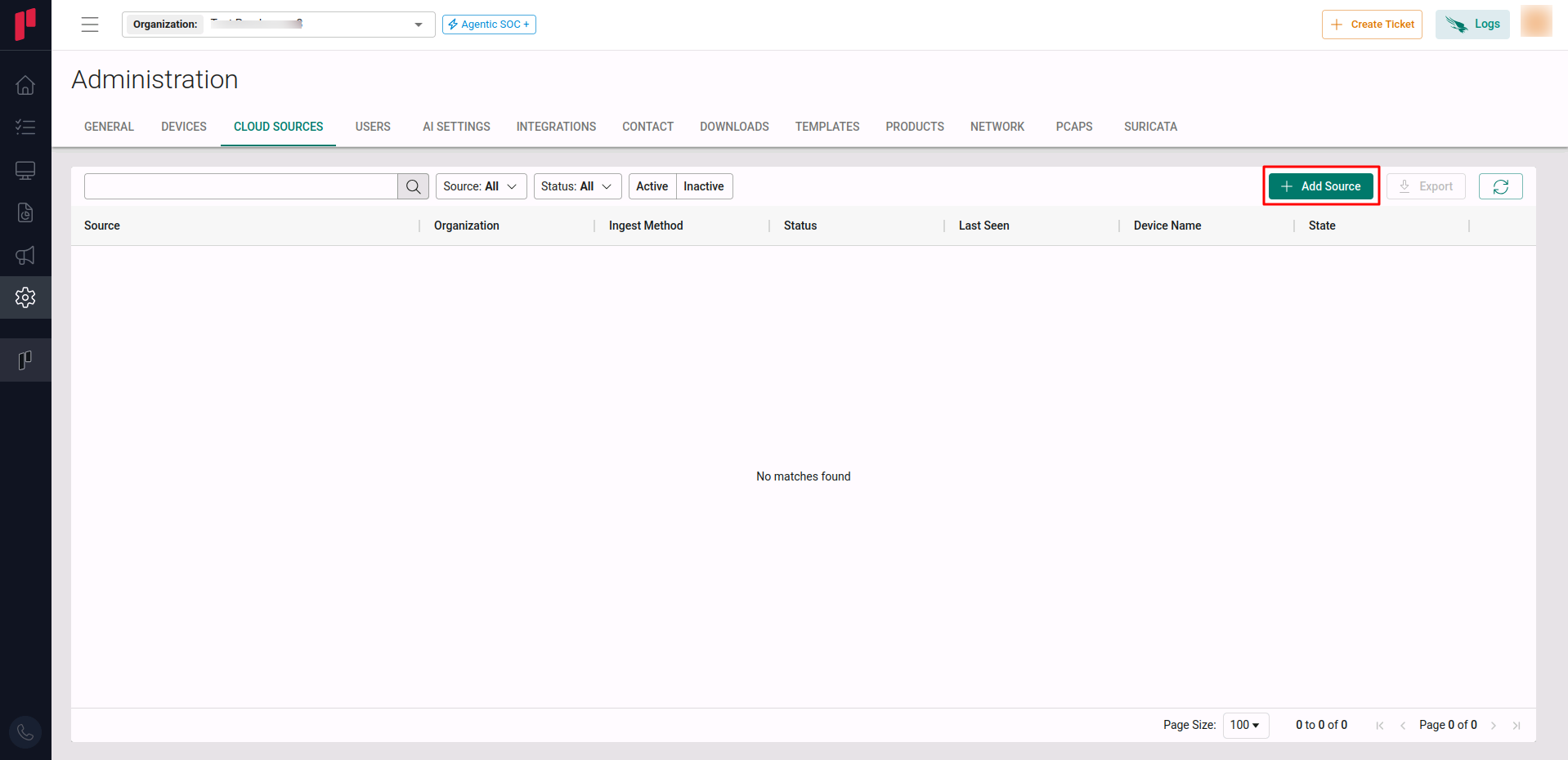
In the Scope application, to register a Google Workspace cloud source, navigate to the cloud source registration page
-
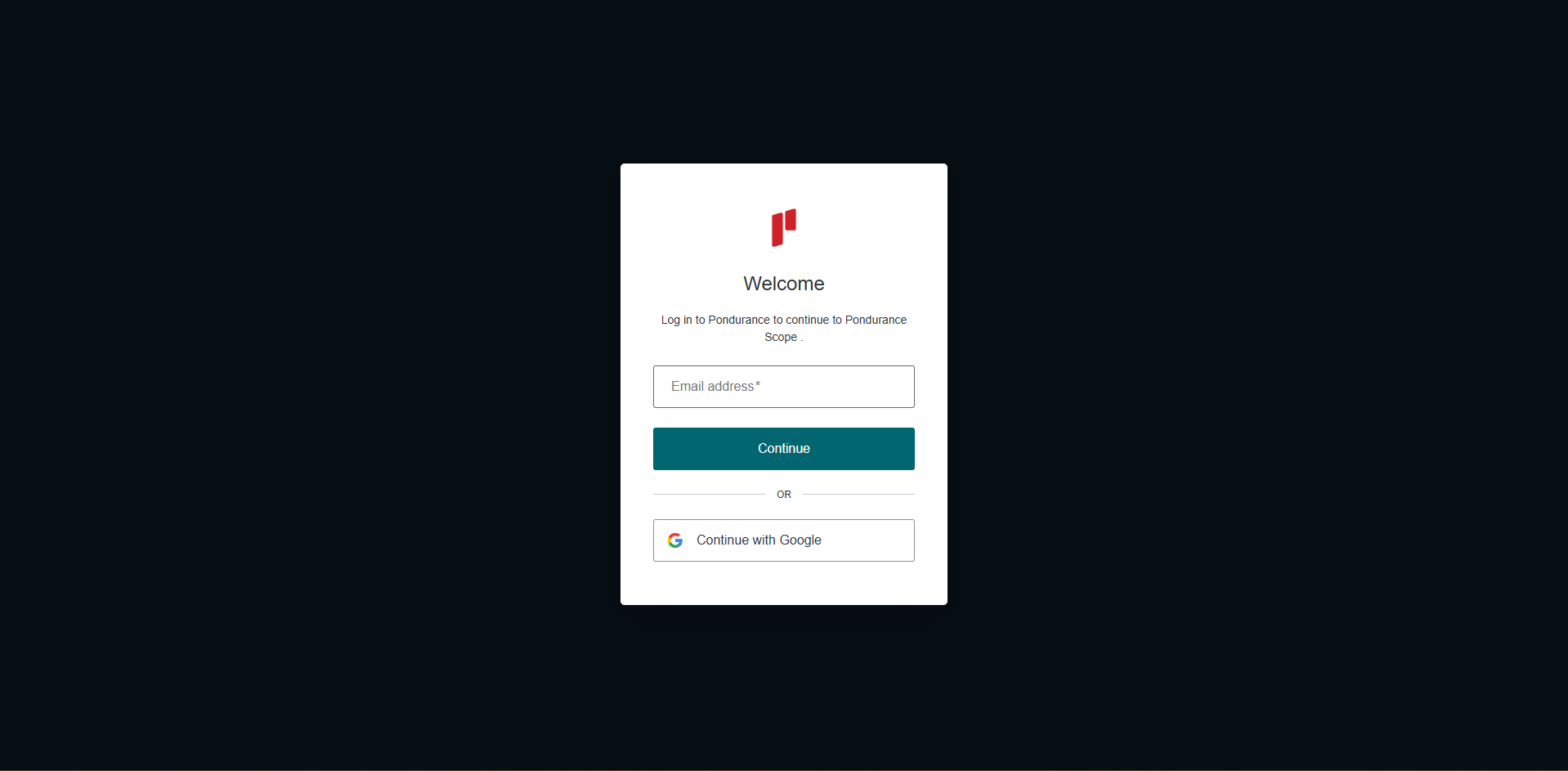
Log into the Scope application
-
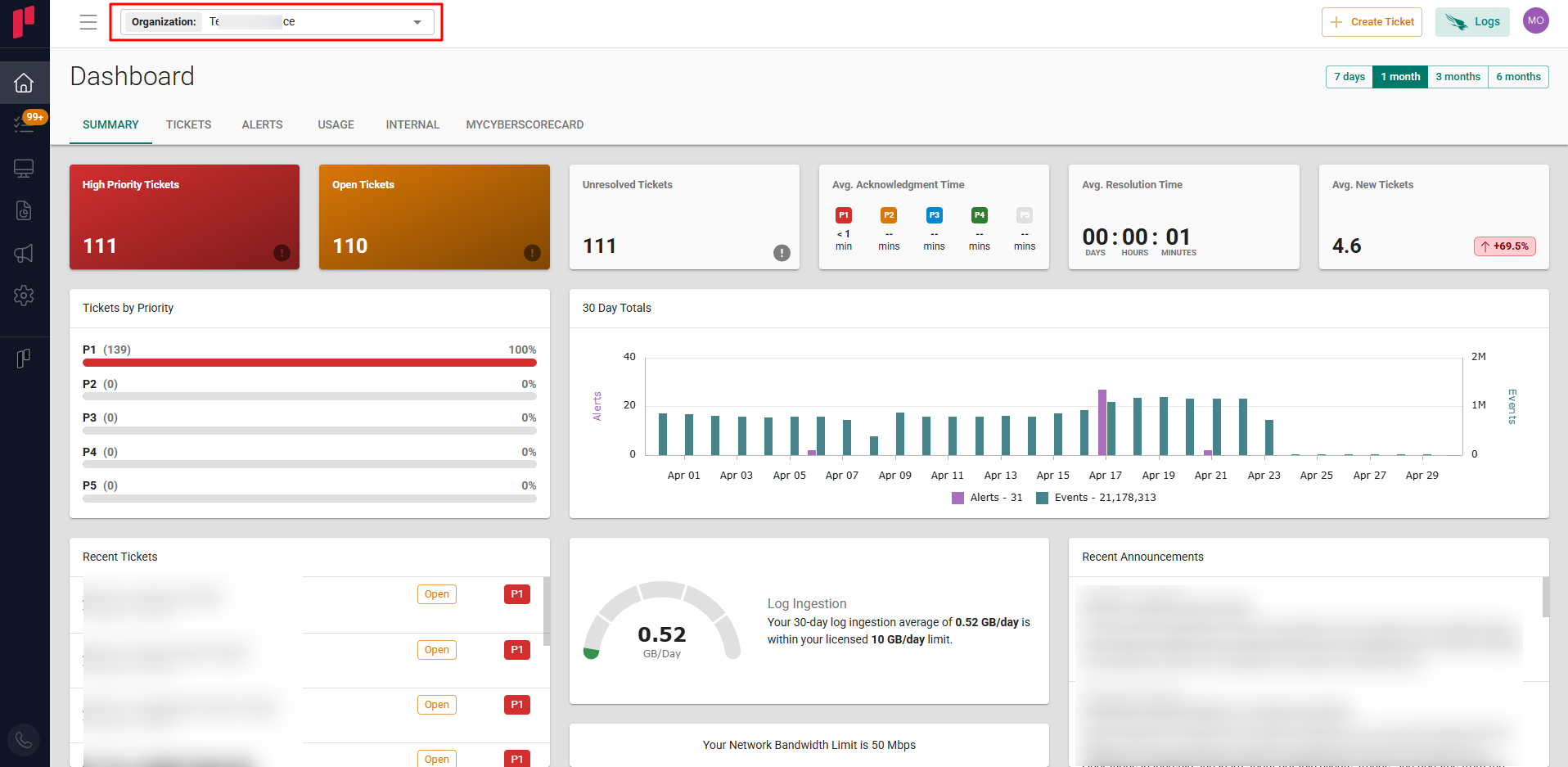
Select the required Organization from the Organization dropdown
-
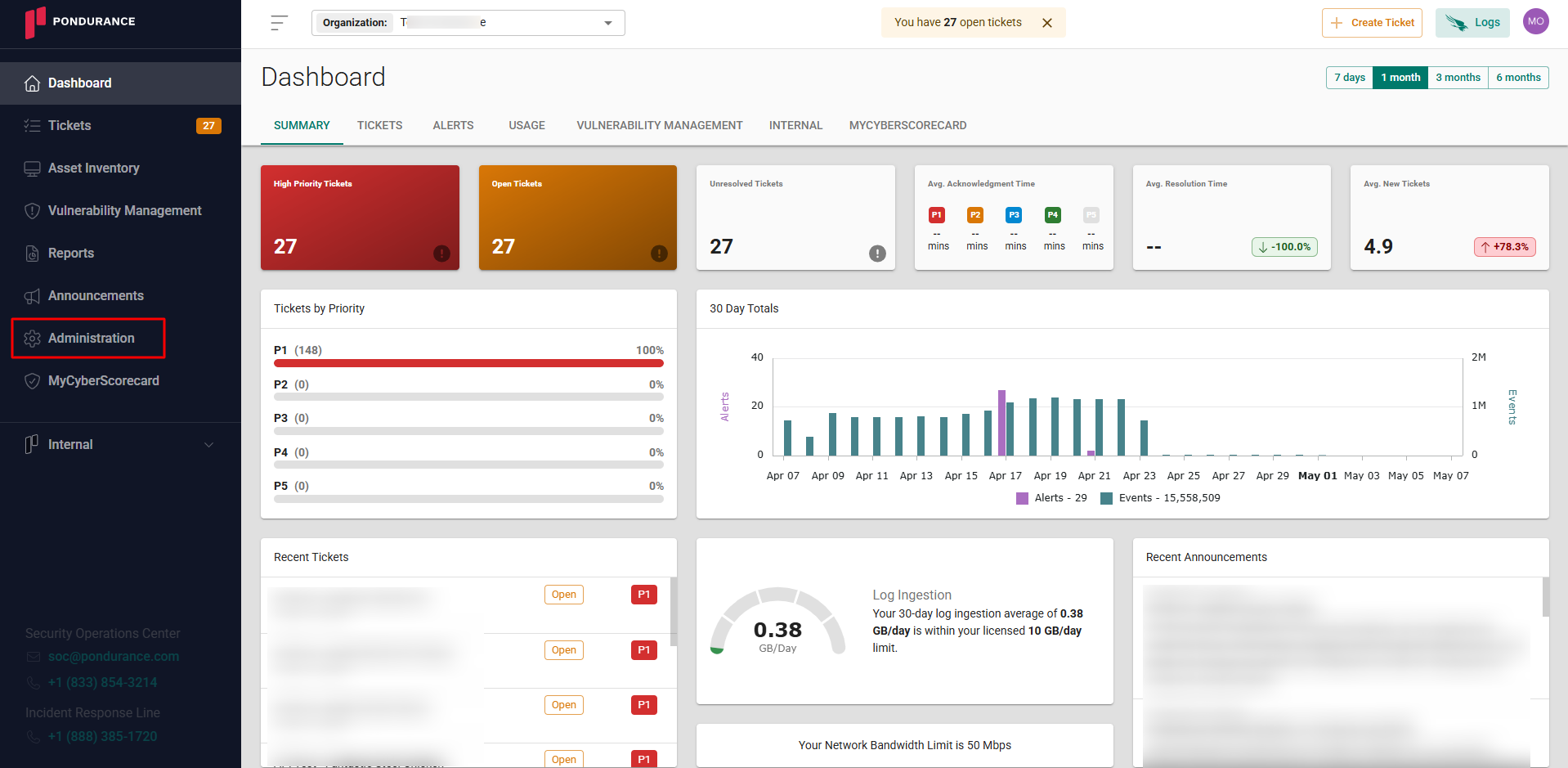
Navigate to the side menu -> Administration
-
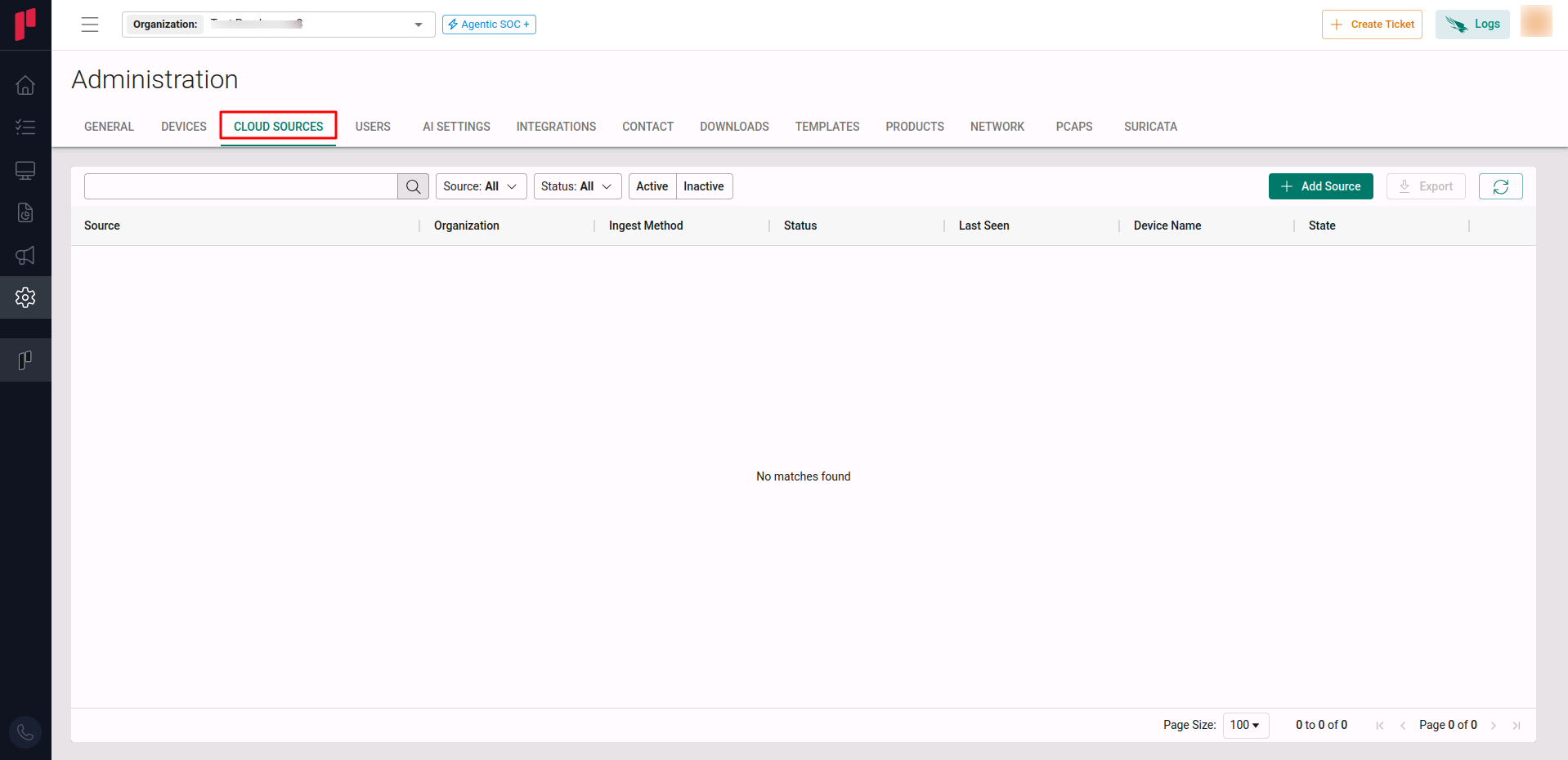
Navigate to the Cloud sources tab
-
Click on the +Add Source button
-
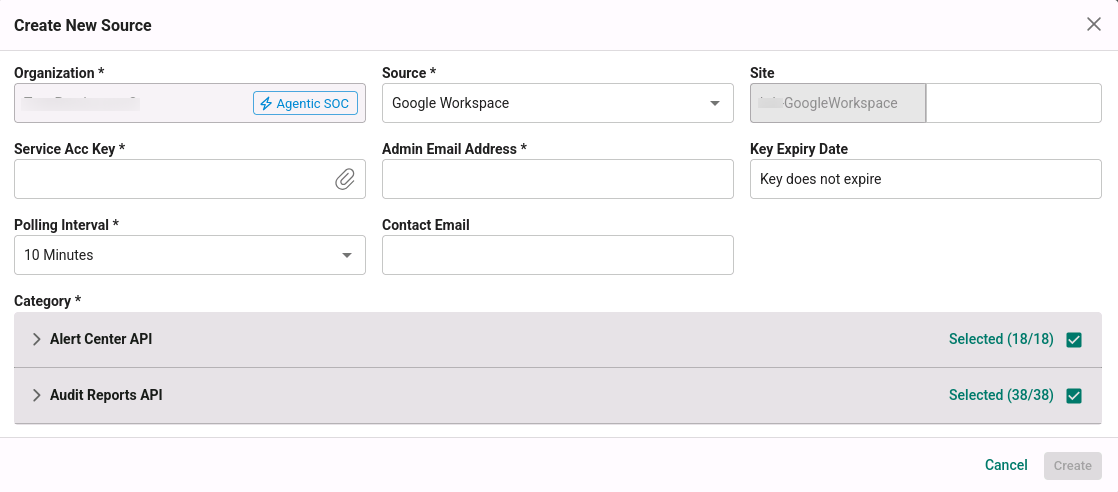
In the Add Source pop-up, provide the parameters below.
-
Source: Select the Google Workspace source from the Source dropdown.
-
Site: The user defined name for the Google Workspace cloud source.
-
Service Acc Key (Service Account Key): The credentials JSON file (generated in Step 3).
-
Admin Email Address: The Google Workspace Admin Email address.
-
Polling Interval: The polling interval for making periodic API calls to the Google Workspace cloud source is to be selected. The user can select the time interval from the drop down.
-
Contact Email: Provide the Email address of the person who registers the Google Workspace cloud source in Scope.
-
Category: Select the log types from the drop down. By default, all the alert center and audit report log types are selected. Based on the selection of the log type, the APIs will request the Google Workspace API cloud source, and the respective types of logs will be ingested.
-
Once the application details are entered, the Google Workspace registration is complete in Scope and is ready for ingestion of Google Workspace (alert center & audit) logs.