Thinkst Canary
Overview
Configuring a cloud source in Scope is a two-step process.
-
Generating Thinkst Canary credentials in the Thinkst Canary Console. Please refer to Section 1 – Thinkst Canary Setup
-
Setting up the Thinkst Canary cloud source in the Scope application. Please refer to Section 2 – Scope Setup
Thinkst Canary Setup
To get started, you’ll need to generate the following credentials in the Thinkst Canary Console –
- Auth Token
- Base URL
Step 1: Generate Auth Token and Base URL
-
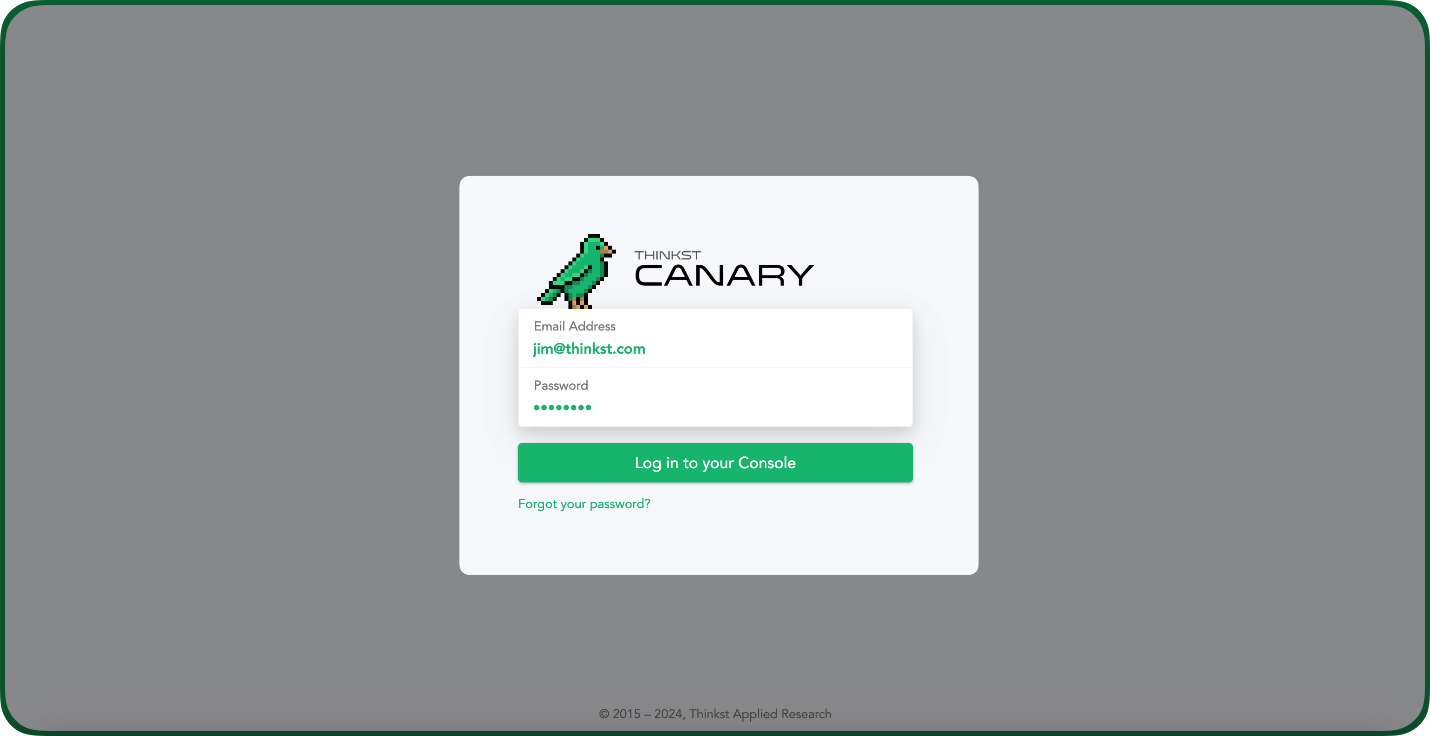
Log into the Thinkst Canary Console.
-
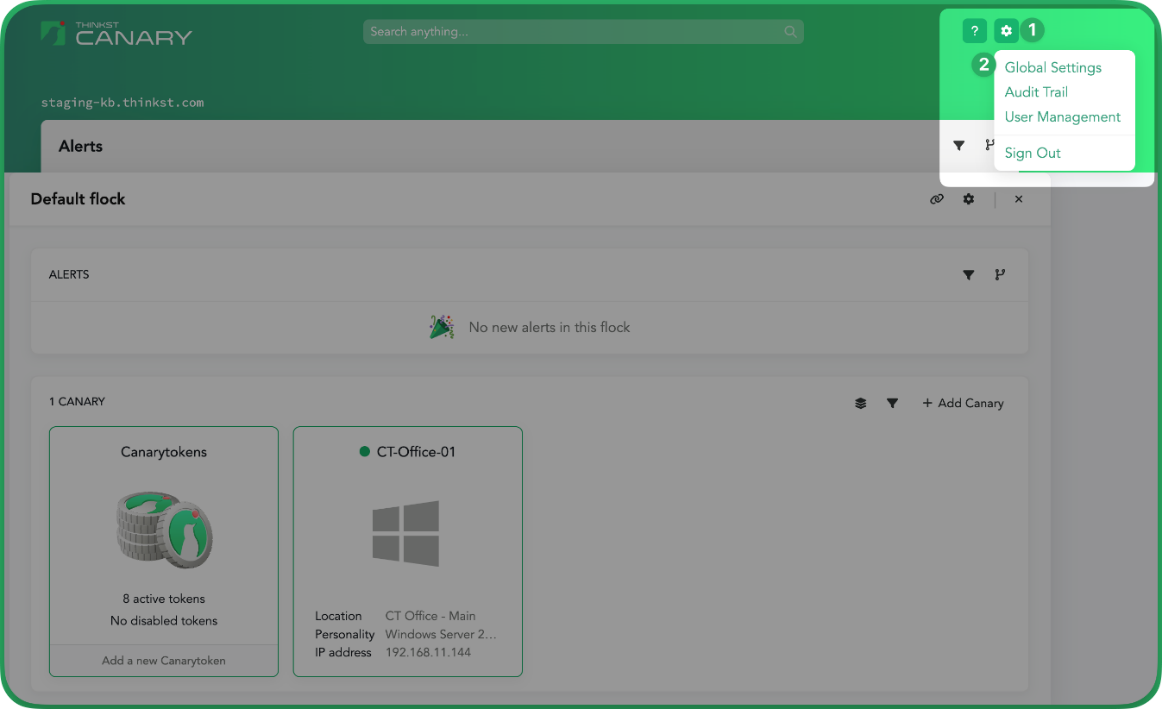
Click the Gear icon and click Global Settings.
-
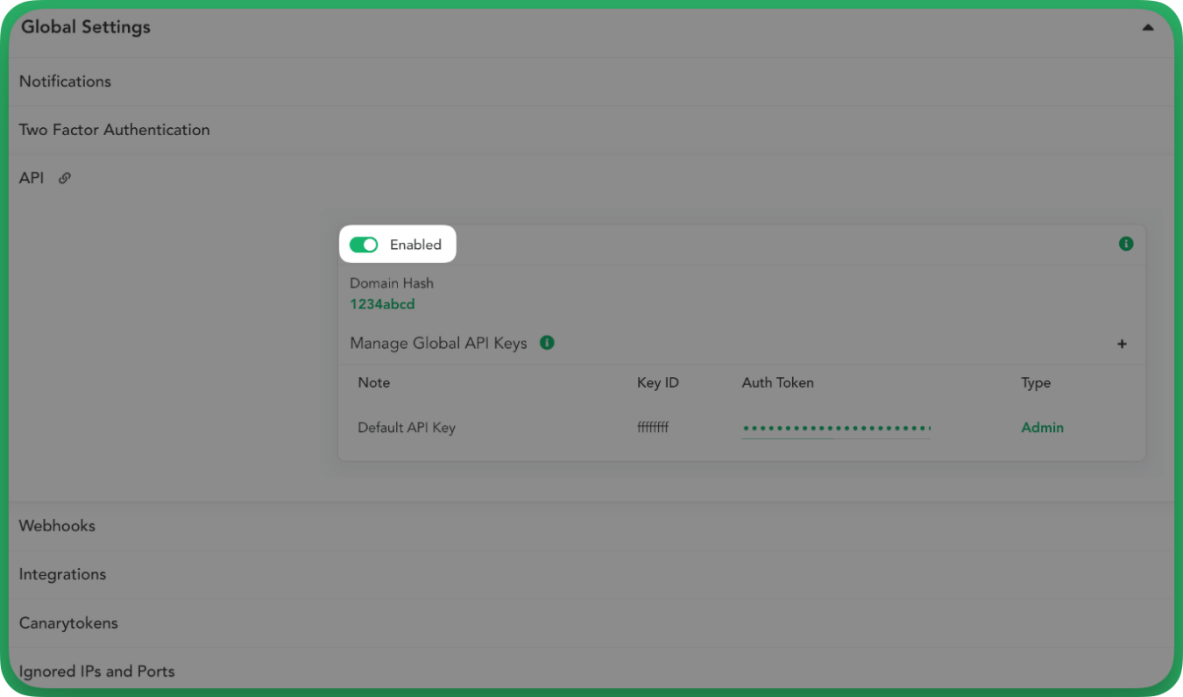
Click on API and enable the API from the menu.
-
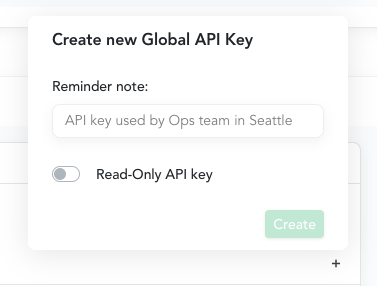
Click the "+" icon in the Manage Global API Keys section.
Auth tokens are created with one of the following roles:
Role Permissions Read-Only Can only view data across the Console. Analyst Can view data across the Console, and also acknowledge, unacknowledge, and delete alerts. Admin Full privileges – can execute any API operation on the Console. -
Add a Note (or Name) to remind you of the token’s purpose.
-
Copy the Domain Hash and Auth Token.
Note: Save the generated Auth Token to a secure location, as this exact token cannot be retrieved again.
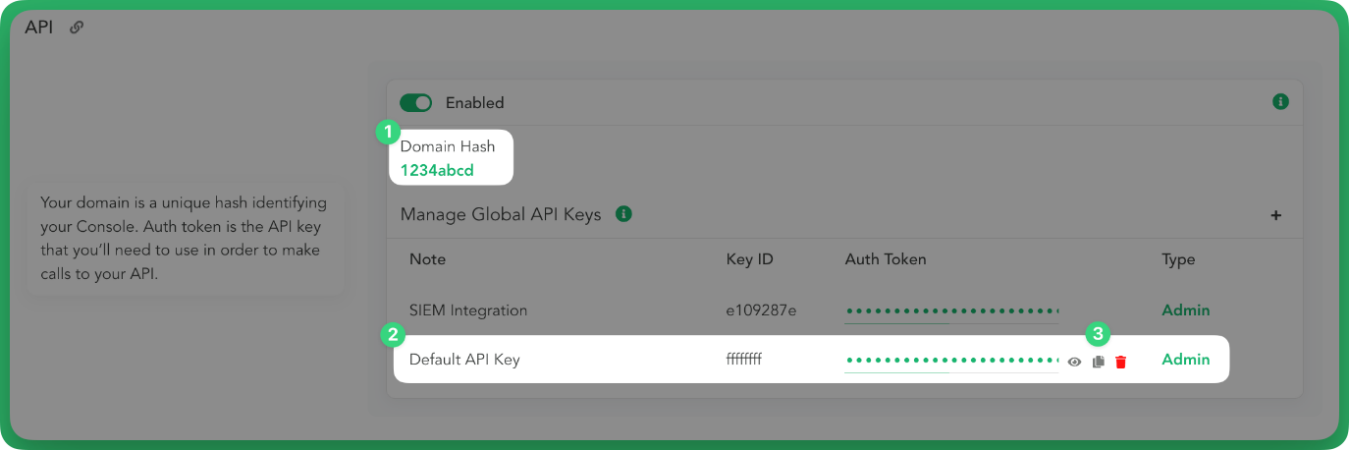
-
Construct the Base URL by replacing the domain hash in the following format:
https://{domain_hash}.canary.toolsFor example, if the domain hash is
1234abcd, the Base URL would be:https://1234abcd.canary.tools
The generated Auth Token and Base URL are to be configured in Scope Setup: Step 1 for initiating the Thinkst Canary log ingestion.
Scope Setup
Step 1: Thinkst Canary Cloud Source Registration in the Scope Application
Once the credentials are generated, they must be configured in the Scope application to establish the connection and enable data ingestion from the Thinkst Canary environment.
In the Scope application, to register a Thinkst Canary cloud source, navigate to the cloud source registration page –
-
Log into the Scope application
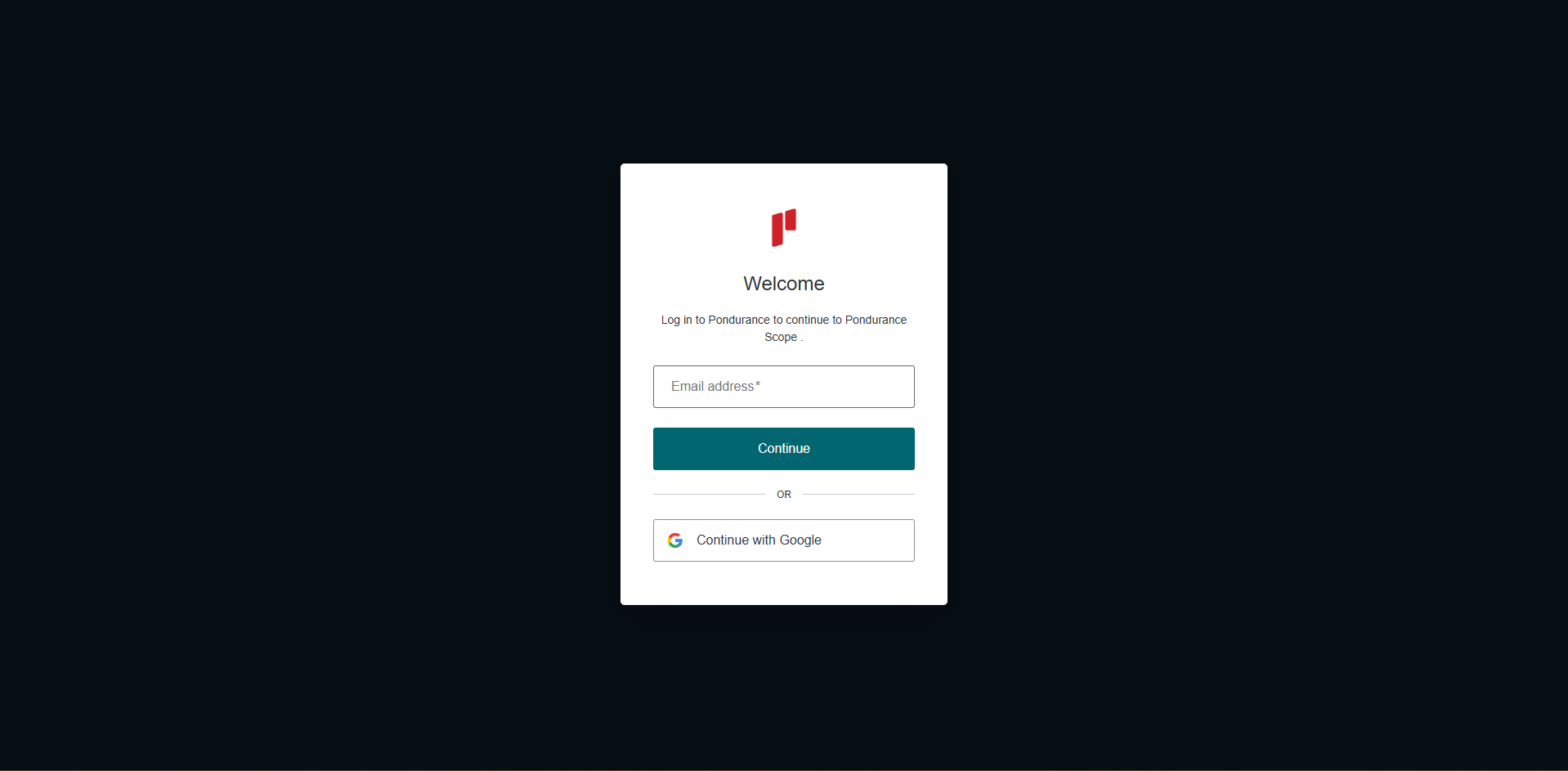
-
Select the required Organization from the Organization dropdown
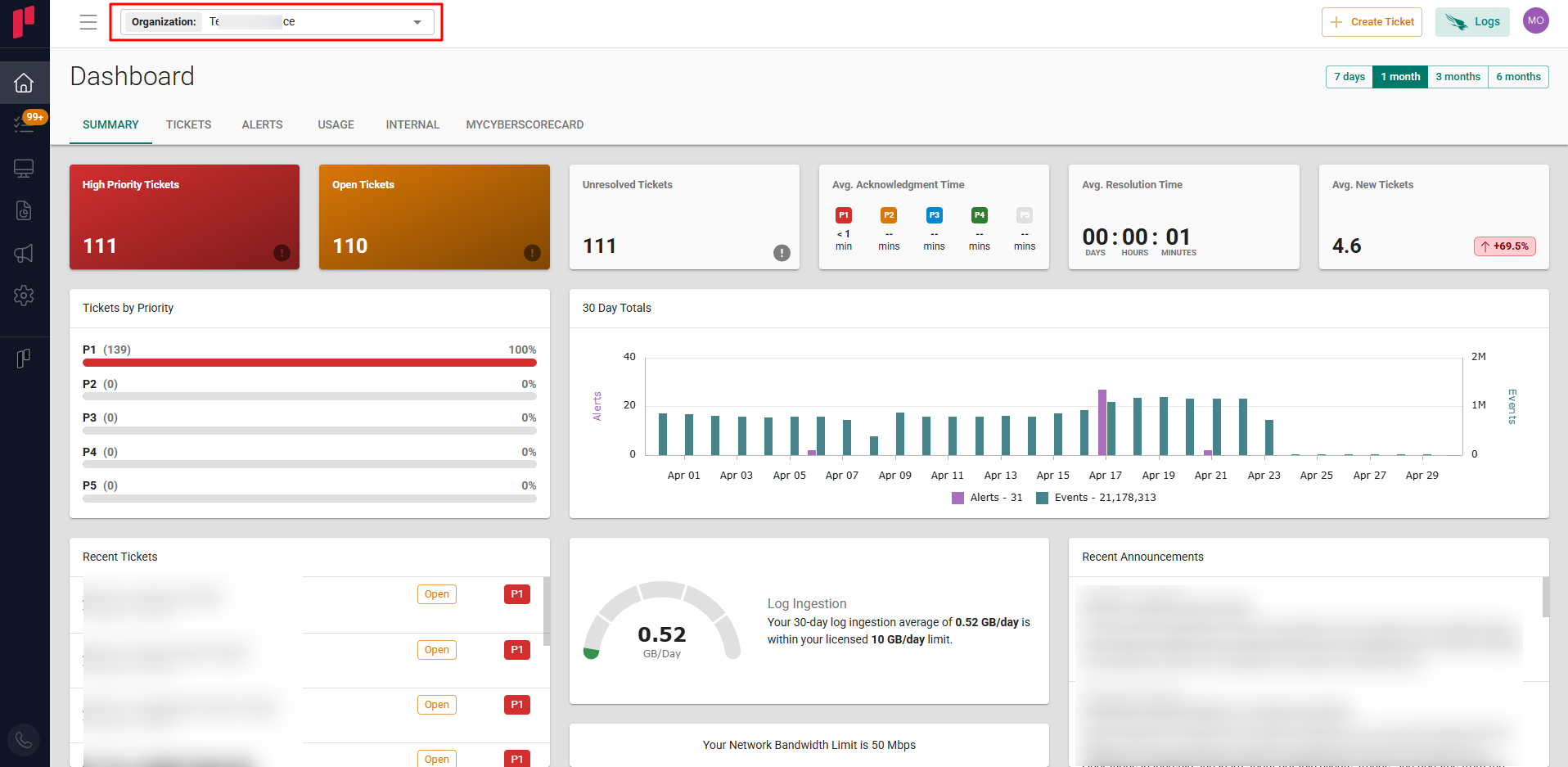
-
Navigate to the side menu -> Administration
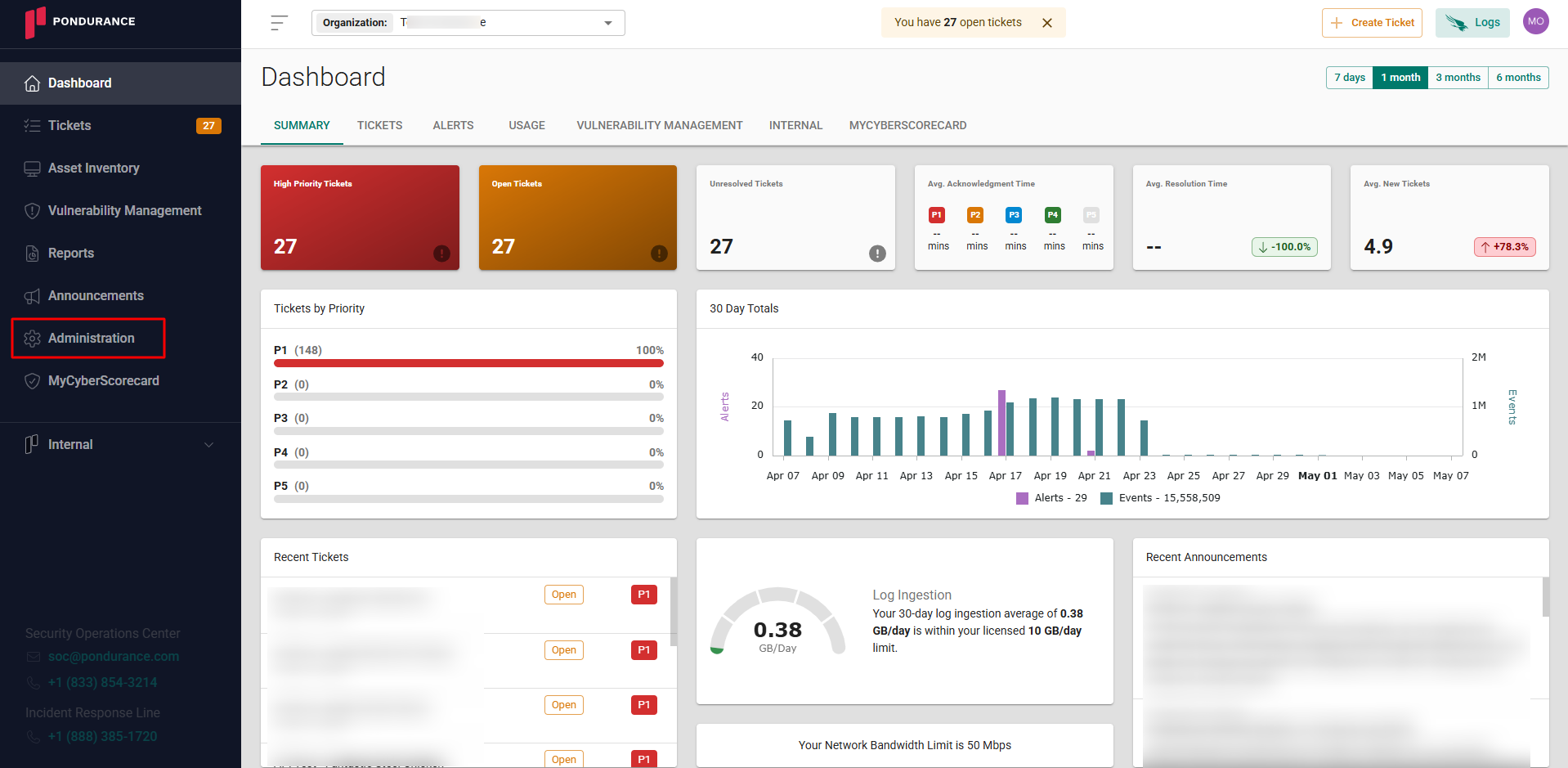
-
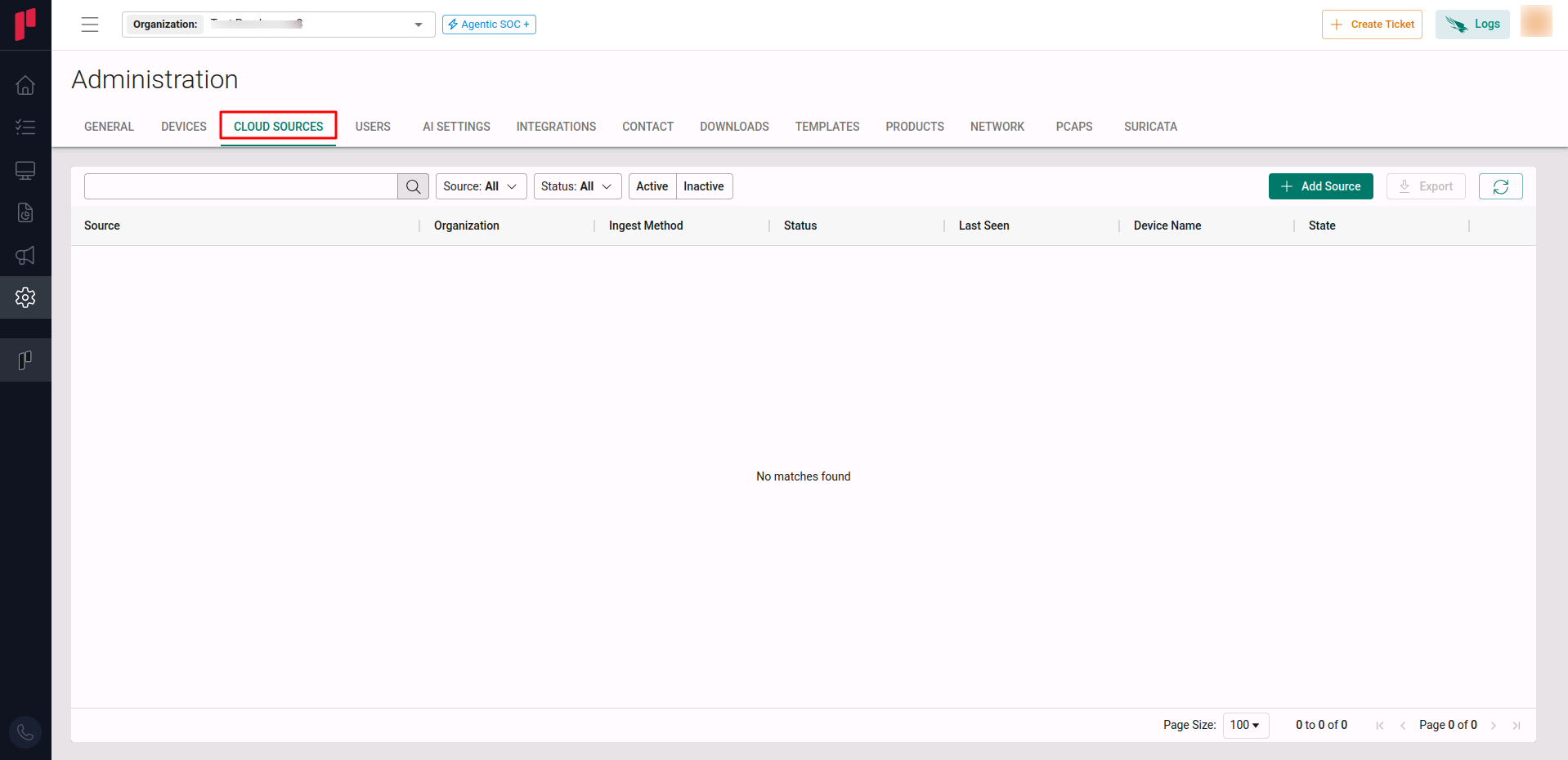
Navigate to the Cloud sources tab
-
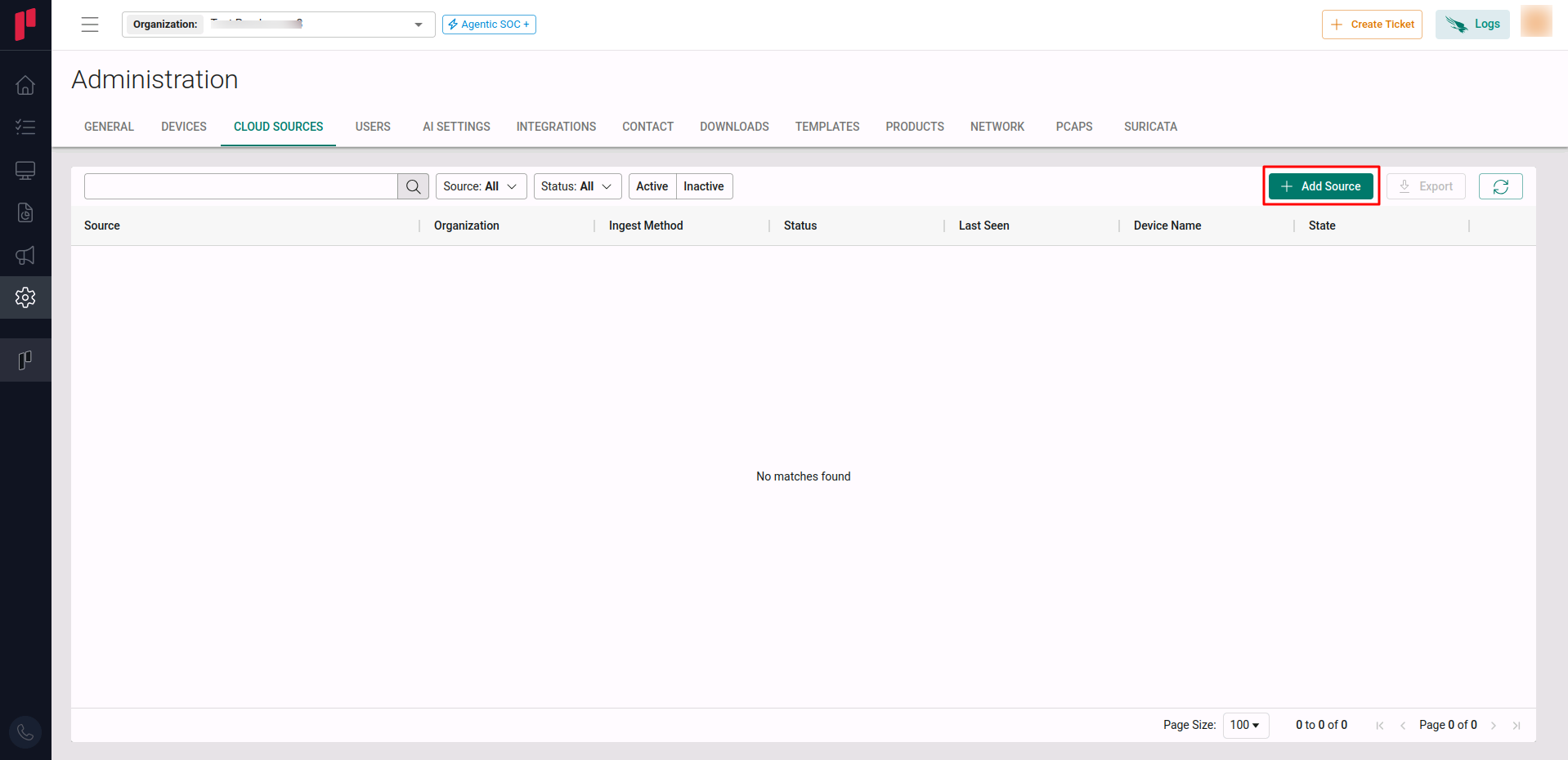
Click on the +Add Source button
-
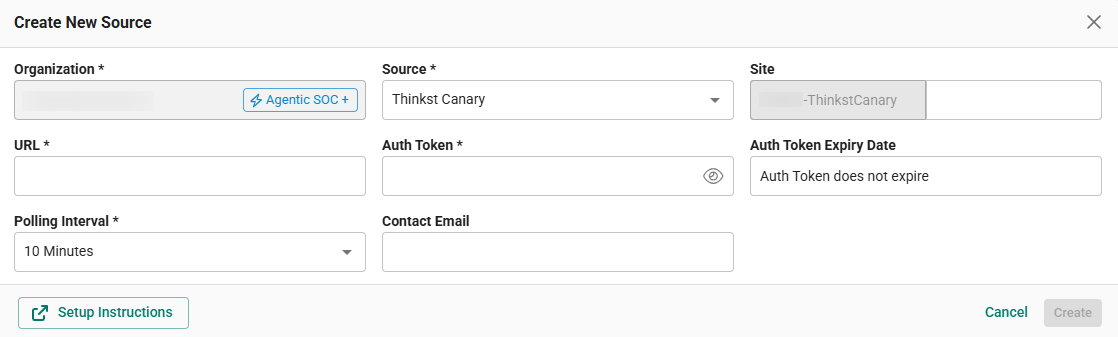
In the Add Source pop-up, provide the parameters below.
-
Source: Select the Thinkst Canary source from the Source dropdown.
-
Site: The user defined name for the Thinkst Canary cloud source.
-
Base URL: The Base URL constructed in Step 1.
-
Auth Token: The Auth Token generated in Step 1.
-
Polling Interval: The polling interval for making periodic API calls to the Thinkst Canary cloud source. The user can select the time interval from the dropdown.
-
Contact Email: The email address of the person who registers the Thinkst Canary cloud source in Scope.
-
Once the required connection parameters are entered, the Thinkst Canary cloud source registration is complete in Scope and is ready for ingestion of Thinkst Canary logs.