1Password
Overview
Configuring a cloud source in Scope is a two-step process.
-
Generating 1Password client credentials in the 1Password console. Please refer to Section 1 – 1Password Setup
-
Setting up the 1Password cloud source in the Scope application. Please refer to Section 2 - Scope Setup
1Password Setup
To get started, you’ll need to generate the following client credentials in the 1Password console –
- Access Token
- Access Token Expiry Date
Step 1: Set Up an Events Reporting Integration & Generate the Access Token
-
Sign in to your account on 1Password.com.
-
Select Integrations in the sidebar. If you’ve set up other integrations in your account, you’ll also need to select Directory on the Integrations page.
-
In the Events Reporting section, select Other.
-
Enter a name for the integration, then select Add Integration.
-
Set up a bearer token by providing the following details:
- Token Name: Enter a name for the token.
- Expires After: (Optional) Choose when the token will expire: 30 days, 90 days, or 180 days. The default setting is Never.
- Events to Report: Choose which events the token can access. The default scope includes all events: sign-in attempts, item usages, and audit events.
-
Select Issue Token.
-
On the Save your token page, select Save in 1Password. Choose the vault where you want to save your token, then select Save.
Your bearer token will be saved as an API Credential item in 1Password.
Step 2: Determine the Events API Base URL
- The base URL depends on the server that the 1Password account is hosted on.
1Password Account Hosted On Base URL 1password.comhttps://events.1password.coment.1password.comhttps://events.ent.1password.com1password.cahttps://events.1password.ca1password.euhttps://events.1password.eu
The generated Access Token, Access Token Expiry Date & the appropriate Base URL are to be configured in Scope Setup: Step 1 for initiating the 1Password log ingestion.
Scope Setup
Step 1: 1Password Cloud Source Registration in the Scope Application
Once the credentials are generated, they must be configured in the Scope application to establish the connection and enable data ingestion from the 1Password environment.
In the Scope application, to register a 1Password cloud source, navigate to the cloud source registration page
-
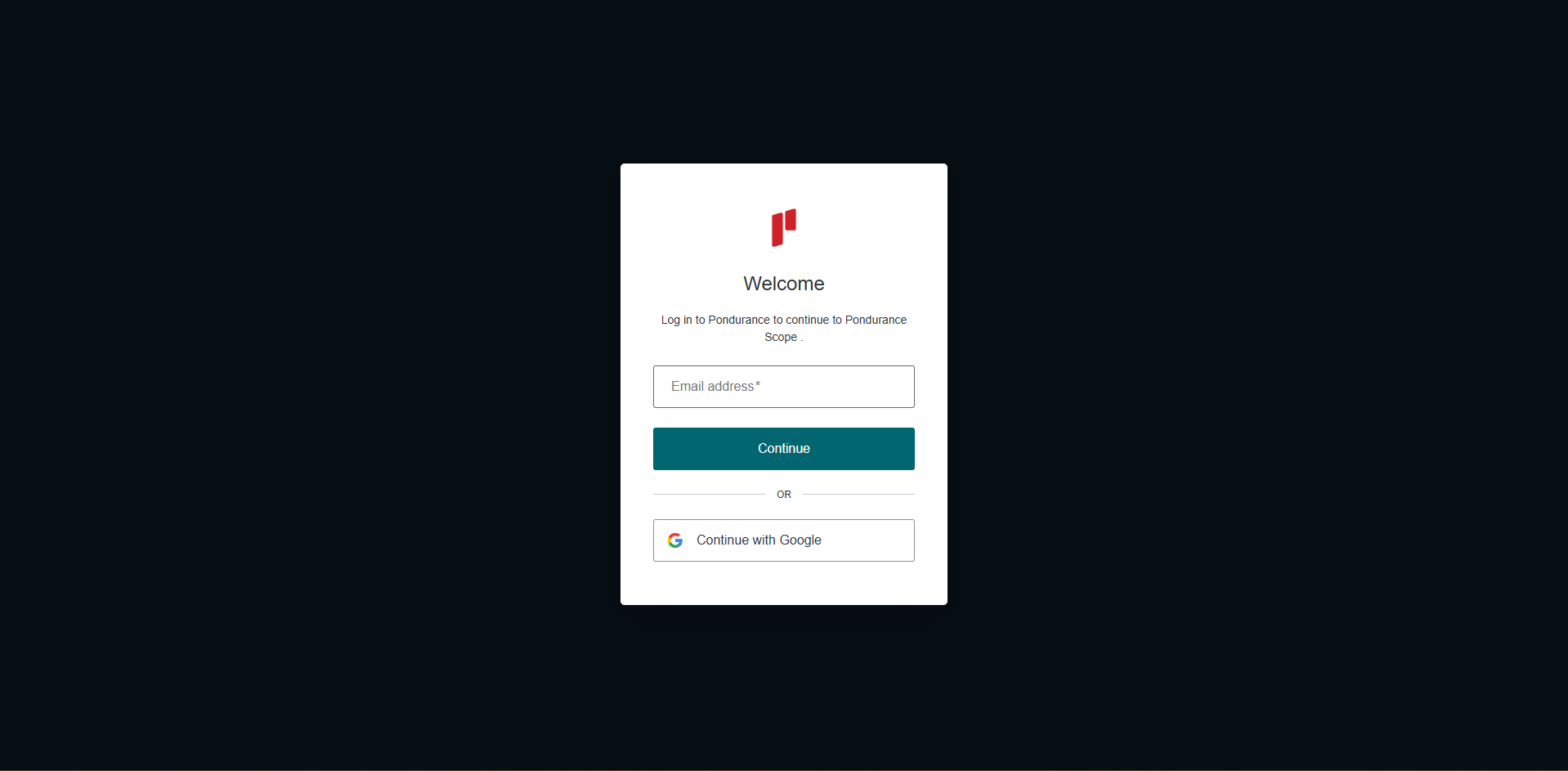
Log into the Scope application
-
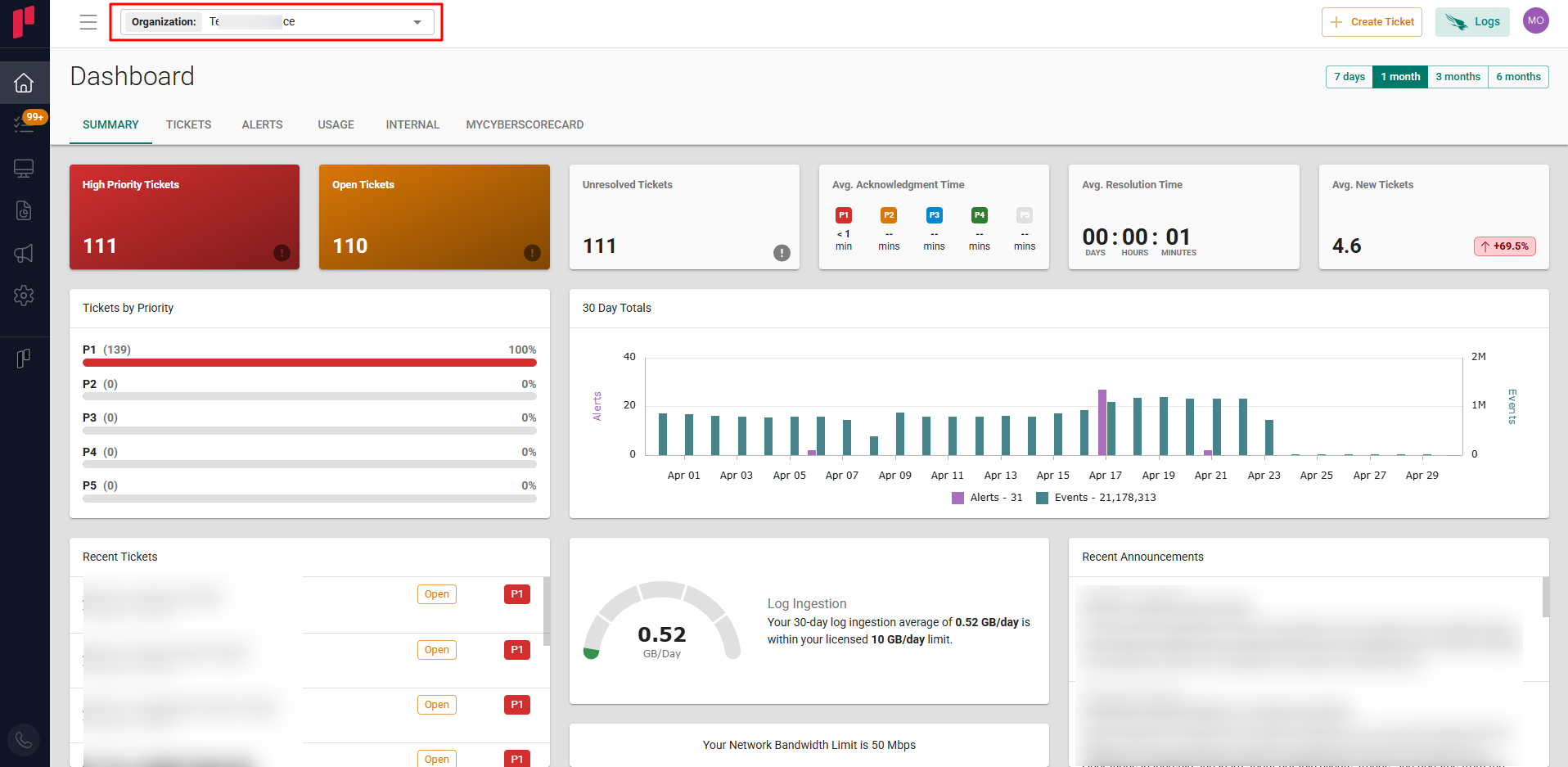
Select the required Organization from the Organization dropdown
-
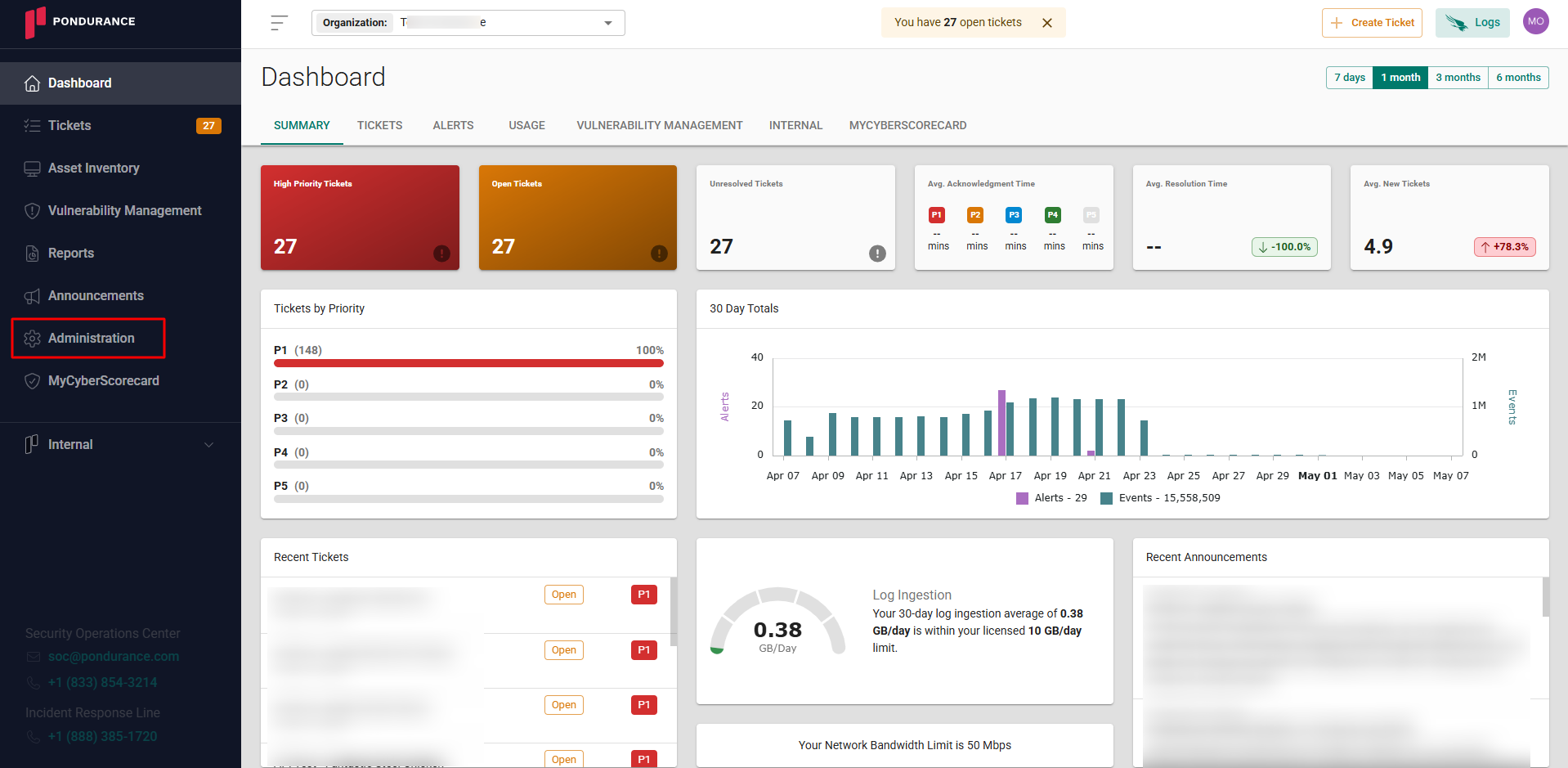
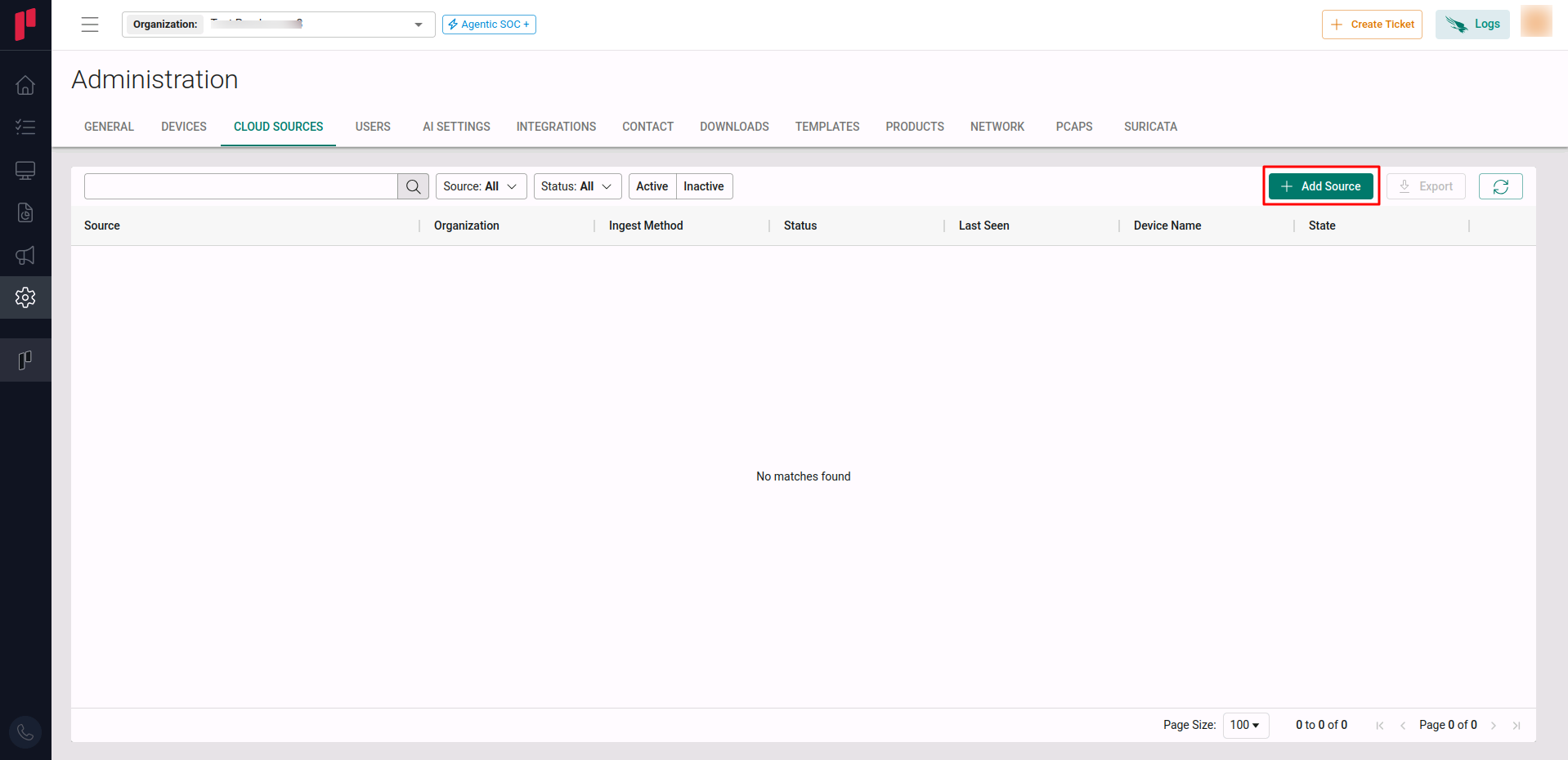
Navigate to the side menu -> Administration
-
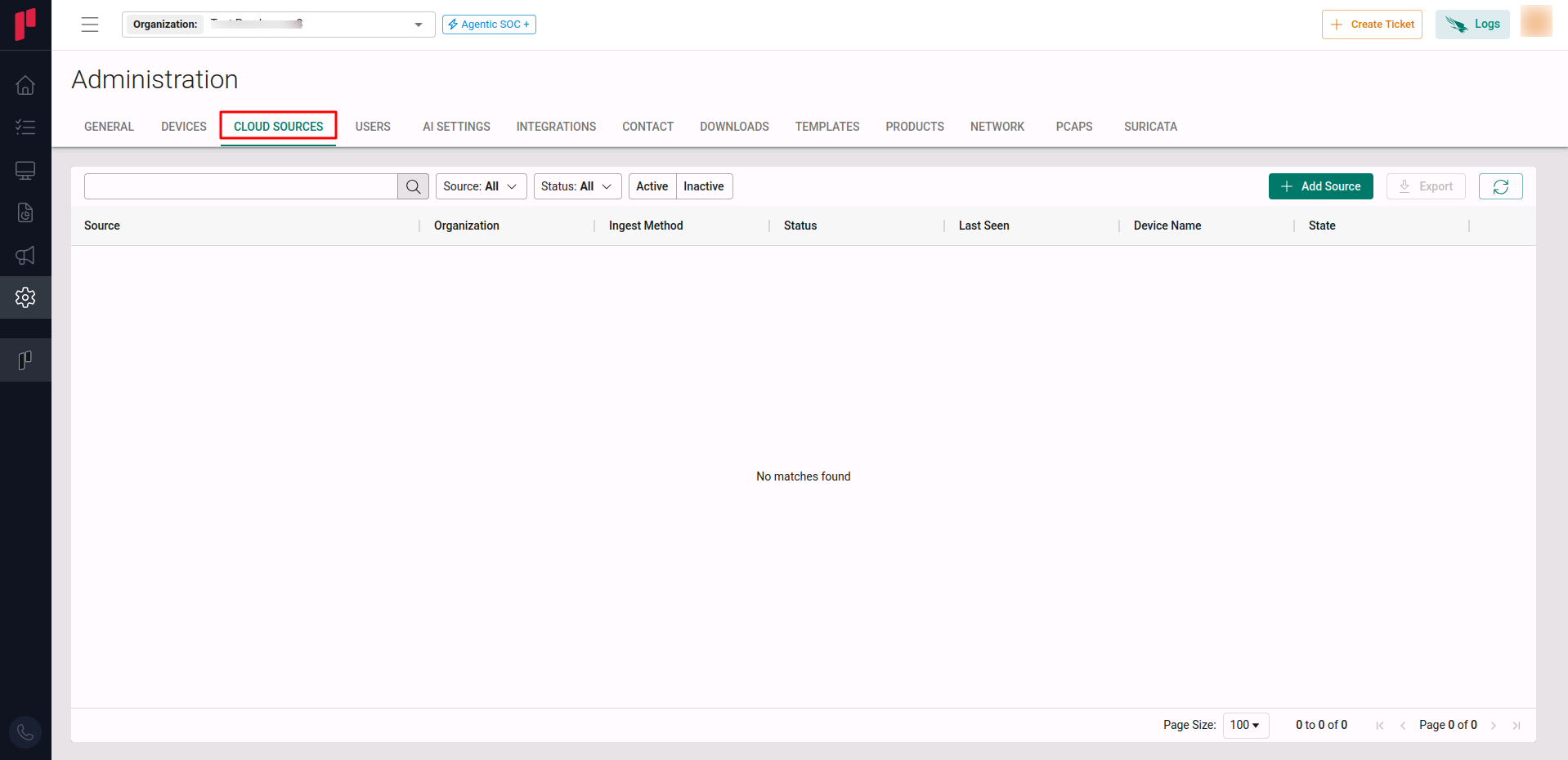
Navigate to the Cloud sources tab
-
Click on the +Add Source button
-
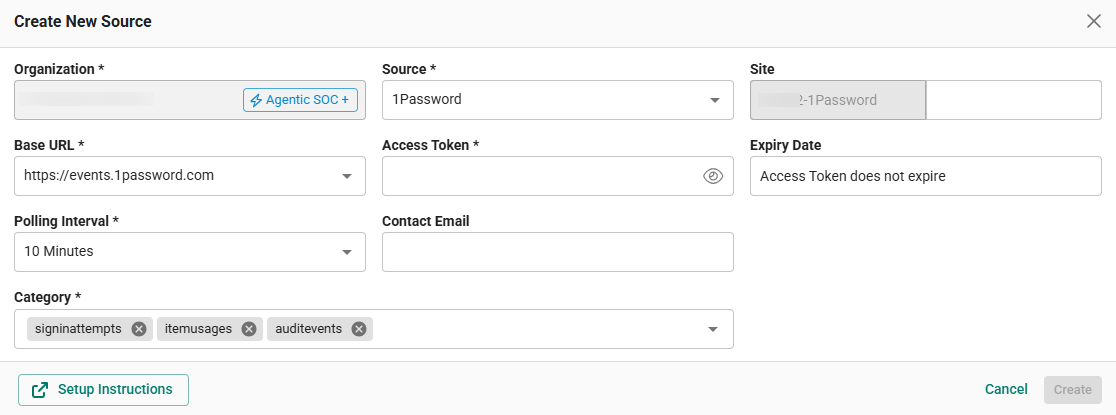
In the Add Source pop-up, provide the parameters below.
-
Source: Select the 1Password source from the Source dropdown.
-
Source: Select the “1Password” source from the Source dropdown.
-
Site: The user defined name for the 1Password cloud source.
-
Base URL: Select the required Base URL from the dropdown (determined in Step 2).
-
Access Token: The Access Token generated in Step 1.
-
Polling Interval: The polling interval for making periodic API calls to the 1Password cloud source. The user can select the time interval from the dropdown.
-
Contact Email: The email address of the person who registers the 1Password cloud source in Scope.
-
Once the required connection parameters are entered, the 1Password cloud source registration is complete in Scope and is ready for ingestion of 1Password logs.