Azure Event Hub
Overview
Configuring a cloud source in Scope is a two-step process.
-
Obtaining the required Azure Event Hub credentials from the Azure Portal. Please refer to Section 1 – Azure Event Hub Setup
-
Setting up the Azure Event Hub cloud source in the Scope application. Please refer to Section 2 – Scope Setup
Azure Event Hub Setup
To get started, you’ll need to obtain the following credentials from the Azure Portal –
- Event Hub Name
- Consumer Group Name
- Event Hub Connection String
- Container Name
- Storage Account SAS Token & SAS Token Expiry Date
- Storage Account Connection String
Step 1: Get the Event Hub Name
Azure Event Hub is a data ingestion service that streams a high volume of messages from any source.
-
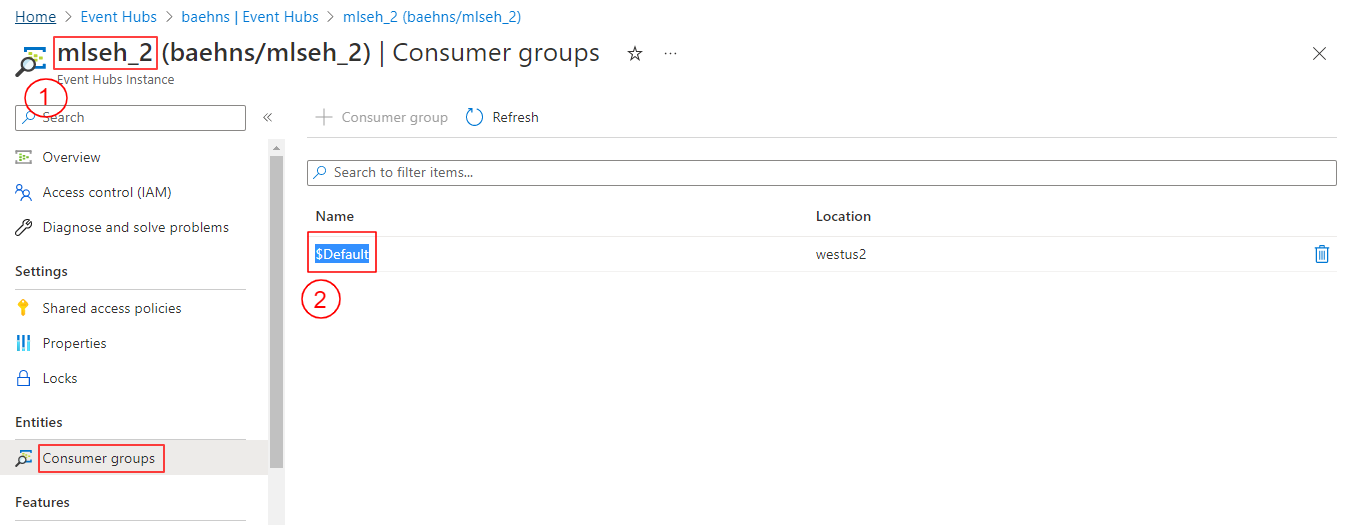
Navigate to the Azure Portal -> Event Hubs service -> select the Namespace -> select the Event Hub.
-
Copy the Event Hub Name.
Step 2: Get the Consumer Group Name
Consumer groups enable multiple consuming applications to each have a separate view of the event stream, and to read the stream independently at their own pace and with their own offsets. By default, $default is the consumer group name for the Event Hub.
-
Navigate to: Azure Portal -> Event Hubs -> select the Namespace -> select the Event Hub -> Consumer Groups from the side menu.
-
Copy the required Consumer Group Name from the list.
Step 3: Get the Event Hub Connection String
-
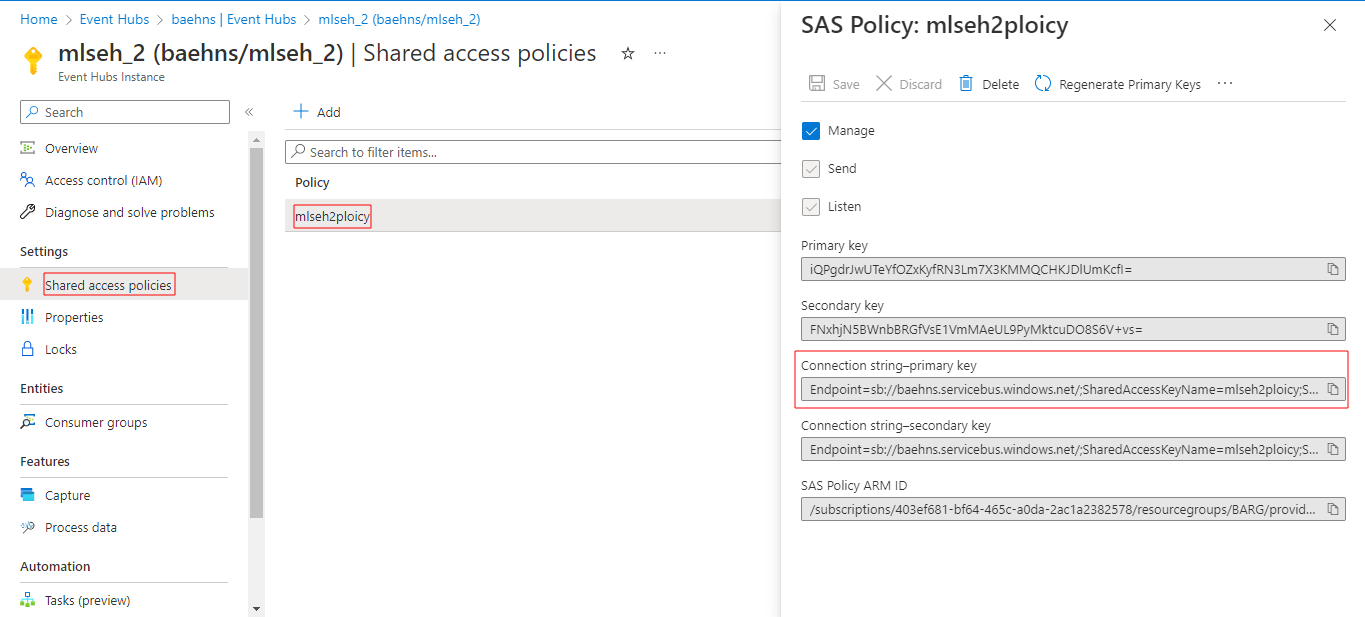
Navigate to: Azure Portal -> Event Hubs -> select the Namespace -> select the Event Hub -> Shared Access Policies -> select the required policy (or create a new one).
-
Copy the Connection String – primary key.
Step 4: Get the Container Name
-
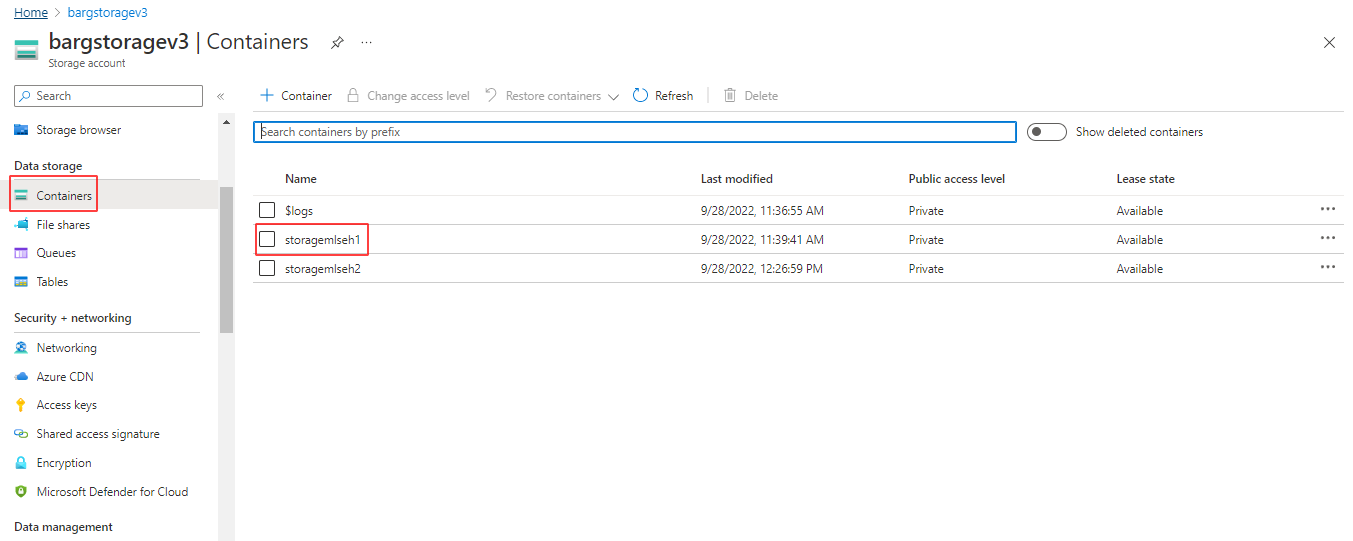
Navigate to: Azure Portal -> Storage Accounts -> select the required Storage Account -> Containers from the left menu.
-
Get the container name from the existing list, or create a new container.
Step 5: Get the SAS Token and Storage Account Connection String
-
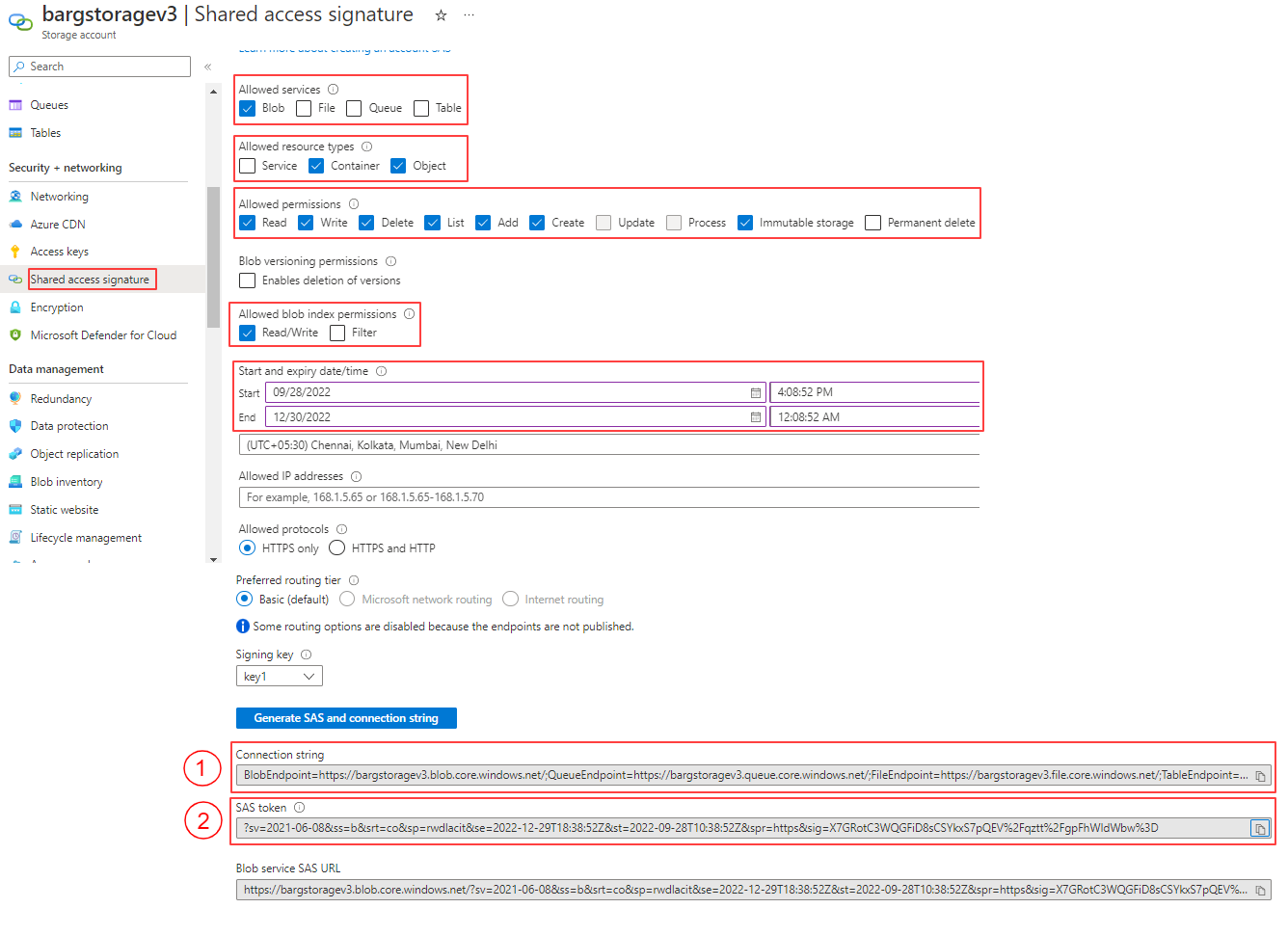
Navigate to: Azure Portal -> Storage Accounts -> select the required Storage Account -> Shared Access Signature.
-
Configure the following minimum selections before generating:
Setting Required Value Allowed Services Blob Allowed Resource Types Container, Object Allowed Permissions Read, Write, Delete, List, Add, Create, Immutable Storage Allowed Blob Index Permissions Read/Write Start and Expiry Date/Time Set as required -
Click Generate SAS and connection string.
-
Copy both the SAS Token and Storage Account Connection String and save them securely.
Note: Both the SAS Token and Storage Account Connection String are generated only once and cannot be retrieved again.
The obtained Event Hub credentials are to be configured in Scope Setup: Step 1 for initiating the Azure Event Hub log ingestion.
Scope Setup
Step 1: Azure Event Hub Cloud Source Registration in the Scope Application
Once the credentials are obtained, they must be configured in the Scope application to establish the connection and enable data ingestion from Azure Event Hub.
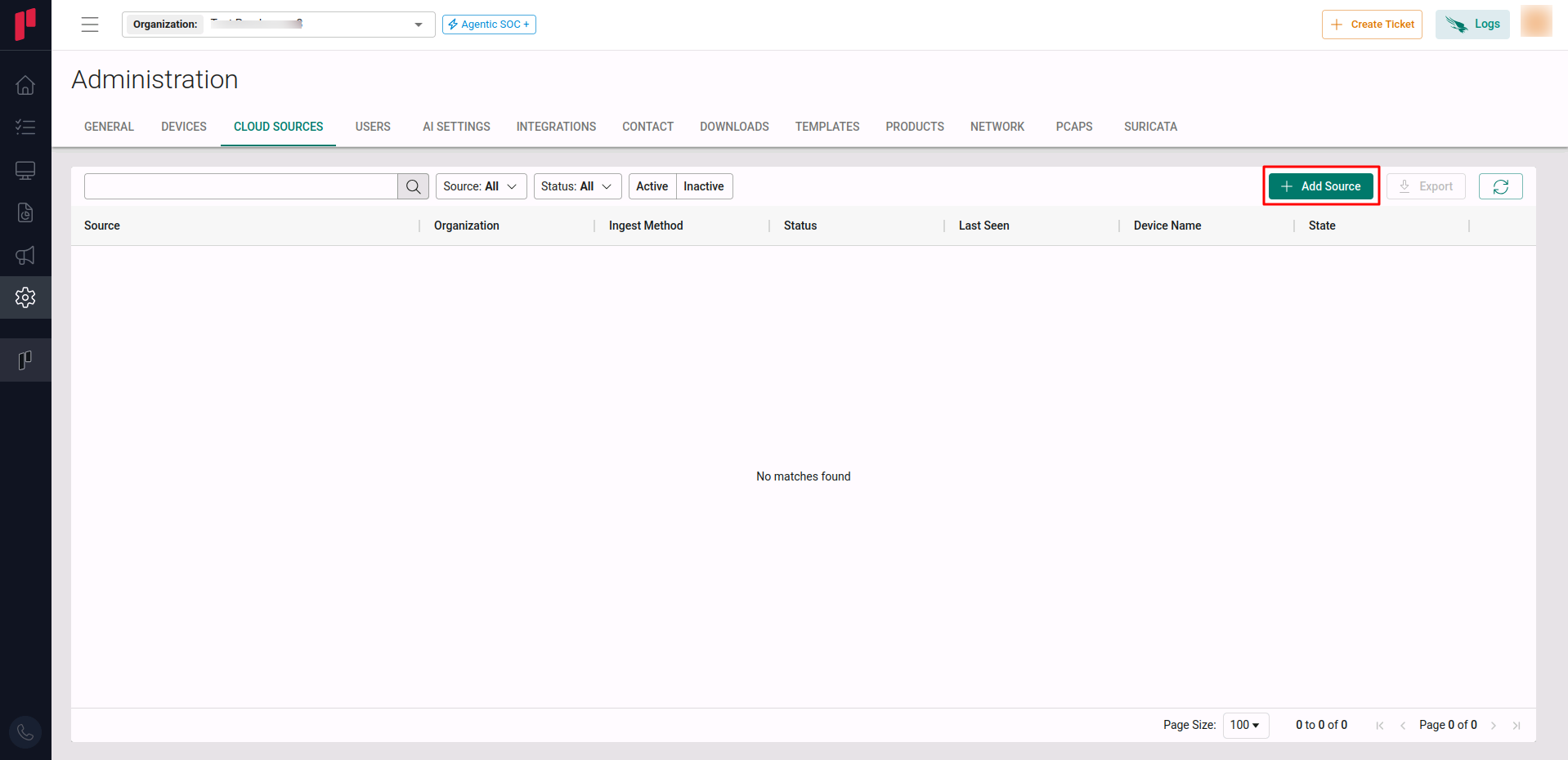
In the Scope application, to register an Azure Event Hub cloud source, navigate to the cloud source registration page –
-
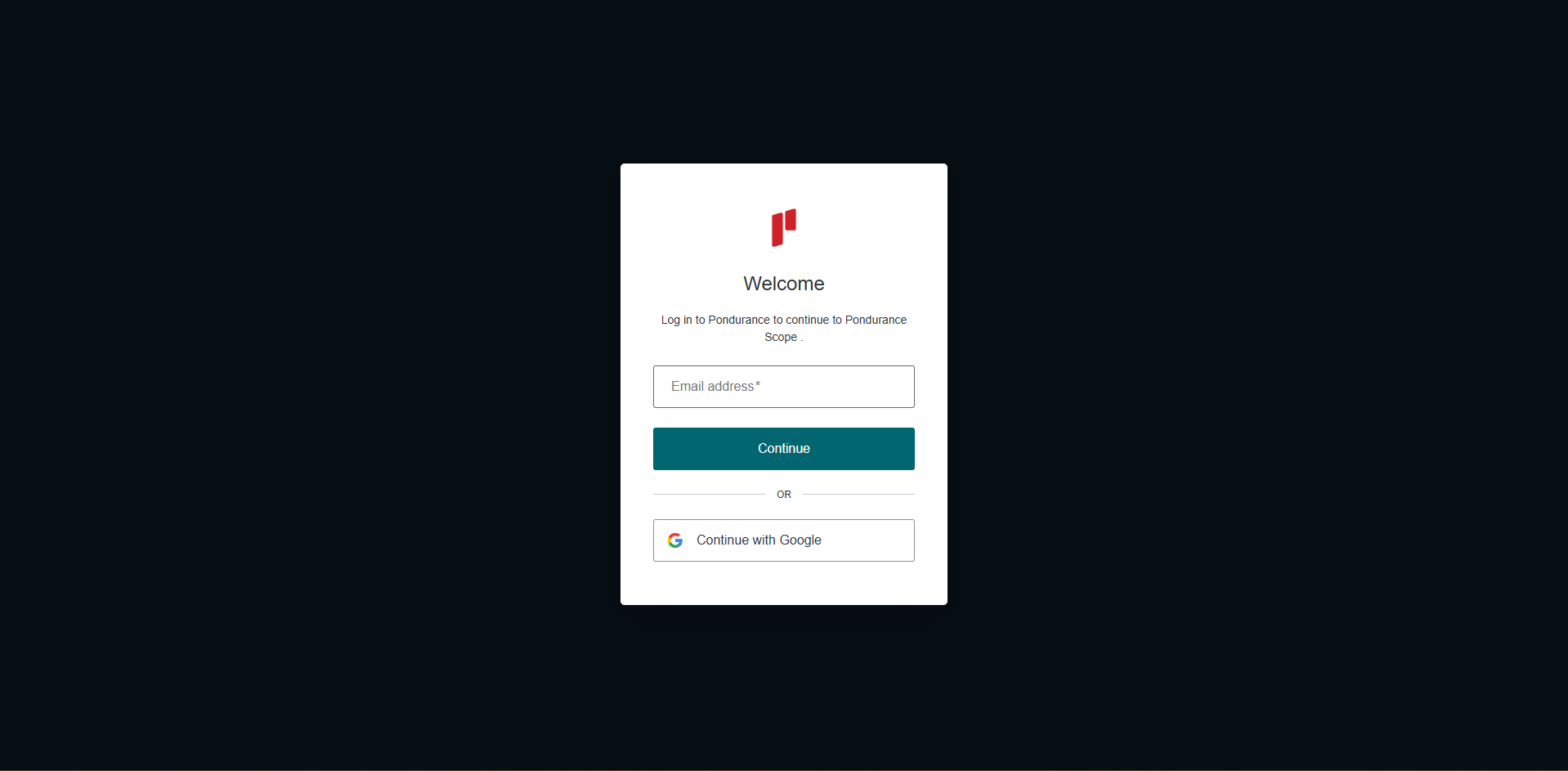
Log into the Scope application
-
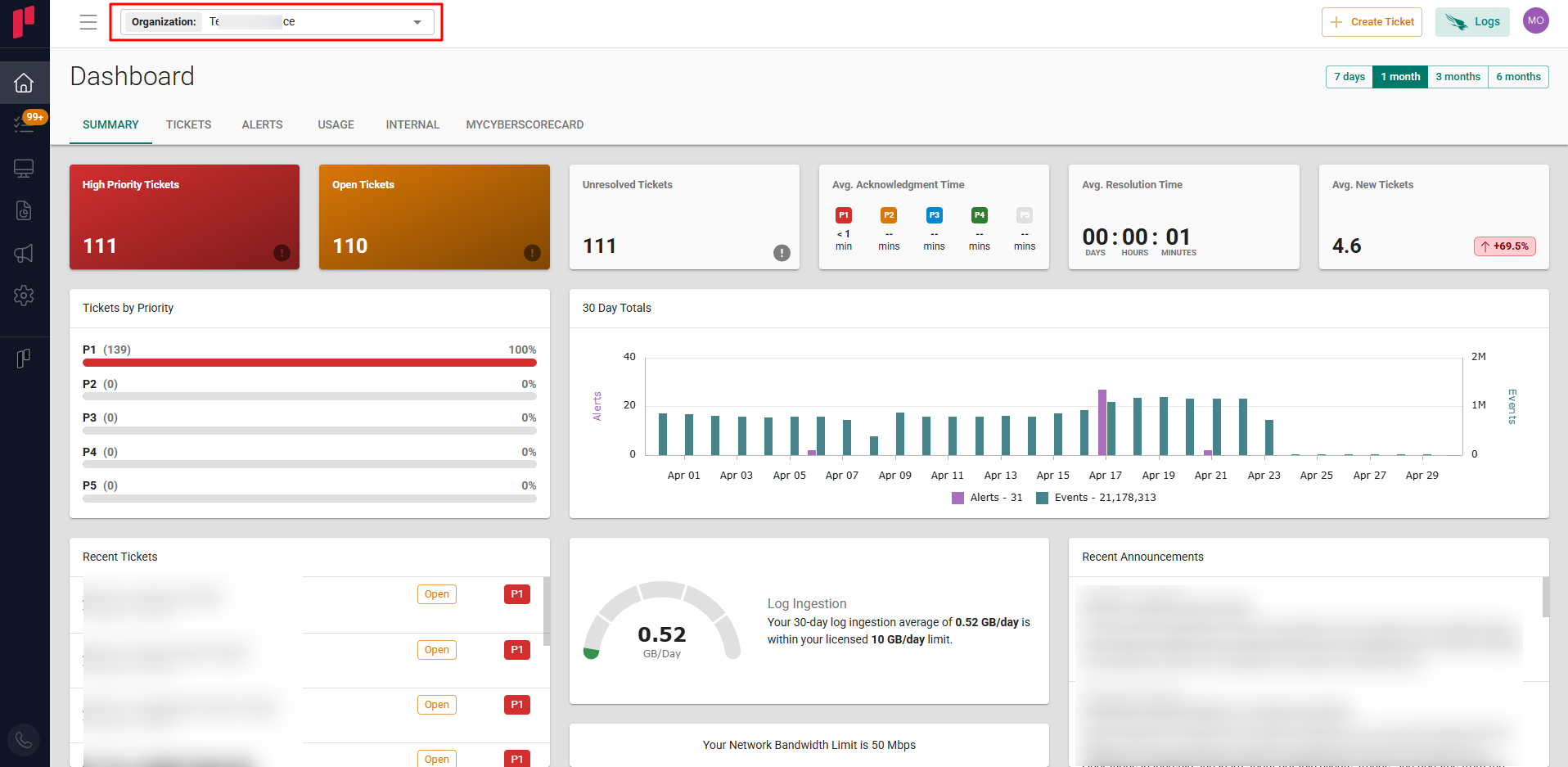
Select the required Organization from the Organization dropdown
-
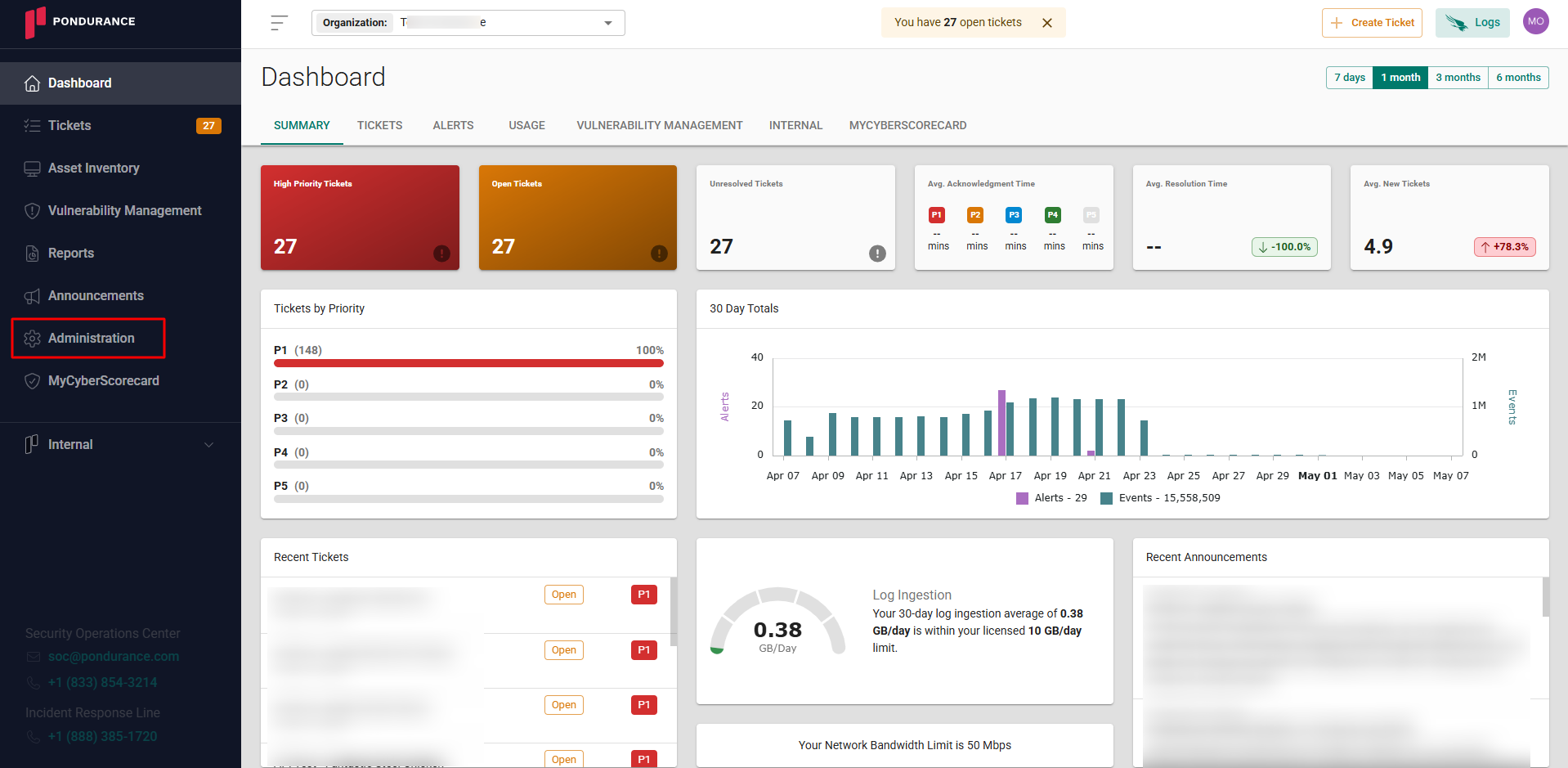
Navigate to the side menu -> Administration
-
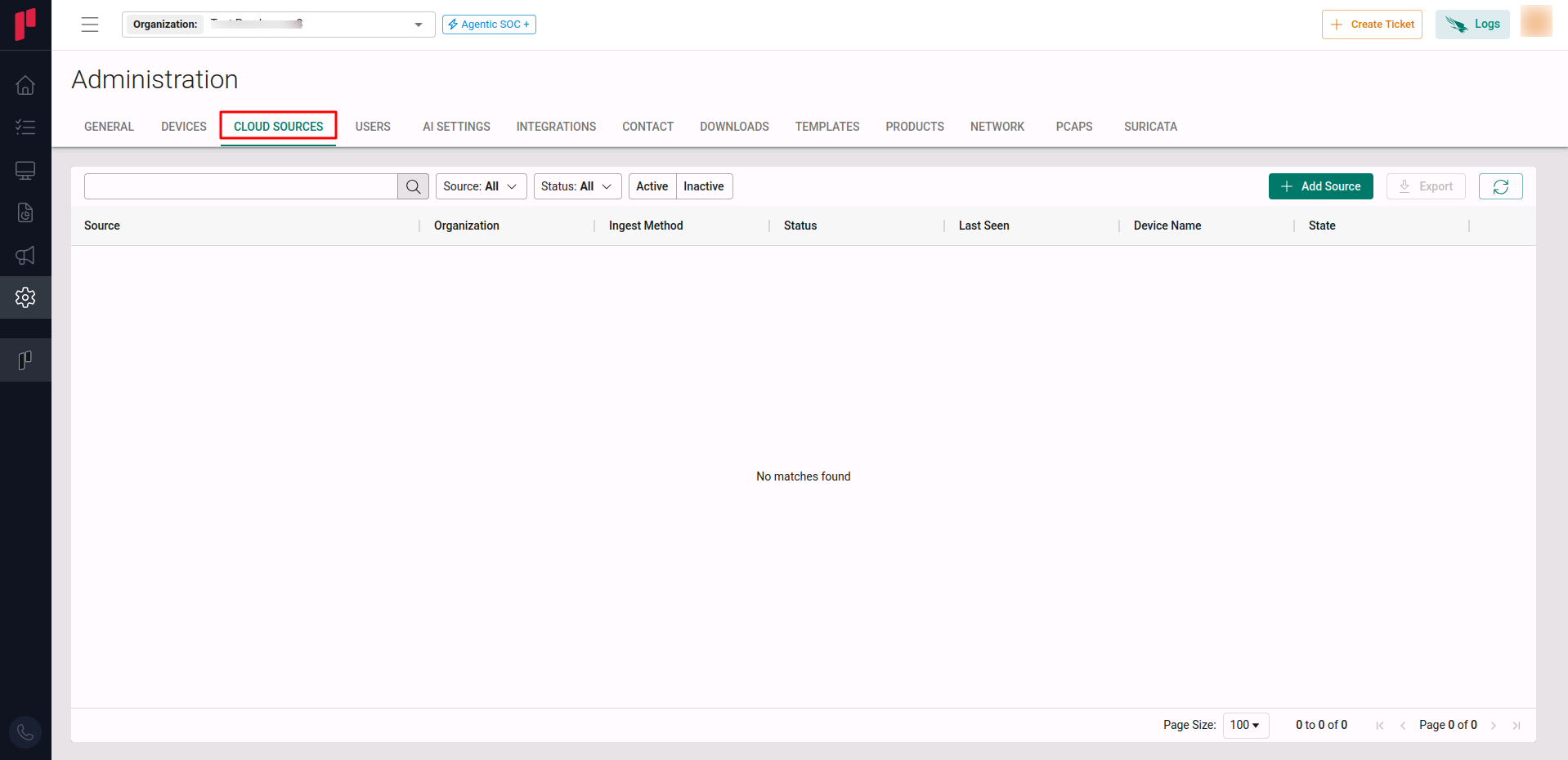
Navigate to the Cloud sources tab
-
Click on the +Add Source button
-
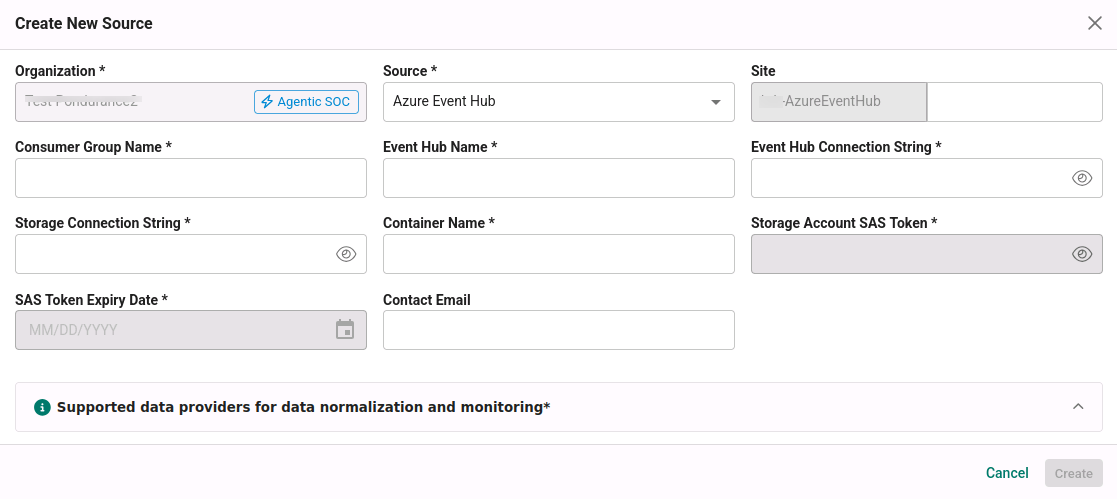
In the Add Source pop-up, provide the parameters below.
-
Source: Select the Azure Event Hub source from the Source dropdown.
-
Site: The user defined name for the Azure Event Hub cloud source.
-
Event Hub Name: Name of the Event Hub from where the logs are collected (from Step 1).
-
Consumer Group Name: Consumer group name from Step 2 – enables the application to consume events independently at its own pace.
-
Event Hub Connection String: The Event Hub Connection String from Step 3.
-
Container Name: Name of the Container from Step 4.
-
Storage Connection String: Storage Account Connection String from Step 5.
-
Once the Azure Event Hub details are validated, the cloud source registration is complete in Scope and is ready for ingestion of Azure Event Hub events.